How to build NAS server
“`html
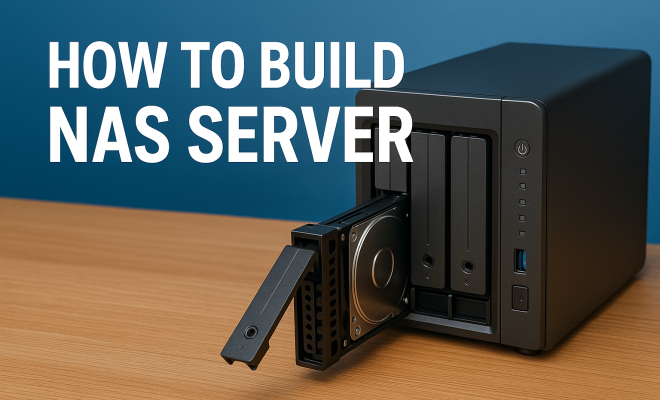
If you’re looking for a reliable way to store and access your data, building a Network Attached Storage (NAS) server could be the perfect solution. A NAS server offers centralized data management, making file sharing across various devices seamless and efficient. In this comprehensive guide, we’ll explore everything you need to know about how to build a NAS server, from choosing the right components to setting it up for optimal performance.
1. Understanding NAS Servers
Before diving into the technical aspects of building a NAS server, it’s crucial to understand what NAS is and how it fits into your data management strategy. A NAS server is essentially a dedicated file storage device that connects to your home or office network, allowing multiple users and devices to access files from a centralized location. Unlike traditional servers, NAS devices are often user-friendly and designed for easy setup.
The main benefits of implementing a NAS server include:
- Centralized Storage: All your files are stored in one location, which means you can access them from any device on the network.
- Data Redundancy: With multiple hard drives configured in RAID setups, your data is protected even in case of hardware failure.
- Media Streaming: Many NAS servers support media streaming capabilities, allowing you to access photos, music, and videos easily.
- Cost-Effective: Compared to traditional servers, NAS solutions can be more budget-friendly while providing ample storage and access capabilities.
- Power Efficiency: NAS devices typically consume less power than conventional servers, making them environmentally friendly options.
2. Key Components Needed for Your NAS Server
Building a NAS server requires a few essential components. Here’s what you’ll need:
- Motherboard: Choose a motherboard that supports multiple SATA connections to accommodate multiple hard drives and provides sufficient I/O ports.
- Processor: A dual-core processor should suffice, but consider an Intel or AMD option that can handle transcoding tasks if you plan to stream media.
- RAM: A minimum of 4GB is recommended, especially if you want to run additional applications or services alongside your NAS.
- Hard Drives: Opt for NAS-rated drives that offer better performance and reliability compared to standard desktop hard drives. Consider using a RAID setup for redundancy.
- Power Supply: Ensure that your power supply can handle the total wattage of all components and has the necessary connectors.
- Case: A case that supports sufficient drive bays will help in organizing your drives and ensuring proper airflow. Look for cases with good ventilation to manage heat effectively.
- Network Interface Card (NIC): While many motherboards come with built-in NICs, you may want to consider upgrading to a faster or dual NIC setup for added speed and redundancy.
3. Choosing the Right Operating System
The choice of operating system (OS) is critical when you build a NAS server. Several OS options are tailored specifically for NAS devices:
- FreeNAS: An open-source OS based on FreeBSD, known for its flexibility and ZFS file system support, which provides advanced data integrity features.
- OpenMediaVault: A Debian-based solution that is user-friendly and offers a web interface for easy management. It supports various plugins for extended functionality.
- Unraid: A paid option that combines file storage and application hosting, appealing for users looking for versatility and the ability to run Docker containers.
- Windows Server: Ideal for those accustomed to the Windows ecosystem, though it may require more resources. It also offers robust Active Directory support for larger networks.
- Rockstor: A Linux-based NAS OS that specializes in Btrfs, offering features like snapshotting and easy management of storage pools.
Your choice will depend on your technical expertise, the specific features you require, and your comfort level with various interfaces.
4. Setting Up Your NAS Hardware
With your components ready, it’s time to assemble your NAS server. Here’s a step-by-step guide:
- Install the CPU: Carefully place the CPU onto the motherboard, ensuring it’s properly aligned with the socket. Lock it in place using the lever mechanism.
- Attach the RAM: Insert the RAM modules into the appropriate slots, taking care to secure them firmly. Make sure to check the motherboard’s manual for the correct slots for dual-channel configurations.
- Install the Motherboard: Secure the motherboard inside the case using screws, making sure it’s well grounded to prevent static damage.
- Connect the Hard Drives: Mount your NAS-rated hard drives and connect them to the motherboard using SATA cables. Use cable ties to keep cables organized and prevent airflow obstruction.
- Power Up: Connect the power supply to the motherboard and hard drives. Ensure all connections are secure and double-check the power supply’s ratings against your components.
After assembling the hardware, double-check everything before powering on the system. Once turned on, you should see the BIOS screen, confirming that your components are recognized. If you run into problems, revisit your connections and ensure all components are properly seated.
5. Installing the Operating System
With your hardware in place, the next step is installing your chosen operating system. Here’s how to do it: (See: Understanding Network Attached Storage.)
1. **Download the OS:** Go to the official website of your selected operating system and download the installation image. Make sure to select the version that matches your hardware architecture (32-bit or 64-bit).
2. **Create Bootable Media:** Use a USB flash drive to create a bootable installer using tools like Rufus or Etcher. Ensure the USB drive is formatted correctly before use.
3. **Boot from USB:** Insert the USB drive into your NAS server and set the BIOS to boot from it. Access BIOS settings usually by pressing a key like F2 or Delete during startup.
4. **Follow Installation Instructions:** Each OS will have its installation wizard. Follow the prompts, select your hard drives for installation, and configure your basic settings such as language and time zone.
5. **Complete the Setup:** After installation, you’ll typically be directed to a web-based interface for further configuration. Make sure to set a strong administrator password during initial setup.
6. Configuring Your NAS Server
Once your NAS operating system is installed, you’ll need to configure it to suit your needs:
- Create User Accounts: Set up user accounts to manage permissions and access levels for different individuals or devices. This is especially important in a multi-user environment to protect sensitive data.
- Set Up Shared Folders: Create shared folders where users can store and access files. Configure access rights based on user roles to prevent unauthorized access.
- Enable RAID Configuration: If you’re using multiple drives, configure them into a RAID setup for redundancy and performance optimization. Consider the trade-offs of different RAID levels based on your data safety needs.
- Install Apps: Many NAS operating systems support third-party applications. Consider installing apps for media streaming (like Plex) or backup services. Look into tools for file synchronization as well, such as Nextcloud or Syncthing.
- Network Configuration: Set up static IP addresses for your NAS to ensure it’s always accessible on your network. You may also want to adjust your router’s settings for optimal performance.
With proper configuration, your NAS server will be ready for various tasks, from file storage to media streaming. Testing the setup with different devices can ensure everything works seamlessly.
7. Best Practices for Data Management
Building a NAS server is just the beginning; managing your data efficiently is crucial. Here are some best practices:
- Regular Backups: Schedule regular backups to an external drive or cloud service to ensure data safety. Implement a 3-2-1 backup strategy: three copies of data, on two different media, with one copy off-site.
- Monitor Disk Health: Use monitoring tools to keep an eye on the health of your hard drives, helping to prevent data loss. Tools like S.M.A.R.T. can provide insights into drive conditions.
- Organize Files: Maintain a structured folder hierarchy to make finding files easier. Consistency in naming conventions can also help with file retrieval.
- Enable Remote Access: Configure remote access settings to allow secure access to your NAS from outside your network. Always use VPNs or secure tunneling methods to protect your data during remote access.
- Update Regularly: Keep your NAS OS and applications updated to protect against vulnerabilities and enjoy new features. Set reminders for regular maintenance checks.
By following these practices, you can ensure that your NAS server remains efficient and your data is secure. Establishing clear protocols for data access and management can significantly enhance the user experience.
8. Troubleshooting Common Issues
Despite your best efforts, you may encounter issues while using your NAS server. Here are common problems and their solutions: (See: Guide to Data Storage and Management.)
- Inaccessible Files: Check network connections and user permissions if files aren’t accessible. Sometimes simply restarting the NAS or the client device can resolve connectivity issues.
- Drive Failure Alerts: If a drive fails, immediately replace it and restore data from the most recent backup. Keep spare drives on hand for quick replacements.
- Slow Performance: Slow access speeds could be due to network issues or improper RAID configurations. Check your network speed, optimize settings, and ensure your drives are healthy.
- Configuration Errors: If you face issues with settings not applying, double-check your configurations for accuracy. In some cases, a clean reinstall of the OS may be warranted.
Troubleshooting requires patience, but understanding the common pitfalls can make it easier to resolve issues quickly. Engaging with community forums specific to your NAS OS can also provide additional support and insights.
9. Future-Proofing Your NAS Server
As technology evolves, so should your NAS server. Here are ways to future-proof your setup:
- Upgrade RAM: As your needs grow, consider upgrading the RAM to improve performance. Research your NAS OS’s RAM requirements, particularly if you plan to run applications like Docker.
- Expand Storage: Plan for additional drives or larger capacity drives to accommodate growing data storage needs. Keep an eye on emerging storage technologies that may offer better performance.
- Stay Updated: Regularly update your NAS operating system and applications to benefit from new features and security patches. Enable automatic updates if possible to simplify this process.
- Evaluate Network Infrastructure: As data throughput increases, consider upgrading your networking hardware to support faster connections, such as transitioning to a 10GbE network.
By thinking ahead, you’ll ensure that your NAS server continues to meet your needs for years to come. A comprehensive plan for monitoring and assessing your storage and performance needs can be invaluable.
10. Frequently Asked Questions (FAQ)
Here are some common questions regarding building and managing a NAS server:
Q1: Can I use my NAS server for media streaming?
Yes! Most NAS servers are capable of streaming media to various devices. Utilize software like Plex or Emby to organize and stream your media library across your network and the internet.
Q2: How much storage do I need for my NAS?
The amount of storage you need depends on your intended use. Consider how much data you currently have, any anticipated growth, and whether you plan to keep backups on the NAS. A good strategy is to estimate your usage and then double it to ensure you have ample space.
Q3: Is a NAS server secure?
A NAS server can be secure, provided you follow best practices for security. This includes using strong passwords, enabling two-factor authentication, keeping software up to date, and controlling user access properly.
Q4: How do I access my NAS remotely?
You can access your NAS remotely by configuring remote access features within your NAS OS. Using a VPN adds an additional layer of security, allowing you to access your files as if you were on the local network.
Q5: What is RAID, and do I need it for my NAS?
RAID (Redundant Array of Independent Disks) is a data storage virtualization technology that combines multiple physical disk drive components into one logical unit. It enhances performance and provides redundancy in case of drive failure. While not mandatory, using RAID is highly recommended for data protection. (See: Network Attached Storage in Computer Science.)
11. Advanced NAS Server Features
As you become more familiar with your NAS server, you may want to explore advanced features that can enhance its functionality:
- Virtualization: Some NAS systems allow you to run virtual machines, which can be useful for testing new software or running different operating systems without dedicated hardware.
- Automated Backups: Set up automated backup solutions to ensure that your data is regularly saved to an off-site location or cloud service, providing an extra layer of security.
- File Syncing: Use built-in tools to synchronize files across different devices, ensuring you always have the latest version available, no matter where you are.
- Monitoring and Alerts: Enable monitoring tools that send alerts for system health, drive status, and other critical functions so you can address potential issues proactively.
- App Ecosystem: Explore the app ecosystems provided by your NAS OS. You can find applications for web hosting, database management, and more, expanding the capabilities of your NAS.
12. Comparing NAS Brands
When it comes to building a NAS server, the choice of brand can impact your experience significantly. Let’s look at a few popular brands and what they offer:
- Synology: Known for its user-friendly interface, Synology NAS units come with a range of applications for backup, media streaming, and cloud synchronization. Their DiskStation Manager is often praised for its ease of use.
- QNAP: Offers powerful hardware options and a wide range of applications. QNAP devices are known for their multimedia capabilities and robust backup options, including support for virtualization.
- TerraMaster: A budget-friendly choice that provides solid performance for home users and small businesses. TerraMaster is a good entry-level option featuring easy setup and operation.
- Western Digital: Their My Cloud series is designed for personal storage and is particularly appealing for users who want straightforward file access and backup without complex setup processes.
- ASUSTOR: This brand offers a blend of performance and affordability, with a focus on multimedia applications. ASUSTOR NAS devices come with extensive app support and robust hardware options.
When choosing a brand, consider your specific needs, the types of applications you want to run, and your budget. Each brand has its strengths, so it’s worth doing your research to find the best fit.
13. Community and Support Resources
Building and maintaining a NAS server can be challenging but having access to community forums and support resources can be invaluable:
- Online Forums: Sites like Reddit, Stack Exchange, and specific NAS manufacturer forums are great places to ask questions, share experiences, and find solutions.
- Documentation: Most NAS operating systems come with comprehensive documentation. Familiarize yourself with the manuals and guides available to maximize your setup.
- YouTube Tutorials: There are countless video tutorials available that demonstrate everything from hardware setup to software configuration. Visual aids can often clarify complex processes.
- Blogs and Articles: Tech blogs often review NAS systems and provide setup guides, tips, and tricks that can help enhance your experience.
Engaging with these resources can help you troubleshoot issues, learn best practices, and explore advanced features that you might not have considered.
Building a NAS server might seem daunting at first, but with careful planning and execution, it can be a rewarding process that enhances your data management experience. Whether for personal use or small business needs, a well-constructed NAS can save time, protect your data, and offer peace of mind. With the right components, software, and ongoing management, your NAS server can become a cornerstone of your digital life.
“`
Trending Now
Frequently Asked Questions
What do I need to build a NAS server?
To build a NAS server, you'll need essential components such as a motherboard with multiple SATA connections, a dual-core processor, sufficient RAM, hard drives for storage, and a power supply. Additionally, consider a case that accommodates your components and offers proper cooling.
How does a NAS server work?
A Network Attached Storage (NAS) server works by connecting to your home or office network, allowing multiple users and devices to access files from a centralized location. It utilizes a dedicated operating system and can support various RAID configurations for data redundancy and protection.
What are the benefits of using a NAS server?
The benefits of using a NAS server include centralized storage for easy file access, data redundancy to protect against hardware failure, media streaming capabilities for multimedia access, cost-effectiveness compared to traditional servers, and energy efficiency due to lower power consumption.
Can I stream media from my NAS server?
Yes, many NAS servers support media streaming capabilities, allowing you to access and stream photos, music, and videos easily across your devices. This makes it a great option for home entertainment setups.
Is building a NAS server difficult?
Building a NAS server is generally user-friendly and not overly complex, especially with the right components and guidance. Most users can set up a NAS server with basic technical knowledge, making it an accessible project for home or office use.
What’s your take on this? Share your thoughts in the comments below — we read every one.