How to screen mirror iPhone to Apple TV
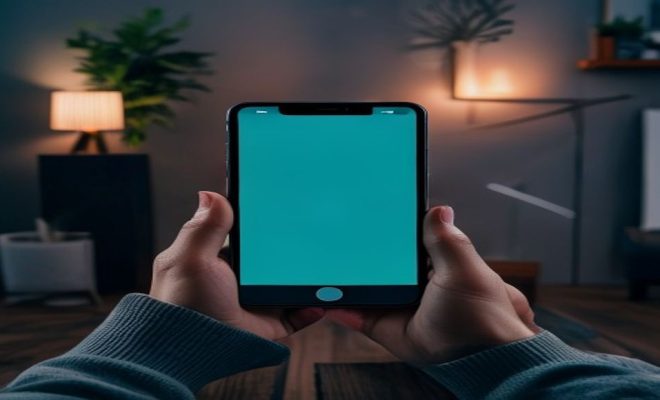
Ever found yourself huddled around a tiny iPhone screen, trying to share a hilarious video or a crucial presentation with a group? It’s a common frustration in our increasingly digital lives. We’ve all been there, squinting and passing the phone around, wishing there was a simpler way. Good news: there is. The ability to screen mirror iPhone to Apple TV is a game-changer, transforming your small device into a big-screen experience with remarkable ease. It’s not just about convenience; it’s about enhancing how we consume media, share moments, and even collaborate.
While the concept of screen mirroring might sound a bit technical, Apple has made the process incredibly intuitive, especially when pairing an iPhone with an Apple TV. This integration is one of the many reasons people invest in the Apple ecosystem. You’re not just buying devices; you’re buying a seamless experience that often anticipates your needs. Whether you’re a seasoned Apple user or new to the ecosystem, understanding the ins and outs of mirroring your iPhone to your Apple TV can unlock a wealth of possibilities you might not even realize exist. Let’s dive into how you can make the most of this powerful feature.
1. Understanding AirPlay: The Magic Behind the Mirror
At the heart of screen mirroring an iPhone to an Apple TV lies a proprietary Apple technology called AirPlay. Think of AirPlay as Apple’s wireless streaming protocol, designed to send audio, video, and even entire screen contents from one Apple device to another. It’s not just a simple cast; it’s a robust, secure, and remarkably low-latency connection that makes real-time mirroring truly practical. When you initiate AirPlay, your iPhone essentially establishes a direct, encrypted link with your Apple TV, allowing for a smooth and uninterrupted flow of data.
The beauty of AirPlay is its simplicity. Unlike some other casting technologies that require complex setups or third-party apps, AirPlay is built directly into iOS and tvOS. This means you don’t need to download anything extra or tweak obscure settings. It just works, and that’s a testament to Apple’s commitment to user experience. From playing music through your home theater system to displaying your latest vacation photos on the big screen, AirPlay is the invisible thread that connects your Apple devices in a truly powerful way.
2. Prerequisites for a Smooth Mirroring Experience
Before you even think about tapping that ‘Screen Mirroring’ button, there are a couple of fundamental things you need to ensure are in place. These aren’t complex hurdles, but rather essential groundwork for a seamless connection. First and foremost, both your iPhone and your Apple TV need to be connected to the same Wi-Fi network. This isn’t just a suggestion; it’s a requirement. AirPlay relies on local network communication, so if your devices are on different networks – say, one on your main Wi-Fi and the other on a guest network – they simply won’t be able to find each other.
Beyond network connectivity, make sure both your iPhone and your Apple TV are running relatively current software versions. While AirPlay has been around for a while, updates often bring performance improvements, bug fixes, and enhanced compatibility. An outdated device might struggle with newer AirPlay features or encounter unexpected glitches. A quick check in your device settings for pending updates can save you a lot of troubleshooting headaches down the line. It’s a small step that makes a big difference in the reliability of your screen mirror iPhone to Apple TV connection.
3. The Basic Steps to Screen Mirror iPhone to Apple TV
Now for the main event: actually mirroring your iPhone’s screen. The process is incredibly straightforward, designed for quick access. First, ensure your Apple TV is powered on and actively displaying its home screen. Then, grab your iPhone and swipe down from the top-right corner on iPhone X or later (or swipe up from the bottom edge on older iPhones) to open the Control Center. This is your central hub for quick settings and controls.
Within the Control Center, you’ll spot a distinctive icon with two overlapping rectangles. That’s your ‘Screen Mirroring’ button. Tap it, and your iPhone will automatically scan for available AirPlay devices on your network. You should see your Apple TV listed among the options. Select your Apple TV, and almost instantly, your iPhone’s screen will appear on your television. It’s truly that simple. You’ll notice a blue bar or indicator at the top of your iPhone’s screen, signifying that mirroring is active. To stop mirroring, simply return to the Control Center, tap the Screen Mirroring icon again, and select ‘Stop Mirroring’.
4. Using AirPlay for Specific Content (Not Just Mirroring)
While full screen mirroring is incredibly useful, AirPlay offers an even more granular control: streaming specific content without mirroring your entire screen. This is a subtle but important distinction. When you stream specific content, like a video from the Photos app or a song from Apple Music, only that content is sent to your Apple TV. Your iPhone’s screen remains independent, allowing you to browse other apps, respond to messages, or even put your phone to sleep without interrupting the stream on your TV.
To do this, simply open the app containing the content you want to share – Photos, Music, Safari, YouTube, Netflix, etc. Look for the AirPlay icon, which again looks like a rectangle with an upward-pointing triangle at the bottom. It’s usually found within the playback controls of videos or songs, or sometimes directly within a share sheet. Tap this icon, select your Apple TV from the list, and your content will begin playing on the big screen. This method is often preferred for longer viewing sessions as it conserves iPhone battery and allows for multitasking. (See: Learn about AirPlay technology.)
5. Troubleshooting Common AirPlay Issues
Even with Apple’s seamless integration, technology can occasionally be finicky. If you find your screen mirror iPhone to Apple TV isn’t working as expected, don’t panic. There are a few common troubleshooting steps you can take. First, the age-old IT trick: restart everything. Power cycle your iPhone, your Apple TV, and most importantly, your Wi-Fi router. A fresh start often resolves transient network glitches that prevent devices from communicating properly. We covered teaching with your iPhone in more detail.
Next, double-check those prerequisites we discussed earlier. Are both devices on the same Wi-Fi network? Are they updated to the latest software? Sometimes, simply toggling Wi-Fi off and on again on your iPhone can refresh its network connection. Also, if you’re using a VPN on your iPhone, try disabling it temporarily, as VPNs can sometimes interfere with local network discovery protocols like AirPlay. If your Apple TV has an Ethernet port and you’re experiencing persistent wireless issues, consider connecting it directly to your router with a cable for a more stable connection.
6. Security and Privacy Considerations with Screen Mirroring
When you screen mirror iPhone to Apple TV, especially in environments where others might be present, security and privacy are valid concerns. Apple has built several features to address these. For instance, when you connect to an Apple TV for the first time, or if your Apple TV is configured for enhanced security, you might be prompted to enter a four-digit AirPlay passcode that appears on your TV screen. This ensures that only authorized users can cast content to your Apple TV, preventing unwanted intrusions.
If you’re in a public setting, like a conference room or a shared living space, it’s wise to be mindful of what’s on your iPhone screen before you mirror it. Remember, everything you see on your phone will be visible on the TV. This includes notifications that might pop up, private messages, or even apps running in the background. While AirPlay connections are encrypted, exercising common sense about what you display publicly is always a good practice. Always disconnect mirroring when you’re done, especially if you’re not in a private space.
7. Optimizing Your Experience: Latency and Quality
The quality of your screen mirror iPhone to Apple TV experience largely depends on your Wi-Fi network. AirPlay streams high-definition video and audio, which requires significant bandwidth. If you’re experiencing lag, pixelation, or audio/video sync issues, your network is likely the bottleneck. Try to minimize other bandwidth-intensive activities on your network while mirroring, such as large downloads or multiple simultaneous video streams.
The proximity of your iPhone and Apple TV to your Wi-Fi router can also play a role. Closer is generally better, as it reduces signal interference. If your router supports both 2.4 GHz and 5 GHz Wi-Fi bands, try connecting both your iPhone and Apple TV to the 5 GHz band, as it typically offers faster speeds and less congestion, albeit with a slightly shorter range. Keep in mind that older Apple TV models might only support 2.4 GHz Wi-Fi, which could limit your options. For critical presentations or gaming, consider a dedicated router or optimizing your network setup to prioritize AirPlay traffic. (casting Apple TV to Chromecast)
8. Beyond the Basics: Advanced AirPlay Features
AirPlay isn’t just about mirroring; it has some clever tricks up its sleeve. For instance, did you know you can use your iPhone as a remote control for content you’re AirPlaying? If you start a video from an app on your iPhone and send it to your Apple TV, your iPhone’s lock screen or Control Center will often display playback controls, allowing you to pause, play, skip, or adjust volume without needing the physical Apple TV remote. This is particularly handy if the remote is out of reach or you prefer using your phone.
Another often-overlooked feature is the ability to extend your iPhone’s display rather than just mirroring it. While not widely supported for all apps, some specific applications, particularly certain games or presentation tools, can use AirPlay to send a different view to the TV than what’s on your iPhone screen. For example, a racing game might show the full track on your TV while your iPhone displays a map or car telemetry. This ‘second screen’ functionality isn’t as prevalent as mirroring, but it highlights the versatility of the AirPlay protocol.
9. Why Screen Mirroring is Still Relevant in a Streaming World
With the proliferation of smart TVs and direct streaming apps on Apple TV, you might wonder if screen mirroring an iPhone to an Apple TV is still necessary. The answer is a resounding yes! While many popular services have dedicated apps, there are countless scenarios where mirroring remains indispensable. Think about that niche app you love that doesn’t have an Apple TV version, or a website that streams live content directly through its browser. Screen mirroring allows you to bring any content from your iPhone to the big screen, bypassing app limitations.
It’s also incredibly useful for productivity. Imagine sharing a document for review, collaborating on a design mock-up, or walking through a presentation that’s stored locally on your iPhone. For personal use, it’s perfect for showing off photos and videos from your recent trip that are still in your camera roll, or even for group FaceTime calls where seeing everyone on a larger display makes the interaction far more engaging. Screen mirroring offers a universal bridge between your mobile world and your living room, ensuring you’re never truly limited by screen size.
10. Future Trends: What’s Next for iPhone and Apple TV Integration?
The relationship between the iPhone and Apple TV is constantly evolving. As Apple pushes the boundaries of its hardware and software, we can expect even more seamless and powerful integration. We’ve already seen advancements like ‘Continuity Camera,’ allowing you to use your iPhone as a webcam for your Apple TV 4K, bringing high-quality video conferencing to your living room. This hints at a future where the iPhone acts as an even more central hub for your home entertainment and productivity. (See: CDC on screen time and technology.)
Expect improvements in latency, higher resolution support, and perhaps even more sophisticated multitasking options where your iPhone and Apple TV screens can work in concert in novel ways. As augmented reality (AR) continues to grow, it’s not a stretch to imagine AR experiences initiated on your iPhone being projected onto your TV, blending digital overlays with your physical environment in new and exciting ways. The core functionality of screen mirror iPhone to Apple TV will undoubtedly remain, but its capabilities are only set to expand, making the Apple ecosystem an even more compelling choice for connected living.
11. Comparing AirPlay to Other Casting Technologies
While we’ve focused on screen mirror iPhone to Apple TV using AirPlay, it’s worth understanding how this technology stacks up against alternatives like Google Chromecast or Miracast. Each has its strengths and ideal use cases. AirPlay, being an Apple proprietary technology, shines in its tight integration and seamless experience within the Apple ecosystem. It prioritizes ease of use and consistent performance when connecting Apple devices.
Chromecast, on the other hand, is Google’s answer to wireless streaming. It’s more universal in terms of device compatibility, working with Android, iOS, and even desktop browsers. Instead of mirroring your entire screen by default, Chromecast typically ‘casts’ content directly from the internet via the streaming device, freeing up your phone for other tasks. This approach can sometimes offer better battery life for your phone compared to continuous mirroring. Miracast is another open standard for wireless display, often built into Windows PCs and many smart TVs. While it aims for broad compatibility, its implementation can sometimes be less consistent across different manufacturers, leading to more varied performance and setup experiences.
The key differentiator for AirPlay is that holistic Apple experience. If your household is primarily Apple-centric, AirPlay offers an unparalleled level of convenience and reliability. If you have a mix of devices or frequently stream from non-Apple sources, a multi-platform solution like Chromecast might offer more flexibility. But for the core task of screen mirror iPhone to Apple TV, AirPlay is specifically engineered to be the most fluid option.
12. Impact of Different Apple TV Generations on Mirroring
Not all Apple TVs are created equal, and the generation of your Apple TV can subtly affect your screen mirroring experience. Older models, like the Apple TV (2nd and 3rd generation), primarily supported AirPlay 1. This version was excellent for its time but focused more on basic audio and video streaming. When you wanted to screen mirror iPhone to Apple TV on these devices, the resolution might have been capped at 720p or 1080p, and latency could be slightly higher.
The Apple TV HD (4th generation) and especially the Apple TV 4K models brought significant improvements with AirPlay 2. AirPlay 2 introduced enhanced buffering for smoother playback, multi-room audio capabilities, and improved stability. Critically for screen mirroring, it often offers lower latency and support for higher resolutions, making games or fast-moving content appear much more fluid on your TV. If you’re using a newer iPhone and an older Apple TV, you might not experience the absolute best mirroring performance. Upgrading your Apple TV can unlock a noticeably snappier and higher-quality mirroring experience, especially for demanding applications.
13. Educational and Professional Applications of Screen Mirroring
The utility of screen mirror iPhone to Apple TV extends far beyond casual entertainment. In educational settings, it’s a powerful tool for teachers and students. Imagine a teacher demonstrating an educational app on their iPhone, projecting it onto a large classroom display for everyone to see. Students can then follow along on their own devices or participate directly. For presentations, it allows for dynamic, on-the-fly sharing of content from an iPhone, whether it’s a website, a document, or even handwritten notes from an app like Notability or Goodnotes.
Professionally, screen mirroring transforms meetings and collaborations. Product designers can instantly share mock-ups, developers can showcase app builds, and sales teams can present dynamic pitches directly from their iPhones. It eliminates the need for cables, adapters, or complex setup procedures, streamlining the start of any meeting. Real estate agents can show clients virtual tours or property photos on a large screen, architects can display blueprints, and medical professionals can review images with colleagues. The ability to quickly and wirelessly share your iPhone’s screen fosters more interactive and efficient communication in almost any professional field.
Frequently Asked Questions (FAQ) about Screen Mirroring iPhone to Apple TV
Q1: Do I need an internet connection for screen mirroring?
You need a local Wi-Fi network for both your iPhone and Apple TV to connect to, but you don’t necessarily need an active internet connection for basic screen mirroring. AirPlay works over your local network. However, if the content you’re mirroring (like a Netflix show or a YouTube video) requires internet access, then your Wi-Fi network will need to be connected to the internet.
Q2: Can I screen mirror my iPhone to multiple Apple TVs at once?
No, you can only mirror your iPhone’s screen to one Apple TV at a time. While AirPlay 2 supports multi-room audio, allowing you to stream music to several AirPlay 2-compatible speakers simultaneously, this functionality doesn’t extend to video or full screen mirroring.
Q3: Why is my screen mirroring laggy or choppy?
Several factors can cause lag: your Wi-Fi network’s speed and congestion are the most common culprits. Try connecting both devices to a 5 GHz Wi-Fi band if your router supports it. Ensure your router isn’t too far away, and there aren’t too many obstacles. Also, minimize other bandwidth-heavy activities on your network. Outdated software on either device can also contribute, so check for updates.
Q4: Can I mirror my iPhone to an older TV without an Apple TV?
If your older TV doesn’t have built-in AirPlay support (which is rare for non-smart TVs and older smart TVs), you’ll need an Apple TV device connected to it via HDMI. The Apple TV acts as the receiver for your iPhone’s AirPlay signal.
Q5: Will screen mirroring drain my iPhone battery quickly?
Yes, full screen mirroring can consume a significant amount of your iPhone’s battery because it’s constantly encoding and transmitting video. If you’re just watching a video or listening to music, it’s more battery-efficient to use the specific content AirPlay feature (tapping the AirPlay icon within the app) rather than mirroring your entire screen, as this often lets your iPhone go to sleep while the Apple TV streams directly.
Q6: Can I use my iPhone while screen mirroring?
When you use full screen mirroring, whatever appears on your iPhone screen will appear on your TV. If you open another app, check messages, or browse the web, all of that will be visible on the TV. If you use the specific content AirPlay feature, your iPhone is free to be used for other tasks without interrupting the content playing on your Apple TV.
Q7: What if I see a black screen or “No Signal” on my TV after mirroring?
First, check that your Apple TV is on the correct HDMI input on your television. Make sure your Apple TV is powered on and displaying its own home screen before attempting to mirror. If those are fine, try restarting your iPhone, Apple TV, and Wi-Fi router. Sometimes the connection just needs a refresh. Also, ensure your Apple TV’s software is up to date.
Q8: Can I mirror content from my iPhone to an Apple TV in another room?
As long as both your iPhone and the Apple TV are connected to the same Wi-Fi network, and the Wi-Fi signal is strong enough to reach both devices reliably, you can mirror from a different room. Walls and distance can degrade Wi-Fi signal quality, so a strong network setup is important. For more on this, see streaming from Android to AirPlay.
Mastering the art of screen mirroring your iPhone to your Apple TV is more than just a party trick; it’s a fundamental skill for anyone invested in the Apple ecosystem. It unlocks a world of possibilities, bridging the gap between your personal device and your shared living space. So go ahead, give it a try – you might just wonder how you ever lived without it.
Trending Now
Frequently Asked Questions
How do I mirror my iPhone to Apple TV?
To mirror your iPhone to Apple TV, ensure both devices are connected to the same Wi-Fi network. Swipe down from the upper-right corner of your iPhone to access Control Center, tap on 'Screen Mirroring,' and select your Apple TV. Your iPhone screen will then be displayed on your TV.
What is AirPlay and how does it work?
AirPlay is Apple's wireless streaming protocol that allows you to send audio, video, and screen content from one Apple device to another. It establishes a secure, low-latency connection, enabling smooth real-time mirroring from your iPhone to your Apple TV without the need for complex setups.
Why can't I see my Apple TV when trying to screen mirror?
If you can't see your Apple TV when attempting to screen mirror, ensure both devices are on the same Wi-Fi network. Restart both the iPhone and Apple TV, and make sure AirPlay is enabled on your Apple TV settings. Check for any software updates as well.
Do I need an app to mirror my iPhone to Apple TV?
No, you do not need a third-party app to mirror your iPhone to Apple TV. The process is built into iOS through AirPlay, making it simple and intuitive to connect and share your screen with just a few taps.
Can I mirror my iPhone to any TV?
You can only mirror your iPhone to TVs that support AirPlay or are connected to an Apple TV. For other TVs, you may need to use additional devices or apps that enable screen mirroring.
What's your take on this? Share your thoughts in the comments below — we read every one.