How to add animations to Google Slides
“`html
In an era where effective communication is paramount, presentations play a crucial role in how ideas are shared and understood. One way to elevate your presentations is by enhancing them with animations. If you’re looking to add animations to Google Slides, you’ve landed in the right place. This guide will walk you through the essential steps, tips, and tricks to make your slides not just informative, but visually engaging.
1. Understanding the Basics of Google Slides
Before diving into animations, it’s helpful to understand what Google Slides is all about. Google Slides is a cloud-based presentation software that allows users to create, edit, and collaborate on presentation decks from anywhere with internet access. Since its launch in 2006, it has grown in popularity due to its user-friendly interface and seamless integration with other Google Workspace tools.
One of the key advantages of Google Slides is its collaborative features. Multiple users can simultaneously edit a presentation, making it ideal for team projects and brainstorming sessions. This collaborative aspect means that while one person is working on the design, another can focus on adding engaging animations to enhance the presentation’s impact.
2. Why Use Animations?
Animations are not just eye candy; they serve a specific purpose in enhancing presentations. When you add animations to Google Slides, you can guide your audience’s focus, emphasize key points, and create a more dynamic storytelling experience. Animations can make complex ideas simpler to understand by breaking information into digestible chunks.
Moreover, well-timed animations can evoke emotions and maintain audience engagement. A study by the University of Illinois found that presentations with animations had a higher retention rate among viewers compared to static slides. However, it’s crucial to use animations judiciously; overdoing it can distract rather than enhance. A balanced approach can transform an ordinary presentation into an unforgettable experience.
3. Types of Animations Available
Google Slides offers various types of animations that can be applied to text, images, and other elements. Here are the main categories:
- Entrance Effects: These animations control how an element appears on the slide. Common entrance effects include ‘Fade In’, ‘Fly In’, and ‘Zoom In’.
- Emphasis Effects: These are used to highlight existing elements on the slide, such as ‘Pulse’ or ‘Spin’.
- Exit Effects: Control how an element leaves the slide. Options include ‘Fade Out’, ‘Fly Out’, and ‘Disappear’.
- Motion Paths: Instead of simply appearing or disappearing, motion paths allow an object to move along a predetermined line on the slide.
Understanding these types will help you craft a more polished and professional presentation. Choose effects that complement your message and enhance clarity rather than distract from it.
4. Step-by-Step: Adding Animations
Ready to get started? Here’s a straightforward guide to add animations to Google Slides:
- Select the Element: Click on the text box, image, or shape you want to animate.
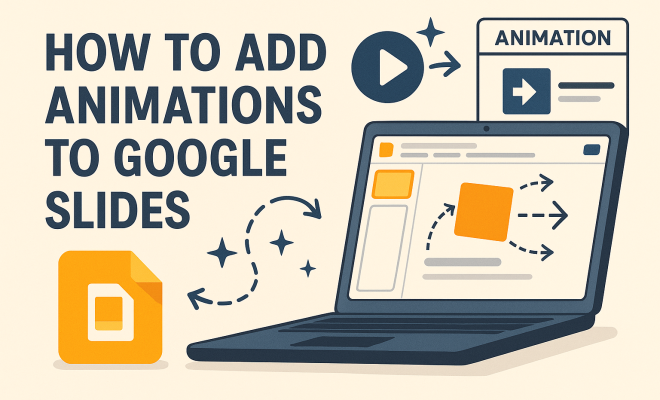
- Open the Animation Panel: Click on ‘Insert’ in the top menu, then select ‘Animation’ to open the animation sidebar.
- Choose Your Animation: In the sidebar, you’ll see an option to add an animation. Click on ‘Add animation’ and select your desired effect from the dropdown menu.
- Adjust Timing: Set the timing for the animation to determine when it starts. You can choose between ‘On click’, ‘After previous’, or ‘With previous’.
- Preview Your Animation: It’s essential to test your animations. Click the ‘Play’ button to see how your animations come to life.
- Fine-tune as Needed: You can rearrange animations by dragging them in the sidebar or adjust their duration for a smoother experience.
- Save Your Work: Don’t forget to save the changes to ensure your hard work is not lost!
This step-by-step process will help you confidently add animations, making the presentation development process both enjoyable and effective.
5. Best Practices for Using Animations
While animations can enhance your presentation, it’s vital to use them wisely. Here are some best practices to keep in mind: (See: Learn more about Google Slides.)
- Keep It Simple: Opt for subtle animations that complement your content instead of flashy ones that might distract your audience.
- Consistency is Key: Use similar animations throughout your presentation to maintain a cohesive look.
- Be Mindful of Timing: Give your audience enough time to absorb information before moving on to the next point. Adjust the duration of animations accordingly.
- Test on Multiple Devices: Since Google Slides is cloud-based, test your presentation on different devices to ensure animations play smoothly everywhere.
By adhering to these best practices, you’ll ensure that your animations enhance rather than detract from your message.
6. Common Issues and Troubleshooting Tips
Even with a straightforward interface, users can run into issues when adding animations. Here are some common problems and how to address them:
- Animations Won’t Play: Ensure that you have selected the correct settings in the animation panel. Sometimes, restarting Google Slides can resolve minor glitches.
- Animations Are Too Fast: If your animations seem rushed, adjust the duration in the animation settings to provide a smoother transition.
- Conflicts Between Animations: If multiple animations are fighting for attention, consider simplifying or rearranging them for better clarity.
- Compatibility Issues: When sharing your presentation, recipients using different software versions may not see the animations as intended. Prepare backups in other formats if necessary.
Troubleshooting these issues can save you time and frustration, allowing you to focus on delivering a great presentation.
7. Incorporating Animations with Other Presentation Tools
If you’re looking to amplify your slides even further, consider integrating animations with other tools. For example, using Canva or Prezi alongside Google Slides can provide creative templates that add a layer of sophistication to your animations. You can design engaging graphics and import them into your Google Slides to create a more dynamic presentation.
Additionally, incorporating video clips or GIFs can provide a multi-dimensional approach to storytelling. But remember, each element should serve a purpose. Always ask yourself how each animation or graphic contributes to your overall narrative.
Finally, keep abreast of the latest updates in Google Slides. The platform regularly introduces new features, so regularly checking for updates can help you leverage new tools and functionalities for your presentations.
8. Engaging Your Audience with Interactive Animations
One of the most powerful ways to add animations to Google Slides is to create interactive elements that involve your audience. Interactive presentations not only capture attention but also encourage participation. Here are a few techniques to engage your audience:
- Quizzes and Polls: Use animations to introduce quiz questions or poll results. For instance, you could animate a question slide, then reveal answers one at a time, creating suspense and interaction.
- Clickable Elements: You can create clickable buttons that lead to different slides based on audience choices. This makes your presentation more like a game, enhancing engagement.
- Live Demos: If you’re showcasing a product or tool, use animations to walk your audience through a live demonstration step by step. This can make complex information feel more manageable.
These interactive animations can create a memorable experience for your audience and keep them focused on your message.
9. Case Studies: Successful Use of Animations in Presentations
To illustrate the effectiveness of animations, let’s examine a few case studies from different fields:
- Corporate Training: A large tech company incorporated animations in their training presentations to showcase new software features. By using motion paths to demonstrate software navigation, they reported a 30% increase in employee understanding and retention of information during training sessions.
- Education: A high school teacher utilized animations to explain concepts in physics. By animating the movement of projectiles, students were able to visualize complex concepts, leading to improved test scores and engagement in class discussions.
- Marketing: A popular online retailer created a presentation for a new product launch. They used animated graphics to highlight features and customer reviews, which helped in generating buzz and anticipation, reflected in a 25% increase in pre-orders compared to previous launches.
These examples showcase the versatility of animations and how they can significantly improve the effectiveness of presentations across various industries.
10. Statistics and Trends in Presentation Design
As presentation design evolves, so do the trends and statistics surrounding its effectiveness. Here are some noteworthy insights: (See: Effective presentation tips from CDC.)
- Retention Rates: According to studies, presentations that incorporate animations can improve audience retention rates by as much as 65%, compared to static presentations.
- Engagement Levels: A survey indicated that 78% of audience members reported being more engaged during animated presentations compared to those that lacked dynamic elements.
- Preference for Visuals: Research shows that 90% of information transmitted to the brain is visual, emphasizing the importance of animations and visuals in presentations.
- Mobile Viewership: With an increasing number of presentations being viewed on mobile devices, animations that are optimized for smaller screens have become essential. More businesses are prioritizing mobile-friendly presentations, with 60% of users expressing a preference for animations that enhance readability on mobile devices.
Keeping these trends in mind can guide you in creating presentations that resonate with your audience and meet contemporary design standards.
11. Frequently Asked Questions (FAQs)
Here are some frequently asked questions about adding animations to Google Slides:
What types of animations can I add to Google Slides?
You can add entrance effects, emphasis effects, exit effects, and motion paths to your elements in Google Slides.
Can I add animations to images and text together?
Yes, you can animate both images and text independently or together within the same slide.
Will animations play on all devices?
Google Slides is designed to be compatible across devices, but it’s always a good idea to test your presentation on various devices to ensure animations work as intended.
Can I use animations in my Google Slides presentation if I’m not connected to the internet?
Google Slides requires an internet connection to access all features, but if you’ve enabled offline mode beforehand, you can work on your presentation without internet access, though some features may be limited.
How do I remove an animation that I no longer want?
Simply go to the animation panel, select the animation you wish to remove, and click on the ‘Remove’ button.
Are there any limits to the number of animations I can add?
While there’s no strict limit, too many animations can overwhelm your audience. It’s best to use them judiciously to enhance clarity and engagement.
Can I use custom animations not available in Google Slides?
Currently, Google Slides has a predefined set of animations, but you can enhance your presentation by integrating video clips or animated GIFs created elsewhere. This allows for more creativity and the use of unique animation styles not available in Google Slides.
How important is animation timing in presentations?
Animation timing is crucial because it affects the pacing of your presentation. Proper timing allows your audience to absorb information without feeling rushed, leading to better engagement and understanding. (See: Presentation skills and techniques.)
12. Conclusion: The Power of Animations in Presentations
Adding animations to Google Slides is more than just a technical process; it’s about enhancing the storytelling experience. By using the right techniques and practices, you can create compelling presentations that captivate and inform your audience. Whether you’re an educator, a business professional, or someone looking to make a memorable impression, mastering animations can significantly influence the effectiveness of your presentations.
13. Advanced Animation Techniques
Once you’ve mastered the basics of adding animations to Google Slides, it’s time to explore advanced techniques that can really make your presentations pop. Here are a few strategies to elevate your usage of animations:
- Layering Animations: Instead of animating one element at a time, consider layering multiple animations. For instance, you might introduce a background image with a fade-in effect, followed by text appearing with a slide-in effect. This layered approach adds depth and visual interest.
- Custom Animation Paths: Use motion paths creatively to direct attention. For example, you can have an arrow animated to point to key data on a graph or chart. This interactive element helps reinforce your message visually.
- Sequential Animations: Create a story by using sequential animations that build upon each other. Instead of showing all data points at once, reveal them one at a time to guide your audience through your argument or narrative.
- Combining Videos with Animations: Integrating video clips into your slides can work wonders. For instance, if you have a video demonstration, you can animate text to highlight important points as the video plays, creating a cohesive experience.
These advanced techniques can significantly enhance your presentations by making them more engaging and easier to follow.
14. Real-World Applications of Google Slides Animations
Animations in Google Slides have practical applications across various fields. Here are some examples:
- Business Presentations: Many companies now rely on animated presentations during quarterly meetings to convey performance data. By animating graphs and charts, they can illustrate trends more effectively, making complex data accessible to all stakeholders.
- Academic Settings: Educators use animations in their lectures to summarize complex topics, making them visually clearer. For instance, animating historical timelines helps students understand sequences and causes.
- Sales Pitches: For sales teams, presentations enhanced with animations can showcase product features dynamically. Animated slides can highlight customer testimonials or demonstrate product benefits in an engaging way, leading to higher conversion rates during pitches.
- Non-Profit Organizations: Non-profits often use animated presentations to advocate for causes. They can visually depict statistics about social issues or show the impact of donations, making emotional appeals more effective.
These applications emphasize the versatility and effectiveness of animations in making presentations more impactful across different sectors.
15. Future Trends in Presentation Design
The world of presentation design is continuously evolving. Here are some trends and predictions for the future:
- Increased Use of AI: As AI technology advances, we may see more automated animation options that learn from user preferences to suggest the most effective animations for content type.
- Augmented Reality (AR): Future presentations might incorporate AR elements that allow users to interact with 3D models. This could be particularly useful in educational contexts, where students can engage with complex subjects like anatomy or engineering in a more immersive way.
- Greater Emphasis on Storytelling: The narrative aspect of presentations is predicted to become even more critical, with a focus on creating emotional connections through storytelling, enhanced by animations that support the narrative flow.
- More Accessible Design Options: As inclusivity becomes a priority, designs that cater to individuals with disabilities will gain traction. This includes animations that are easy to follow for those with visual impairments, ensuring that all audiences can engage equally with presentations.
Staying ahead of these trends will prepare you to create cutting-edge presentations that resonate with modern audiences.
“`
Trending Now
Frequently Asked Questions
How do you add animations to Google Slides?
To add animations in Google Slides, select the object you want to animate, click on 'Insert' in the menu, then choose 'Animation.' You can then customize the animation type, duration, and timing to enhance your presentation.
What types of animations can you use in Google Slides?
Google Slides offers various animation types, including fade, fly in, zoom, and more. You can apply these animations to text, images, and other objects to create dynamic presentations that capture audience attention.
Why should I use animations in my presentation?
Using animations in presentations helps guide the audience's focus, emphasizes key points, and makes complex ideas easier to understand. When used effectively, animations can enhance storytelling and keep the audience engaged.
Can you collaborate on Google Slides while adding animations?
Yes, Google Slides allows multiple users to collaborate in real-time. While one person designs the presentation, others can focus on adding animations, making it ideal for team projects and enhancing the overall presentation.
Is it important to use animations judiciously?
Absolutely. While animations can enhance a presentation, overusing them can lead to distractions. It's essential to strike a balance to ensure that animations support your message rather than detract from it.
Have you experienced this yourself? We’d love to hear your story in the comments.