
The Tech Edvocate

Top Menu

  • Advertisement
  • Apps
  • Home Page
  • Home Page Five (No Sidebar)
  • Home Page Four
  • Home Page Three
  • Home Page Two
  • Home Tech2
  • Icons [No Sidebar]
  • Left Sidbear Page
  • Lynch Educational Consulting
  • My Account
  • My Speaking Page
  • Newsletter Sign Up Confirmation
  • Newsletter Unsubscription
  • Our Brands
  • Page Example
  • Privacy Policy
  • Protected Content
  • Register
  • Request a Product Review
  • Shop
  • Shortcodes Examples
  • Signup
  • Start Here
    • Governance
    • Careers
    • Contact Us
  • Terms and Conditions
  • The Edvocate
  • The Tech Edvocate Product Guide
  • Topics
  • Write For Us
  • Advertise

Main Menu

  • Start Here
    • Our Brands
    • Governance
      • Lynch Educational Consulting, LLC.
      • Dr. Lynch’s Personal Website
      • Careers
    • Write For Us
    • The Tech Edvocate Product Guide
    • Contact Us
    • Books
    • Edupedia
    • Post a Job
    • The Edvocate Podcast
    • Terms and Conditions
    • Privacy Policy
  • Topics
    • Assistive Technology
    • Child Development Tech
    • Early Childhood & K-12 EdTech
    • EdTech Futures
    • EdTech News
    • EdTech Policy & Reform
    • EdTech Startups & Businesses
    • Higher Education EdTech
    • Online Learning & eLearning
    • Parent & Family Tech
    • Personalized Learning
    • Product Reviews
  • Advertise
  • Tech Edvocate Awards
  • The Edvocate
  • Pedagogue
  • School Ratings

logo

The Tech Edvocate

  • Start Here
    • Our Brands
    • Governance
      • Lynch Educational Consulting, LLC.
      • Dr. Lynch’s Personal Website
        • My Speaking Page
      • Careers
    • Write For Us
    • The Tech Edvocate Product Guide
    • Contact Us
    • Books
    • Edupedia
    • Post a Job
    • The Edvocate Podcast
    • Terms and Conditions
    • Privacy Policy
  • Topics
    • Assistive Technology
    • Child Development Tech
    • Early Childhood & K-12 EdTech
    • EdTech Futures
    • EdTech News
    • EdTech Policy & Reform
    • EdTech Startups & Businesses
    • Higher Education EdTech
    • Online Learning & eLearning
    • Parent & Family Tech
    • Personalized Learning
    • Product Reviews
  • Advertise
  • Tech Edvocate Awards
  • The Edvocate
  • Pedagogue
  • School Ratings
  • BOMBSHELL: Your ‘Natural’ Weight Loss Pills Are Hiding THIS Deadly Secret

  • Critical: Your Smart Home is a Goldmine for Data Thieves – And You’re Helping Them

  • Revealed: The $8 Billion Secret Behind Controversial Flock Traffic Cameras

  • This One Thing Is Killing PlayStation Plus in September 2026

  • This Crucial AI Debate Just Got an Unprecedented Endorsement

  • The Brutal Truth: Why Public Service Loan Forgiveness Fails Most Applicants

  • Catastrophic: Why English-Only Head Start Could Devastate Young Minds

  • This Crucial AI Cybersecurity Flaw Just Got Exposed by Its Own Kind

  • This One Tax Could Fundamentally Reshape Our Future with Self-Driving Cars

  • Unprecedented Showdown: Tesla’s Cybercab Faces Make-or-Break Deadline for NHTSA Approval

Google ClassroomGoogle Classroom Tips
Home›Google Classroom›How Do I Monitor Learner Assignments in Google Classroom?

How Do I Monitor Learner Assignments in Google Classroom?

By Matthew Lynch
September 23, 2020
0
Spread the love

Below you will find information on grading and returning assignments in Google Classroom.  The app makes grading assignments a seamless task so that educators can grade with ease and learners can promptly get feedback on their progress.

  1. Log into your Google Classroom. Once you are on the homepage, you should see your assignments in the left-hand corner under the heading ‘Upcoming Assignments’ on your Stream tab. Click on one of your posted assignments.
  1. This will take you to a page where you can view learners’ status in terms of work completion. This is called the learner work page. It will show you the names of who turned in their work and who is still missing the assignment. For a learning activity (assignment) to have been marked complete, the learner will need to turn it into their Google Classroom account. This is helpful because you can immediately see which students are not turning in work, and may need you to check-in on them. Communication between the educator and the learners is essential and helps ensure students are not falling behind on their online assignments.
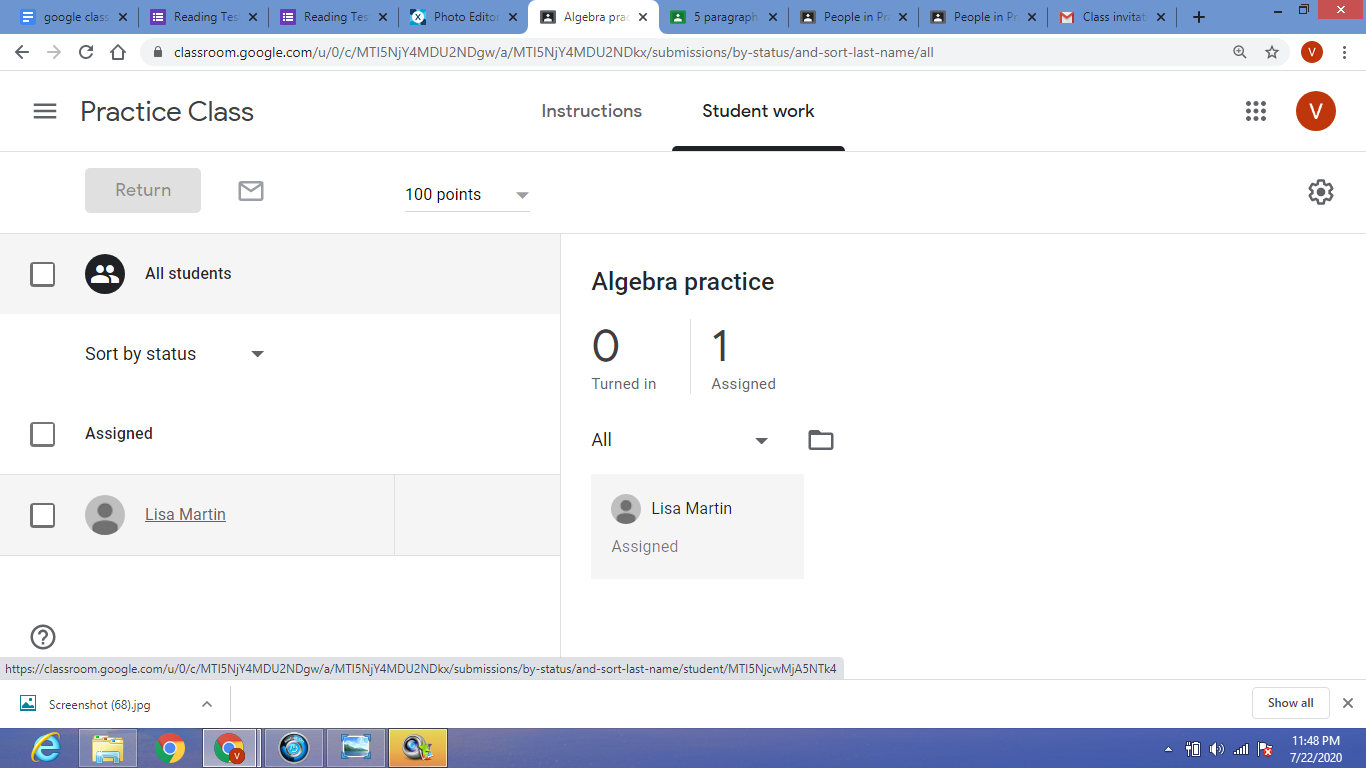
  1. If you check the box next to a learner’s name, you can email the learner or learners after clicking on the envelope icon at the top of the screen. Sending an email is a good option if you have more than a few questions or tips to share.
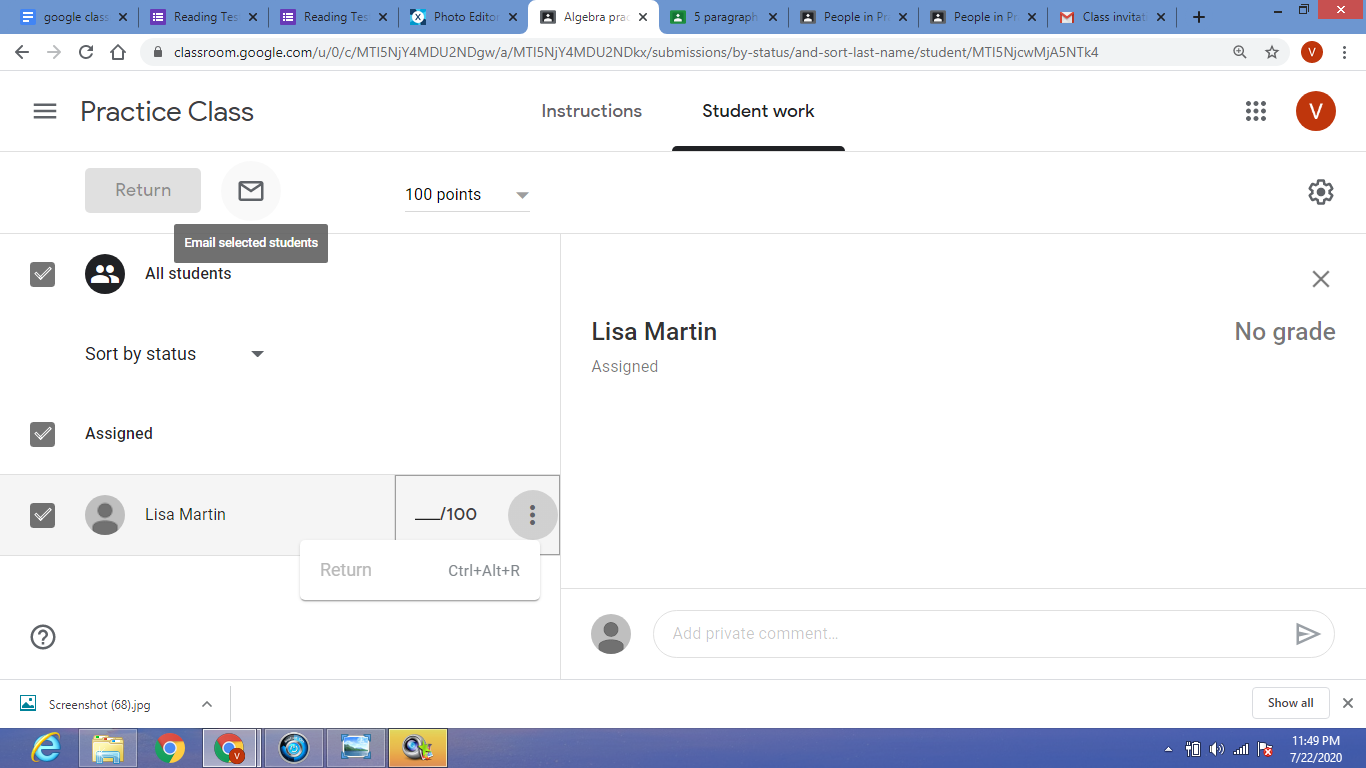
  1. Notice that you can assign grades and points. Review student work and assign corresponding grades right on the Google Classroom platform. No need for a paper grade book and the tiring act of scribbling multiple grades down by hand. If a learner has submitted work, you can grade it and return it to the learner. The learner will automatically be able to see their grade when they log in. 
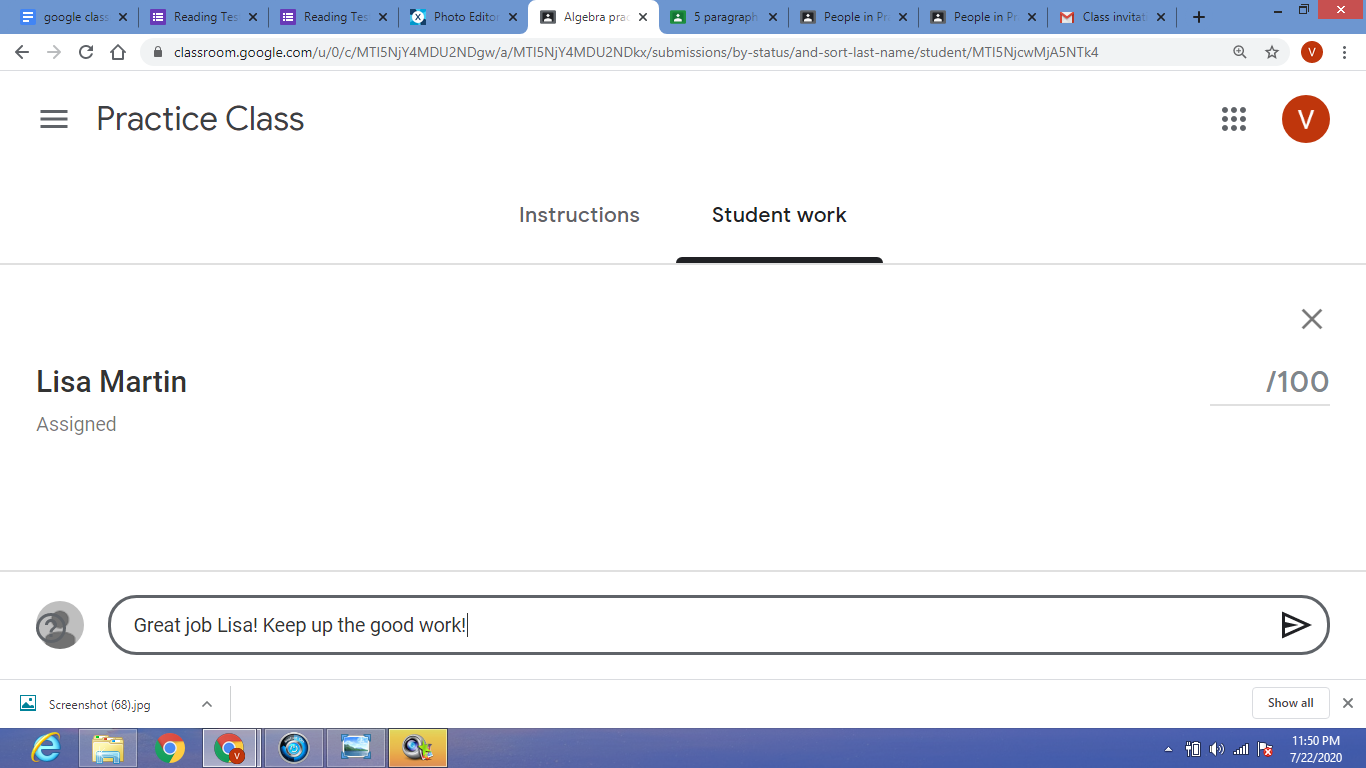
  2. You also have the option to click on a learner’s name, and you can send them a private comment.  Reasons to send a private comment could include a request to fix an error and resubmit or to give them positive praise on a job well done.
  1. To see all learners work simultaneously, you need to click the folder at the top of the Learner Work page.  The Folder link will be grayed out until learners have turned in work. Once you click on it, you will have access to all the turned in assignments, and it will include the students’ names in the title so that you can easily know who the work belongs to.
Previous Article

The Impact of Interactive Videos in the ...

Next Article

4 Tips for Making the Transition to ...

Matthew Lynch

Related articles More from author

  • Google ClassroomGoogle Classroom Tips

    Can Administrators Use Google Classroom Learning Analytics?

    August 27, 2020
    By Matthew Lynch
  • Google Classroom

    Google Classroom Tip #32: How to Provide Feedback to Your Students

    December 2, 2018
    By Matthew Lynch
  • Google ClassroomUncategorized

    Leveraging the Amazing Mobile Features of Google Classroom

    September 20, 2018
    By Matthew Lynch
  • Early Childhood & K-12 EdTechGoogle ClassroomGoogle Classroom Tips

    6 Apps and Tools That Integrate With Google Classroom

    August 31, 2020
    By Matthew Lynch
  • Google Classroom Tips

    Google Classroom Tip #15: Behavior Management

    November 18, 2018
    By Matthew Lynch
  • Google Classroom Tips

    Google Classroom Tip #2: Activity Logs

    November 12, 2018
    By Matthew Lynch

Search

Login & Registration

  • Log in
  • Entries feed
  • Comments feed
  • WordPress.org

Newsletter

Signup for The Tech Edvocate Newsletter and have the latest in EdTech news and opinion delivered to your email address!

About Us

Since technology is not going anywhere and does more good than harm, adapting is the best course of action. That is where The Tech Edvocate comes in. We plan to cover the PreK-12 and Higher Education EdTech sectors and provide our readers with the latest news and opinion on the subject. From time to time, I will invite other voices to weigh in on important issues in EdTech. We hope to provide a well-rounded, multi-faceted look at the past, present, the future of EdTech in the US and internationally.

We started this journey back in June 2016, and we plan to continue it for many more years to come. I hope that you will join us in this discussion of the past, present and future of EdTech and lend your own insight to the issues that are discussed.

Newsletter

Signup for The Tech Edvocate Newsletter and have the latest in EdTech news and opinion delivered to your email address!

Contact Us

The Tech Edvocate
910 Goddin Street
Richmond, VA 23231
(601) 630-5238
[email protected]

Copyright © 2026 Matthew Lynch. All rights reserved.