How to use Monday.com workload view
“`html
In an age where project management tools are essential for productivity, monday.com workload view stands out as a feature that can redefine how teams allocate and manage their resources. This feature is a game-changer for those who want to visualize workloads, balance tasks, and ensure their teams are working at optimal capacity. In this comprehensive guide, we’ll delve into what the monday.com workload view is, how it operates, and how you can leverage it to elevate your team’s productivity.
1. The Basics of Monday.com Workload View: Understanding the Feature
At its core, the monday.com workload view is designed to give you a bird’s-eye view of how tasks and responsibilities are distributed among team members. It allows managers and team leads to visualize workloads across various projects and timelines. This feature integrates with the overall monday.com platform, which is known for its user-friendly interface and flexibility.
The workload view aggregates data from your existing boards, pulling in task statuses, due dates, and assigned team members. This holistic view enables users to identify potential bottlenecks, monitor progress, and adjust assignments to prevent team burnout. Ultimately, it’s about enhancing collaboration and ensuring that everyone is on the same page.
2. Setting Up Your Workload View: A Step-by-Step Guide
To get started with the monday.com workload view, you’ll first need to ensure that your team is utilizing boards effectively. Here’s how to set it up:
- Create or Open Your Board: Navigate to the board that contains the project tasks you want to manage. If you haven’t created one yet, set up a new board with relevant columns, such as task names, due dates, and assigned users.
- Add Users and Assign Tasks: Ensure that each task is assigned to a team member. This is crucial for the workload view to accurately reflect individual workloads.
- Access the Workload View: Click on the “Views” button at the top of your board and select “Workload” from the dropdown menu. This action will take you to the overview section where you can see tasks allocated to each member.
Setting up the workload view is straightforward, but the real challenge lies in interpreting the data it presents. The next step is learning how to read and utilize this information effectively.
3. Interpreting the Workload View: What the Data Means
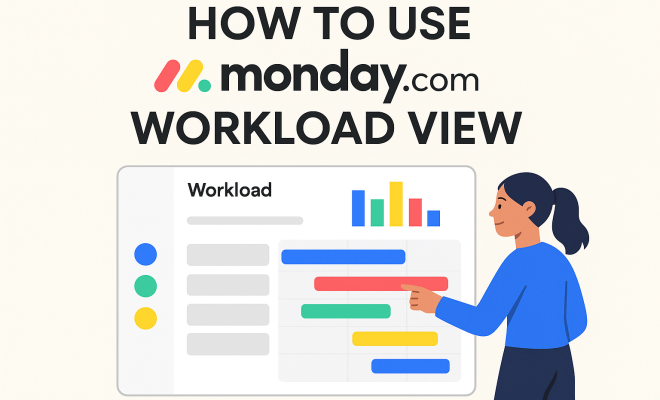
Once you’ve accessed the workload view, you’ll notice a chart that displays each team member’s workload across the chosen timeframe. Each bar represents the number of tasks assigned to that individual. The color coding indicates task status—completed, in progress, overdue, etc. (better IT project management)
Understanding this visual element is key. If a team member has a significantly higher workload than others, it might indicate they’re overburdened. Conversely, if some members appear to have little or no tasks, it could be a sign that their potential is not being utilized. The workload view thus serves as a critical diagnostic tool, allowing managers to make data-driven decisions about task redistribution.
4. Utilizing Filters and Views: Customizing Your Workload Display
One of the most powerful aspects of the monday.com workload view is its configurability. Users can apply various filters and customize their views to suit their specific needs. For example, you can filter tasks by due date, priority, or specific project categories to focus solely on what’s most relevant at any given time.
To customize your view, click on the filter button and select the parameters you want to apply. This flexibility allows you to drill down into specific areas of concern, making it easier to pinpoint issues or celebrate successes. By tailoring the workload view to your needs, you can enhance your planning efficiency and resource allocation.
5. Integrating Other Features of Monday.com: Amplifying Productivity
The monday.com workload view doesn’t exist in a vacuum; it works best when integrated with other features of the platform. For instance, integrating it with automations can streamline your workflow significantly. Automations can notify team members when they’re assigned new tasks or remind them of upcoming deadlines.
Additionally, utilizing the timeline view alongside the workload view can help you visualize project timelines and interdependencies. This combination allows for a more comprehensive project management strategy that actively tracks progress while optimizing workloads simultaneously. (See: Overview of project management tools.)
6. Best Practices for Managing Workloads: Strategies for Success
To maximize the effectiveness of the monday.com workload view, consider these best practices: This builds on resource management guide.
- Regularly Review and Adjust: Make it a habit to review workloads weekly or bi-weekly. This practice ensures that no team member is overwhelmed and that resources are allocated efficiently.
- Communicate Transparently: Encourage an open dialogue about workloads within your team. Honesty about capacity can foster a supportive environment and lead to better outcomes.
- Set Realistic Deadlines: Use the data from the workload view to set achievable deadlines. When deadlines are reasonable, team morale and productivity can improve.
By implementing these strategies, managers can cultivate a balanced workload across their team, reducing the risk of burnout and enhancing overall productivity.
7. Analyzing Workload Trends: Using Historical Data for Future Planning
Another beneficial feature of the monday.com workload view is its ability to showcase historical data, allowing teams to analyze trends over time. By reviewing past workloads and project timelines, you can identify patterns that might suggest when your team is typically most overworked.
Using this analysis, you can plan future projects more effectively. For example, if you notice that workloads peak during a certain time of year, you can proactively redistribute tasks or hire temporary help during those busy periods. This forward-thinking approach can cultivate a healthier work environment and better project outcomes.
8. Real-World Applications: Success Stories from Companies
Many organizations have successfully implemented the monday.com workload view to great effect. For instance, a tech startup utilized the workload view to identify that certain team members consistently had more assignments than others, leading to burnout. By redistributing tasks based on the visual data, they managed to improve team morale and productivity significantly.
Another example is a marketing agency that used the workload view to track their project timelines across various campaigns. They found that task allocation was uneven, which resulted in missed deadlines. After adjusting their approach, they improved their on-time project delivery rate by over 30% within just a few months.
9. Challenges and Considerations: What to Watch Out For
While the monday.com workload view is an excellent tool for managing tasks, it’s not without its challenges. One common issue is data overloading, where too much information can overwhelm users. To combat this, make sure to keep your boards clean and relevant by archiving completed tasks regularly.
Additionally, consider the importance of team buy-in. If team members are not engaged with the platform, the benefits of the workload view may not fully materialize. Training and onboarding are critical to ensure everyone understands how to use the tool effectively.
In summary, while the monday.com workload view is powerful, it requires thoughtful implementation and ongoing management to reap its full benefits.
10. Tips for Maximizing Team Engagement: Getting Everyone on Board
To make the most out of the monday.com workload view, engaging your team is crucial. Here are some tips to enhance participation:
- Involve Team Members in Setup: When setting up the workload view, ask team members for their input on how tasks should be allocated and visualized. This inclusion can foster a sense of ownership and accountability.
- Use Team Meetings to Review Workloads: Incorporate discussions about workload views into your regular team meetings. This keeps everyone informed and allows for collaborative problem-solving.
- Make It a Part of Performance Reviews: Consider integrating insights from the workload view into employee performance reviews. This reinforces its importance and encourages team members to engage with it more actively.
11. Advanced Features: Custom Dashboards and Reporting
The monday.com platform offers advanced features that can further enhance your workload management. Custom dashboards can be created to provide stakeholders with tailored overviews of key metrics. For example, you can design a dashboard that highlights workload distribution, project timelines, and team performance metrics all in one place.
Additionally, reporting features enable you to export data for deeper analysis. This can be particularly helpful for larger organizations that need to present workload analytics to upper management or stakeholders. Being able to showcase data visually can help in securing resources or making a case for additional hires during peak times. (See: Promoting healthier workplaces.)
12. Frequently Asked Questions (FAQ)
What is the monday.com workload view?
The monday.com workload view is a feature that provides a visual overview of how tasks are assigned to team members, allowing you to manage workloads effectively across projects.
How can I access the workload view?
You can access the workload view by navigating to your project board, clicking on the “Views” button, and selecting “Workload” from the dropdown menu.
Can I customize the workload view to my needs?
Absolutely! The workload view allows you to apply filters and customize the display based on task priorities, due dates, and specific project categories, making it highly adaptable.
Is it possible to integrate automations with the workload view?
Yes, automations can be integrated with the workload view to enhance productivity. You can set up notifications for team members about new assignments or reminders for approaching deadlines.
What are the benefits of analyzing historical workload data?
Analyzing historical workload data helps identify patterns in workload distribution, allowing for better planning and resource allocation in future projects. It can indicate peak times and help prevent burnout by redistributing tasks proactively.
How do I ensure my team engages with the workload view?
Engagement can be boosted by involving team members in the setup process, discussing workloads during meetings, and incorporating insights from the workload view into performance evaluations.
13. Comparing Monday.com Workload View with Other Tools: A Relative Perspective
While monday.com’s workload view offers robust solutions, it’s worth comparing it with other project management tools. Tools like Asana, Trello, and Jira have their own versions of workload management, each with unique advantages and potential drawbacks.
Asana: Asana provides a workload feature that visually represents team capacities and allows you to see who is over or under-allocated. However, some users find it less intuitive than monday.com, particularly when it comes to customizing views. Related reading: top project management apps.
Trello: Trello relies on a card-based system, which can be effective for task management but lacks the comprehensive workload visualization seen in monday.com. Users often need additional integrations to achieve similar functionality.
Jira: Particularly popular with software development teams, Jira offers powerful tracking capabilities, but its interface can be complex for those outside tech. The workload management features may not be as straightforward as those in monday.com. (See: Harvard University resources on productivity.)
In summary, while each tool has its strengths, the monday.com workload view’s integration with a user-friendly interface and extensive customization options makes it stand out for teams looking for a visual and flexible project management solution.
14. Expert Perspectives on Workload Management: Insights from the Field
Industry experts agree that effective workload management is critical for team success. According to a report by the Project Management Institute, organizations that prioritize resource management see up to a 20% increase in project success rates. Here are some insights from professionals:
Dr. Emily Carter, a project management consultant, emphasizes the importance of maintaining balance: “A clear view of workloads not only helps prevent burnout, but it also encourages a more collaborative work environment. Teams that communicate regularly about capacity challenges are more likely to succeed.”
Mark Jennings, a productivity coach, adds, “Utilizing tools like monday.com allows for a more agile response to workload changes. When managers can see the big picture, they can make informed decisions quickly.”
These perspectives highlight that integrating tools like monday.com into your workflow is not just about task management but about fostering a healthier workplace culture.
15. Potential Future Developments: What’s Next for Monday.com Workload View?
As technology evolves, so do project management tools. Users of monday.com can expect ongoing enhancements to the workload view, driven by user feedback and trends in project management methodologies. Some potential developments might include:
- AI-Driven Insights: Future iterations may incorporate artificial intelligence to suggest optimal task allocations based on historical data and current workloads.
- Integration with Emerging Technologies: As remote work continues to be the norm, integrating with virtual collaboration tools could provide real-time updates to the workload view, enhancing its effectiveness.
- Enhanced Mobile Functionality: Improving mobile access to the workload view may allow teams to manage tasks on the go, making it even easier to stay up to date.
Staying informed about these advancements will be key for teams looking to maintain a competitive edge in project management and resource allocation.
In a world that increasingly prioritizes productivity and efficient project management, mastering the monday.com workload view is essential for teams looking to thrive. By understanding its features, utilizing best practices, analyzing data trends, and engaging your team, you can optimize your team’s performance and foster a culture of collaboration and balance. right software for IT projects offers useful background here.
“`
Trending Now
Frequently Asked Questions
What is the workload view in monday.com?
The workload view in monday.com provides a comprehensive visual representation of how tasks are distributed among team members. It allows managers to monitor workloads, identify potential bottlenecks, and ensure that team members are not overloaded, thus enhancing overall productivity.
How do you set up the workload view in monday.com?
To set up the workload view, first create or open a board with your project tasks. Assign tasks to team members, and then click on the 'Views' button at the top of your board to access the workload view. This will aggregate data for a clear overview of team workloads.
Why is the workload view important for teams?
The workload view is crucial as it helps teams visualize task distribution, balance workloads, and prevent burnout. By providing a holistic view of who is working on what, it facilitates better collaboration and resource management.
Can you customize the workload view in monday.com?
Yes, the workload view in monday.com can be customized to fit your team's needs. You can adjust the columns, filter tasks, and modify the display settings to focus on specific projects or team members, enhancing usability and clarity.
What features does monday.com workload view offer?
The monday.com workload view offers features such as task status tracking, due date management, and team member assignments. It integrates seamlessly with other monday.com tools to provide a comprehensive overview of project progress and team capacity.
What did we miss? Let us know in the comments and join the conversation.