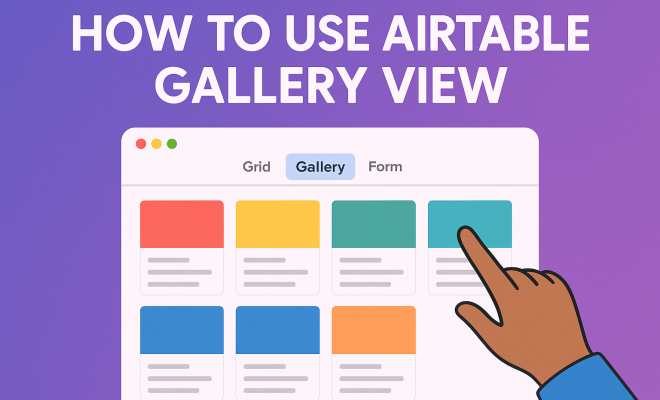
How to use Airtable gallery view
“`html
Airtable is rapidly becoming the go-to tool for project management, data organization, and collaborative workflows. One of its standout features is the Airtable gallery view, which transforms the way you visualize and interact with your data. But how do you effectively use this feature to maximize your productivity? In this comprehensive guide, we will explore the ins and outs of the Airtable gallery view, its benefits, practical applications, and tips to help you make the most of it.
1. Understanding Airtable: A Brief Overview
Before diving into the specifics of the Airtable gallery view, it’s essential to understand what Airtable is and how it operates. Airtable combines the simplicity of a spreadsheet with the functionality of a database, making it incredibly versatile for users ranging from individuals to large enterprises. Users can create tables for various purposes, from tracking tasks to managing inventories or even organizing personal projects.
One of the key elements of Airtable’s appeal is its flexibility. You can customize fields to fit your needs, integrate with various apps, and choose from multiple views, such as grid, calendar, and gallery. This adaptability is one of the reasons why teams across various industries have turned to Airtable for their project management needs.
2. What is the Airtable Gallery View?
The Airtable gallery view is a unique way of visualizing records in a more visually appealing format. It allows users to display records as individual cards, which can include images, text, and other relevant information. This view is particularly useful for projects that include rich media, such as portfolios, product catalogs, or event planning.
Each card in gallery view showcases key details at a glance, such as titles, images, and other fields you select. This design makes it easy to compare and assess records quickly, enhancing your ability to make informed decisions without sifting through rows of data. Whether you’re a designer showcasing your work or a team leader managing a project, the gallery view offers a more intuitive way to interact with your data.
3. Setting Up Your Gallery View
Getting started with the Airtable gallery view is simple. Here’s how to set it up step-by-step:
- Create a Base: First, log into your Airtable account and create a new base or open an existing one.
- Add Records: Input your data into the tables, ensuring to include fields that will enhance your gallery view, such as images or descriptive text.
- Select Gallery View: Click on the view dropdown menu in the upper left corner of your base and choose ‘Gallery’. Airtable will then generate a gallery view based on your existing records.
- Customize Your View: You can customize which fields appear on each card by clicking on ‘Customize cards’. Here, you can select images, titles, and any other fields that you find relevant.
Setting up your gallery view takes just a few minutes, and the visual appeal it adds to your data can significantly enhance your workflow.
4. Customizing Your Gallery View
Customizing the gallery view is where the real magic happens. Airtable allows you to modify how your cards look and what information they display. For instance, you can adjust the size of the cards, choose background colors, and even add icons or images that represent each record.
To customize your cards, go to the ‘Customize cards’ menu. Here, you will find options to:
- Select which fields are displayed on the card.
- Change the color of the card based on a specific field, enhancing visual categorization.
- Add cover images that help convey the context of the records.
This flexibility allows you to tailor your gallery view to best fit your project’s needs, making it as functional as it is visually appealing.
5. Using Airtable Gallery View for Project Management
The Airtable gallery view is particularly beneficial for project management. When managing a project, you often need to keep track of various elements, from tasks to deadlines, resources, and team members. The gallery view allows you to create a visual representation of these elements, making it easier to identify what needs attention. (See: Airtable overview on Wikipedia.) For more on this, see better IT project management tips.
For example, if you’re managing an event, you can use the gallery view to showcase different aspects such as venues, caterers, and entertainment options. By including images and key details on each card, you can quickly assess which options are the best fit, facilitating decision-making. Additionally, you can track progress by tagging each record with status updates, which makes it easy to see where things stand at a glance.
6. Integrating Airtable Gallery View with Other Tools
Airtable is designed to work well with a variety of other tools, enhancing its functionality. You can integrate Airtable with popular applications like Slack, Google Drive, and even social media platforms. This integration makes it possible to streamline processes and keep all your tools connected for better efficiency.
For instance, by integrating Airtable with Slack, team members can receive updates directly in their messaging app whenever a record is updated. This means your team stays informed without needing to constantly check Airtable. Similarly, using integrations with Google Drive allows you to link documents and files relevant to the records in your gallery view, providing easy access to all project materials.
7. Best Practices for Using Airtable Gallery View
While using the Airtable gallery view can enhance your data organization, there are best practices to keep in mind to make the most out of it:
- Keep It Organized: Regularly update and maintain your records to avoid clutter. This ensures that your gallery view remains effective and visually appealing.
- Use Consistent Formatting: Standardize the way you input data for each record. Consistency makes it easier for you and others to interpret the information presented in the gallery view.
- Limit the Number of Fields: While it’s tempting to add many fields to your cards, limiting them to the most important details will help maintain clarity and avoid overwhelming viewers.
- Leverage Tags: Utilize tags or color-coding to categorize records visually. This can simplify navigation and help quickly identify records based on their status or type.
Applying these best practices will ensure that your Airtable gallery view remains an effective tool for visualizing and managing your data.
8. Examples of Airtable Gallery View in Action
Seeing how others use the Airtable gallery view can spark ideas for your projects. Here are some real-world applications that demonstrate the versatility of this feature:
- Portfolio Management: Designers and artists can utilize the gallery view to display their work. Each card can represent a different project, showcasing images, descriptions, and links to the work.
- Event Planning: For event coordinators, the gallery view can create a visual layout of venues, catering options, and entertainment choices. This makes it easy to compare and select options visually.
- Content Calendar: Marketers can use the gallery view to manage content production, displaying articles, blog posts, and social media campaigns as cards. Each card can include deadlines and links for easy tracking.
These examples illustrate just how flexible the Airtable gallery view can be, allowing users to tailor it to their specific needs effectively.
9. Future Trends and Enhancements for Airtable Gallery View
As Airtable continues to evolve, we can expect to see enhancements that further improve the gallery view experience. Features like enhanced filtering options, better image processing, and improved integration capabilities are likely on the horizon. These upgrades would not only make the gallery view more functional but could also enhance collaborative efforts between teams. (favorite project management apps)
Another potential trend is the integration of AI tools to help users optimize their gallery views automatically based on past behavior and project needs. This could lead to a more personalized and streamlined experience, allowing users to focus on what matters most: their projects.
Ultimately, the Airtable gallery view is a powerful feature that can significantly improve how users manage and visualize their data. By understanding its capabilities and best practices, you can harness the full potential of this tool in your workflow.
10. Common Challenges with Airtable Gallery View
While the Airtable gallery view has many advantages, users may face certain challenges. Understanding these can help you navigate them more effectively:
- Overwhelming Data: With a large number of records, the gallery view can become cluttered. To manage this, consider using filters to display only the most relevant records, or segment your data across multiple bases.
- Image Quality Issues: The appearance of images can vary based on their resolution. Ensure that the images you upload are of high quality to maintain a professional look across your gallery cards.
- Mobile Usability: While mobile access is a benefit, the gallery view may not display optimally on all devices. Always check how your gallery view appears on mobile to ensure that key information is not lost.
By being aware of these challenges, you can proactively address them and create a more cohesive experience for yourself and your team. (See: Airtable coverage by The New York Times.)
11. Data Security and Privacy in Airtable
As with any cloud-based tool, data security is a significant concern. Airtable employs robust measures to protect user data, including encryption and secure access controls. However, it’s crucial to understand how to maintain privacy while using the Airtable gallery view: We covered top productivity apps for parents in more detail.
- Permissions Settings: Always set appropriate permissions for your bases to control who can view or edit your data. This is particularly important when sharing gallery views with external stakeholders.
- Regular Audit: Conduct regular audits of your data and permissions. This ensures that only the right people have access to sensitive information.
- Data Backup: Regularly back up your data. Although Airtable is reliable, having a separate backup can protect you from potential data loss.
By being proactive about data security, you can use Airtable more confidently, knowing your information is safe.
12. Comparing Airtable Gallery View to Other Visualization Tools
When considering the Airtable gallery view, it’s helpful to compare it with similar visualization tools to understand its unique advantages:
Tableau
Tableau is a powerful data visualization platform known for its advanced analytics capabilities. While it offers stunning visualizations, the learning curve can be steep, making it less accessible for casual users. In contrast, Airtable’s gallery view is user-friendly and can be set up quickly, making it ideal for teams seeking immediate results without extensive training.
Microsoft Power BI
Microsoft Power BI is another robust visualization tool that excels in integrating with other Microsoft products. However, it may not provide the same level of customization for individual records as Airtable’s gallery view. The ease of use and flexibility in Airtable appeals to users who prioritize visual appeal and quick setup.
Google Data Studio
Google Data Studio offers strong reporting capabilities, especially for users already utilizing Google products. However, it may lack the hands-on interactivity inherent in Airtable’s gallery view, where users can easily manipulate data directly within the interface. Airtable’s approach combines data management with visualization seamlessly, catering to users looking for an all-in-one solution.
13. FAQs About Airtable Gallery View
- Can I use Airtable gallery view for free?
- Yes, Airtable offers a free plan that includes access to all views, including the gallery view. However, there may be limits on the number of records and features available compared to paid plans.
- How can I share my Airtable gallery view with others?
- You can share your gallery view by adjusting the link-sharing settings in your base. You can set permissions to allow others to view or edit the information according to your preference.
- Is it possible to export data from the gallery view?
- Yes, you can export data from your Airtable base in various formats, including CSV. However, keep in mind that the export will not preserve the visual formatting of your gallery view, as it will convert the data into a spreadsheet format.
- Can I add tags or categories to the gallery view?
- Absolutely! You can use tags or color-coded fields to visually categorize records within the gallery view, which helps in quickly identifying records based on their statuses or types.
- How does Airtable gallery view compare to other project management tools?
- The gallery view in Airtable offers a visually appealing way to manage projects with rich media. While many project management tools provide list-based views, Airtable’s approach enhances visual interaction, making it easier to compare and assess information quickly.
14. Real User Testimonials on Airtable Gallery View
Real-world feedback can provide insight into how effective the Airtable gallery view is. Here are some testimonials from users across different industries:
“As a graphic designer, the gallery view helps me showcase my portfolio in an engaging way. I can present my work visually, and clients appreciate the clear layout.” – Sarah, Freelance Designer
“Managing our event planning has become so much easier since we started using the gallery view. It allows us to see all our potential vendors in one place, which streamlines our decision-making process.” – John, Event Coordinator
“I love how I can customize each card in the gallery view. It makes tracking our marketing campaigns not just efficient, but also visually stimulating!” – Emily, Marketing Specialist (See: Harvard University resources.)
15. Advanced Features of Airtable Gallery View
While the basic functionalities of the Airtable gallery view are already quite powerful, there are advanced features that can take your data management to the next level: See also ways teachers boost productivity.
Conditional Formatting
Conditional formatting allows you to apply different styles to your cards based on specific criteria. For example, you could color-code your cards based on project status (e.g., red for overdue, green for completed). This visual cue can enhance your ability to scan your gallery quickly and understand project health at a glance.
Filter and Sort Options
In addition to customizing card displays, you can filter and sort records to highlight what is most relevant to you. This feature is especially useful for large projects where you may only want to view records that meet certain criteria, such as tasks due this week or priority items.
Collaboration Features
The gallery view also supports collaborative features that allow team members to comment on specific cards, attach files, and make suggestions without cluttering the main data. This interaction can enrich discussions and provide context for decisions made within the project.
16. Real-Life Case Studies of Airtable Gallery View
Case studies provide concrete examples of how teams are leveraging the Airtable gallery view:
Case Study: Marketing Agency
A marketing agency used the gallery view to manage their client projects. Each card represented a different client campaign, showcasing images of past work, timelines, and status updates. The visual layout allowed the team to quickly assess which campaigns required more focus, leading to enhanced project outcomes and client satisfaction.
Case Study: Non-Profit Organization
A non-profit utilized the gallery view to manage their fundraising events. Each card included details about the event, key contacts, and media assets. This setup helped streamline communication and allowed the organization to maintain an organized overview of upcoming events, ultimately driving higher engagement from their community.
17. Final Thoughts on Maximizing Airtable Gallery View
Using the Airtable gallery view effectively can lead to significant improvements in how you manage data and projects. By customizing your views and integrating with other tools, you can create a robust workflow that enhances collaboration and productivity. Whether it’s for personal use or within a team, the gallery view offers a refreshing way to visualize data that keeps everyone engaged. With the right strategies in place, you can unlock the full potential of Airtable and transform how you work.
“`
Trending Now
Frequently Asked Questions
What is the Airtable gallery view?
The Airtable gallery view is a visual way to display records as individual cards, allowing users to showcase images, text, and other relevant information. This format is particularly useful for projects that involve rich media, making it easier to compare and assess records at a glance.
How do I use the gallery view in Airtable?
To use the gallery view in Airtable, select the view option from your table, then choose 'Gallery.' You can customize which fields to display on each card, making it an effective way to visualize and manage your data, especially for projects like portfolios or catalogs.
What are the benefits of using Airtable's gallery view?
The gallery view enhances data visualization by presenting records in a more engaging format. It allows for quick comparisons and assessments, making it ideal for projects that require rich media. This can significantly improve productivity and decision-making.
Can I customize the gallery view in Airtable?
Yes, you can customize the gallery view in Airtable by selecting which fields to display on each card. This flexibility allows you to tailor the view to your specific needs, whether for project management, inventory tracking, or personal organization.
What types of projects are best suited for Airtable's gallery view?
Airtable's gallery view is particularly well-suited for projects that involve rich media, such as portfolios, product catalogs, and event planning. Its visual format helps users quickly assess and compare records, making it a valuable tool for creative and organizational tasks.
What did we miss? Let us know in the comments and join the conversation.