Boost Your PC: Easy SATA SSD Installation Guide
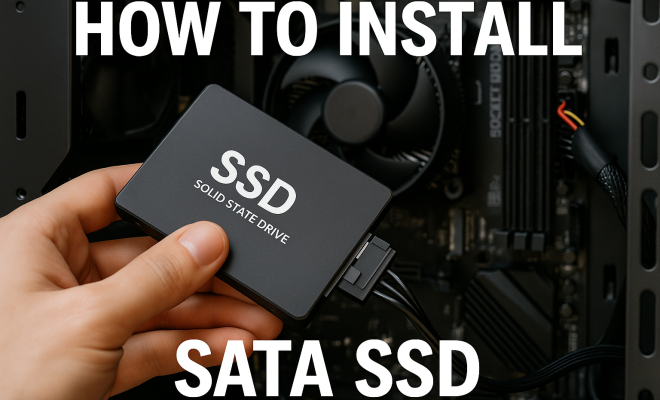
“`html
Installing a SATA SSD (Solid State Drive) can significantly enhance your computer’s performance. If you’ve been contemplating an upgrade, you’re not alone. Many PC users are making the switch to SSDs to take advantage of their speed and reliability. In this guide, we’ll walk you through every step of the process, ensuring you have all the information needed to successfully install SATA SSD in your system.
1. Understanding SSDs: What You Need to Know
Before you dive into the installation process, it’s crucial to understand what an SSD is and how it differs from traditional hard disk drives (HDDs). An SSD uses flash memory to store data, which allows for significantly faster data access speeds. Compared to HDDs, which rely on spinning disks to read and write data, SSDs offer quicker boot times, faster file transfers, and overall improved system responsiveness.
This technology has become more accessible in recent years, leading to a substantial decrease in prices. With various types of SSDs available—SATA, NVMe, and M.2—understanding the differences can help you make an informed decision. SATA SSDs are specifically designed to connect via the SATA interface, providing a solid balance between performance and cost.
2. Choosing the Right SATA SSD for Your Needs
When selecting a SATA SSD, consider several factors: storage capacity, read/write speeds, and warranty. Common capacities for consumer SSDs range from 250GB to 4TB, depending on your storage needs. If you plan to store large files, such as videos or games, aim for higher capacities.
Read and write speeds are also essential. SATA SSDs typically offer speeds up to 600 MB/s, which is significantly faster than traditional HDDs. Additionally, consider the warranty period; most SSDs come with a warranty of three to five years, reflecting the manufacturer’s confidence in their product’s longevity.
If budget is a concern, it’s worth noting that prices can vary significantly between brands and features. Popular options include Samsung, Crucial, and Western Digital, each offering different models at various price points. Checking user reviews and expert recommendations can also guide you in making a choice that fits your specific use case.
3. Gathering Necessary Tools and Materials
Before beginning the installation, gather all necessary tools and materials. You will need a SATA SSD, a SATA data cable, a power cable (if not included with your power supply), a screwdriver (typically a Phillips head), and optionally, a static wrist strap to prevent electrostatic discharge.
Ensure you have a backup of your data. While installing an SSD can be straightforward, data loss can happen if something goes wrong during the installation process. Planning ahead by backing up your hard drive to an external drive or cloud storage is wise.
Additionally, familiarize yourself with your computer’s manual or specifications. Knowing the layout of your motherboard and drive bays can save you time and frustration during installation. If you’re using a laptop, you may also need specific tools for accessing the internal components, so check for guides specific to your model.
4. Preparing Your System for Installation
Before you begin the installation of your SATA SSD, it’s essential to prepare your system. First, power off your computer and unplug it from the electrical outlet. This step is crucial for your safety and the protection of your hardware. Next, open your computer case by removing the screws on the side panel, allowing you access to the internal components.
Once inside, locate the existing drives and identify where you will install the new SSD. Most cases have dedicated 2.5-inch drive bays for SSDs. If you’re replacing an existing drive, carefully disconnect the cables from that drive and remove it from its bay. (See: Solid State Drive overview.)
As you prepare your system, take a moment to clean out any dust or debris inside your case. A clean environment can help improve airflow and cooling, leading to better performance and longevity for your new SSD and other components. Also, ensure that your power supply has sufficient wattage to support your new SSD and any other peripherals you may be using.
5. Installing the SATA SSD
Now for the main event: installing your SATA SSD. Slide the SSD into the designated 2.5-inch drive bay, ensuring it’s securely seated. Use screws to fasten the SSD into place, as this will keep it stable while your computer operates. Next, connect the SATA data cable from the SSD to an available SATA port on your motherboard. Make sure it clicks into place, as a loose connection can lead to detection issues later.
The last step in this installment phase is to connect the power supply. If your power supply has a spare SATA power cable, connect it to the SSD. If not, you might need to use a Molex to SATA power adapter, though this is less common. Once all connections are made, double-check to ensure everything is secure.
After the physical installation, consider checking for any firmware updates for your new SSD. Many manufacturers release updates that can enhance performance and stability. You might find these updates on the manufacturer’s official website, providing another layer of optimization for your new drive.
6. Reassembling and Powering On Your Computer
With the SSD installed, it’s time to reassemble your computer. Carefully replace the side panel of your case and secure it with screws. Plug your computer back in and power it on. If everything is connected properly, your computer should boot up as normal.
If your BIOS is configured to boot from the existing HDD, you might not see your new SSD immediately. To check this, enter your BIOS setup by pressing the designated key (often F2, DEL, or ESC) as your computer starts. Look for the SSD in the storage devices list. If it’s recognized, you’re ready to proceed with the next steps.
Should you encounter any issues at this stage, a quick reset of your BIOS settings to their defaults can sometimes help resolve detection problems. This action can reinitialize the hardware configuration, allowing your system to recognize the newly installed SSD.
7. Formatting and Partitioning Your SSD
Once your SATA SSD is recognized by the BIOS, you’ll need to format and partition it for use. Boot into your operating system and navigate to Disk Management (in Windows, you can find this by searching in the Start menu). Here, you will see your new SSD listed as unallocated space.
Right-click on the unallocated space and select ‘New Simple Volume’. Follow the prompts to create a partition, assigning the desired size and drive letter. Choose NTFS as the file system for Windows compatibility. Once the format is complete, your SSD is ready for use, and you can start transferring files or reinstalling applications.
For users of macOS, the process is slightly different. You would use Disk Utility to format the drive, selecting APFS or Mac OS Extended (Journaled) based on your needs. It’s essential to choose the right file system to ensure optimal performance for your applications.
8. Transferring Data and Optimizing Performance
After formatting, you may wish to transfer data from your old HDD to your new SSD. Tools such as Macrium Reflect or EaseUS Todo Backup can clone your existing drive to the new SSD, ensuring that your operating system and applications are swiftly accessible.
To optimize the performance of your SSD, enable features such as TRIM, which helps maintain the drive’s speed and longevity. You can check if TRIM is enabled by opening the Command Prompt and typing the command “fsutil behavior query DisableDeleteNotify”. If the result is “0”, TRIM is active, which is beneficial for maintaining your SSD’s performance over time. (See: SSD ergonomics and health.)
Another great tip is to disable hibernation on your computer, as this can take up unnecessary space on your SSD. If you don’t use hibernation, turning it off can save several gigabytes, which is particularly useful on smaller SSDs.
9. Troubleshooting Common Issues
Even with careful preparation, issues may arise during or after the installation process. If your computer fails to recognize the SSD, double-check all connections to ensure they are secure. Additionally, verify that the SATA port on the motherboard is functioning by connecting the SSD to a different port.
In some cases, firmware updates may be necessary for compatibility. Checking the manufacturer’s website for updates can resolve various issues. If your SSD is still not recognized after these steps, consider consulting the manufacturer’s support for further assistance.
Another common problem is the SSD showing as unallocated space in Disk Management. If this happens, it usually means the drive wasn’t formatted correctly. Simply right-click and format it to solve this issue. If you encounter error messages during the formatting process, it’s a sign that the SSD may need a firmware update or could be defective, so reaching out to the manufacturer would be advisable.
10. Maintaining Your SATA SSD
Once your SATA SSD is up and running, maintaining it is essential for its longevity. Regularly check its health using tools like CrystalDiskInfo or the manufacturer’s software utility. These tools can provide insights into the drive’s temperature, health status, and available space.
It’s also wise to keep your SSD’s firmware updated. Manufacturers often release updates that can enhance performance or fix bugs, so checking periodically ensures that you’re getting the best experience from your drive.
Additionally, avoid filling your SSD to its maximum capacity. Keeping about 10-20% of the drive free helps maintain optimal performance, as SSDs use free space to manage data efficiently. If you find yourself running low on storage, consider moving less frequently accessed files to a secondary drive or utilizing cloud storage options.
11. Frequently Asked Questions (FAQ)
1. Can I install a SATA SSD in my laptop?
Yes, many laptops have space for a SATA SSD, often in place of an existing HDD. However, it’s crucial to check your laptop’s specifications to confirm compatibility and available drive bays.
2. Will installing a SATA SSD void my warranty?
This largely depends on the manufacturer’s warranty policies. Typically, as long as you don’t damage other components during installation, it shouldn’t void your warranty. However, it’s best to consult your warranty documentation.
3. How do I know if my motherboard supports SATA SSDs?
You can find this information in your motherboard’s manual or specifications online. Look for SATA ports, and ensure they are compatible with the SSD you’re purchasing (most modern motherboards support SATA III). (See: Research on solid-state drives.)
4. What is the lifespan of a SATA SSD?
The lifespan of a SATA SSD can vary significantly based on usage and the technology used in the drive. Generally, most consumer SSDs last anywhere from 5 to 10 years, assuming normal write and read cycles.
5. Is it worth upgrading from an HDD to a SATA SSD?
Absolutely! Upgrading from an HDD to a SATA SSD can drastically improve boot times, application loading speeds, and overall system responsiveness. It’s one of the best upgrades you can make for an older system.
12. Advanced Considerations for SSD Installation
For those who want to take their installation to the next level, there are a few advanced considerations to keep in mind. If your motherboard supports it, consider utilizing the latest SATA III interface, which can deliver improved speeds compared to older versions. Additionally, if you’re using a gaming rig or a workstation, RAID configurations can optimize performance further, providing redundancy and speed. Implementing a RAID setup requires additional considerations, such as matching SSDs in terms of capacity and performance.
13. Comparing SATA SSDs to Other Storage Solutions
When considering an upgrade, it’s essential to compare SATA SSDs with other storage solutions like NVMe SSDs and traditional HDDs. NVMe SSDs offer even higher speeds due to their direct connection to the PCIe bus, making them ideal for tasks that require rapid data access, such as gaming or professional video editing. However, they are often more expensive than SATA SSDs and may not be necessary for everyday tasks. On the other hand, traditional HDDs are generally more cost-effective for bulk storage but fall short in speed. Thus, knowing your priorities—whether it’s speed, capacity, or budget—will help guide your choice.
14. Statistics on SSD Adoption
The shift from HDDs to SSDs has been significant in recent years. According to industry reports, SSD shipments have surpassed HDD shipments for consumer laptops, with SSDs present in over 70% of new machines sold. The growing demand for speed and efficiency in computing has driven this trend, as users increasingly opt for faster boot times and quicker data access. In addition, prices for SATA SSDs have dropped substantially, with average costs per gigabyte decreasing by over 50% since 2018. This drop in prices, coupled with increased performance, makes SSDs an attractive option for both consumers and businesses alike.
15. Common Myths About SSDs
There are several misconceptions surrounding SSDs that can lead to confusion. One prevalent myth is that SSDs wear out quickly due to limited write cycles. While it’s true that SSDs have a finite number of write and erase cycles, modern SSDs are designed with technologies that significantly extend their lifespan. Many users will find that their SSDs outlast their need for a specific device. Another myth is that SSDs are always faster than HDDs. This is mostly true, but it also depends on the specific models being compared. High-end HDDs can compete with lower-end SSDs in certain scenarios. Educating oneself on these myths can help in making informed decisions regarding storage solutions.
Installing a SATA SSD can seem daunting, but with the right tools and guidance, it’s a rewarding endeavor that can greatly enhance your computer’s performance. Whether you’re a seasoned tech enthusiast or a novice looking to improve your system, following these steps will assist you in successfully installing your SATA SSD and getting the most out of your upgrade.
“`
Trending Now
Frequently Asked Questions
What is a SATA SSD and how does it work?
A SATA SSD (Solid State Drive) uses flash memory to store data, which enables much faster data access speeds compared to traditional hard disk drives (HDDs). Unlike HDDs that rely on spinning disks, SATA SSDs provide quicker boot times and improved system responsiveness, making them a popular choice for enhancing computer performance.
How do I choose the right SATA SSD for my computer?
When selecting a SATA SSD, consider factors like storage capacity, read/write speeds, and warranty. Capacities typically range from 250GB to 4TB. Look for SSDs with read/write speeds up to 600 MB/s for optimal performance, and check the warranty, which usually spans three to five years.
Can I install a SATA SSD in any computer?
Most modern computers support SATA SSDs, but it's essential to check if your system has a free SATA connection and enough physical space for the drive. Additionally, ensure your motherboard's firmware is compatible with SSD technology to guarantee proper functionality.
What are the benefits of upgrading to a SATA SSD?
Upgrading to a SATA SSD can significantly enhance your computer's performance. Benefits include faster boot times, quicker file transfers, improved system responsiveness, and increased reliability. This upgrade is particularly beneficial for tasks that require high data access speeds, such as gaming and content creation.
How do I install a SATA SSD in my computer?
To install a SATA SSD, first power down your computer and disconnect it from the power source. Open the case, locate an available SATA port, and connect the SSD using a SATA cable. Secure the drive in place, reconnect the power, and boot your system. Follow your operating system's instructions to format and set up the SSD.
Have you experienced this yourself? We’d love to hear your story in the comments.