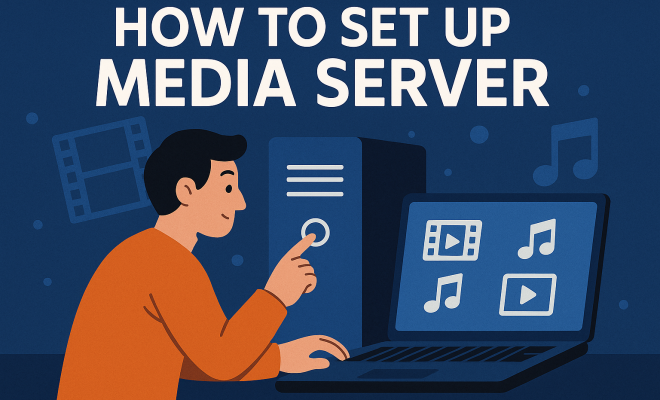
How to set up media server
“`html
1. Understanding Media Servers
Before diving into the nitty-gritty of media server setup, it’s essential to grasp what a media server actually is. In simple terms, a media server is a specialized computer or software application that stores and serves media files, such as videos, music, and photos. These servers allow users to stream content over a network, whether that’s a home network or the internet. The flexibility of media servers makes them an invaluable asset to anyone who consumes or shares digital media regularly.
Media servers can take many forms, from dedicated hardware devices to software running on existing computers. Popular examples include Plex, Emby, and Jellyfin. Each platform offers unique features, like transcoding capability, multi-device access, and user-friendly interfaces. Understanding these options can help you tailor your media server setup to meet your specific needs.
2. Why Set Up Your Own Media Server?
You might wonder why you should bother with a media server setup when streaming services like Netflix or Spotify are readily available. The truth is, setting up your own media server gives you control over your media library and lets you store content that may not be available on mainstream platforms. Additionally, it can often be more cost-effective in the long run.
Moreover, a personal media server allows for customization. You can organize your media in a way that suits you, create playlists, and share your media with family and friends without any restrictions. Plus, with a good enough setup, you can access your library from anywhere in the world, provided you have an internet connection. Optimizing your streaming experience has never been easier.
To put this into perspective, consider the growing trend of digital content ownership. According to a report from the Motion Picture Association, nearly 60% of consumers prefer owning their content over renting it through streaming services. This trend indicates a shift towards personal media libraries, further emphasizing the importance of a robust media server setup.
3. Choosing the Right Hardware
The first step in your media server setup is selecting appropriate hardware. Depending on your budget and needs, you can either repurpose an old computer or invest in a dedicated server. If you’re opting for a DIY approach, consider the following:
- Processor: A strong CPU is crucial, especially for transcoding, which converts media files into different formats. Look for a multi-core processor for optimal performance.
- RAM: At least 8GB of RAM is recommended to handle simultaneous streams effectively.
- Storage: Depending on the volume of content you plan to store, choose a hard drive or SSD with enough capacity. Don’t forget about redundancy; RAID configurations can help protect your data.
Alternatively, many users find that dedicated devices like the Synology DiskStation or QNAP NAS provide a balance of performance, ease of use, and power efficiency without needing extensive technical expertise.
When selecting hardware, keep in mind what you intend to stream. For instance, 4K video will require more processing power and bandwidth compared to standard HD content. Evaluating your usage habits will guide you to the right choice.
4. Selecting the Right Software
Once your hardware is ready, the next step in your media server setup is choosing the right software. This decision can significantly impact your overall experience. Here are some of the most popular media server software options:
- Plex: Known for its user-friendly interface, Plex allows you to stream your media collection across various devices. It offers features like metadata fetching, a mobile app, and even parental controls.
- Emby: This media server software focuses on customization and user privacy. Emby offers live TV features and DVR capabilities, making it an excellent choice for users who want to merge traditional TV with their digital library.
- Jellyfin: An open-source alternative to Plex and Emby, Jellyfin offers many of the same features without the premium subscription costs. It’s a great option for those looking for flexibility and community support.
Choose software according to your needs, considering factors such as interface, device compatibility, and available features. Some users prefer Emby for its live TV functionality, while others might lean towards Plex for its ease of use. Evaluating user reviews and community feedback can also provide insight into which platform best suits your requirements. (See: Understanding media servers.)
5. Network Configuration
Your media server setup wouldn’t be complete without addressing network configuration. To ensure smooth streaming and minimal buffering, you need to optimize your home network. Here are some strategies:
- Wired vs. Wireless: Wherever possible, connect your media server to your router using an Ethernet cable. Wired connections are generally faster and more stable than Wi-Fi.
- Router Quality: Invest in a good quality router that can handle multiple devices and high throughput. Routers with features like Quality of Service (QoS) settings can prioritize media streaming traffic.
- Port Forwarding: If you want to access your media server remotely, you’ll need to configure port forwarding on your router. Check your media server software documentation for specific ports to open.
Setting up a robust network will significantly enhance your streaming experience, especially if you plan to support multiple devices simultaneously. A recent study indicated that streaming quality drops significantly in households with outdated routers; upgrading can make a noticeable difference.
Additionally, consider setting up a separate network for your media server to reduce congestion from other devices. This can help maintain a more stable connection and improve overall performance.
6. Organizing Your Media Library
Once your hardware, software, and network are in place, it’s time to focus on organizing your media library. A well-organized library not only makes it easier to find content but also improves the overall user experience. Here are some tips:
- Metadata Management: Ensure that your media files have proper metadata (like titles, descriptions, and cover art). Most media server software can automatically fetch this information, but you may need to manually edit some details for accuracy.
- Folder Structure: Create a clear and logical folder structure on your server. For example, you can have separate folders for movies, TV shows, music, etc. Organizing your files this way can speed up the scanning process and improve accessibility.
- Regular Maintenance: Periodically review your library to remove duplicate or unwanted files. This practice not only frees up space but also enhances your overall viewing experience.
By taking the time to properly set up your media library, you’ll save yourself a lot of frustration down the line. Statistics show that users spend an average of 20% of their viewing time searching for content. A well-organized library can significantly reduce this time.
7. Accessing Your Media Server
After you’ve set up your media server and organized your library, the next step is figuring out how to access your media. Most media server software comes with mobile and desktop applications that make streaming easy and convenient. Here are some common ways to access your media:
- Smart TVs: Many smart TVs support apps for popular media server software like Plex or Emby. Install the app, sign in, and start streaming your content directly on your TV.
- Streaming Devices: Devices like Roku, Amazon Fire TV, and Apple TV support various media server apps, allowing you to access your library on the big screen without needing additional hardware.
- Mobile Devices: Your media server can also be accessed on smartphones and tablets, enabling you to stream content on the go. Just install the appropriate app and sign in with your account.
Having multiple access points ensures that you can enjoy your media library whenever and wherever you want. Additionally, consider utilizing features like offline downloads on mobile apps, allowing you to store content for viewing without a data connection.
8. Remote Access and Security
Once you’ve got your media server setup running smoothly, you might want to access your media library when you’re away from home. This requires configuring remote access. However, it’s crucial to ensure that your server is secure while doing so. Here are some steps to follow:
- Use a VPN: A Virtual Private Network (VPN) can help protect your data when connecting to your server from public networks.
- Enable Two-Factor Authentication: If your media server software supports it, enabling two-factor authentication adds an extra layer of security to your account.
- Firewall Settings: Adjust your firewall settings to limit access to only necessary ports and services, making it more difficult for unauthorized users to gain entry.
Implementing these security measures will help keep your media server safe while giving you the flexibility to access your collection from anywhere. Recent surveys indicate that cybersecurity threats to home networks have increased by over 50% in the last two years, making these precautions more important than ever.
9. Keeping Your Media Server Updated
Finally, like any other piece of technology, regular updates are essential for maintaining your media server setup. Software developers frequently release updates that include new features, security patches, and performance improvements. Here’s how to manage your updates: (See: CDC media resources.)
- Automatic Updates: Enable automatic updates for your media server software if available. This feature ensures that you’re always running the latest version without manual intervention.
- Backup Your Data: Before applying updates, make sure to back up your media library and server settings. This precaution protects you from potential data loss during the update process.
- Monitor Community Forums: Participating in community forums for your chosen media server software can provide valuable insights on updates, tips, and best practices from other users.
By keeping your media server updated, you ensure that it runs efficiently and securely, allowing you to enjoy your content without interruptions. Also, consider setting a reminder or schedule for regular updates, so it becomes a part of your routine.
10. Common Issues and Troubleshooting
At some point, you may encounter issues with your media server setup. Here are some common problems and how to troubleshoot them:
- Buffering Issues: If you experience buffering during streaming, check your network speed. A speed test can help you determine if your internet connection is sufficient. Consider upgrading your bandwidth or moving your server closer to your router.
- Transcoding Failures: If certain files won’t play or stream correctly, it could be due to transcoding issues. Ensure that your media server has the necessary codecs installed. Updating your server software can also resolve this issue.
- Access Problems: If you can’t access your server remotely, double-check your port forwarding settings and ensure your dynamic DNS (if used) is properly configured. Restarting your router can also help reset any connection issues.
By understanding these common issues, you’ll be better prepared to troubleshoot problems as they arise, keeping your media server running smoothly.
11. Frequently Asked Questions (FAQ)
What is a media server?
A media server is a device or software that stores, manages, and serves media files to other devices over a network, allowing for streaming and sharing of digital content.
Do I need a powerful computer for a media server?
It depends on your needs. For basic streaming, a less powerful machine might suffice; however, for transcoding or streaming 4K content, a more robust setup is recommended.
Can I use my existing computer as a media server?
Absolutely! You can repurpose an old computer by installing media server software like Plex or Emby, turning it into a functional media server.
Is it legal to store and stream my own media?
Yes, as long as the media is legally obtained for personal use, you can store and stream it on your media server without any legal issues.
What are the best formats for media files on a server?
Common file formats that work well for media servers include MP4 for video, MP3 for audio, and JPEG or PNG for images. Always check your media server software for preferred formats.
How can I access my media server from outside my home network?
You can access your media server remotely by configuring port forwarding on your router, using a VPN for security, or utilizing dynamic DNS services to maintain a constant address. (See: The role of media in society.)
What should I do if my media server crashes?
Restart your server and check the error logs for any indication of what went wrong. If it continues to crash, consider checking for software updates or reinstalling the media server software.
12. Advanced Media Server Features
As you become more familiar with media server setup, you can explore advanced features that enhance your user experience. These include:
- Transcoding: This feature allows your server to convert files on-the-fly to a format that your device can play. If you have a slow internet connection or an older device, transcoding can ensure smooth playback.
- Remote Streaming: In addition to accessing your library on local devices, many media servers allow you to stream content remotely. This means you can enjoy your favorite shows and movies while traveling or away from home.
- Content Aggregation: Some media server software can pull in content from various online sources. For example, you can integrate live TV, podcasts, or even services like YouTube into your media library, creating a centralized hub for all your digital entertainment.
Understanding these advanced features can help you maximize your media server’s potential, enhancing your overall experience.
13. Comparing Media Server Options
Choosing the right media server software can be daunting, given the variety of options available. Here’s a comparison of popular media server software based on key features:
| Feature | Plex | Emby | Jellyfin |
|---|---|---|---|
| User Interface | Highly polished and intuitive | Customizable but less refined | Functional but simpler design |
| Transcoding | Excellent support; cloud transcoding available | Good support; local transcoding features | Basic support; no cloud transcoding |
| Cost | Free tier available; premium subscription for additional features | Free with optional premium features | Completely free and open-source |
| Live TV Support | Yes, with additional setup | Yes, includes DVR functionality | Limited live TV support |
| Device Support | Extensive; most devices supported | Wide support, but less than Plex | Growing support; community-driven |
Evaluating these features according to your needs can help you make an informed choice that aligns with your media consumption habits.
14. Future-Proofing Your Media Server
As technology evolves, so should your media server setup. Here are some tips to future-proof your media server:
- Invest in Scalable Hardware: Choose hardware that allows for upgrades. For example, select a motherboard that supports additional RAM or storage options to expand your server’s capabilities as your media library grows.
- Stay Updated on Trends: Keep an eye on emerging trends in streaming technology, like support for new codecs or resolutions. Staying informed can help you plan for necessary upgrades.
- Community Involvement: Engage with online communities around your chosen software. These communities often share tips and news on the latest features and best practices, helping you stay ahead of the curve.
Future-proofing your media server ensures that you can adapt to changes in technology and enjoy seamless streaming for years to come.
“`
Trending Now
Frequently Asked Questions
What is a media server?
A media server is a specialized computer or software application that stores and serves media files like videos, music, and photos. It allows users to stream content over a home network or the internet, providing flexibility for media consumption and sharing.
Why should I set up my own media server?
Setting up your own media server gives you control over your media library, allowing you to store content that may not be available on mainstream platforms. It also offers customization options and can be more cost-effective in the long run.
What are some popular media server options?
Popular media server options include Plex, Emby, and Jellyfin. Each platform offers unique features like transcoding capabilities, multi-device access, and user-friendly interfaces to enhance your media streaming experience.
Can I access my media server from anywhere?
Yes, with a good media server setup, you can access your media library from anywhere in the world as long as you have an internet connection. This flexibility makes it easy to enjoy your media on the go.
Is owning digital content better than streaming?
Many consumers prefer owning their digital content over renting it through streaming services. Owning content allows for greater control and customization of your media library, aligning with the trend of increased digital content ownership.
Have you experienced this yourself? We’d love to hear your story in the comments.