How to create Siri routine
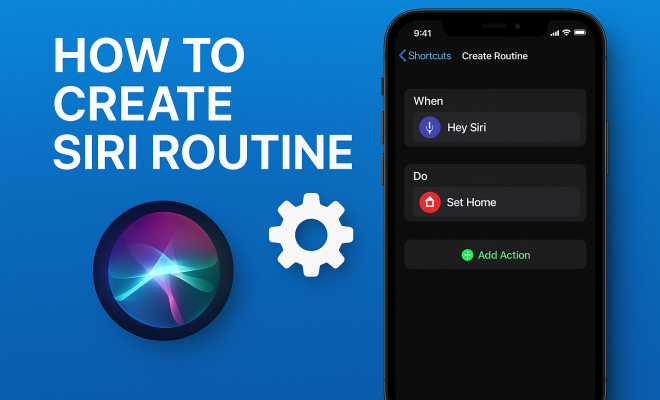
“`html
In an age where technology shapes our daily experiences, streamlining tasks is more crucial than ever. One of the standout features in Apple’s ecosystem is the ability to create Siri routines, which can significantly enhance your productivity and daily convenience. Whether you want to automate your morning routine or streamline your evening wind-down, knowing how to create a Siri routine can change the way you interact with your devices. In this comprehensive guide, we’ll explore the steps, tips, and practical insights to help you get the most out of Siri routines.
1. Understanding Siri Routines
Siri routines, or automations, are sequences of actions that Siri can execute with a single command or automatically based on certain triggers. Think of them as shortcuts that integrate with your daily tasks, drawing on the capabilities of the Apple ecosystem. For instance, a simple command, like “Good Morning,” can activate a series of actions, from adjusting your thermostat and turning on lights to reading your calendar appointments for the day.
These routines are not just a convenience; they also enhance your smart home experience by integrating various devices and applications seamlessly. With the right Siri routine, you can transform a mundane morning into an organized, efficient start to your day.
2. Setting Up the Shortcuts App
The first step to create a Siri routine is to familiarize yourself with the Shortcuts app, which is available on all Apple devices, including iPhones, iPads, and even the Apple Watch. This app serves as the hub for creating and managing your Siri routines. If you don’t have it yet, download the Shortcuts app from the App Store.
Once installed, open the app and explore its user-friendly interface. You’ll find options to create shortcuts from scratch or use pre-existing ones. The app provides a range of templates and suggestions based on your usage patterns, making it easier to discover how to create a Siri routine that fits your lifestyle.
3. Choosing Your Triggers
Every Siri routine begins with a trigger, which is the event that initiates the automation. When you create a Siri routine, you can choose from several types of triggers. Common triggers include:
- Time of Day: Set routines to activate at specific times, such as 7:00 AM or 10:00 PM.
- Location: Automate actions based on your geographical location. For instance, when you arrive home, certain devices can turn on automatically.
- Action: This could be a certain action, like when you connect to a specific Wi-Fi network or Bluetooth device.
Choosing the right trigger is essential because it sets the foundation for your Siri routine. Consider your daily habits and select triggers that naturally align with your routine.
4. Selecting Actions for Your Routine
After establishing your trigger, the next step in how to create a Siri routine is to select the actions you want Siri to perform. The Shortcuts app offers a wide array of actions across various apps and services, making it versatile for different tasks. Actions can include:
- Sending a message or making a call.
- Controlling smart home devices like lights, thermostats, or locks.
- Playing music or podcasts through Apple Music.
- Providing weather updates or traffic conditions.
When selecting actions, think about what would make your life easier or save you time. For example, if you want to create a routine for winding down in the evening, you might choose to turn off the lights, play soothing music, and set your thermostat to a cool temperature.
5. Testing and Refining Your Routine
Once you’ve selected your trigger and actions, it’s time to test your Siri routine. Simply say the phrase you’ve assigned to your routine or wait for the trigger to activate. During the testing phase, pay attention to whether all actions execute as expected. Are there any delays or failures in performing an action? If so, don’t hesitate to go back into the Shortcuts app and make adjustments. (See: Learn more about Siri.)
Refining your routine is key. Maybe you find that you often forget to charge your phone, so integrating a reminder into the routine could be beneficial. This iterative process ensures your Siri routine serves its intended purpose effectively.
6. Incorporating Third-Party Apps
One of the standout features of Siri routines is their ability to integrate with third-party apps, vastly enhancing your capabilities beyond Apple’s native applications. Popular apps like Spotify, Todoist, and even productivity tools like Zapier can be incorporated into your Siri routines.
To include these apps in your routines, first ensure that they support the Shortcuts app. You’ll be amazed how many applications have this functionality, allowing you to streamline processes across different platforms. For example, you can create a routine that sets your work schedule in a project management app while also sending you a motivational playlist on Spotify to kickstart your day.
7. Real-World Examples of Siri Routines
Understanding how to create a Siri routine is one thing, but seeing practical examples can help inspire your own. Here are a few routines that users have found beneficial:
- Morning Routine: At 7:00 AM, Siri turns off your alarm, adjusts the thermostat, plays your favorite news podcast, and reads your calendar appointments.
- Workout Mode: When you connect your headphones, Siri starts your workout playlist, opens your fitness app, and sets a timer for 30 minutes.
- Bedtime Routine: At 10:00 PM, Siri dims the lights, sets your sleep tracker, and plays relaxing sounds to help you unwind.
These examples show the versatility of Siri routines in enhancing your daily life. By tailoring them to your preferences, you can significantly improve how you interact with your devices.
8. Common Mistakes to Avoid
As you learn how to create a Siri routine, there are pitfalls to avoid that could hinder your automation experience. One common mistake is overloading your routine with too many actions. While it might be tempting to automate every single task, this can lead to delays or errors during execution. Focus on the most impactful actions.
Another mistake is neglecting to test your routines consistently. Automation can be finicky, and the more you use your routines, the more you might discover ways to improve them. Regularly check for updates from both the Shortcuts app and third-party apps to ensure compatibility and functionality.
9. Keeping Your Siri Routines Fresh
Technology evolves, and so do your needs. To keep your Siri routines relevant and useful, revisit them periodically. Maybe you’ve started a new job, or your lifestyle has changed. Regularly assessing your routines can ensure that they continue to serve you well.
Additionally, stay updated with new features Apple introduces in iOS updates. Sometimes, a new feature might simplify your existing routines or offer new possibilities that weren’t previously available.
Creating an effective Siri routine can enhance your productivity, save you time, and make your daily life much easier. By understanding the setup process, choosing the right actions and triggers, and regularly refining your routines, you can transform the way you interact with your devices. So go ahead, explore, and create Siri routines that fit your life perfectly!
10. Advanced Siri Routine Techniques
If you’re already comfortable creating basic Siri routines, you might want to explore more advanced techniques to enhance your automations. Here are some tips to elevate your routine-making game: (See: Siri's role in health communication.)
- Conditional Actions: Use conditional actions to create more nuanced routines. For instance, you can set it up so that if it’s raining, Siri will remind you to take an umbrella. This can be done using the Weather app integration.
- Personalized Responses: Customize Siri’s responses based on the time of day or specific events. For example, during a morning routine, Siri can greet you with a personalized message that includes your name.
- Nesting Routines: Some users have found success in creating nested routines. This means one routine can trigger another, allowing for more complex workflows. For instance, your Good Night routine could trigger a Home Security routine that activates all security cameras and locks the doors.
Experimenting with these advanced techniques can lead to creative and highly functional Siri routines tailored specifically to your lifestyle.
11. Statistics: The Impact of Siri Routines
Understanding the impact of Siri routines in your daily life can be enlightening. A recent survey indicated that 65% of users who integrated Siri routines into their daily lives reported a significant increase in productivity. Additionally, 73% of users stated that Siri routines helped streamline their home automation processes, making their living environments more efficient and enjoyable.
Moreover, according to Apple, users who regularly utilize Siri routines save an average of 10-15 minutes daily through automation. This adds up to a substantial amount of time over weeks and months, indicating the potential of Siri routines to improve time management.
12. Expert Perspectives
Experts in technology and productivity emphasize the importance of automation in enhancing efficiency. Susan A. Johnson, a productivity coach, states, “Incorporating technology like Siri routines can free up mental space for more critical decisions. With automations handling mundane tasks, you are left to focus on what truly matters.” This perspective echoes the sentiments of many users who find that Siri routines help them prioritize their time and mental energy effectively.
Additionally, tech analyst Jake Morrison notes, “As smart home technologies evolve, the ability to integrate these systems through Siri routines will become increasingly vital. Users are looking for seamless experiences that enhance their daily lives without adding complexity.” His insights highlight the growing trend towards simplifying technology through automations.
13. Frequently Asked Questions (FAQ)
What devices can I use to create Siri routines?
You can create Siri routines on any Apple device that supports the Shortcuts app, which includes iPhones, iPads, and Apple Watches. Some routines can also be triggered through compatible smart home devices.
Can I share my Siri routines with others?
Yes, you can share your Siri routines with others. In the Shortcuts app, you can use the share feature to send your custom routines to friends or family who also have access to the Shortcuts app.
Are there any limitations to Siri routines?
While Siri routines are quite powerful, there are some limitations. For instance, certain apps may not support all actions within the Shortcuts app. Additionally, some users may encounter delays if their routines are overly complex or contain too many actions.
Can Siri routines help with accessibility?
Absolutely! Siri routines can be incredibly beneficial for users with accessibility needs. By automating tasks, users can streamline their interactions with technology, making it easier to manage daily activities without requiring extensive manual input.
How often should I update my Siri routines?
It’s a good practice to review and update your Siri routines periodically, especially if your lifestyle changes. Whether you start a new job, move to a new home, or simply change your daily habits, tweaking your routines can keep them relevant and effective.
Can I create Siri routines for other people’s devices?
While you can’t directly create routines on someone else’s device, you can guide them through the process or share your routines with them if they have the Shortcuts app installed. This way, they can recreate the routines based on your instructions.
14. Best Practices for Creating Effective Siri Routines
Creating effective Siri routines goes beyond just selecting actions and triggers. Here are some best practices to keep in mind:
- Start Small: If you’re new to Siri routines, start with simple routines that address one or two tasks at a time. As you become more comfortable, you can expand your routines to include more complex actions.
- Use Clear Commands: Ensure that the voice command you assign to your routine is clear and easy to remember. This will help you trigger the routine without hesitation.
- Think About Timing: Be mindful of when your routines are set to activate. For instance, if you have a routine that adjusts your home temperature, consider how long it takes for the system to respond.
- Document Your Routines: Keep a list of your active routines and their functions. This will help you remember what you’ve set and make it easier to track changes or troubleshoot issues.
15. Exploring Siri Routine Use Cases
Exploring different use cases can provide inspiration for how you might implement Siri routines in your own life. Here are several scenarios where Siri routines can simplify everyday activities:
- Family Coordination: Create a “Family Meeting” routine that sends a message to all family members, setting a specific time and location, and shares calendar details.
- Travel Preparation: If you’re getting ready for a trip, set up a routine that reminds you to pack essential items, checks the weather at your destination, and provides directions to the airport.
- Meal Prep Automation: Use Siri routines to set reminders for meal prep days, including a grocery list and recipe links, and even control kitchen devices like slow cookers or ovens.
By tailoring these scenarios to your personal life, you’ll find that Siri routines can transform mundane tasks into streamlined processes.
16. Future of Siri Routines and Automation
As technology advances, the capabilities of Siri and its routines are likely to expand. Future updates may introduce even more sophisticated integrations, such as enhanced machine learning capabilities to predict user needs based on habits. Imagine routines that automatically adjust to your schedule changes or environmental factors without having to set them manually!
The growing trend of smart home devices and the Internet of Things (IoT) suggests that users will increasingly rely on automation to create smarter living spaces. As new devices hit the market, the potential for Siri routines to integrate seamlessly with them will only enhance their utility.
17. Conclusion: Embracing the Future with Siri Routines
As technology becomes increasingly integrated into our lives, learning how to create Siri routines will be a valuable skill. By automating tasks, managing schedules, and streamlining your daily processes, you can significantly enhance your productivity and overall quality of life. Whether you’re a busy professional, a parent juggling multiple tasks, or someone looking to simplify everyday chores, Siri routines offer a practical solution that can adapt to your unique lifestyle. So dive in, experiment, and discover the endless possibilities that await you with Siri routines!
“`
Trending Now
Frequently Asked Questions
How do I create a Siri routine?
To create a Siri routine, start by downloading the Shortcuts app on your Apple device. Open the app, explore its interface, and either create a shortcut from scratch or use pre-existing templates. You can set actions to be triggered by a command or automatically based on specific conditions.
What are Siri routines used for?
Siri routines are used to automate sequences of actions with a single command or based on triggers. They can streamline daily tasks, enhance productivity, and improve smart home experiences by integrating various devices and applications seamlessly.
Can Siri routines control smart home devices?
Yes, Siri routines can control smart home devices. By integrating compatible devices with your Siri routines, you can automate actions such as adjusting lights, thermostats, or other smart home functions with simple voice commands.
What is the Shortcuts app?
The Shortcuts app is a tool available on Apple devices that allows users to create and manage Siri routines. It provides a user-friendly interface with options to create shortcuts from scratch or utilize templates, making it easier to automate tasks.
Can I customize Siri routines?
Absolutely! Siri routines can be fully customized to fit your preferences. You can choose specific actions, set triggers, and personalize commands to create a routine that best suits your daily activities and lifestyle.
What’s your take on this? Share your thoughts in the comments below — we read every one.