How to Reset Your Amazon Echo: A Complete Guide
“`html
Resetting your Amazon Echo can be a straightforward process, yet many users find themselves puzzled by the steps. Whether you’re troubleshooting issues, preparing to sell your device, or simply want a fresh start, knowing how to reset Amazon Echo is essential for getting the best performance from your device. In this comprehensive guide, we’ll walk you through the various methods to reset your Echo, explain why you might need to reset it, and provide practical tips for maintaining your smart speaker. Let’s dive in!
1. Understanding Why You Might Need to Reset Your Amazon Echo
Before you begin the reset process, it’s crucial to understand the reasons behind it. Users typically reset their devices for a few common reasons:
- Troubleshooting: If your Echo isn’t responding to commands, or if it frequently disconnects from Wi-Fi, a reset might solve those persistent issues.
- Preparation for Sale: If you’re selling or giving away your Echo, resetting it ensures your personal information is removed from the device.
- Change of Ownership: New owners benefit from a fresh setup, allowing them to link the device to their own Amazon account.
Understanding these motivations helps you appreciate the importance of resetting your Echo effectively. It’s not just about clearing up issues; it’s about starting fresh with a clean slate.
2. Types of Amazon Echo Devices
Before diving into the reset instructions, it’s vital to know that Amazon has released several Echo models, including:
- Echo Dot: A compact version, ideal for smaller spaces.
- Echo Show: This model features a screen for video calls, recipes, and more.
- Echo Studio: A high-fidelity speaker offering superior sound.
- Echo Flex: A plug-in version that can fit into tight spaces.
Each model may have slightly different methods for resetting. Knowing your specific device ensures that you follow the correct procedure. The differences can affect how you interact with the reset button or the app, which is essential for a successful reset.
3. How to Reset Amazon Echo (Standard Method)
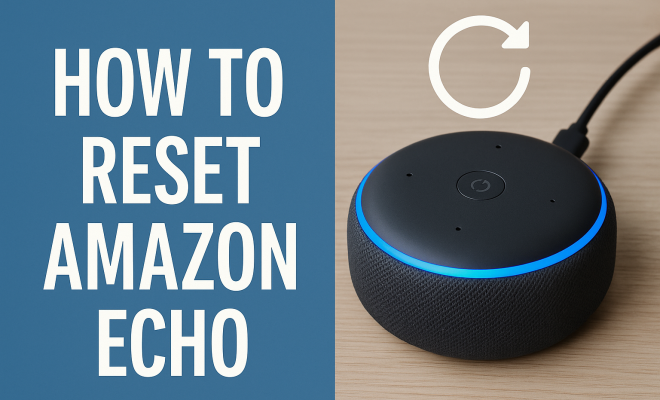
The most common method to reset your Amazon Echo involves using the physical buttons on the device itself. This is generally applicable to most Echo products. Here’s how to do it:
- Locate the Action button (the button with a dot) on your Echo device.
- Press and hold the Action button for about 25 seconds. You’ll notice the light ring change color.
- Release the button when the light ring turns orange, then blue. This indicates the device is resetting.
- Once the light ring turns off and then back on with a blue light, your Echo is reset and ready for a new setup.
This method works well for most Echo devices, but always consult your specific model’s instructions if you’re unsure. Following these steps will ensure your Echo is properly reset and ready to go.
4. Resetting the Echo Show
The Echo Show, with its touchscreen, has a slightly different reset process. Here’s how to reset this model:
- Swipe down from the top of the screen to access the settings menu.
- Select Settings, then scroll to Device Options.
- Choose Reset to Factory Defaults. You may be prompted to confirm your choice.
- If you have multiple Echo devices, ensure you select the correct one.
Resetting the Echo Show can help with software glitches and connectivity problems, especially if you notice the display is unresponsive or slow. This method also allows you to maintain your device’s integrity, especially if apps or updates are causing issues.
5. Using the Alexa App to Reset
Another effective way to reset your Amazon Echo is through the Alexa app. This method is particularly useful if you can’t access the device or if the physical buttons are unresponsive. Here’s how you can do it: (See: Amazon Echo overview on Wikipedia.)
- Open the Alexa app on your smartphone.
- Navigate to Devices in the bottom menu.
- Select Echo & Alexa and choose the device you wish to reset.
- Scroll down and tap on Device Settings.
- Find and select the option to Factory Reset the device.
This app-based method gives you an easy alternative if you’re having trouble with the manual reset. It’s a handy tool, especially for tech-savvy users who prefer to manage their devices through apps.
6. Resetting Echo Devices with Screen Issues
For Echo devices that suffer from screen issues or are completely unresponsive, a reset can sometimes breathe new life into them. For instance, if your Echo Show screen is frozen or not responding, you can try a forced reset:
- Press and hold the Power button until the screen goes black (usually about 10 seconds).
- Wait a moment before turning it back on.
This method is particularly useful when the device has software glitches that prevent it from responding to touch commands. Remember that this is a hard reset and may not always work; if problems persist, consider a factory reset as detailed previously.
7. Common Problems Resolved by Resetting
So, what types of problems can you expect to resolve by resetting your Amazon Echo? Here are a few that users often encounter:
- Connection Issues: If your Echo frequently disconnects from Wi-Fi or has trouble pairing with other devices, a reset can sometimes re-establish those connections.
- Software Glitches: Apps may freeze or not function properly. Resetting clears temporary data that could be causing issues.
- Voice Recognition Problems: A reset can also improve Alexa’s ability to understand commands, especially if it’s been malfunctioning.
These common problems serve as a reminder that sometimes, a simple reset can provide a solution that more complex troubleshooting won’t. It’s often the first step you should take when experiencing device issues.
8. Post-Reset Setup Steps
After successfully resetting your Amazon Echo, there are several steps you’ll need to follow to set it back up:
- Plug your Echo into a power source and wait for it to boot up completely.
- Open the Alexa app on your smartphone or tablet. Make sure you have the latest version installed.
- Go to the Devices tab and select Add Device.
- Follow the on-screen instructions to connect your Echo to your Wi-Fi network and link it to your Amazon account.
- Customize your device settings according to your preferences.
Completing these steps ensures that your Echo is not just reset but also optimized for your specific needs. You can personalize your device, set up routines, and explore new features that might not have been available before.
9. Maintaining Your Amazon Echo for Longevity
To keep your Amazon Echo performing at its best, regular maintenance is key. Here are some tips to consider:
- Regular Updates: Ensure your Echo has the latest software updates installed. These updates can fix bugs and add new features.
- Manage Connected Devices: Regularly review what devices are connected to your Echo. Remove any that you no longer use or need.
- Optimize Wi-Fi: A strong Wi-Fi connection improves performance. Consider positioning your Echo closer to your router if you experience connectivity issues.
By following these maintenance tips, you can minimize the frequency of resets and keep your Amazon Echo functioning smoothly over time. A little care goes a long way in ensuring that your smart speaker remains a reliable part of your home setup.
10. Advanced Troubleshooting for Persistent Problems
While resetting your Amazon Echo can solve many issues, sometimes you may still face persistent problems afterward. Here are some advanced troubleshooting methods you can try: (See: CDC on technology and health.)
- Check Your Network: If your Echo continues to disconnect after a reset, it might be a problem with your Wi-Fi. Try restarting your router or checking for network outages in your area.
- Clear the Cache in the Alexa App: Sometimes, the Alexa app may hold onto old data that can cause issues. Go to your app settings and clear the cache, then restart the app.
- Recreate Routines: If you’ve set up routines that aren’t working properly, you may need to delete and recreate them after a reset. This ensures that any changes in device settings are fully accounted for.
If you’ve tried all of these methods and your Echo still isn’t functioning properly, it may be time to reach out to Amazon’s customer support for further assistance. They can provide additional insights or help you determine if your device needs repair or replacement.
11. Frequently Asked Questions (FAQs)
Q1: Will resetting my Amazon Echo delete all my settings?
A1: Yes, a factory reset will erase all your settings, including saved Wi-Fi networks and linked accounts. You’ll need to set everything up again as if it were new.
Q2: Can I reset my Echo while it’s connected to a Bluetooth device?
A2: Yes, you can reset your Echo while it’s connected to Bluetooth; however, the connection will be lost after the reset, and you’ll need to reconnect your Bluetooth device afterwards.
Q3: Is there a way to reset without losing my voice profiles?
A3: Unfortunately, resetting your device will remove voice profiles along with all other settings. You will need to reconfigure everything, including voice profiles, after the reset.
Q4: How often should I reset my Amazon Echo?
A4: There’s no specific schedule for resetting. Only reset your Echo if you’re experiencing issues or if you’re preparing to sell or give away the device.
Q5: What happens to my music subscriptions when I reset my Echo?
A5: Resetting your Echo doesn’t cancel any of your music subscriptions; however, you will need to log back into your accounts through the Alexa app.
Q6: Can I reset my Echo Show without using the touchscreen?
A6: Yes, if the touchscreen is unresponsive, you can perform a hard reset by holding down the Power button until the device turns off and then turns back on.
Q7: How do I ensure my Echo is up to date before I reset?
A7: You can check for updates in the Alexa app under Device Settings. Make sure your device is connected to Wi-Fi, and the app will usually update the device automatically.
Q8: What should I do if my Echo still has issues after resetting?
A8: If issues persist, consider troubleshooting your Wi-Fi connection, checking for device conflicts, or contacting Amazon support for professional assistance. (See: New York Times review of Amazon Echo.)
Q9: Are there specific signs that indicate I need to reset my Echo?
A9: Yes, if you notice frequent disconnections, software glitches, or if Alexa isn’t responding as expected, these can be signs that a reset might help.
Q10: What if I can’t find the reset option in the Alexa app?
A10: If the reset option isn’t visible, ensure your app is updated. If problems continue, try uninstalling and reinstalling the app or check your device’s compatibility with the app.
12. Best Practices for Using Your Amazon Echo
After resetting your Amazon Echo and setting it up, consider the following best practices to maximize your experience:
- Voice Training: Spend time training Alexa to understand your voice better. This can enhance its performance in recognizing your commands.
- Utilize Skills: Explore the Alexa Skills Store to find new skills that can enhance your Echo’s functionality, from games to productivity tools.
- Manage Privacy Settings: Regularly review your privacy settings in the Alexa app to ensure that you’re comfortable with how your data is being used.
- Routine Automation: Use the routines feature to automate tasks, such as turning on lights or setting reminders. This can make daily activities smoother and more efficient.
- Feedback to Alexa: If Alexa misinterprets commands, provide feedback. This can help improve its learning and accuracy over time.
These best practices will not only enhance your Echo experience but also ensure that you’re getting the most out of its capabilities.
13. Future of Amazon Echo Devices
As technology continues to evolve, Amazon Echo devices are also adapting to meet new demands. Here are some anticipated trends and features for the future of Echo devices:
- Improved AI Capabilities: Future updates will likely enhance Alexa’s understanding of context, making interactions more conversational and intuitive.
- Increased Home Integration: Expect deeper integration with smart home devices, allowing for seamless control of your environment through voice commands.
- Health Monitoring: Some rumors suggest that future Echo devices may include health and wellness features, such as monitoring heart rates or sleep quality through voice analysis.
- Enhanced Personalization: As machine learning evolves, Alexa may offer more personalized experiences based on your habits and preferences.
- Environmental Adaptability: Newer Echo models may come equipped with technology that allows them to adapt their sound output based on the room’s acoustics.
Keeping an eye on these trends helps you stay ahead in utilizing your Amazon Echo effectively and ensures that your device remains relevant as technology progresses.
Resetting your Amazon Echo doesn’t have to be a daunting task. Whether you’re troubleshooting, selling your device, or just starting fresh, knowing the right steps can make all the difference. This guide should empower you to take charge of your Echo and utilize its features to their fullest potential.
“`
Trending Now
Frequently Asked Questions
How do I reset my Amazon Echo?
To reset your Amazon Echo, locate the reset button on the device or use the app. For most models, press and hold the Action button for about 20 seconds until the light ring turns orange, then blue. After the reset, the device will enter setup mode, allowing you to reconnect to Wi-Fi.
Why would I need to reset my Amazon Echo?
You might need to reset your Amazon Echo for several reasons, such as troubleshooting connectivity issues, preparing the device for sale, or changing ownership. Resetting clears personal information and allows for a fresh setup.
What are the different types of Amazon Echo devices?
Amazon offers several Echo models, including the Echo Dot, Echo Show, Echo Studio, and Echo Flex. Each model has unique features and might require different reset procedures, so it's important to know which model you have.
Can I reset my Amazon Echo without the app?
Yes, you can reset your Amazon Echo without the app. Most devices have a physical reset button or require you to press and hold specific buttons, such as the Action button, to initiate the reset process directly on the device.
Will resetting my Amazon Echo delete my data?
Yes, resetting your Amazon Echo will delete your personal data, including Wi-Fi settings and linked accounts. This is especially important if you're selling or giving away the device, as it ensures your information is removed.
What’s your take on this? Share your thoughts in the comments below — we read every one.