Connect Alexa to WiFi: A Simple Setup Guide
“`html
Smart home technology has become an integral part of modern living, and Amazon’s Alexa is at the forefront of this movement. If you’re one of the many users looking to connect Alexa to WiFi, you’re in the right place. This guide will walk you through everything you need to know, from the setup process to troubleshooting common issues. Let’s dive into the details!
1. Understanding Smart Speakers and Alexa
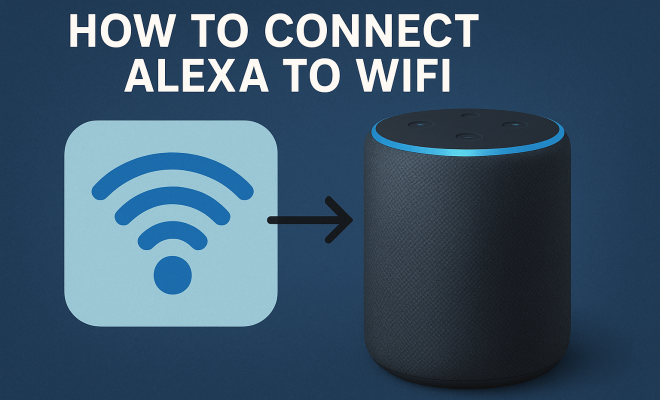
Before diving into how to connect Alexa to WiFi, it’s important to understand what Alexa is and how it works. Alexa is Amazon’s voice service that powers a range of smart speakers, including the Echo, Echo Dot, and Echo Show. These devices allow you to control your smart home, play music, get news updates, and more, all through voice commands.
The first step in using your Alexa device effectively is ensuring that it’s connected to WiFi. Without a stable internet connection, Alexa won’t be able to respond to your commands or connect to other smart devices in your home.
2. Preparing Your Device
Before you can connect Alexa to WiFi, you need to make sure your device is ready. Start by unboxing your Alexa-enabled device and placing it in a location where it can easily pick up your voice and connect to WiFi. Ensure that the device is plugged in and powered on. You should see a light ring on the device indicating it is ready for setup.
If this is your first time setting up the device, it will enter setup mode automatically. If not, press and hold the action button (the button with a dot) until the light ring turns orange. This indicates that your Alexa is in setup mode and ready to connect to WiFi.
3. Using the Alexa App
The Alexa app is your main tool for connecting your device to WiFi. Download the app from the Google Play Store or Apple App Store, and sign in with your Amazon account. If you don’t have an account, you can quickly create one within the app. Once you’re logged in, the app will guide you through the setup process.
Open the app and tap on the “Devices” icon at the bottom right of the screen. Then, select “Echo & Alexa” at the top. You should see a list of your devices. Tap on your new device, and follow the prompts to begin the WiFi setup process.
4. Connecting to WiFi
Now that you have your Alexa device ready and the app installed, it’s time to connect Alexa to WiFi. In the app, after selecting your device, choose “Change WiFi Network”. The app will show you a list of available WiFi networks. Choose your network from the list. If your network is secured, you’ll need to enter the password.
Once you’ve entered the password, tap “Connect”. Your device will attempt to connect to the WiFi network, and you’ll see a confirmation message once it’s successfully connected. The light ring will turn blue, indicating that Alexa is now online.
5. Testing the Connection
After connecting, it’s important to test the connection. Try using a basic command like, “Alexa, what’s the weather today?” If Alexa responds appropriately, congratulations! You’ve successfully connected your device to WiFi. (See: Learn more about Amazon Alexa.)
If Alexa doesn’t respond, double-check the WiFi password entered in the app. It’s common for users to mistype passwords, especially if they contain special characters. Ensure that your device is within range of the WiFi router, as distance and obstructions can impact the connection.
6. Troubleshooting Connection Issues
Encountering problems during setup is not uncommon. If you find yourself unable to connect Alexa to WiFi, there are a few troubleshooting steps you can take. First, make sure your WiFi network is operational. Check if other devices can connect to the internet. If your network is down, you’ll need to resolve that issue first.
If your Alexa device keeps failing to connect, try restarting both your Alexa device and your WiFi router. Unplug your Alexa device, wait a few seconds, and plug it back in. Similarly, restart your router by unplugging it, waiting for 30 seconds, and plugging it back in. This can help resolve temporary connectivity issues.
7. Advanced Settings and Features
Once you’re connected, the Alexa app offers a range of advanced settings to enhance your experience. For instance, you can set your device to connect to different WiFi networks if you have multiple locations or keep your device up to date with software updates. Additionally, you can customize Alexa’s voice, set reminders, and manage your smart home devices.
Explore features like Routines, which allow you to automate tasks with a single command. For example, you can set a routine that turns off all your smart lights and locks your doors when you say, “Alexa, good night.” This level of customization makes your Alexa device even more useful.
8. Maintaining a Strong WiFi Connection
To ensure that your Alexa device continues to perform well, it’s crucial to maintain a strong WiFi connection. If you notice that Alexa is frequently unresponsive or slow, consider upgrading your WiFi router or moving it to a more central location in your home. WiFi extenders can also help if your device is located far from the router.
Regularly check for firmware updates for both your Alexa device and your router. Keeping your devices updated can help prevent connectivity issues and improve performance. Additionally, consider setting up a guest network to keep your smart devices secure from unwanted access.
9. Understanding WiFi Standards and Speeds
When connecting Alexa to WiFi, it’s beneficial to understand the different WiFi standards and how they affect performance. The most commonly used standards include WiFi 4 (802.11n), WiFi 5 (802.11ac), and the latest WiFi 6 (802.11ax).
WiFi 4 offers speeds up to 600 Mbps, which is enough for basic streaming and browsing. However, if you have multiple devices connected or require higher bandwidth for activities like 4K streaming, WiFi 5 is recommended, with speeds reaching up to 3.5 Gbps. WiFi 6 takes it a step further, providing better performance in crowded areas and speeds exceeding 9.6 Gbps, making it ideal for smart homes with multiple connected devices.
Investing in a good quality router that supports the latest standards can significantly enhance your Alexa experience. This ensures that your Alexa device can handle multiple commands without lag and seamlessly integrates with other smart home devices.
10. Tips for Optimal Performance
For the best performance from your Alexa device, consider the following tips: (See: Impact of technology on health.)
- Keep the device updated: Regular software updates can improve functionality and security.
- Reduce interference: Keep your router away from microwaves, cordless phones, and other devices that may cause interference.
- Limit the number of connected devices: Too many devices on a single network can slow down performance. Ensure that bandwidth-intensive devices are not hogging network resources when you need to use Alexa.
- Positioning: Avoid placing your Alexa device in enclosed areas like cabinets or behind objects, as this can hinder voice recognition and connectivity.
- Use quality cables: If your device needs to be connected via Ethernet, using high-quality cables can also improve connection stability.
11. Exploring Alexa Skills
Once you’ve connected Alexa to WiFi, you can significantly enhance its functionality by enabling various Alexa Skills. Skills are like apps for Alexa, allowing it to perform a wider range of tasks. There are thousands of skills available catering to different interests, from games and quizzes to smart home control and productivity tools.
To explore skills, open the Alexa app, go to the “More” tab, and select “Skills & Games.” You can browse through categories or search for specific skills. Once you find a skill you like, tap “Enable” to activate it. For example, you can enable a skill for your favorite podcast, allowing you to say, “Alexa, play [podcast name],” and enjoy your content hands-free.
Regularly check for new skills and updates. Many developers are continually adding features, so your Alexa experience can keep evolving.
12. Common FAQs
How do I reset my Alexa device?
If you encounter persistent issues, resetting your Alexa device might help. To reset, press and hold the action button for about 25 seconds until the light ring turns orange and then blue. You’ll need to set it up again as you did initially.
What can I do if Alexa can’t find my WiFi network?
If Alexa can’t find your WiFi network, ensure that your router is functioning properly and within range. You can try moving the device closer to the router or restarting the router. Additionally, check if the network is hidden; if it is, you’ll need to manually input the network name (SSID).
Can I connect multiple Alexa devices to the same network?
Absolutely! You can connect multiple Alexa devices to the same WiFi network. This is great for larger homes, allowing you to control multiple rooms with voice commands. Just ensure that your network can handle the additional load.
What do I do if I forget my WiFi password?
If you’ve forgotten your WiFi password, you can usually find it by checking your router settings. Many routers have a default password printed on a label. Alternatively, you can log into your router’s web interface from a connected device and retrieve or reset the password there.
Can I use Alexa without WiFi?
Most of Alexa’s features require an internet connection, so using it without WiFi is quite limited. However, some functionalities, like Bluetooth connectivity and playing music stored locally on devices, might still work. For the full experience, a stable internet connection is essential.
13. Understanding the Alexa Ecosystem
The Alexa ecosystem extends beyond just voice commands and basic smart home control. It’s designed to integrate with various services and devices, creating a seamless user experience. From smart lights to thermostats and security cameras, Alexa can manage a wide range of smart devices, each contributing to a more efficient home environment.
For instance, if you have smart lighting, you can create custom routines for your home. Imagine walking into your house and saying, “Alexa, I’m home,” which could trigger your porch light to turn on, the lights in the living room to dim, and your favorite playlist to start playing. This level of automation not only adds convenience but also enhances your lifestyle. (See: Research on smart home technology.)
Additionally, Alexa allows for multi-user support. This means that different members of the household can interact with Alexa, and the device can recognize individual voices. This capability personalizes experiences — for example, Alexa can play a specific user’s playlist or provide tailored news updates based on who is asking.
14. Security Considerations
When connecting Alexa to WiFi and integrating it into your home, security is a crucial factor to consider. Smart devices can be vulnerable to hacking if not properly secured, so it’s essential to implement some best practices.
- Change default passwords: One of the easiest ways to secure your device is by changing any default passwords to strong, unique passwords that are less likely to be guessed.
- Enable two-factor authentication: For your Amazon account, enable two-factor authentication. This adds an extra layer of security by requiring a second form of verification when logging in.
- Regularly review permissions: Check what permissions you’ve granted to various Alexa skills and apps. Remove any that you no longer use or that seem unnecessary.
- Monitor your network: Use your router’s settings to monitor connected devices. If you notice any unfamiliar devices, investigate immediately.
15. The Future of Alexa and Smart Home Technology
As technology evolves, so does Alexa. The integration of artificial intelligence and machine learning is making devices smarter and more intuitive. Alexa is continuously learning from user interactions, which allows it to improve its responses and predictions over time.
Moreover, the rise of the Internet of Things (IoT) means that more and more devices will be Alexa-compatible. This can range from everyday appliances like fridges and washing machines to more complex systems like home security setups. The potential for creativity in home automation is immense, and Alexa is at the center of that transformation.
In the coming years, expect to see enhancements around contextual understanding, allowing Alexa to interpret and respond to complex queries more effectively. For example, instead of simply responding to commands, Alexa may anticipate needs based on user activity patterns, providing an even more personalized experience.
16. Conclusion
In summary, connecting Alexa to WiFi is a straightforward process that opens the door to a smarter home experience. With the right preparation, the Alexa app, and a bit of troubleshooting, you’ll be able to enjoy all the features your device has to offer. Whether you’re using it for music, home automation, or information, Alexa is there to assist you.
By understanding the broader ecosystem, securing your devices, and leveraging the advancements in smart home technology, you can create a truly connected home that enhances your daily life.
“`
Trending Now
Frequently Asked Questions
How do I connect my Alexa to WiFi?
To connect your Alexa to WiFi, ensure your device is powered on and in setup mode. Use the Alexa app to select your device and follow the on-screen instructions to choose your WiFi network and enter the password.
What do I do if my Alexa won't connect to WiFi?
If your Alexa won't connect to WiFi, first ensure it's in setup mode. Check your WiFi signal strength, restart your router, and ensure you are entering the correct WiFi password. You can also try resetting the device.
Do I need the Alexa app to set up WiFi?
Yes, the Alexa app is essential for setting up your device's WiFi connection. Download it from the Google Play Store or Apple App Store, sign in with your Amazon account, and follow the prompts to connect your Alexa device.
Can I connect Alexa to a guest WiFi network?
Yes, you can connect Alexa to a guest WiFi network. Just ensure you have the correct network name and password. Use the Alexa app to select the guest network during the setup process.
What should I do if Alexa is offline?
If Alexa is offline, check your WiFi connection, restart your router, and ensure your device is powered on. You can also use the Alexa app to troubleshoot connectivity issues and reconnect to WiFi.
Agree or disagree? Drop a comment and tell us what you think.