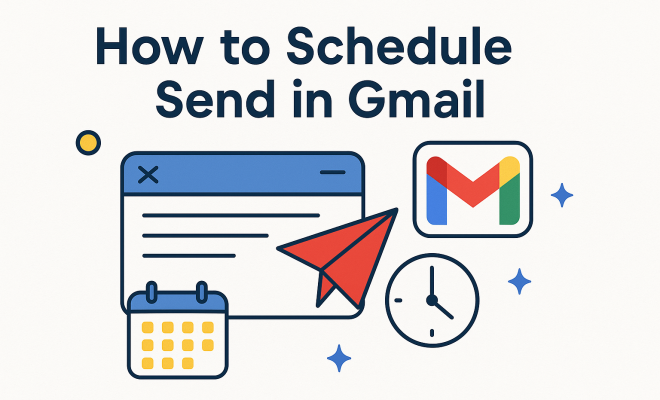
How to schedule send in Gmail
“`html
Gmail is a powerhouse for email management, and one of its standout features is the ability to schedule send Gmail messages. This functionality allows you to draft an email and set it to be sent at a later date or time, which is especially useful for professionals who want to optimize their communication or anyone who is keen on managing their correspondence more effectively. In this article, we’ll explore the ins and outs of scheduling emails in Gmail, covering everything you need to know to take advantage of this time-saving feature.
1. Understanding the Schedule Send Feature
First, let’s dive into what the schedule send feature actually entails. Introduced by Google in 2019, scheduling emails in Gmail allows users to create a message and select a specific date and time for it to be sent automatically. This means you can write emails when it’s convenient for you, but send them at a more appropriate time for the recipient, ensuring your message is read when they are most likely to engage with it.
The feature is particularly useful for professionals working across different time zones or for those who want to ensure their emails hit inboxes at the start of the workday. With this tool, you can manage your professional image, avoid the ‘I’m sending you this at 1 AM’ vibe, and enhance the effectiveness of your email communication.
2. How to Schedule an Email in Gmail
Now that we’ve established the importance of the schedule send feature, let’s walk through the steps on how to do it. Whether you’re using the Gmail mobile app or the desktop version, the process is quite straightforward:
- Compose Your Email: Start by clicking on the Compose button to create your email. Fill in the recipient’s email address, subject line, and body content as you normally would.
- Access the Schedule Send Option: Instead of clicking the usual send button, you’ll see a small arrow next to it. Click on this arrow, and you’ll find the option labeled Schedule send.
- Select Your Date and Time: After selecting Schedule send, a menu will pop up with suggested times and dates. You can choose one of these or click on Pick date & time to specify your own.
- Confirm: Once you’ve set your preferred schedule, click Schedule send, and your email will be lined up for delivery.
It’s that easy! You can schedule multiple emails at once, allowing you to draft several messages and send them at strategic times without interruption.
3. Managing Scheduled Emails
Once you’ve scheduled an email, you might want to manage it later. Maybe you changed your mind, or you need to adjust the timing. Fortunately, Gmail makes it easy to manage your scheduled emails. Here’s how:
- Accessing Your Scheduled Emails: To view your scheduled emails, go to the Menu on the left side of your Gmail interface and click on the Scheduled label. This will show you all the emails you have lined up for future sending.
- Editing or Rescheduling Emails: If you want to edit or change the time of a scheduled email, open the email, make your changes, and again select Schedule send to choose a new date and time.
- Canceling Scheduled Emails: Should you decide you no longer want to send an email, simply select the email in the Scheduled folder and click on the Cancel send option. This will move it back to your drafts folder for you to edit or delete.
This level of control makes scheduling emails in Gmail not just a convenience, but a fully manageable aspect of your communication strategy.
4. Best Practices for Scheduling Emails
While scheduling emails can be incredibly beneficial, there are best practices to follow to ensure your messages are effective and well-received. Here are some tips to consider: (See: Gmail – Wikipedia.)
- Know Your Audience: Consider the recipient’s time zone and work schedule. For instance, if you’re emailing someone in a different region, use tools like world clock converters to find the best time.
- Be Mindful of Timing: Sending emails at the start of the workday or just after lunch can increase the chances of your email being read promptly. Try to avoid sending them late in the day or during weekends unless you know your audience is active during those times.
- Test and Adjust: Experiment with different sending times to see when you get the best response rates. Over time, you’ll develop a sense of the optimal sending times for your contacts.
Adhering to these best practices can maximize the impact of your scheduled emails, ensuring they land in inboxes at the right moments.
5. Using Gmail’s Schedule Send for Marketing
For marketers, the schedule send feature in Gmail can be a game-changer. By strategically timing your emails, you can enhance engagement rates and drive more traffic to your campaigns. Here’s how to leverage this feature for marketing purposes:
- Promotions and Newsletters: If you’re sending out promotional emails or newsletters, scheduling them to coincide with special events or product launches can create urgency and excitement.
- Follow-Up Emails: If you’re reaching out to potential clients or leads, schedule follow-up emails for a few days after your initial contact. This keeps the conversation fresh without seeming pushy.
- Seasonal Campaigns: Use scheduled sends to align with seasons or holidays. Crafting emails that resonate with specific times of the year can lead to higher engagement.
By utilizing the schedule send feature strategically, marketers can optimize their outreach efforts and ensure their messages are delivered at the most opportune times.
6. Integrations with Third-Party Tools
Beyond the native features that Gmail offers, you can enhance your email scheduling capabilities through various third-party tools and integrations. Here are a few popular ones to consider:
- Boomerang: This tool allows you to schedule emails and also offers reminder features. If your email doesn’t receive a response within a specified time, it can notify you to follow up.
- Yesware: Designed for sales teams, Yesware allows users to track email opens and clicks, helping adjust strategies based on engagement metrics. You can also schedule emails directly from the tool.
- Mailchimp: If you’re looking for robust marketing tools, Mailchimp integrates with Gmail, allowing you to schedule marketing emails while tracking engagement rates.
Integrating these tools with your Gmail account can elevate your email management to new heights, making your workflows more efficient and effective.
7. The Future of Email Scheduling
As technology continues to evolve, the capabilities of email management tools are expected to expand significantly. Gmail’s schedule send feature is just one example of how email communication is adapting to user needs. Future updates could include:
- AI-Powered Suggestions: Imagine a system that learns your email habits and suggests optimal times to send based on previous interactions. This personalized approach could revolutionize how people manage their communications.
- Enhanced Analytics: Future versions may provide deeper insights into when your emails are opened and read, allowing for data-driven decisions on scheduling times.
- Integration with Other Scheduling Tools: As remote work continues to be the norm, integration with calendar applications could allow seamless scheduling of emails alongside meetings and appointments.
As we look ahead, it’s clear that the scheduling capabilities in Gmail—and email in general—will keep evolving, offering even more ways to manage our communications effectively and efficiently.
8. Advantages of Scheduling Emails in Gmail
The scheduling feature in Gmail is not just about sending emails at a later time; it brings several advantages that can enhance communication and productivity. Here are some key benefits: (See: CDC – Official Website.)
- Improved Work-Life Balance: By scheduling emails, you can manage your work hours better. You can draft emails after hours but ensure they are sent during work hours, keeping your work life from spilling into personal time.
- Strategic Communication: Certain messages carry more weight when sent at specific times. For instance, sending a reminder about an upcoming meeting first thing in the morning can be more effective than sending it late in the evening.
- Reduced Stress: Having a scheduling tool at your disposal can alleviate the pressure of remembering to send emails at specific times. You can focus on your tasks without worrying about hitting the ‘send’ button at the right moment.
9. Frequently Asked Questions about the Schedule Send Feature in Gmail
1. Can I schedule emails on the Gmail mobile app?
Yes! The schedule send feature is available on both the Gmail mobile app and the desktop version, making it convenient for users to manage their emails on the go.
2. What happens if I schedule an email and change my mind later?
You can easily modify or cancel a scheduled email. Simply go to the Scheduled folder, select the email you wish to change, and either reschedule it or cancel the send completely.
3. Is there a limit to how many emails I can schedule at once?
Gmail does not specify a strict limit on the number of emails you can schedule, but be mindful of Gmail’s overall sending limits to avoid being flagged for spamming.
4. Can I send recurring emails using the schedule send feature?
Gmail’s native schedule send feature does not support recurring emails. However, you can use third-party tools that integrate with Gmail for advanced scheduling options, including recurring emails.
5. Will the recipient know that my email was scheduled?
No, recipients will see the email as if it was sent normally. They will not be able to tell that the email was scheduled instead of sent immediately.
6. What if I want to schedule emails for different time zones?
When scheduling emails, you can select the desired date and time according to your local time zone. It’s best to use a world clock or time zone converter to ensure that your emails reach the intended recipients at a suitable time.
10. Tips for Crafting Effective Scheduled Emails
When scheduling an email, it’s important to ensure the content is clear and impactful. Here are some tips for crafting effective scheduled emails: (See: The New York Times – Technology Section.)
- Use Clear Subject Lines: Your subject line should be concise and informative. It should give the recipient a good idea of what the email is about at a glance.
- Keep it Concise: People appreciate brevity in their emails. Make your points clearly and succinctly to respect the recipient’s time.
- Use Personalization: Personalizing your emails can increase engagement. Use the recipient’s name and tailor the content to their preferences or needs when possible.
- Include a Call-to-Action: If you’re looking for a response or action from the recipient, don’t forget to include a clear call-to-action to guide them on what to do next.
11. Real-life Examples of Scheduling Emails
Let’s take a look at some scenarios where scheduling emails can greatly benefit different users:
- Project Managers: A project manager may draft an update regarding project progress and schedule it to be sent at the beginning of the workweek when the team is gearing up for upcoming tasks.
- Sales Teams: A sales representative might schedule follow-up emails to potential clients a few hours after a meeting, ensuring that the correspondence remains fresh in the client’s mind.
- Accountants: Accountants can schedule reminders for clients about upcoming tax deadlines or payment notices to ensure their clients are well-informed.
- Educators: Teachers can draft emails about upcoming assignments or class schedules and schedule them to be sent to students’ parents at optimal times during the week.
12. Common Errors in Email Scheduling
Even with the best intentions, scheduling emails can sometimes lead to mistakes. Here are some common pitfalls to avoid:
- Wrong Time Zones: Sending an email based on the wrong time zone can lead to confusion. Always double-check the time zone settings of your intended audience.
- Last Minute Changes: If you make changes to the content shortly before the email is scheduled to go out, ensure you’ve properly updated it in the scheduled draft.
- Ignoring Holidays: Scheduling emails on holidays or days when it might not be appropriate to send professional messages can lead to your email being overlooked.
- Over-Scheduling: While it’s convenient to schedule multiple emails, be cautious not to inundate your recipients’ inboxes in a short timeframe, which could lead to them feeling overwhelmed.
13. Data and Statistics on Email Timing
If you’re interested in the impact of timing on email effectiveness, here are some compelling statistics:
- According to a study by Mailchimp, the best time to send emails for the highest open rates is typically between 10 AM and 12 PM, depending on the industry.
- HubSpot found that emails sent on Tuesdays see a 20% higher click-through rate than those sent on other days of the week.
- Research by CoSchedule indicates that personalized emails have an average open rate of 18.8%, proving that tailoring your emails can significantly boost engagement.
- Emails sent from 5 PM to 6 PM have a 23% higher open rate, likely because recipients are wrapping up their workday and checking their inboxes.
14. Gmail Schedule Send vs. Other Email Clients
While Gmail’s schedule send feature is impressive, how does it stack up against similar features offered by other email clients? Here’s a brief comparison:
- Outlook: Outlook also offers a scheduling feature that allows you to delay sending an email until a specified time. It provides a more robust calendar integration, making it ideal for corporate environments.
- Yahoo Mail: Yahoo offers scheduled sending but lacks the advanced options that Gmail and Outlook provide, such as mobile scheduling and easy access to scheduled emails.
- Apple Mail: Apple Mail users can schedule emails with the help of third-party plugins, but it doesn’t have native scheduling options like Gmail and Outlook.
- Thunderbird: Mozilla’s Thunderbird email client offers scheduling through add-ons, making it flexible, but it requires additional setup compared to Gmail’s intuitive interface.
15. Conclusion
In a world where time is of the essence, mastering how to schedule send Gmail messages can be a valuable skill for anyone looking to optimize their email communication. By understanding how to use this feature effectively, you can ensure your messages reach the right people at the right time, enhancing both your personal and professional correspondences.
“`
Trending Now
Frequently Asked Questions
How do I schedule an email in Gmail?
To schedule an email in Gmail, compose your message as usual, then click the small arrow next to the 'Send' button. Select 'Schedule send', choose your desired date and time, and confirm. Your email will be sent automatically at the specified time.
What is the schedule send feature in Gmail?
The schedule send feature in Gmail allows you to draft an email and set it to be sent at a later date and time. This is useful for ensuring your messages reach recipients when they are most likely to engage with them.
Can I schedule emails on the Gmail mobile app?
Yes, you can schedule emails using the Gmail mobile app. After composing your email, tap the arrow next to the 'Send' button, select 'Schedule send', and choose your preferred date and time for delivery.
Is the scheduled email feature available for all Gmail users?
Yes, the scheduled send feature is available to all Gmail users. It was introduced in 2019 and can be accessed from both the desktop and mobile versions of Gmail.
What are the benefits of scheduling emails in Gmail?
Scheduling emails in Gmail helps manage your communication more effectively, allowing you to send messages at optimal times. This is particularly beneficial for professionals working across different time zones and helps enhance your professional image.
Agree or disagree? Drop a comment and tell us what you think.