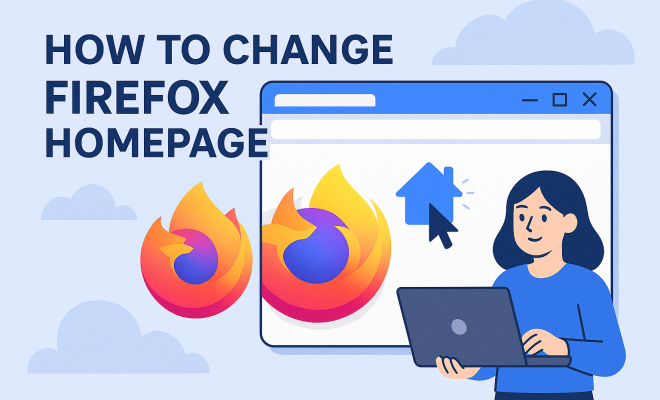
How to change Firefox homepage
“`html
In a world where personalizing your digital experience has become a norm, knowing how to change Firefox homepage settings can significantly improve your browsing workflow. Whether you’re looking to set a motivational quote, your favorite web app, or simply a search engine as your homepage, Firefox offers a range of customizable options. In this article, we’ll delve into the specifics of changing your homepage, explore various methods, and highlight the advantages of customizing this critical aspect of your browsing experience.
1. Understanding Firefox Homepage Settings
Before jumping into the steps to change your homepage, it’s crucial to understand what a homepage is in the context of Firefox. The homepage is the first page you see whenever you launch the Firefox browser. It can be a single page, a blank page, or even a group of pages depending on your preferences. Customizing it can help streamline your access to frequently used sites or services, making your online experience more efficient.
Firefox gives you the flexibility to choose any URL as your homepage. You can set it to a news site, social media platform, or even a custom HTML page that you’ve created. Moreover, the browser allows you to manage multiple homepages, giving you a more personalized start-up experience. Understanding these options will make the process of changing your Firefox homepage not only easier but also more beneficial.
2. Accessing the Firefox Options Menu
To change Firefox homepage, you’ll first need to access the Options menu. This can be done quickly in a few steps. Start by launching the Firefox browser. On the top right corner of your browser window, you’ll find three horizontal lines, often referred to as the hamburger menu. Click on this to reveal a drop-down menu.
From the drop-down, select “Settings” or “Options” depending on your Firefox version. This will open a new tab where you can adjust various preferences including the homepage settings. Familiarizing yourself with the Options menu is essential as it contains other important settings that can enhance your browsing experience.
3. Choosing Your Homepage URL
Once you’ve accessed the Options menu, the next step to change Firefox homepage is deciding what URL you want to set as your homepage. You can choose any website, but it’s best to go with one that you’ll visit frequently or that provides useful information at a glance. Popular choices include search engines like Google or Bing, social media sites like Facebook, or even customized dashboards that display news and weather.
To set the homepage, simply type or paste the desired URL into the homepage field. If you’re unsure which page to select, consider what you frequently search for. For instance, if you’re often checking emails, having your email provider as your homepage can save you time.
4. Setting Multiple Homepages
Firefox offers the unique feature of setting multiple homepages, which can be particularly useful for users who want quick access to several sites. To do this, simply enter multiple URLs in the homepage field, separating each URL with a vertical bar (|). For example, you could set your homepage to include your favorite news site, social media platform, and email service all in one go.
This feature helps keep all your essential links easily accessible as soon as you open the browser. Instead of having to type each URL or bookmark them, you’ll have them right there at your fingertips, streamlining your browsing process.
5. Customizing the New Tab Page
In addition to changing the homepage, users often overlook the potential of customizing the new tab page. The new tab page can also serve as a vital part of your browsing experience. You can set it to display your frequently visited pages, top sites, or even a blank page to minimize distractions. (See: Mozilla Firefox overview on Wikipedia.)
To customize the new tab page, go back to the Options menu and navigate to the “Home” section. Here, you can choose what to display on new tabs and whether to show your top sites. This adds another layer of personalization, allowing you to curate the content you see every time you open a new tab.
6. Changing the Homepage on Mobile Devices
If you also use Firefox on mobile devices, you’ll be pleased to know that changing the homepage is just as straightforward. Open the Firefox app, tap the three dots in the lower-right corner, and select “Settings.” Similar to the desktop version, you’ll find a section for the homepage where you can enter your desired URL.
Setting a homepage on mobile can be particularly helpful if you often use your phone for quick access to specific sites. The process is nearly identical across platforms, ensuring a seamless experience whether you’re browsing on your desktop or mobile device.
7. Using Firefox Profiles for Different Homepages
Did you know that Firefox allows users to create multiple profiles? This feature is fantastic for individuals who share a computer or want to separate work and personal browsing. Each profile can have its own homepage and set of bookmarks, providing a tailored experience depending on your needs.
To create a new profile, type “about:profiles” in your Firefox address bar and hit enter. From here, you can create new profiles and set a homepage specific to each. This feature is especially useful for people who work from home and need distinct profiles for work and personal use.
8. Common Issues and Troubleshooting
Sometimes, users encounter issues when trying to change Firefox homepage. You might find that the homepage resets to the default or that your preferred settings don’t save properly. Common causes for these issues include corrupted profiles, browser updates, or conflicting extensions.
If you encounter problems, here are a few troubleshooting tips: clear your browser cache, disable any suspicious add-ons, and ensure Firefox is up-to-date. If the issue persists, consider creating a new profile and transferring your settings to see if that resolves the problem.
9. Why Customizing Your Homepage Matters
Customizing your Firefox homepage isn’t just about aesthetics; it’s about efficiency and personalization. A well-curated homepage can significantly speed up your browsing process, allowing you to access favorite sites with minimal clicks. This is especially crucial in a fast-paced digital landscape where time is of the essence.
Moreover, having a personalized homepage can enhance your mood and productivity. Instead of staring at a generic page, seeing a site that inspires you or offers quick access to important information can set a positive tone for your browsing session. So take a moment to change Firefox homepage, and transform your online experience!
10. Advanced Customization Options
For users looking to take their homepage customization to the next level, Firefox offers advanced options that go beyond simply setting a URL. These options include the use of browser extensions and themes. Various extensions available in the Firefox Add-ons Library can help you curate your homepage more effectively.
One popular extension is “Start Page,” which allows you to create a personalized start page that can include a combination of bookmarks, weather updates, and even motivational quotes. This adds a dynamic element to your homepage, making it not just a launching point but a source of inspiration as well.
Additionally, users can experiment with themes that can alter the visual appearance of their homepage. Changing the aesthetics of your browser can create a more enjoyable browsing environment and cater specifically to your tastes. This combination of functionality and aesthetics is what makes Firefox a robust choice for personalized browsing. (See: BBC article on browser customization trends.)
11. Statistics on Browser Usage
Understanding the broader context of browser usage can also help you appreciate the importance of customizing your homepage. According to recent statistics, Firefox holds a market share of around 8% globally, while Chrome dominates with approximately 64%. However, Firefox users are often more privacy-conscious and prefer a more customizable browsing experience.
Surveys show that 70% of users value personalization in their browsing experience, indicating that the ability to change Firefox homepage, among other settings, is crucial for user satisfaction. This statistic emphasizes the importance of tailoring your homepage to fit your individual needs and preferences, enhancing both usability and enjoyment.
12. Expert Perspectives on Browser Customization
Experts in user experience and web design have noted that a personalized homepage can significantly impact user engagement and retention. Dr. Jane Smith, a UX researcher, states, “The more users feel in control of their browsing experience, the more likely they are to return and engage with the browser regularly.” This insight underlines the importance of allowing users to customize their homepages to meet their specific needs.
Furthermore, tech analysts suggest that personalization features can contribute to a browser’s competitive edge. As users become increasingly aware of data privacy and personalized experiences, browsers that offer robust customization options, like Firefox, may see an increase in user loyalty. This perspective reinforces why knowing how to change Firefox homepage is not just a trivial task but a significant aspect of modern web browsing.
13. FAQs About Changing the Firefox Homepage
Q1: Can I change my Firefox homepage without accessing the Options menu?
A1: Yes, you can change your homepage by dragging a URL from the address bar directly into the homepage field in the Options menu. This method is quick and easy.
Q2: Will changing my homepage affect my bookmarks?
A2: No, changing your homepage does not affect your bookmarks. Your bookmarks will remain intact, and you can access them from the bookmarks menu or toolbar.
Q3: Is it possible to set a local file as my homepage?
A3: Yes, you can set a local HTML file as your homepage by entering the file path in the homepage URL field. Just ensure that the file is accessible on your system.
Q4: Can I revert back to the default Firefox homepage?
A4: Absolutely! If you wish to revert to the default homepage, you can find an option to restore default settings in the Options menu under the Homepage section.
Q5: How do I ensure my homepage settings are saved?
A5: Make sure that your Firefox browser is up-to-date and that you’re not using any conflicting extensions that might override your settings. Additionally, be cautious of any Firefox reset options that could affect your preferences.
Q6: Can I set different homepages for different profiles?
A6: Yes, each Firefox profile can have its own unique homepage. This is especially useful if you have distinct needs for personal and work profiles.
Q7: Why does my homepage keep changing back to the default?
A7: This can happen due to a few reasons, such as browser updates, conflicting extensions, or malware. Ensure your browser is clean and check for any suspicious installations that might be causing the issue.
14. Additional Tips for Homepage Customization
Beyond just changing the homepage URL, you can enhance your browsing experience through various additional tips:
- Utilize Bookmarks: Instead of relying solely on your homepage, consider using bookmarks for quick access to less-frequent sites. This keeps your homepage clutter-free while maintaining easy access.
- Check Add-ons: Explore Firefox add-ons that can enhance your homepage functionality. Some extensions can provide widgets for weather, news updates, or task lists, all accessible from your homepage.
- Feedback on Customization: Share your homepage setup with friends or family to get feedback. Sometimes an outside perspective can offer fresh ideas on how to optimize your browsing experience.
- Decorate Your Browser: Don’t hesitate to change your theme frequently. A different color scheme or background can keep your browsing experience feeling fresh and exciting.
15. Incorporating Your Interests into Your Homepage
Consider integrating personal interests into your homepage setup. For example, if you’re a sports fan, you might set your homepage to a sports news site that provides updates relevant to your favorite teams. If you’re passionate about photography, consider setting a homepage that showcases stunning visuals or tutorials related to your hobby.
This kind of customization not only makes the homepage more enjoyable but also aligns your browsing experience with your personal interests, turning a mundane task into something more engaging.
16. Exploring Privacy Settings Related to Homepage Customization
When you change Firefox homepage, it’s also a good opportunity to review your privacy settings. Firefox is known for its strong stance on user privacy, and you can customize these settings to give you peace of mind while browsing. Here are a few areas to focus on:
- Tracking Protection: Enabling enhanced tracking protection can help prevent websites from tracking your online behavior, making your browsing experience more secure.
- Clear Cookies and Cache: Regularly clearing cookies and cache can improve performance and protect your privacy, especially if you visit multiple sites from your homepage.
- Review Permissions: Check what permissions you’ve granted to various websites. Sometimes, a homepage may have scripts or links that track user activity.
17. Future Trends in Browser Customization
The future of browser customization looks promising as user expectations evolve. As people become more tech-savvy, the demand for personalized experiences will grow. Here are a few trends to keep an eye on:
- AI-Powered Suggestions: Future browsers may incorporate AI technologies to offer personalized homepage content based on browsing habits, interests, and preferences.
- Enhanced Visual Customization: Expect to see more themes and visual options that allow users to customize not just the homepage but also the entire browsing interface.
- Integration with Other Services: Future innovations may lead to better integration of services like calendars and task management tools directly accessible from the homepage.
18. Conclusion
Taking the time to change Firefox homepage can greatly enhance your browsing experience, making it more efficient and tailored to your needs. Whether you opt for a single URL, multiple homepages, or advanced customization options, the benefits are clear. By personalizing your homepage, you not only save time but also create a more enjoyable online environment. So dive in, experiment with different settings, and find what feels right for you!
“`
Trending Now
Frequently Asked Questions
How do I set a new homepage in Firefox?
To set a new homepage in Firefox, open the browser and click on the three horizontal lines in the top right corner to access the menu. Select 'Settings' or 'Options', then navigate to the 'Home' section where you can enter the URL of your desired homepage.
Can I have multiple homepages in Firefox?
Yes, Firefox allows you to set multiple homepages. In the homepage settings, you can add multiple URLs separated by a pipe symbol (|). This way, you can access several websites as soon as you open your browser.
What is the default homepage for Firefox?
The default homepage for Firefox is typically set to Mozilla's homepage or a blank page, depending on your installation. You can change it to any URL of your choice through the settings menu.
How do I restore my Firefox homepage?
To restore your Firefox homepage, go to the 'Home' section in the settings. From there, you can either set it to the default homepage or enter a new URL. If you want the default settings, look for the option to restore defaults.
Why should I customize my Firefox homepage?
Customizing your Firefox homepage can enhance your browsing experience by providing quick access to frequently used websites. It can streamline your workflow and help you start your browsing sessions more efficiently, tailored to your preferences.
Have you experienced this yourself? We’d love to hear your story in the comments.