Boost Your Privacy: A Guide to Firefox Containers
“`html
In a world where digital privacy and online organization are more critical than ever, Firefox containers offer a unique solution that empowers users to manage their online identity and activities. Firefox containers allow users to separate their browsing sessions into distinct compartments, providing a more organized and secure internet experience. This article will guide you through the ins and outs of using Firefox containers, detailing their benefits, setup process, practical applications, and more.
1. What Are Firefox Containers?
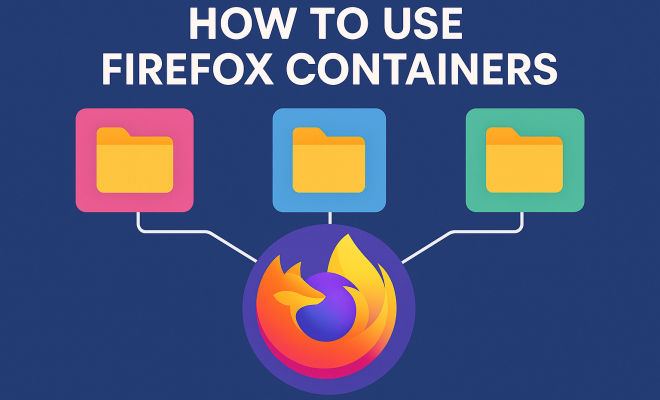
Firefox containers are a feature of the Firefox browser that allows you to compartmentalize your browsing activities. Each container acts like a separate browser, managing cookies, cache, and session data independently. This means that you can log into different accounts on the same website without the constant need to log in and out. For instance, you can have one container for work-related websites and another for personal use, effectively separating your online activities.
The concept of containerization in web browsing is similar to the idea of virtual machines in computing. Just like a virtual machine allows you to run different operating systems on a single hardware setup, Firefox containers let you run distinct browsing experiences within one browser. This feature is particularly useful for users who juggle multiple identities online or want to enhance their privacy.
2. Why Use Firefox Containers?
There are several compelling reasons to start using Firefox containers. One of the primary benefits is enhanced privacy. By separating your browsing activities, you minimize the potential for tracking by advertisers and other third parties. For example, if you use one container for shopping and another for social media, cookies from one won’t interfere with the other, making it harder for advertisers to build a comprehensive profile of your online behavior.
Another significant advantage is improved organization. With Firefox containers, you can easily manage multiple email accounts, social media profiles, or work and personal browsing sessions. This can lead to a more streamlined and efficient way of using the internet, reducing the clutter that often comes with using one browser profile for everything.
3. How to Set Up Firefox Containers
Setting up Firefox containers is relatively straightforward. Here’s a step-by-step guide to get you started:
- Install Firefox: If you haven’t already, download and install the Firefox browser from the official website.
- Add the Multi-Account Containers Extension: Visit the Firefox Add-ons page and search for “Multi-Account Containers.” Click on “Add to Firefox” and follow the prompts to install the extension.
- Set Up Your Containers: Once installed, you’ll see a new icon in your toolbar. Click it to create your first container. You can choose a name and color for each container to help differentiate them later.
- Start Browsing: After creating your containers, you can open new tabs in specific containers by right-clicking on the tab or using the toolbar icon to select the appropriate container.
With these simple steps, you’ll be ready to start utilizing Firefox containers for a more organized and privacy-conscious browsing experience.
4. Using Firefox Containers in Your Everyday Browsing
Now that you’ve set up Firefox containers, it’s time to incorporate them into your daily routine. Here are some practical tips:
- Designate Containers for Specific Activities: For example, you might have one container for online shopping, another for social media, and a third for work-related sites. This not only keeps your cookies separate but also helps you focus on the task at hand without distractions.
- Manage Sessions Easily: You can log into multiple accounts across different services without having to log out or switch profiles. This is especially handy for social media managers or anyone juggling multiple accounts.
- Customize Your Experience: Each container can have its own set of extensions and preferences. This means you can tailor the browsing experience to the specific needs of that container—such as using a VPN in your work container but not in your personal container.
The flexibility offered by Firefox containers can significantly enhance your browsing efficiency and organization. (See: privacy concerns with web browsing.)
5. Enhancing Privacy with Firefox Containers
One of the standout features of Firefox containers is their ability to enhance your online privacy. By compartmentalizing your browsing, you reduce the risk of cross-site tracking. For instance, if you’re logged into your online banking in one container and shopping in another, the tracking data from the shopping site won’t be able to access or correlate with your banking information.
Additionally, containers can help you avoid the infamous “filter bubble.” This phenomenon occurs when algorithms personalize content based on your browsing history, which can limit your exposure to diverse viewpoints. By using different containers, you can explore various topics without the bias of your previous browsing affecting what you see.
6. Common Use Cases for Firefox Containers
The versatility of Firefox containers means they can be applied in various scenarios. Here are some common use cases:
- Social Media Management: For those who manage multiple social media accounts, containers allow you to stay logged into different profiles without the constant switching.
- Research Projects: If you’re working on a project requiring various sources, having separate containers for each aspect of your research can help keep information organized and prevent cross-contamination of data.
- Online Shopping: Use one container for each shopping site to manage cookies, cart items, and preferences without conflict with other sites.
- Testing and Development: Developers can use containers to test websites or applications under different accounts or sessions without affecting their main browsing environment.
These use cases illustrate just how applicable Firefox containers can be in both professional and personal contexts.
7. Managing Your Containers
Once you start using Firefox containers, you’ll find that managing them is crucial to maintaining an efficient workflow. Here are some management tips:
- Regularly Review Your Containers: As your online needs change, so might your container setup. Regularly assess which containers you use frequently and which ones may no longer serve a purpose.
- Rename or Delete Containers: If you find certain containers are no longer necessary, don’t hesitate to delete or rename them for better organization.
- Utilize Container Settings: Explore the settings for each container to customize permissions, decide which extensions to use, and manage privacy settings.
Effective management of your Firefox containers can make a significant difference in your overall browsing experience.
8. Limitations and Considerations
While Firefox containers are powerful tools, they do come with limitations. One significant consideration is website compatibility. Some websites may not function correctly when cookies are isolated in containers, requiring users to manually adjust settings or permissions. Additionally, since containers are unique to Firefox, switching to a different browser may mean losing that level of organization.
Another limitation is the learning curve. New users might find the concept of containers confusing at first, particularly if they’re accustomed to traditional browsing methods. However, with a bit of practice, most users find containers intuitive and beneficial.
9. Final Thoughts on Firefox Containers
Firefox containers represent a robust solution to issues of privacy and organization in the digital age. By compartmentalizing your browsing activities, you not only enhance your security but also improve your online experience. Whether you’re a casual user looking to tidy up your browsing sessions or a professional requiring dedicated spaces for various tasks, Firefox containers can cater to your needs.
As concerns over digital privacy continue to grow, adopting tools like Firefox containers is a proactive step toward taking control of your online presence. Embrace the versatility and organization that containers offer, and transform the way you interact with the web. (See: ergonomics of digital containers.)
10. Advanced Features of Firefox Containers
While the basic functionalities of Firefox containers are quite impressive, there are some advanced features that can further enhance their usefulness. These features cater to users who want to maximize their privacy and browsing organization.
- Container-specific Cookies: Each container manages its cookies separately, which means that logging into one container does not affect your sessions in others. This is especially beneficial for users who might be logged into multiple accounts on the same site. For example, you can stay logged into your personal Gmail account in one container while managing a work account in another, avoiding any mix-ups.
- Container Color Coding: Differentiating containers by color can help you quickly identify which container you’re using at a glance. This feature is useful when switching between tasks and maintaining focus, as it visually reinforces the purpose of each container.
- Public and Private Browsing Modes: Firefox containers can be utilized to create a private browsing environment while still keeping your session data compartmentalized. This allows users to browse without leaving a trace in their regular containers, enhancing privacy even further.
11. Statistics on Privacy and Web Browsing
Digital privacy is becoming an increasingly hot topic, and understanding the statistics may help highlight the importance of tools like Firefox containers. According to a survey by the Pew Research Center, 79% of Americans are concerned about how their data is being used by companies. Furthermore, 81% of consumers feel they have little control over the data collected about them online. These figures underscore the necessity for privacy solutions that empower users.
Moreover, research indicates that targeted advertising based on browsing behavior can lead to increased feelings of being watched among internet users. A study from the University of California found that individuals who were shown targeted ads felt more uncomfortable about their online privacy than those who were not. This discomfort can be alleviated by utilizing tools such as Firefox containers, providing users with a more secure and less invasive browsing experience.
12. Expert Perspectives on Firefox Containers
Various privacy experts advocate for the use of Firefox containers as a means to reclaim control over personal data. Dr. Susan Landau, a cybersecurity expert and professor at Tufts University, highlights that “the fragmentation of personal data across different containers significantly reduces the risk of comprehensive profiling by advertisers.”
Additionally, cybersecurity journalist Brian Krebs emphasizes the importance of tools like Firefox containers in today’s digital landscape. He states, “In an era where data breaches are rampant and personal information is often mishandled, using Firefox containers is a smart practice for those who value their online privacy and want to minimize risk.”
13. FAQ about Firefox Containers
What are some frequently asked questions regarding Firefox containers?
- Can I use Firefox containers on mobile devices?
Currently, Firefox containers are primarily available on desktop versions of the browser. However, Firefox for Android has introduced some similar functionalities, allowing for compartmentalized browsing, though not as robust as the desktop version. - Do I need technical knowledge to set up and use Firefox containers?
Not at all! The setup process is user-friendly, and most users can get started without any technical background. Just follow the step-by-step guide provided above. - Will using containers slow down my browsing speed?
No, using Firefox containers should not significantly affect your browsing speed. Since each container operates independently, you may notice a slight increase in resource usage if many containers are open, but this will typically be minimal. - Are Firefox containers secure?
Yes, Firefox containers enhance security by isolating your browsing sessions. However, it’s important to remain vigilant by combining their use with other privacy measures, such as using a VPN or ad-blocker. - Can I sync my Firefox containers across devices?
Currently, container data does not sync across devices. Each device will have its own set of containers, so you’ll need to set them up separately on each device.
14. Future of Firefox Containers
As the digital landscape continues to evolve, the functionality of Firefox containers is likely to expand. Mozilla, the organization behind Firefox, has committed to enhancing user privacy and experience. Future updates may include greater integration with other privacy-enhancing tools and features that make managing containers even easier.
Furthermore, as more users become aware of privacy concerns, the demand for tools that protect personal information is expected to grow. Mozilla’s ongoing innovation in containers positions Firefox as a leader in the browser privacy space. Users can anticipate features that address emerging privacy threats and provide even more customization options to fit individual needs.
15. Integrating Firefox Containers with Other Privacy Tools
In addition to using Firefox containers, integrating them with other privacy tools can enhance your online security even more. Here are some suggestions: (See: importance of online privacy.)
- VPN Services: A Virtual Private Network (VPN) encrypts your internet connection, making it harder for third parties to monitor your online activity. Combining a VPN with Firefox containers ensures both your browsing sessions and your data are secure.
- Ad Blockers: Using an ad blocker can reduce the number of ads you see online, many of which are tailored based on your browsing data. This complements the privacy benefits of containers by limiting data collection at the source.
- Password Managers: Utilizing a password manager in conjunction with Firefox containers can streamline your sign-in process across different accounts while enhancing security. Password managers create unique, complex passwords for each account, minimizing the risk of breaches.
16. Firefox Containers vs. Other Browsing Options
When considering online privacy and organization, many users weigh the benefits of Firefox containers against other options such as incognito mode or even different browsers. Here’s how they stack up:
- Incognito Mode: While incognito mode prevents your browser from saving your browsing history, it doesn’t isolate cookies or sessions between tabs. This means that you can still have cross-site tracking, unlike Firefox containers.
- Other Browsers: Browsers like Chrome and Edge have some privacy features, but they don’t offer the same level of session separation as Firefox containers. Firefox’s commitment to privacy, combined with the container feature, gives it an edge in this regard.
- Browser Profiles: Many browsers allow multiple profiles, but managing profiles can be cumbersome and doesn’t separate the browsing data as effectively as containers do.
17. Community Feedback and Testimonials
Feedback from users who have implemented Firefox containers into their browsing routine has been overwhelmingly positive. Many users report feeling more secure and organized:
“I manage multiple email accounts, and Firefox containers have been a game changer. No more logging in and out constantly!” – Sarah J.
“I love how I can separate my work and personal browsing. It’s so much easier to focus!” – Mark T.
These testimonials reflect a broader trend among users recognizing the need for privacy and organization in their online activities. As more people become aware of the features and benefits of Firefox containers, community support and resources are likely to grow.
In a rapidly changing digital environment, embracing tools like Firefox containers is not just about improving organization; it’s about safeguarding your online identity and enjoying a browsing experience free from unwarranted tracking and profiling.
“`
Trending Now
Frequently Asked Questions
What are Firefox containers?
Firefox containers are a feature in the Firefox browser that allows users to compartmentalize their browsing activities. Each container operates independently, managing cookies, cache, and session data separately, enabling users to log into different accounts on the same site without logging out.
How do I set up Firefox containers?
To set up Firefox containers, first ensure you have the Firefox browser installed. Then, download the 'Multi-Account Containers' extension from the Firefox Add-ons site. Once installed, you can create and manage containers through the extension's interface, allowing you to categorize your browsing activities easily.
What are the benefits of using Firefox containers?
The benefits of using Firefox containers include enhanced privacy by reducing tracking from advertisers, improved organization by separating different browsing sessions, and the ability to manage multiple accounts on the same website without the hassle of logging in and out repeatedly.
Can I use Firefox containers for different accounts on the same site?
Yes, Firefox containers allow you to use different accounts on the same website simultaneously. By assigning each account to a separate container, you can maintain distinct sessions without interference from cookies or session data.
Are Firefox containers secure?
Firefox containers offer a level of security by isolating your browsing activities, which helps to minimize tracking and data collection by third parties. While they enhance privacy, it's important to combine them with other security practices for optimal protection.
What’s your take on this? Share your thoughts in the comments below — we read every one.