How to fix Chrome not loading pages
“`html
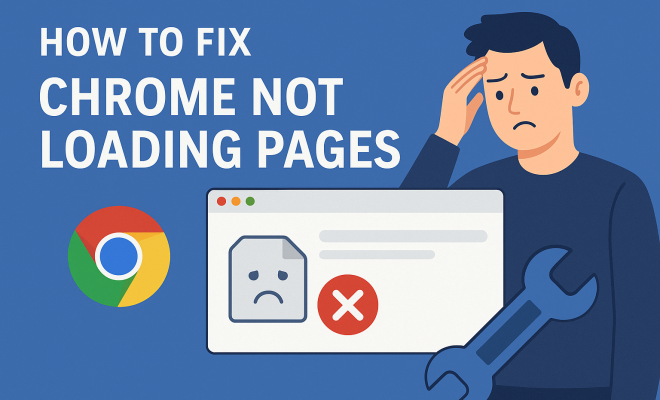
If you’re one of the many users facing the frustrating issue of Chrome not loading pages, you’re not alone. This common problem can stem from various factors, such as network issues, browser settings, or even extensions interfering with your browsing experience. Fortunately, there are several effective methods you can try to resolve this issue and get back to browsing seamlessly.
1. Check Your Internet Connection
The first step in troubleshooting Chrome not loading pages is to ensure your internet connection is stable. A weak or unstable connection can prevent pages from loading properly. Start by checking if other devices connected to the same network can access the internet. If they can’t, restart your router or modem. Sometimes, simply unplugging the device for about 30 seconds can refresh the connection.
If other devices are working fine, consider the following: Click on the Wi-Fi icon on your computer or mobile device to ensure you’re connected to the right network. If you’re on a public Wi-Fi, try switching to a mobile data connection to see if that resolves the issue.
2. Restart Chrome
If your internet connection is stable, the next step is to restart Google Chrome. You might be surprised how often a simple restart can solve a plethora of tech issues. Close all Chrome tabs and completely exit the browser. On Windows, you can right-click the Chrome icon in the taskbar and select ‘Close window.’ On a Mac, choose ‘Quit Google Chrome’ from the Chrome menu.
After closing Chrome, wait a few moments and then reopen it. This action clears temporary files and might fix issues that were causing the browser to malfunction. Once reopened, try navigating to the page that was previously not loading.
3. Clear Cache and Cookies
Over time, cached data and cookies can accumulate and cause Chrome to misbehave, including failing to load pages. Fortunately, clearing your cache and cookies is a straightforward process. Click on the three vertical dots in the top right corner of Chrome, go to ‘More tools,’ and select ‘Clear browsing data.’
In the pop-up window, choose the time range you wish to clear and check the boxes for ‘Cookies and other site data’ and ‘Cached images and files.’ Then, click ‘Clear data.’ After this process, restart Chrome and see if it resolves the loading issues. This method not only helps with loading issues but also can improve browser performance.
4. Disable Extensions and Plugins
Extensions and plugins enhance your browsing experience, but sometimes they can conflict with each other or with Chrome itself, resulting in pages not loading. To troubleshoot this, start by accessing the extensions page by typing chrome://extensions in the address bar. Here, you can disable each extension one by one by toggling them off.
After disabling the extensions, check if Chrome loads the pages correctly. If it does, re-enable the extensions one at a time to identify which one causes the problem. Once you find the culprit, you can either uninstall it or look for an alternative that doesn’t interfere with your browsing experience.
5. Update Chrome
Using an outdated version of Chrome can lead to various problems, including loading issues. Chrome updates frequently to fix bugs, improve security, and enhance performance. To check for updates, click on the three vertical dots in the upper right corner, go to ‘Help,’ and then select ‘About Google Chrome.’ Chrome will automatically check for updates and install them if available.
Once you’ve ensured that you’re running the latest version, restart the browser. An updated version might resolve the loading issue you’ve been experiencing. If Chrome is already up to date and you’re still having problems, consider other options on this list.
6. Reset Chrome Settings
If none of the above solutions work, you might need to reset your Chrome settings to their original defaults. This action can fix misconfigured settings that might be causing your pages not to load. To reset, go to ‘Settings,’ scroll down and click on ‘Advanced,’ then find ‘Reset and clean up.’ Click on ‘Restore settings to their original defaults.’ (See: Learn more about Google Chrome.)
After confirming the reset, be aware that while your bookmarks and saved passwords won’t be deleted, any customized settings will revert to default. This method has the potential to fix several issues, including the inability to load pages.
7. Check Your Firewall and Antivirus Settings
Sometimes, your firewall or antivirus software may block Chrome from accessing the internet, leading to pages not loading. To check if this is the issue, temporarily disable your firewall or antivirus software and try accessing the pages again. If they load successfully, the problem lies in the security settings.
Make sure to re-enable your security software after testing. If you identify that your firewall or antivirus is the issue, you may need to adjust its settings to allow Chrome access. Look for any options related to browser permissions and ensure Chrome is allowed through.
8. Reinstall Chrome
If you’ve tried all the methods listed above and still can’t fix Chrome not loading pages, it may be time to reinstall the browser. Uninstall Chrome from your computer through the control panel or settings, ensure you back up your bookmarks and passwords if necessary, and then download the latest version from Google’s official website.
Once reinstalled, try accessing the pages again. A fresh installation can resolve any underlying issues that might have been causing the browser to malfunction. It’s a bit of a hassle, but it’s often one of the more effective solutions.
9. Check for Network Configuration Issues
Sometimes, the problem lies not just with your browser or device but also with your network configuration. If you’re using a VPN or proxy, these can sometimes cause issues with Chrome not loading pages. Try disconnecting from any VPN or proxy servers you might be using. To do this, go to your network settings and disable any active VPN connection or proxy settings.
If you’re on a corporate or school network, there might be restrictions in place that prevent certain websites from loading. In such cases, it’s best to consult with your network administrator to understand any policies that might be affecting your access.
10. Try a Different Browser
If all else fails, try using a different web browser to see if the problem persists. Browsers like Firefox, Edge, or Safari can serve as temporary solutions while you troubleshoot the issue with Chrome. If the pages load fine on another browser, it strengthens the case that the issue is specifically with Chrome.
Using a different browser can also help you determine if the issue is with the website itself. If the site doesn’t load on any browser, the problem might be with the website or its server instead of your setup.
11. Flush DNS Cache
Another potential fix for loading issues is to flush your DNS cache. This cache can occasionally contain outdated or corrupted data that prevents proper access to websites. To flush the DNS cache, follow these steps:
- Open Command Prompt on Windows by searching for “cmd” in the Start menu.
- Type ipconfig /flushdns and press Enter.
- You should see a message confirming the DNS Resolver Cache has been successfully flushed.
Once you’ve done this, restart Chrome and check if the pages are loading correctly. Flushing the DNS cache is a quick and often effective solution to resolve connectivity issues.
12. Check for Malware or Adware
Malware or adware can interfere with how Chrome operates, including its ability to load pages. If you suspect that malware might be the issue, it’s wise to run a scan with a reliable antivirus or anti-malware program. There are several reputable options available, including Malwarebytes and Windows Defender.
After conducting a thorough scan, remove any detected threats and then restart your computer. Launch Chrome again to see if the loading issues have been resolved. Keeping your system free of malware is crucial not just for performance but also for security. (See: Cleaning and disinfecting tips.)
13. Consult Chrome Help Resources
If you find yourself stuck, don’t hesitate to reach out for help. The Google Chrome Help Center offers a wealth of resources designed to assist users with common issues. There, you can find troubleshooting guides, FAQs, and community forums where you can ask questions and get advice from other users.
Sometimes, discussing your problem with others who have faced similar issues can lead to insights or solutions you haven’t tried yet. Engaging with community forums can also help highlight whether the issue is widespread or unique to your setup.
14. Frequently Asked Questions
Why is Chrome not loading pages but other browsers are?
This often indicates a problem specifically related to Google Chrome. Possible causes may include corrupted cache, problematic extensions, or misconfigured settings. Following the troubleshooting steps outlined above can help resolve these issues.
How do I know if my internet connection is the problem?
You can check your internet connection by testing other devices on the same network. If they can access the internet, the issue likely lies within Chrome itself. You can also try restarting your router and checking the connection speed using online speed tests.
What should I do if a specific website won’t load in Chrome?
If a particular website doesn’t load, try accessing it from another browser to see if the issue persists. If it does, the problem might be with the website itself. You can also check services like DownDetector to see if others are reporting outages for that site.
Is it safe to clear my cache and cookies?
Yes, clearing your cache and cookies is a safe and recommended practice. It helps improve browser performance and can resolve issues related to loading pages. Just be aware that doing this may log you out of websites and remove saved preferences.
How often should I update Chrome?
It’s a good idea to keep Chrome updated as soon as new updates are available. Regular updates ensure you have the latest features, security patches, and bug fixes to enhance your browsing experience. Enabling automatic updates can make this process seamless.
15. Advanced Troubleshooting Steps
If you’ve gone through the basic fixes and still find Chrome not loading pages, you might want to explore more advanced troubleshooting methods. These methods can help identify deeper issues that might be causing the browser to malfunction.
Check Proxy Settings
Sometimes, proxy settings can prevent Chrome from loading pages. To check your proxy settings:
- Open Chrome and click on the three dots in the upper right corner.
- Select “Settings,” then scroll down and click on “Advanced.”
- Under the “System” section, click “Open your computer’s proxy settings.”
- Ensure that the “Use a proxy server” option is turned off unless you specifically need it for work or another reason.
Check for IP Conflicts
In some cases, devices on your network can have conflicting IP addresses. This conflict can prevent Chrome from establishing a connection. To resolve this, you can renew your IP address:
- Open Command Prompt as an administrator.
- Type ipconfig /release and press Enter.
- Next, type ipconfig /renew and press Enter.
This will request a new IP address from your router, potentially resolving any conflicts. (See: New features in Chrome browser.)
Check for Quality of Service (QoS) Settings
Some routers have QoS settings that prioritize certain types of traffic. If these settings are misconfigured, they may interfere with Chrome’s ability to load pages. Log into your router’s settings and check for any QoS configurations that might be affecting your internet performance. If necessary, try disabling QoS temporarily to see if it resolves the issue.
Examine Network Driver Updates
Outdated or corrupted network drivers can also lead to connectivity issues. Check for updates to your network drivers:
- Right-click on the Start button and select “Device Manager.”
- Expand the “Network adapters” section.
- Right-click on your network adapter and select “Update driver.”
- Choose “Search automatically for updated driver software.”
Follow the prompts to install any available updates.
16. User Reports and Community Solutions
Sometimes the best insights come from fellow users who have faced similar issues. Many online forums, such as the Google Chrome Help Community and Reddit, have threads dedicated to troubleshooting Chrome problems. You can find workarounds or solutions that others have discovered when confronted with the same issue.
Before posting your question, search through existing threads to see if someone else has already provided a solution. This can save you time and give you immediate answers.
17. When to Seek Professional Help
If you’ve exhausted all options and Chrome still isn’t loading pages, it might be time to reach out to a professional. Sometimes, the issue may be more profound than just settings or configurations. Professional technicians can diagnose issues that aren’t immediately apparent and can provide tailored solutions based on your specific setup.
Additionally, if you’re in a corporate environment, consult your IT department. They often have tools and expertise to resolve browser issues without you needing to go through all the troubleshooting steps yourself.
In summary, dealing with Chrome not loading pages can be a frustrating experience, but it doesn’t have to be a permanent one. By following these steps, you can troubleshoot effectively and restore your access to the web. Whether it’s checking your internet connection, clearing cached data, or even reinstalling the browser, there’s a pathway back to smooth browsing. So the next time Chrome acts up, you’ll have the knowledge to address the problem head-on.
“`
Trending Now
Frequently Asked Questions
Why is Chrome not loading any pages?
Chrome may not load pages due to various reasons, including unstable internet connections, browser settings, or conflicting extensions. Start by checking your internet connection and ensuring it is stable. If the issue persists, consider restarting Chrome or clearing your cache and cookies.
How do I fix Google Chrome not responding?
To fix Google Chrome not responding, first ensure your internet connection is stable. Restart Chrome by closing all tabs and quitting the application. If the problem continues, try clearing your browser's cache and cookies, which can help resolve loading issues.
What should I do if Chrome won't open pages?
If Chrome won't open pages, check your internet connection to ensure it is stable. Restart the browser by closing it completely and then reopening it. Additionally, consider clearing your cache and cookies, as accumulated data can interfere with page loading.
How do I clear cache and cookies in Chrome?
To clear cache and cookies in Chrome, click on the three vertical dots in the top-right corner, go to 'More tools,' and select 'Clear browsing data.' Choose the time range and ensure both 'Cookies and other site data' and 'Cached images and files' are selected, then click 'Clear data.'
Can browser extensions cause Chrome not to load pages?
Yes, browser extensions can interfere with Chrome's functionality and prevent pages from loading. If you're experiencing issues, try disabling extensions one by one to identify if any are causing the problem. Restarting Chrome after disabling extensions can also help resolve the issue.
What did we miss? Let us know in the comments and join the conversation.