How to install Chrome extensions manually
“`html
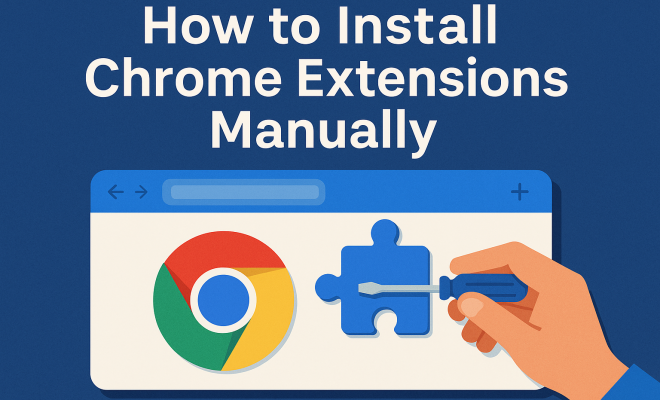
In our increasingly digital world, browser extensions have become essential tools, enhancing our productivity, security, and overall web experience. Google Chrome, one of the most popular web browsers, boasts a vast library of extensions designed to tailor your browsing experience to your personal needs. While most users install extensions directly from the Chrome Web Store, there are times when you might want to install Chrome extensions manually. This guide will walk you through the process, explaining the hows and whys, ensuring you can take full advantage of this powerful feature.
1. Understanding Chrome Extensions
Before diving into the installation process, it’s crucial to understand what Chrome extensions are. These small software programs enhance the functionality of the Chrome browser by adding features or modifying web pages. They can help you manage your tabs, block ads, improve security, and much more. According to Google, there are over 200,000 extensions available on the Chrome Web Store, covering virtually every need.
These extensions are written using web technologies like HTML, JavaScript, and CSS, making them accessible to anyone with the coding know-how. However, even if you’re not a developer, installing and managing these tools can dramatically enhance your browsing experience.
2. Why Install Manually?
There are several reasons you might want to install Chrome extensions manually. Perhaps you’ve found a niche extension not available in the Chrome Web Store, or you need to install a specific version of an extension for compatibility reasons. In some cases, developers might distribute their extensions as .crx files for testing before they are published on the store. Whatever the reason, manual installation can be a valuable skill.
However, keep in mind that installing extensions from unknown sources can pose security risks. Always verify the credibility of the source to protect your personal information and browsing security.
3. Preparing for Manual Installation
To successfully install Chrome extensions manually, you’ll need to make sure your Chrome browser is set up correctly. First, ensure that you’re using an up-to-date version of Chrome. An outdated browser may not support the latest features needed for extension installation.
Next, you’ll want to enable Developer Mode. This feature allows you to load unpacked extensions (those that haven’t been zipped into a .crx file). To enable Developer Mode, follow these steps:
- Open Chrome and click on the three vertical dots in the top-right corner.
- Select “More Tools,” then “Extensions.”
- In the Extensions page, toggle the “Developer mode” switch in the upper right corner.
Now you’re ready to install extensions manually!
4. Finding the Extension File
Once you’ve enabled Developer Mode, the next step involves locating the extension file you want to install. This file usually comes in two formats: .crx or as an unpacked directory of files. If you have a .crx file, you can simply drag and drop it into the Chrome Extensions page.
If you need to work with unpacked extensions, you must first download the complete extension files. These files typically include a manifest.json file, which is crucial for Chrome to recognize and configure the extension. You can often find these files on the developer’s website or repositories like GitHub. Ensure that you obtain these files from a trustworthy source to avoid malware.
5. Installing a .crx File
Installing a .crx file is straightforward. With Developer Mode activated, simply drag the .crx file into the Chrome Extensions page. Once you do this, Chrome will prompt you to confirm the installation. Click “Add Extension” to proceed, and the extension will be installed immediately. (See: Understanding browser extensions.)
Additionally, always check the permissions requested by the extension. If they seem excessive for the functionality it provides, reconsider whether you want to install it. After installation, the extension should appear on your Extensions page, where you can manage its settings.
6. Installing Unpacked Extensions
If you’re working with unpacked files instead of a .crx file, the process is slightly different. First, ensure that you’ve downloaded all the necessary files into a single folder. This folder must contain the manifest.json file along with any other required assets like images or scripts.
To install the unpacked extension, follow these steps:
- Navigate to the Extensions page in Chrome with Developer Mode enabled.
- Click the “Load unpacked” button.
- Select the folder that contains your unpacked extension files.
Once selected, Chrome will load the extension, and you should see it listed on the Extensions page. Just like with .crx files, ensure the permissions align with what you expect.
7. Managing Installed Extensions
Once you’ve successfully installed Chrome extensions manually, managing them is equally important. You can easily enable or disable any extension from the Extensions page. This is particularly useful if you find that a certain extension is causing issues with your browser’s performance.
Additionally, consider periodically reviewing your installed extensions. Remove any that you no longer use or trust. To remove an extension, click the “Remove” button on its respective entry in the Extensions list. Keeping your extensions updated and relevant can help maintain a smooth browsing experience.
8. Troubleshooting Extension Issues
Sometimes, you might encounter problems with extensions, whether installed manually or from the Chrome Web Store. Common issues include conflicts between extensions, slow browser performance, or an extension not functioning as expected. Here are some tips for troubleshooting:
- Disable extensions one at a time to identify the culprit if you experience performance issues.
- Clear your browser cache to ensure outdated files aren’t affecting functionality.
- Check for updates for both your browser and the extensions themselves.
If an extension continues to malfunction, consider reaching out to the developer for support. Additionally, reading user reviews and forums can provide insights into common problems and solutions.
9. Security Considerations
While installing extensions can greatly enhance your browsing experience, it’s vital to consider the security implications. As mentioned earlier, installing extensions from unverified sources can expose you to malware or phished data. Here are some key practices to ensure a safer experience:
- Only download extensions from reputable sources and check user reviews.
- Regularly review the permissions requested by each extension, and be wary of those that request more access than necessary.
- Keep your browser updated to protect against known vulnerabilities.
By being cautious and mindful of your choices, you can enjoy the benefits of Chrome extensions without compromising your security.
10. The Future of Chrome Extensions
The development of Chrome extensions continues to evolve, with advancements in web technologies enabling even more robust functionalities. As Google pushes for better security and privacy measures, users can expect to see improved guidelines for extension developers.
In the coming years, we might witness a shift toward more integrated, feature-rich extensions that work seamlessly across devices. The rise of progressive web apps (PWAs) also blurs the lines between extensions and standalone applications, potentially changing the way users interact with their browsers.
Staying informed about these developments will help you make better choices about which extensions to install, ensuring that your browsing experience remains efficient and enjoyable. (See: Importance of browser security.)
11. Examples of Popular Chrome Extensions
Just to give you a clearer picture of what’s out there, here are some popular Chrome extensions you might want to consider, especially when installing them manually:
- uBlock Origin: This is a highly efficient ad blocker that helps improve page load times and enhances security by blocking unwanted content.
- LastPass: As a password manager, LastPass securely stores your passwords and enables you to fill them in automatically when needed.
- Grammarly: This extension aids in checking grammar and spelling as you write online, making it invaluable for anyone who frequently uses text fields.
- Honey: If you’re into online shopping, Honey helps you find coupon codes automatically, saving you money at checkout.
- Pocket: A great tool for saving articles and web pages to read later, Pocket integrates seamlessly across devices.
12. How to Find Extensions Outside the Chrome Web Store
There are various avenues for locating Chrome extensions outside the Chrome Web Store. For instance, developers often share their extensions on GitHub or their personal websites. When searching for extensions, you can use specific keywords relevant to the features you want. For example:
- Search for “privacy-focused Chrome extensions” if you’re looking to enhance your online security.
- Use terms like “productivity Chrome extensions” to find tools that can help you manage your time better.
- Look for “developer tools Chrome extensions” if you’re coding and need tools to facilitate your workflow.
While exploring these options, remember to always verify the legitimacy of the site and the extension to avoid potential security risks.
13. Common Scenarios for Manual Installation
There are a variety of scenarios where manual installation could be beneficial:
- Testing Beta Versions: Developers may release beta versions of their extensions for testing. You can manually install these to check new features before they’re officially released.
- Using Unsupported Extensions: Some extensions may not be listed on the Chrome Web Store but offer unique features that cater to specific needs.
- Version Compatibility: If an extension has been updated and the new version doesn’t work well with your setup, you might want to revert to an older version that you can install manually.
14. FAQs About Installing Chrome Extensions Manually
Got questions? Here are some frequently asked questions about installing Chrome extensions manually:
1. Can I install any extension manually?
While you can install many extensions manually, it’s essential to ensure they are from a trusted source. Extensions from unknown or unverified sources can pose security risks.
2. What should I do if an extension doesn’t work after manual installation?
If an extension doesn’t function as expected, try disabling other extensions to see if there’s a conflict. You can also check the developer’s website for troubleshooting tips or updates.
3. How do I uninstall a manually installed extension?
Uninstalling a manually installed extension is the same as uninstalling any other extension. Go to the Extensions page in Chrome, find the extension, and click “Remove.”
4. Are there any risks to installing extensions manually?
Yes, there are risks associated with installing extensions manually, especially from unverified sources. Always check reviews and ensure the extension is safe before installation.
5. How can I keep my installed extensions up to date?
When you install extensions manually, they won’t automatically update like those from the Chrome Web Store. You’ll need to check the developer’s site for updates and install them manually. (See: Recent developments in Chrome extensions.)
6. What if I want to revert to a previous version of an extension?
If you have the previous version saved, you can uninstall the current version and install the older one manually. Ensure you track compatibility issues that may arise.
15. Additional Considerations for Manual Installation
Beyond the basics of installation, there are additional considerations worth keeping in mind. Understanding the implications of your choices can enhance your experience significantly.
Managing Extensions for Development Purposes
If you’re a developer, manually installing extensions can provide a distinct advantage. For instance, you can make changes to an extension’s code and see real-time results. This flexibility is incredibly beneficial when debugging or adding new features. Just be careful to keep track of your changes, as unintentional modifications can lead to unexpected behaviors.
Performance Impact of Extensions
It’s important to be aware that having multiple extensions installed, especially if they perform similar tasks, can negatively impact your browser’s performance. Each extension consumes memory and processing power, which might slow down your browser or cause crashes. Regularly audit your installed extensions and disable or remove those that you don’t use frequently.
Extension Reviews and Community Feedback
Before installing an extension manually, take the time to look for reviews and feedback from other users. Websites like Reddit, Stack Overflow, or specific tech blogs often feature discussions about various extensions. User experiences can inform you about the reliability and performance of an extension. If potential issues arise, you may find solutions discussed in these communities.
16. How to Revert Changes Made by Extensions
If you’ve installed an extension and it modifies your browser’s behavior in ways you don’t appreciate (like changing your homepage or default search engine), you can revert those changes easily:
- Access the Extensions page and disable or remove the problematic extension.
- Go to Chrome settings and check for any changes made, reverting them to your preferred settings.
- Clear your browser cache if you notice remnants of the extension’s effects.
Your browsing experience should always reflect your preferences, and managing extensions effectively allows you to maintain control.
17. Conclusion
Mastering the ability to install Chrome extensions manually opens up a wealth of possibilities for enhancing your browsing experience. Whether you’re looking for unique tools or specific functionalities, understanding the manual installation process is a valuable skill. Just remember to prioritize security and stay informed about the extensions you choose to use. Your browsing experience should be both enjoyable and safe, and with the right tools, that’s entirely possible!
“`
Trending Now
Frequently Asked Questions
How do I manually install Chrome extensions?
To manually install Chrome extensions, first download the extension file, typically in .crx format. Then, open Chrome, go to the Extensions page, enable 'Developer mode,' and drag the downloaded file into the page. Confirm the installation, and the extension will be added to your browser.
Why would I want to install Chrome extensions manually?
You might want to install Chrome extensions manually to access niche extensions not available in the Chrome Web Store, to use a specific version for compatibility, or to test developer extensions before they are officially published.
Is it safe to install Chrome extensions from outside the Chrome Web Store?
Installing Chrome extensions from unknown sources can pose security risks. It is essential to verify the credibility of the source to protect your personal information and ensure the extension is safe to use.
What are Chrome extensions and how do they work?
Chrome extensions are small software programs that enhance the functionality of the Chrome browser. They are built using web technologies like HTML, JavaScript, and CSS, allowing users to add features, modify web pages, and improve their browsing experience.
Can I install an older version of a Chrome extension?
Yes, you can install an older version of a Chrome extension by downloading the specific version's .crx file and following the manual installation process. This is useful for ensuring compatibility with other tools or preferences.
Agree or disagree? Drop a comment and tell us what you think.