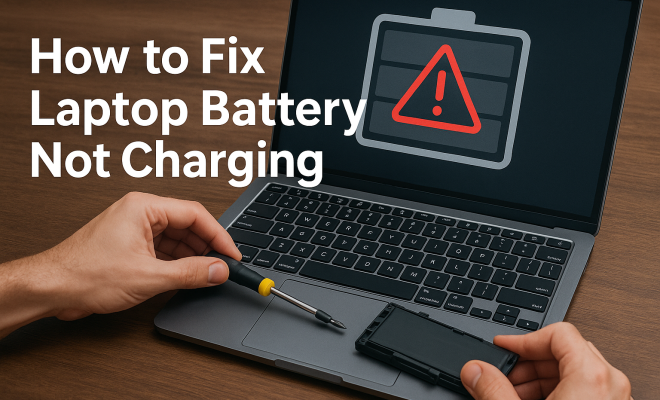
How to fix laptop battery not charging
“`html
If you’ve ever found yourself staring at a laptop that refuses to charge, you’re not alone. A common issue many users face is the dreaded laptop battery not charging fix. Understanding how to troubleshoot your laptop’s battery can save you time and money, preventing a costly trip to the repair shop. Let’s break down the key steps to take when your laptop’s battery isn’t powering up as it should.
1. Check the Power Source
Before diving into technical fixes, it’s essential to ensure that the power source is functioning correctly. This may seem basic, but a faulty power outlet or an unplugged power adapter can easily be the culprit. Start by testing the outlet with another device, such as a lamp or phone charger. If that device works, move on to examining the power adapter.
Look for any signs of wear or damage on the power cord. If the cord has frayed or if the adapter itself is discolored, these are indicators that it may need replacement. Ensure that the connection between the power adapter and the laptop is secure. A loose connection can disrupt charging, causing confusion about the battery’s status.
2. Inspect the Battery
The next logical step in the laptop battery not charging fix process is to inspect the battery itself. If your laptop has a removable battery, take it out and examine it for any signs of bulging, corrosion, or damage. A swollen battery is a significant red flag and could pose safety risks; it’s best to avoid using the device until it is replaced.
If your battery is non-removable, you can still check its health through your laptop’s operating system. Windows users can go to the Command Prompt and type in powercfg /batteryreport to generate a detailed battery report. Mac users can hold the Option key and click on the Apple logo, selecting ‘System Information’ and then ‘Power’ to view battery condition. Reviewing these reports can provide insights into whether your battery is functioning as it should.
3. Update or Reinstall Battery Drivers
Sometimes, the issue with charging stems from software rather than hardware. Keeping your drivers updated is crucial for optimal performance. Go to your device manager (on Windows, you can right-click on the Start menu and select ‘Device Manager’) and look for ‘Batteries’.
There, you’ll see options like ‘Microsoft ACPI-Compliant Control Method Battery’. Right-click on it and choose ‘Update Driver’. If updating doesn’t yield results, you might want to uninstall the driver and restart your laptop. Windows will automatically reinstall the driver upon reboot, which can resolve conflicts or glitches affecting charging.
4. Reset the Power Management Settings
Another potential fix involves resetting your laptop’s power management settings. Over time, these settings can be misconfigured, leading to charging issues. For Windows users, navigate to Control Panel > Power Options > Change plan settings > Restore default settings for this plan.
For Mac users, reset the System Management Controller (SMC) which controls power functions. To do this, shut down your Mac, then hold the Shift + Control + Option keys along with the power button for 10 seconds. Release all keys and then turn on your Mac again. This reset can often fix charging problems and improve overall battery performance.
5. Clean the Charging Port
A buildup of dust and debris can obstruct the charging port, preventing a proper connection between the charger and the laptop. It’s essential to inspect the charging port for any obstructions that may be interfering with charging. Use a flashlight to look inside, and if you see any dust or lint, you can use compressed air to carefully clean it out. (See: battery safety guidelines.)
Be cautious not to insert anything sharp into the port, as this can cause damage. A clean charging port can make a significant difference in your laptop’s ability to charge effectively. It’s a simple yet often overlooked laptop battery not charging fix.
6. Check for Hardware Issues
If you’ve gone through the common fixes and your laptop still isn’t charging, it may be time to consider potential hardware issues. This could involve the motherboard, the charging circuit, or even the battery connection. If you’re comfortable opening your laptop, you can check for loose connections or any visible damage on the motherboard.
However, if you’re not tech-savvy, it’s best to consult with a professional. They can perform a more in-depth diagnosis and determine if any components need repairs or replacements. Ignoring hardware issues can lead to further complications down the line.
7. Try a Different Charger
Using the original charger is always recommended, but if you have another compatible charger available, give it a try. Sometimes, chargers can fail, leading you to believe the laptop or battery is at fault. If a different charger works, you know it’s time to replace your original one.
When trying another charger, ensure it has the same voltage and amperage specifications as your original. Using an incompatible charger can potentially damage your laptop’s battery or internal components. It’s a simple step but can quickly resolve the laptop battery not charging fix issue.
8. Consider Professional Help
If all else fails, don’t hesitate to seek professional assistance. It’s easy to get frustrated when your laptop battery won’t charge, but sometimes the best option is to consult with an expert. They can provide insights and solutions that may not be apparent to the average user, ensuring your laptop gets the care it needs.
Consider taking your laptop to an authorized service center, especially if it’s still under warranty. They can perform a complete diagnostic check and take the necessary steps to fix the issue without voiding any warranty. Remember, your laptop is an investment, and sometimes, getting it fixed by a pro is worth it.
9. Understanding Battery Lifespan and Health
One of the most crucial factors affecting whether your laptop battery charges properly is its lifespan. Laptop batteries typically have a lifespan of 2-4 years, depending on usage and care. As the battery ages, its ability to hold charge diminishes, which can lead to issues like the battery not charging despite being plugged in.
If your laptop is several years old and you’ve noticed a marked decrease in battery life, it might be time to consider replacing the battery altogether. Newer batteries are designed with better technology which can significantly improve charging efficiency and overall performance.
According to a study by Battery University, lithium-ion batteries can lose about 20% of their capacity after 2-3 years of use. Regularly monitoring your battery’s health can help you identify when it’s time for a replacement. Use software tools that can track battery cycles and provide a health report. This proactive approach can save you from unexpected failures.
10. Common Myths About Laptop Charging
When it comes to laptop batteries, there’s a lot of misinformation floating around. Here are some common myths to clear up: (See: tips for laptop battery maintenance.)
- Myth 1: Leaving your laptop plugged in all the time is bad. — While it’s true that constantly keeping your laptop plugged in can wear down the battery over time, modern laptops are designed to handle this without damage. They automatically stop charging when full, but it’s still a good idea to unplug occasionally to keep the battery healthy.
- Myth 2: You should fully discharge your battery before recharging. — This is outdated advice. Lithium-ion batteries perform better when kept between 20% and 80% charge. Frequent deep discharges can actually shorten their lifespan.
- Myth 3: All chargers are the same. — This couldn’t be further from the truth! Always use the charger specified for your laptop model. Using the wrong charger can lead to overheating and may even damage your device.
11. How Temperature Affects Battery Performance
Temperature plays a significant role in battery performance. Extreme heat can damage battery cells, while cold temperatures can affect the battery’s ability to hold charge. Ideally, you should keep your laptop in an environment where the temperature is between 50°F (10°C) and 95°F (35°C).
Using your laptop on a soft surface like a bed or couch can cause it to overheat, so consider using a cooling pad or a hard surface when operating your device. If you’re using your laptop in a particularly cold environment, be mindful that the battery may not charge effectively until it warms up.
Some manufacturers advise not to use your laptop while it’s charging in hot conditions, as this can exacerbate the heating issues. Keeping your laptop well-ventilated can prevent many temperature-related problems.
12. Frequently Asked Questions (FAQ)
What should I do if my laptop won’t charge at all?
Start by checking the power source and make sure the charger is plugged in securely. Inspect the battery and charging port for any damage or debris. If the issue persists, you can try the steps outlined in this article to diagnose the problem.
Can I charge my laptop with a phone charger?
While some laptops can charge via USB-C ports, using a phone charger is generally not recommended unless it meets the power requirements of your laptop. Using a lower wattage charger can lead to slow charging or may not charge the laptop at all.
How often should I replace my laptop battery?
Generally, you should consider replacing your laptop battery every 2-4 years, depending on usage. If you notice a significant drop in performance or battery life, it might be time for a replacement.
Is it okay to use my laptop while it’s charging?
Yes, it’s perfectly fine to use your laptop while it’s charging. Modern laptops are designed to handle this, but be mindful of the surface you place it on to avoid overheating.
What does it mean if my laptop’s charging light is blinking?
A blinking charging light can signal different issues depending on the laptop model. It may indicate a battery charging problem or a hardware issue. Consult your user manual or contact customer support for more specific troubleshooting steps.
13. Advanced Troubleshooting Steps
If the basic steps haven’t resolved the issue, there are a few advanced troubleshooting methods you can try. These can help diagnose more complex problems that could be affecting your laptop’s ability to charge.
Battery Calibration
Sometimes, the battery’s charge gauge can become inaccurate, leading to false readings about how much charge is left. Calibrating your battery can help reset this gauge. To calibrate, fully charge your laptop, then use it until it completely discharges. Once it turns off, charge it back up to 100% without interruption. This process can help the battery management system recalibrate and potentially resolve charging issues. (See: laptop battery technology.)
BIOS Update
In some cases, a BIOS update might help solve charging issues. Manufacturers often release updates to fix bugs or improve hardware compatibility. Check your laptop manufacturer’s website for available BIOS updates and follow the instructions carefully to install them. Keep in mind that a BIOS update should be done cautiously, as failing to do it correctly could cause further issues.
14. Using Battery Management Software
Battery management software can provide insights into your battery’s health and help manage charging cycles. Tools like BatteryCare (for Windows) or coconutBattery (for Mac) allow you to monitor the charge cycles, temperature, and overall health of your battery. These applications can also help you set alerts for when to charge or discharge your battery, promoting better longevity.
Investing in such software can assist in prolonging your battery’s life, thus reducing the frequency of charging issues.
15. Understanding Different Battery Types
It’s vital to recognize that not all laptop batteries are created equal. Most laptops use Lithium-Ion (Li-Ion) or Lithium Polymer (Li-Po) batteries, both of which have specific characteristics. Knowing the type of battery your laptop uses can help you make informed decisions regarding its care and maintenance.
Li-Ion batteries are more common due to their reliability and cost-effectiveness, while Li-Po batteries can be thinner, allowing for sleeker laptop designs. However, both types require similar care. They should ideally remain charged between 20% and 80% to maximize lifespan and performance.
16. Tips for Extending Battery Life
Once your laptop is charging correctly, consider these tips for extending its battery life:
- Adjust Screen Brightness: Lowering your screen brightness can significantly reduce power consumption.
- Close Unused Applications: Running multiple applications increases CPU usage, draining the battery faster. Closing those you aren’t using can help.
- Utilize Power Saver Mode: Most operating systems have a power-saving mode that can help extend battery life by lowering performance and dimming the screen.
- Disable Bluetooth and Wi-Fi when Not in Use: These features consume power even when not actively used, so turn them off if you don’t need them.
- Regularly Update Software: Keeping your operating system and applications updated can help improve battery efficiency.
In summary, dealing with a laptop battery not charging can be a frustrating experience. By following the steps outlined above, from checking your power source to seeking professional help, you can troubleshoot the issue effectively. Remember to keep your laptop’s battery and software updated to prevent future problems. With a little patience and the right approach, you can get your laptop back to full power in no time!
“`
Trending Now
Frequently Asked Questions
Why is my laptop battery not charging?
There are several reasons your laptop battery may not be charging. Common issues include a faulty power source, a damaged power adapter, or a defective battery. Start troubleshooting by checking the power outlet and adapter, and then inspect the battery for any visible signs of damage.
How do I check if my laptop battery is healthy?
To check your laptop battery's health, Windows users can generate a battery report by typing 'powercfg /batteryreport' in Command Prompt. Mac users can hold the Option key, click on the Apple logo, select 'System Information,' and then 'Power' to view the battery condition. These methods provide insights into battery performance.
What should I do if my laptop battery is swollen?
If your laptop battery is swollen, it's important to stop using the device immediately, as it poses safety risks. Remove the battery if possible, and consult a professional for replacement. Avoid puncturing or exposing the battery to heat, as this can lead to further hazards.
Can a faulty power adapter cause charging issues?
Yes, a faulty power adapter can definitely cause charging issues. Signs of damage, such as fraying or discoloration of the power cord, indicate that it may need replacement. Ensure that the adapter is securely connected to both the power outlet and your laptop to rule out connection problems.
How can I fix my laptop if it won't charge?
To fix a laptop that won't charge, start by checking the power source and ensuring the power adapter is functioning correctly. Inspect the battery for any damage, and if it's removable, try reseating it. If problems persist, consider updating your laptop's drivers or consulting a technician for further assistance.
What did we miss? Let us know in the comments and join the conversation.