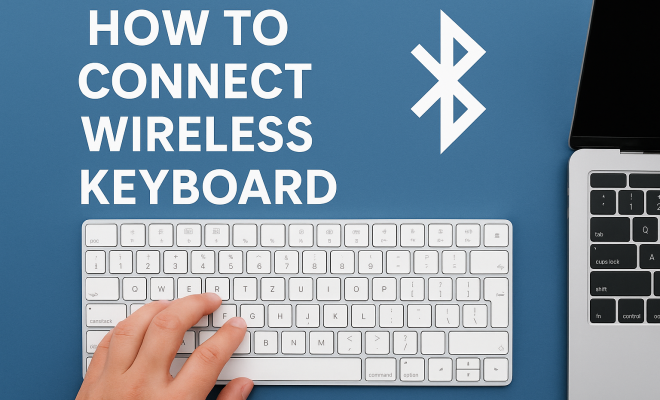
How to connect wireless keyboard
“`html
Connecting a wireless keyboard can transform how you interact with your computer, providing a tidier workspace and increased flexibility. Whether you’re using it for work, gaming, or casual browsing, knowing how to effectively connect a wireless keyboard is essential. In this comprehensive guide, we’ll cover everything you need to know, from understanding the different types of wireless keyboards to troubleshooting common connection issues.
1. Understanding Wireless Keyboards
Before you dive into the steps on how to connect a wireless keyboard, it’s important to understand what these devices are and how they function. Wireless keyboards can be divided into two main categories: Bluetooth and RF (Radio Frequency). Bluetooth keyboards pair directly with your device via Bluetooth technology, while RF keyboards typically connect through a small USB dongle that receives the wireless signal.
Both types come with their own advantages. Bluetooth keyboards are generally more versatile, as they can connect to multiple devices and do not require dedicated USB ports. RF keyboards, on the other hand, often have better responsiveness and can be particularly beneficial for gaming. Regardless of the type, knowing the key features and specifications of your wireless keyboard will help you connect it seamlessly.
2. Preparing Your Environment
To successfully connect your wireless keyboard, start by preparing your workspace. Ensure that your keyboard’s batteries are charged or that it is plugged in if the model has a rechargeable battery. Check for any obstructions that might interfere with the wireless signal, such as large metal objects or other wireless devices. It’s also a good idea to position your keyboard within a close range of the computer or device you are connecting it to.
Additionally, make sure that your computer’s Bluetooth is enabled if you’re using a Bluetooth keyboard. On Windows, you can find this in the Settings under Devices, and on Mac, it’s located in System Preferences. Preparing your environment will lead to a smoother connection process and reduce the likelihood of issues.
3. Connecting Bluetooth Keyboards
Connecting a Bluetooth keyboard is generally a straightforward process. To get started, turn on your keyboard and put it into pairing mode. The method for entering pairing mode can vary between models. Often, there’s a dedicated button, or you may need to press a combination of keys. Refer to the user manual for specific instructions.
Once in pairing mode, go to your device’s Bluetooth settings. On Windows, select ‘Add Bluetooth or other device’ under the Bluetooth settings. On a Mac, click on the Bluetooth icon in the menu bar and select ‘Turn Bluetooth On.’ Your keyboard should appear in the list of available devices. Click on the keyboard’s name, and you may be prompted to enter a PIN displayed on the screen. Once entered, your keyboard will be connected.
4. Connecting RF Keyboards
Connecting an RF keyboard is usually even simpler. Start by inserting the USB dongle into an available USB port on your computer. Most devices will automatically recognize the keyboard and install the necessary drivers. Turn on your keyboard, and you should be ready to type almost immediately.
In some cases, you may need to press a connect button on the keyboard or the dongle to establish a connection. This is particularly true for devices designed to connect to multiple computers. If prompted, follow the instructions on your screen, and you will be typing away in no time!
5. Troubleshooting Connection Issues
If you’re having trouble connecting your wireless keyboard, don’t panic. There are several common issues that can easily be resolved. First, ensure that the keyboard is powered on and has sufficient battery life. For Bluetooth keyboards, confirm that your device is in pairing mode.
If the keyboard is not recognized, try removing any previous connections from your device’s Bluetooth settings. Additionally, check to see if your keyboard is compatible with your operating system. Sometimes, older keyboards may require updated drivers or may not support newer operating systems. If all else fails, restarting your computer can often resolve connection hiccups. (See: Wireless keyboard overview on Wikipedia.)
6. Customizing Keyboard Settings
Once your wireless keyboard is connected, you might want to customize its settings to enhance your typing experience. On Windows, you can adjust settings like key repeat rate and modify keyboard shortcuts in the Control Panel. Mac users can go to System Preferences to change similar settings.
Many keyboards also come with special software that allows for even more customization. This can include creating macros, changing key bindings, and adjusting the backlight settings (for illuminated keyboards). Utilizing these features can greatly improve your efficiency and make using your wireless keyboard a more enjoyable experience.
7. Maintaining Your Wireless Keyboard
To keep your wireless keyboard functioning optimally, regular maintenance is key. This includes replacing batteries as needed, cleaning the keyboard, and ensuring the connection remains secure. Dust, debris, and spills can all interfere with the performance of your keyboard. Use compressed air to remove particles and a damp cloth for any spills.
Additionally, periodically check the software associated with your keyboard for updates. Manufacturers often release firmware updates that enhance performance and fix bugs. Staying up-to-date will help maintain the integrity of your device over time.
8. Understanding Battery Life and Power Saving
One of the major benefits of wireless keyboards is their portability; however, battery life can be a concern. Understanding your keyboard’s power needs can help you avoid frustrating moments of downtime. Most wireless keyboards will have an estimated battery life indicated in the manual, which can range from several months to a few years depending on usage.
To conserve battery life, many wireless keyboards have built-in power-saving features. Some will automatically go to sleep after a period of inactivity, while others may require you to toggle a power switch. Familiarize yourself with these settings to maximize your keyboard’s longevity and minimize the hassle of frequent battery replacements.
9. The Future of Wireless Keyboards
The landscape of wireless keyboards is rapidly evolving. Advancements in technology are leading to more ergonomic designs, better connectivity options, and longer battery life. The rise of smart home devices is also influencing keyboard design, with some models now featuring programmable keys that can control other devices in your smart home ecosystem.
As we move forward, expect to see more innovations aimed at enhancing user experience. From integrating voice command capabilities to optimizing for virtual reality environments, the future of wireless keyboards looks promising. Staying informed about these developments will help you make the best choices for your typing needs.
10. Comparing Bluetooth and RF Keyboards
When choosing between Bluetooth and RF wireless keyboards, it’s beneficial to weigh the pros and cons of each technology. Bluetooth keyboards are generally favored for their convenience in connecting to multiple devices and typically have a longer range of operation. For instance, many Bluetooth keyboards can be used up to 30 feet away from the connected device.
On the flip side, RF keyboards have a reputation for providing a more stable and faster connection, making them the preferred choice for gamers who require quick response times. A typical RF keyboard can offer a lag-free experience, which is critical during intense gaming sessions. Battery life can also differ; RF keyboards may consume more power due to constant signal transmission and could require more frequent battery changes compared to some energy-efficient Bluetooth models.
Ultimately, your choice should depend on your specific usage requirements. If you often switch between devices like tablets and laptops, a Bluetooth keyboard might suit you better. However, if you primarily use a desktop for gaming, an RF keyboard could provide the performance you need.
11. Popular Wireless Keyboard Brands
As the market for wireless keyboards has grown, several brands have emerged as leaders in producing high-quality products. Brands like Logitech, Microsoft, and Razer are widely recognized for their innovation and reliability. Logitech offers a variety of options, from affordable models to high-end gaming keyboards that boast customizable keys and RGB lighting.
Microsoft is known for ergonomics, providing keyboards designed to promote better posture and reduce wrist strain. If you’re looking for a keyboard that prioritizes comfort without sacrificing functionality, Microsoft’s ergonomic series might be ideal for you. (See: Ergonomics and workspace setup by CDC.)
For gamers, Razer is a go-to brand, specializing in keyboards that feature mechanical switches and customizable macros designed specifically for high-performance gaming. Other brands worth exploring include Corsair, SteelSeries, and Keychron, each catering to different user needs and preferences.
12. Frequently Asked Questions (FAQ)
Q1: Can I use a wireless keyboard with my tablet?
Yes, most wireless keyboards, especially Bluetooth models, are compatible with tablets. You may need to enable Bluetooth on your tablet and pair the keyboard just like you would with a computer.
Q2: What should I do if my wireless keyboard stops working suddenly?
First, check the batteries; they may need to be replaced. If the keyboard still doesn’t work, try reconnecting it through the Bluetooth settings or by unplugging and re-plugging the USB dongle for RF keyboards. Restarting your device can also help.
Q3: Are there any special considerations for using wireless keyboards for gaming?
When gaming, look for a wireless keyboard that offers low latency and a high polling rate. This will ensure that your commands are registered quickly. Mechanical switches can also enhance your gaming experience by providing tactile feedback.
Q4: How do I clean my wireless keyboard?
To clean your keyboard, first, turn it off and remove any batteries if applicable. Use compressed air to blow out dust and debris from between the keys. For sticky spills, a damp cloth can be used, but make sure the keyboard is dry before turning it back on.
Q5: Can a wireless keyboard be used while charging?
Some wireless keyboards come with a rechargeable battery and allow usage while charging. However, check the specific model’s documentation to ensure it supports this feature.
Q6: What is the average battery life of a wireless keyboard?
The average battery life can vary significantly based on the brand and usage. Expect anywhere from several months to a few years, with some higher-end models offering extended battery life due to energy-efficient designs.
Q7: Do I need to install software to use my wireless keyboard?
Most wireless keyboards will work out of the box with basic functionality. However, to access advanced features like macro programming and key customization, you might need to install specific software provided by the manufacturer.
Q8: Are wireless keyboards secure from hacking?
Bluetooth keyboards can potentially be more vulnerable to interception than wired counterparts. However, the risk is generally low, and most modern keyboards use encryption to secure the signal. Always use trusted brands and keep firmware updated for added security.
13. Choosing the Right Wireless Keyboard for Your Needs
With the wide variety of wireless keyboards available, it’s essential to choose one that aligns with your specific needs. Start by considering how you plan to use the keyboard. If you do a lot of typing for work, look for a model with a comfortable layout and good key travel. Ergonomic designs might be best for long hours at the desk.
For gaming, prioritize keyboards with mechanical switches known for their durability and responsiveness. Features like programmable keys and customizable RGB lighting can also enhance your gaming experience. If you’re a frequent traveler, consider a compact, lightweight model that doesn’t compromise on functionality. (See: New York Times on wireless keyboards.)
Read reviews and compare different models. Look for user feedback regarding connectivity issues, durability, and overall performance to ensure you’re making a well-informed decision.
14. Understanding the Importance of Wireless Range
The wireless range of a keyboard can significantly impact your user experience. Bluetooth keyboards typically have a range of about 30 feet, while RF keyboards can have a slightly shorter but often more stable range. It’s important to consider your setup when choosing a keyboard. If you plan to use it in a different room or further away from your device, ensure the keyboard supports the range you need.
Interference from other wireless devices, such as Wi-Fi routers, microwaves, and other Bluetooth devices, can affect performance. If you notice lag or connection drops, try to reposition your device or the keyboard for a clearer line of sight.
15. Exploring Advanced Features
Many modern wireless keyboards come packed with advanced features that can improve productivity and comfort. Consider models with backlit keys for easier typing in low-light environments. Some keyboards also offer customizable keys, allowing you to assign macros for frequently used commands or shortcuts, which can save significant time during tasks.
Integrated touchpads or trackballs eliminate the need for an external mouse, making them excellent choices for presentations or limited workspace. Voice command capabilities are also emerging in some keyboards, allowing for hands-free operation in specific applications.
16. Wireless Keyboards and Accessibility
Wireless keyboards can greatly enhance accessibility for users with disabilities. Keyboards with larger keys, adjustable heights, and tactile feedback can make typing easier for those with limited dexterity. Some brands also offer keyboards with braille or alternative layouts for users with visual impairments. When selecting a wireless keyboard, consider features that could aid accessibility based on individual needs.
Selecting the right wireless keyboard can make a significant difference, not just in how you interact with your computer, but in your overall comfort and productivity. By understanding the various features and options available, you can choose a keyboard that meets your specific requirements.
Connecting a wireless keyboard is more than just a technological convenience; it enhances your overall computing experience. By understanding how to properly connect, maintain, and customize your keyboard, you’ll be well on your way to an efficient and enjoyable usage experience.
“`
Trending Now
Frequently Asked Questions
How do I connect a wireless keyboard to my computer?
To connect a wireless keyboard, first ensure it has charged batteries or is plugged in. For Bluetooth keyboards, enable Bluetooth on your computer, then pair the keyboard through the device settings. For RF keyboards, plug the USB dongle into your computer's USB port. Follow any on-screen instructions if prompted.
What is the difference between Bluetooth and RF wireless keyboards?
Bluetooth keyboards connect directly via Bluetooth technology and can pair with multiple devices without needing USB ports. RF keyboards use a USB dongle to receive the wireless signal, often providing better responsiveness, making them suitable for gaming. Each type has its advantages depending on your usage needs.
Why won't my wireless keyboard connect?
If your wireless keyboard won't connect, check if the batteries are charged or if it's properly plugged in. Ensure there are no obstructions interfering with the signal and that Bluetooth is enabled on your computer for Bluetooth keyboards. Restarting the device or re-pairing may also resolve connection issues.
Do I need to install software for my wireless keyboard?
Most wireless keyboards do not require additional software for basic functionality. However, some advanced features may require specific drivers or software provided by the manufacturer. Always check the user manual for any installation instructions or recommendations if you encounter issues.
How far can a wireless keyboard be from its receiver?
The effective range of a wireless keyboard varies by type. Typically, Bluetooth keyboards can function up to 30 feet away, while RF keyboards usually work within a range of about 10 to 15 feet. Obstacles like walls or metal objects can reduce this range, so positioning is important for optimal performance.
Agree or disagree? Drop a comment and tell us what you think.