How to share printer on network
“`html
In today’s interconnected world, sharing a printer on a network can significantly boost productivity and efficiency, especially in homes and offices where multiple users need access to printing services. Whether you are a novice looking to set up a shared printer for the first time or an experienced user fine-tuning an existing setup, this guide has you covered. Let’s explore the most crucial aspects of sharing a printer on a network, from understanding the basics to troubleshooting common issues.
1. Understanding the Basics of Network Printing
Before we delve into the specifics of how to share a printer on a network, it’s essential to grasp the fundamental concepts of network printing. A network printer is any printer that is connected to a network rather than directly to a computer. This connection allows multiple computers and devices to send print jobs to the same printer, which can be a real time-saver in a shared environment.
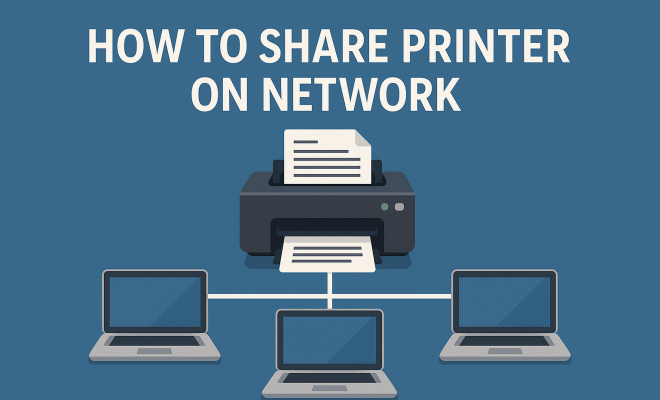
To get started, you need to determine whether your printer is network-capable. Most modern printers come equipped with built-in Wi-Fi or Ethernet capability, allowing them to connect to a local area network (LAN). If your printer lacks these features, you can still share it by connecting it to a designated computer, which acts as a print server.
2. Choosing the Right Printer for Network Sharing
When selecting a printer for shared use, certain features can enhance its functionality. Laser printers are generally faster and produce high-quality text documents, making them ideal for office environments. However, inkjet printers are better suited for photo printing and color graphics, so your choice ultimately depends on your specific needs.
Additionally, consider factors such as print volume, connectivity options (Wi-Fi, Ethernet, USB), and compatibility with various operating systems, including Windows, MacOS, and Linux. Researching reviews and specifications will help you make an informed decision that aligns with your requirements.
Another factor to consider is the printer’s capacity for mobile printing. Many modern printers support printing from smartphones and tablets, which is increasingly important in a mobile workforce. Look for models that support AirPrint for Apple devices and Google Cloud Print for Android devices, as these features can simplify the printing process across various platforms.
3. Connecting Your Printer to the Network
Once you’ve chosen the right printer, the next step is to connect it to your network. If your printer has built-in Wi-Fi, you can usually connect it directly to your wireless network through the printer’s control panel. This process typically involves selecting your Wi-Fi network and entering the password. Consult your printer’s manual for specific instructions, as the steps can vary by model.
If you prefer a wired connection, simply connect the printer to your router using an Ethernet cable. After connecting, the printer will automatically be assigned an IP address, allowing devices on the network to recognize it. You can verify the connection by printing a network configuration page, which is usually accessible through the printer menu.
For devices that may not have wireless capability, consider using a print server. This is a dedicated hardware device that connects to your printer and facilitates wireless network printing. A print server can be especially useful for older printers that lack modern connectivity features.
4. Installing Printer Drivers on Networked Devices
To share a printer on a network, each connected device must have the appropriate printer drivers installed. Drivers are software that enable the computer to communicate effectively with the printer. Most operating systems come with a set of pre-installed drivers for common printers, but it’s a good idea to download the latest drivers from the manufacturer’s website for optimal performance.
For Windows users, you can add a network printer by navigating to ‘Devices and Printers’ in the Control Panel, selecting ‘Add a Printer,’ and then following the on-screen instructions. Mac users can access ‘System Preferences,’ click on ‘Printers & Scanners,’ and add the printer using the ‘+’ button. The process is straightforward for most devices, but ensure that you have the correct drivers for your specific printer model. (See: Printer sharing on networks.)
It’s also beneficial to check for any firmware updates available for the printer itself. Manufacturers often release updates that can improve the printer’s functionality, enhance security features, and fix bugs. Keeping everything up to date ensures that your network printer operates optimally.
5. Setting Up Printer Sharing on Windows
If you’re using a Windows system to share the printer, the process is rather simple. First, ensure that the printer is connected to the PC that will act as a server. Go to ‘Devices and Printers,’ right-click on the printer you wish to share, and select ‘Printer properties.’
In the properties window, navigate to the ‘Sharing’ tab and check the box that says ‘Share this printer.’ You can also provide a share name that other users on the network will recognize easily. Once shared, other devices can access this printer as long as they’re connected to the same network.
For added functionality, Windows allows users to set permissions for the printer. You can control who can print, manage documents, or even access the printer settings. This feature can help in maintaining order in busy environments where multiple users might be sending print jobs simultaneously.
6. Setting Up Printer Sharing on Mac
For Mac users, sharing a printer on a network is also a straightforward process. Begin by connecting your printer to your Mac via USB or through the network. Then, go to ‘System Preferences’ and click on ‘Printers & Scanners.’ Select your printer from the list, and check the box labeled ‘Share this printer on the network.’
This function will allow other Macs on the same Wi-Fi network to detect and use the printer. It’s a great feature for small offices or shared living spaces where multiple users need access to printing capabilities without having to connect directly to the printer.
If you’re looking to share your printer with Windows users as well, ensure that you also enable the SMB sharing option in your Mac settings. This way, Windows users can access the printer without any issues, bridging the gap between different operating systems.
7. Troubleshooting Common Printer Sharing Issues
Even with the best setup, you might encounter issues while trying to share a printer on a network. One of the most common problems is connectivity issues — either the printer isn’t responding, or devices can’t find it on the network. In such cases, check that the printer is powered on and connected to the network. Restarting both the printer and the computer can sometimes resolve these issues.
Another frequent challenge involves driver compatibility. If a device fails to print, ensure that the correct drivers are installed and updated. Additionally, verify that the sharing settings on the host computer are properly configured. By addressing these common pitfalls, you can ensure a smoother printing experience across your network.
It’s also helpful to establish a regular maintenance routine for your printer. This includes cleaning print heads, checking ink or toner levels, and conducting self-diagnostic tests. Regular maintenance can help prevent many of the issues that may arise with a network printer.
8. Securing Your Network Printer
Security is an often-overlooked aspect of network printing. If your printer is accessible to anyone on the network, it can become a target for unauthorized users. To mitigate this risk, ensure that your network is secured with a strong password and consider enabling printer security settings. Many printers offer options for password protection or restricting access to specific users.
Additionally, regularly update your printer’s firmware and software to protect against vulnerabilities. Keeping your network printer secure not only protects sensitive documents but also helps maintain overall network integrity.
For businesses, implementing a secure print solution can be beneficial. These systems require users to authenticate themselves at the printer before the job is released, thereby ensuring that sensitive documents are not left unattended. This can help in safeguarding confidential information and maintaining privacy within shared workspaces. (See: CDC's guidelines on printing.)
9. Current Trends and Future of Network Printing
As technology advances, the future of network printing is evolving. The rise of cloud printing solutions has significantly changed how users engage with printing services. Cloud-based printing allows users to send jobs from virtually any device, anywhere, directly to a printer, simplifying the process further.
Moreover, the integration of mobile printing capabilities enables users to print from smartphones and tablets effortlessly. As more businesses and homes adopt smart technology, the importance of seamlessly sharing a printer on a network will only continue to grow. Looking ahead, embracing these developments can enhance productivity and streamline workflows in a variety of settings.
Additionally, sustainability is becoming a priority in the printing industry. Many manufacturers are now focusing on creating energy-efficient printers that consume less power and use eco-friendly materials. Choosing a network printer that aligns with sustainable practices can not only help the environment but can also appeal to eco-conscious users.
10. FAQs About Sharing a Printer on a Network
Q1: Can I share a printer on a network without a dedicated server?
Yes, you can share a printer connected to a computer on the network, which effectively acts as a print server. Just ensure the computer is always on for other users to access the printer.
Q2: What happens if my printer goes offline?
If your printer goes offline, devices connected to it will not be able to print. Check the printer’s connection status, restart the printer, and ensure that the host computer is on and connected to the network.
Q3: Is it safe to use my printer on a public network?
Using a printer on a public network can pose security risks as it may be accessible to unauthorized users. It’s advisable to use your printer on a secure, private network whenever possible.
Q4: How can I improve the speed of my network printer?
To improve the speed, ensure that your printer is connected via Ethernet rather than Wi-Fi, as wired connections are generally faster. Also, check for any print queue issues or update the printer drivers.
Q5: Can multiple users print at the same time to a shared printer?
Yes, multiple users can send print jobs to a shared printer, but the printer can only handle one job at a time. Jobs will be queued and processed in the order they were received.
Q6: How do I find the IP address of my network printer?
The IP address can usually be found on the printer’s configuration page, accessible through the printer’s menu. Many printers also have a print option that will print out this information.
Q7: What if my printer is not showing up on the network?
First, check if the printer is powered on and connected to the network. Ensure that sharing settings are enabled on the host computer. Restarting the printer and the computer might help as well.
Q8: What are the benefits of network printers over traditional printers?
Network printers allow multiple users to print simultaneously without needing to physically connect to the printer. This can significantly reduce wait times and improve efficiency in busy environments. Additionally, they often come with advanced features such as remote printing, which is incredibly helpful in modern workspaces. (See: New York Times on printer sharing.)
Q9: Can I print from my smartphone to a network printer?
Absolutely! If your network printer is set up for mobile printing, you can print directly from your smartphone or tablet. Look for features like AirPrint for iOS or Google Cloud Print for Android devices, which make it easy to send print jobs from your mobile device.
Q10: What should I do if printing is slow?
If your printing is slow, check the print quality settings. Sometimes, higher quality settings can lead to slower print speeds. Additionally, ensure that your printer has sufficient memory to handle large documents and check for any network issues that might be causing delays.
In summary, sharing a printer on a network enhances functionality, convenience, and productivity. By understanding the basics, selecting the right printer, and following the correct setup procedures, you can create an efficient printing environment that serves multiple users effectively. With the right tools and knowledge, you can successfully navigate the challenges of network printing and enjoy the benefits it brings.
11. Advanced Tips for Optimizing Network Printer Sharing
To truly get the most out of your network printer setup, consider these advanced tips:
- Use Quality Cables: If you are using a wired connection, opt for high-quality Ethernet cables. Poor quality cables can cause data loss and slow transmission speeds.
- Configure Quality Settings: Adjust print quality settings based on the job type. For instance, use draft mode for internal documents and higher quality for customer-facing materials.
- Centralized Print Management: For businesses, implementing a centralized print management system can help control costs and monitor usage across the network, ensuring that resources are utilized effectively.
- Train Users: Providing training on how to use the shared printer properly can prevent many common issues. Users should know how to access the printer, select the correct drivers, and troubleshoot basic problems.
12. Comparative Analysis: Wired vs. Wireless Network Printing
When deciding whether to opt for a wired or wireless network printer, there are several factors to consider. Here’s a breakdown of the advantages and disadvantages of each:
Wired Network Printing
- Speed: Wired connections generally offer faster data transfer speeds, ideal for large print jobs.
- Reliability: Less prone to interference, wired connections are more reliable, essential for mission-critical printing tasks.
- Security: Wired connections are generally more secure, reducing the risk of unauthorized access.
Wireless Network Printing
- Flexibility: Wireless printers can be placed anywhere within range of the network, allowing for more versatile office layouts.
- Easy Setup: Often easier to set up for temporary workstations or when moving locations.
- Support for Mobile Printing: Many wireless printers support mobile printing, which is becoming increasingly essential.
Considering your specific needs can help you make an informed decision about which type of network printer is right for you.
13. Future Innovations in Network Printing
As we look ahead, several exciting innovations in network printing are on the horizon:
- 3D Printing: While primarily a different segment, the integration of 3D printing capabilities in network systems could redefine how businesses approach prototyping and product development.
- AI Integration: Future printers may leverage artificial intelligence to learn user preferences, automatically adjusting settings for optimal performance based on previous jobs.
- Enhanced Security Protocols: With increasing cybersecurity threats, we can expect to see more robust security measures implemented in network printers, including advanced encryption and user authentication methods.
Staying updated on these trends can ensure that your printing solutions remain cutting-edge and efficient.
“`
Trending Now
Frequently Asked Questions
How do I share a printer on a network?
To share a printer on a network, first ensure your printer is network-capable, either through Wi-Fi or Ethernet. If not, connect it to a computer that will act as a print server. Then, configure the printer settings on each device that needs access, allowing them to send print jobs to the shared printer.
What type of printer is best for network sharing?
The best type of printer for network sharing depends on your needs. Laser printers are ideal for high-volume text printing in office settings, while inkjet printers excel at color graphics and photo printing. Consider connectivity options and compatibility with your operating systems when making your choice.
Can I share a printer connected to my computer?
Yes, you can share a printer connected to your computer by enabling printer sharing in the operating system settings. This allows other devices on the same network to access and send print jobs to that printer, effectively turning your computer into a print server.
What do I need to set up a network printer?
To set up a network printer, you need a network-capable printer, a local area network (LAN), and the necessary cables for wired connections or Wi-Fi access. Additionally, ensure that all devices that will use the printer are connected to the same network.
How do I troubleshoot printer sharing issues?
To troubleshoot printer sharing issues, check the network connection, ensure the printer is powered on and properly installed, and verify that printer sharing is enabled on the host computer. Restarting devices and updating drivers can also resolve many common problems.
What’s your take on this? Share your thoughts in the comments below — we read every one.