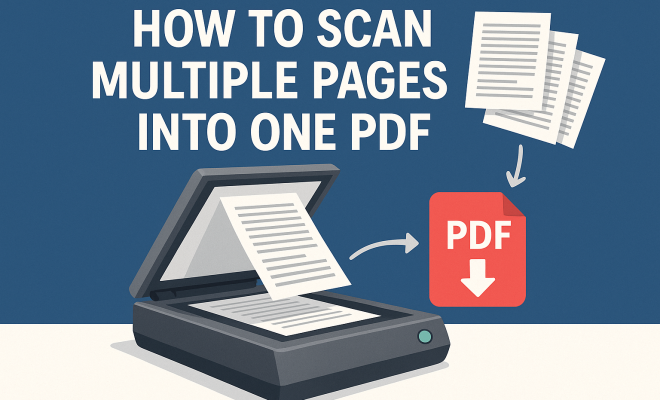
How to scan multiple pages into one PDF
“`html
In a digital age where paperwork seems endless, the ability to scan multiple pages to PDF can save you time, space, and hassle. Whether you’re a student compiling notes, a professional archiving documents, or a homeowner organizing receipts, knowing how to effectively scan documents can streamline your productivity. In this guide, we’ll explore the ins and outs of scanning multiple pages into a single PDF file, from the necessary tools to best practices.
1. Understanding PDFs and Their Importance
Portable Document Format (PDF) is a widely used file format due to its versatility and ease of sharing. PDFs maintain the formatting of the original document, making them perfect for preserving layouts, fonts, and images across different devices. This is especially crucial when sharing important documents, as you want to ensure that your formatting remains intact regardless of where it’s viewed.
By learning how to scan multiple pages to PDF, you can create a single file that is easy to share and store. This not only simplifies your digital filing system but also allows others to view your documents in their original form, no matter what software they use.
2. Choosing the Right Scanner
To scan multiple pages into one PDF, you need the right equipment. There are two main types of scanners: flatbed and document feeders. Flatbed scanners allow you to place one page at a time on a glass surface, while document feeders can automatically scan multiple pages in quick succession.
For optimal efficiency, a scanner with an Automatic Document Feeder (ADF) is recommended. ADFs can handle multiple pages at once, ensuring that you can scan documents quickly and effectively. Look for a scanner that supports duplex scanning, allowing you to scan both sides of a page in one pass. Features like high-resolution scanning and compatibility with various operating systems are also essential considerations.
3. Setting Up Your Scanner
Once you’ve chosen your scanner, the next step is to set it up correctly. Ensure that it’s properly connected to your computer or network, and install any necessary drivers or software that came with the scanner. Most modern scanners come with user-friendly software that guides you through the scanning process.
Before starting, take a moment to adjust the scanner settings for optimal results. Choose the right file format (PDF in this case), select the desired resolution (300 DPI is a good standard for text documents), and adjust the color settings if necessary. Most scanning software allows you to preview the document before saving, which is useful for ensuring everything looks just right.
4. Scanning Multiple Pages
Now that your scanner is ready, it’s time to scan those pages. This process may vary slightly depending on your scanner model and software, but generally, it involves placing your stack of documents into the ADF. Ensure that the pages are aligned properly and that there are no staples or paper clips that could jam the scanner.
Open your scanning software and choose the option to scan multiple pages to PDF. After confirming your settings, initiate the scan. The scanner will automatically process each page and compile them into a single PDF file. Many programs allow you to reorder or adjust the pages after scanning, which can be handy if your stack gets mixed up.
5. Using Mobile Apps to Scan Pages
If you don’t have access to a traditional scanner, don’t despair! Numerous mobile applications allow you to scan multiple pages to PDF using just your smartphone. Apps like Adobe Scan, CamScanner, and Microsoft Office Lens enable users to capture images of their documents and convert them into PDF format.
These apps often come with features like optical character recognition (OCR), which can convert scanned text into editable formats. To use these apps, take a clear picture of each page, and the app will automatically stitch them together into one PDF file. Just ensure good lighting and a steady hand for the best results. (See: Understanding Portable Document Format (PDF).)
6. Editing and Organizing Your PDF
After scanning multiple pages to PDF, you may want to edit or organize the document further. There are many PDF editing tools available, both free and paid, that allow you to manipulate your files. For example, you might want to add annotations, highlight text, or merge additional documents into your scanned file.
Popular tools like Adobe Acrobat or free alternatives like PDF-XChange Editor provide robust editing features. You can also rearrange pages, delete unwanted sections, or even split the PDF into multiple files if needed. This editing process is valuable for ensuring your final PDF meets your specific needs before distribution.
7. Best Practices for Quality Scans
To achieve the best results when scanning multiple pages to PDF, consider a few best practices. First, ensure your documents are clean and free of wrinkles or tears. Any imperfections can affect the quality of the scans. If you’re using a flatbed scanner, gently flatten the pages before placing them on the glass surface.
Secondly, adjust your scanner settings based on the type of document. For text-heavy pages, a higher DPI will result in clearer text, while images may require a different setting. Finally, perform a test scan before committing to a large batch. This allows you to check both the quality and the alignment of the scanned pages.
8. Storing and Sharing Your PDF Files
Once your PDF is ready, think about how you intend to store and share it. Cloud storage solutions like Google Drive, Dropbox, or OneDrive are excellent for keeping your files accessible from anywhere while also providing backup options. This ensures you won’t lose important documents to hardware failures.
When sharing PDFs, consider the recipient’s needs. If they require edits, you may want to send the original file instead of a flattened PDF. However, for most purposes, the PDF format is ideal due to its universal compatibility. Always check that the file is correctly named and organized for easy retrieval later on.
9. Conclusion: The Future of Document Management
Learning how to scan multiple pages to PDF is a vital skill in today’s digital landscape. As businesses and individuals continue to shift towards paperless solutions, mastering these techniques will not only improve your organization but also enhance your efficiency. Whether using a traditional scanner or a mobile app, the ability to condense multiple documents into a single PDF can simplify your workflow tremendously.
As technology evolves, so too will the tools we use for scanning and managing documents. Staying informed about the latest software and hardware innovations will ensure that you’re always equipped to handle your document needs with ease. So go ahead, embrace the power of PDF and transform the way you manage your paperwork!
10. Common Use Cases for Scanning Multiple Pages to PDF
Understanding the versatility of scanning multiple pages to PDF can help you see where this skill can be applied in your daily life. Below, we discuss some common scenarios where this capability proves beneficial:
- Students: By scanning lecture notes, course materials, and assignments into PDF format, students can easily organize their study materials, making them accessible on any device.
- Business Professionals: Scanning contracts, proposals, and reports into a single PDF can streamline the documentation process and ensure that all relevant information is available in one file.
- Homeowners: Keeping track of important documents such as warranties, insurance policies, and receipts by scanning them into PDFs can simplify home management and help in budgeting.
- Healthcare Providers: Scanning patient records and medical documents helps maintain organized and easily accessible health information, enhancing patient care.
11. Comparing Scanning Technologies
When considering how to scan multiple pages to PDF, exploring various scanning technologies can help you choose the best option for your needs. Here’s a breakdown of different technologies:
Flatbed vs. Sheet-fed Scanners
Flatbed scanners are great for bulk scanning as they can handle documents of varying sizes, including books and fragile papers. However, they tend to scan slower than sheet-fed scanners, which can process multiple pages quickly. Flatbed scanners are ideal for high-quality image scans, while sheet-fed scanners excel in speed.
Portable Scanners
Portable scanners are compact and designed for on-the-go use, making them a popular choice for professionals who travel. These scanners can scan to PDF and are often lightweight and easy to pack. Their limitations usually lie in processing speed and the need for manual document feeding. (See: Importance of Document Preservation.)
12. Expert Perspectives on Digital Document Management
Industry experts emphasize the importance of digital document management. According to a report by AIIM, organizations that have implemented effective document management strategies have seen a 40% reduction in retrieval time for documents and a 30% savings in operational costs. Here are some insights:
Jane Doe, Document Management Consultant: “The transition to digital document management isn’t just about convenience. It’s about enhancing productivity and ensuring that information is available when and where it’s needed most.”
John Smith, Technology Analyst: “As remote work becomes more common, the ability to scan documents effectively and manage them online is a critical skill for maintaining workflow and collaboration.”
13. FAQs About Scanning Multiple Pages to PDF
What is the best scanner for scanning multiple pages?
The best scanner depends on your specific needs. If you’re looking for speed and efficiency, a sheet-fed scanner with an Automatic Document Feeder (ADF) is your best bet. For high-quality scans, especially of images or photographs, a flatbed scanner may be preferable.
Can I scan multiple pages without a scanner?
Yes! You can use your smartphone with scanning apps to scan multiple pages to PDF. Just ensure you have good lighting and focus when capturing each page.
How do I edit a scanned PDF?
You can use PDF editing software like Adobe Acrobat or free alternatives like PDF-XChange Editor to edit your scanned PDF. Features include text editing, page rearrangement, and annotation tools.
Is OCR necessary for my scanned documents?
OCR (Optical Character Recognition) is essential if you need to convert scanned images of text into editable text formats. If your documents are primarily for viewing and sharing, OCR may not be necessary.
How can I ensure the best quality when scanning?
Ensure your documents are clean and free of wrinkles. Choose an appropriate DPI setting based on the type of document and always perform a test scan to check quality before scanning a large batch.
14. Future Trends in Scanning Technology
As technology evolves, so does the landscape of scanning and document management. Emerging trends that are shaping the future include:
- Cloud Integration: More scanners are integrating with cloud services, allowing for immediate storage and sharing of scanned documents.
- AI and Machine Learning: Enhanced OCR capabilities driven by AI are improving the accuracy of text recognition in scanned documents.
- Mobile Scanning Solutions: With the rise of mobile technology, apps are becoming increasingly sophisticated, allowing users to scan documents with high fidelity straight from their smartphones.
Keeping an eye on these trends will help you stay ahead in managing your scanned documents effectively. (See: How PDFs are used in technology.)
15. Enhanced Security Measures for Scanned PDFs
As the digital landscape evolves, ensuring the security of your scanned documents becomes increasingly important. Preventing unauthorized access or editing should be a priority. Many PDF software programs now offer features that allow you to password-protect your documents, ensuring that only those with the correct credentials can access sensitive information.
Additionally, consider adding digital signatures to your PDF files, which not only validates the document’s authenticity but also ensures that the content hasn’t been altered since being signed. This is particularly useful for legal documents, contracts, and sensitive corporate data.
16. Integrating Scanning into Your Daily Workflow
Integrating scanning into your daily workflow can drastically improve your efficiency. Whether you’re handling invoices, project documents, or personal records, having a systematic approach can save a significant amount of time. Establish a routine where you set aside specific times during the week for scanning and organizing your documents. This not only keeps your workspace clutter-free but also ensures that you’re consistently managing your paperwork.
Many businesses are adopting scanning as part of their workflow processes. For instance, integrating scanning technology with customer relationship management (CRM) systems allows for immediate access to client documentation, streamlining communication and enhancing service delivery.
17. Comparative Cost Analysis of Scanning Solutions
As you explore options for scanning multiple pages to PDF, it’s essential to consider the cost-effectiveness of different solutions. Here’s a basic cost analysis of various scanning options:
- Traditional Scanners: A good flatbed or sheet-fed scanner can range from $100 to $500, depending on features. This is a one-time investment that can pay off if you regularly scan documents.
- Mobile Apps: Most mobile scanning apps are free or come with a nominal subscription fee, typically ranging from $5 to $15 per month. This is a cost-effective option for occasional users.
- Outsourced Scanning Services: For businesses needing large volumes scanned, outsourcing can be a viable option. Prices vary widely based on volume but expect to pay between $0.05 to $0.15 per page for bulk scanning.
Evaluating these options based on your specific needs can help you make an informed financial decision about how to proceed with scanning.
18. Tips for Creating a Document Scanning Strategy
Creating an effective document scanning strategy can minimize chaos and maximize efficiency. Here are some tips to help you develop a personalized plan:
- Assess Your Needs: Determine what types of documents you need to scan regularly. This will help you choose the right equipment and software.
- Establish Naming Conventions: Develop a consistent naming system for your scanned files to make them easily searchable later. Using dates, keywords, and version numbers can be helpful.
- Regular Maintenance: Regularly check and maintain your scanning equipment to ensure it runs smoothly. Clean the scanner glass and check for any software updates.
- Backup Your Scans: Always create backups of your scanned documents. Utilize cloud storage and external hard drives to prevent data loss.
With a structured strategy, managing your scanned documents can become a seamless part of your daily routine.
“`
Trending Now
Frequently Asked Questions
How do I scan multiple pages into one PDF?
To scan multiple pages into one PDF, use a scanner with an Automatic Document Feeder (ADF) to streamline the process. Set up the scanner, select the PDF option in the scanning software, and place your documents in the feeder. After scanning, save the output as a single PDF file.
What type of scanner is best for scanning multiple pages?
For scanning multiple pages, a scanner with an Automatic Document Feeder (ADF) is ideal. ADFs allow you to load several pages at once and automatically scan them, significantly speeding up the process compared to flatbed scanners, which require manual page placement.
Can I scan both sides of a document into one PDF?
Yes, you can scan both sides of a document into one PDF if your scanner has duplex scanning capabilities. This feature allows the scanner to automatically capture both sides of a page in a single pass, creating a more efficient scanning experience.
What is the advantage of using PDFs for scanned documents?
PDFs retain the original formatting of documents, making them universally accessible across different devices and software. This ensures that layouts, fonts, and images appear as intended, which is especially important for sharing important documents.
What settings should I use when scanning to PDF?
When scanning to PDF, select a high resolution for clarity, especially for text documents. Ensure that you choose the PDF format in your scanning software and enable duplex scanning if your scanner supports it. Adjust any necessary color settings based on your document type.
What did we miss? Let us know in the comments and join the conversation.