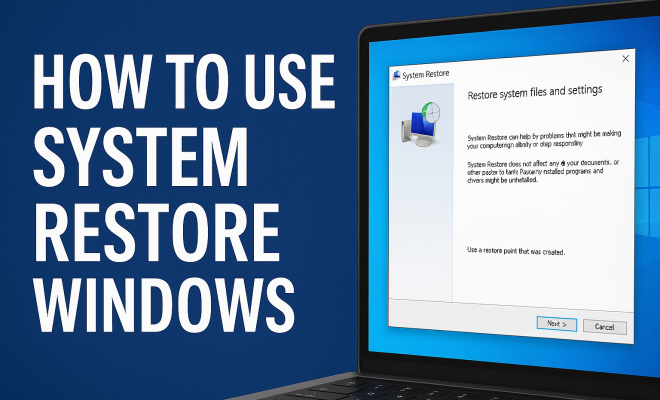
How to use System Restore Windows
“`html
Have you ever encountered a situation where your computer starts acting strange after a recent update or software installation? Fear not! Windows offers a reliable solution to restore your system to its previous state: System Restore. This powerful tool can save you from headaches caused by system errors, malware, or problematic updates. In this comprehensive guide, we’ll explore how to use System Restore in Windows, covering its background, practical usage, and best practices to ensure your data remains safe.
1. What is System Restore?
System Restore is a built-in feature in Windows operating systems designed to help users revert their computers to an earlier point in time without affecting personal files. It creates restore points, which are snapshots of system files, installed programs, registry settings, and other configurations that can be retrieved later if something goes wrong. Whenever significant changes occur, such as software installation, driver updates, or Windows updates, Windows automatically creates a restore point.
This feature is particularly useful for troubleshooting issues, such as slow performance or unexpected crashes. Rather than resorting to a complete reinstall of the operating system, users can simply restore their system to a functioning state. Understanding how to use System Restore in Windows can be a lifesaver when your computer starts misbehaving.
2. How Does System Restore Work?
When you enable System Restore on your computer, it monitors the system and creates restore points for you. These restore points are created automatically at scheduled intervals or when you install new software or updates, but you can also create them manually. Restoring your system involves rolling back to one of these points before the issue arose.
It’s important to note that while System Restore can repair many system issues, it doesn’t affect personal files like documents, pictures, or music. However, it will remove any applications that were installed after the restore point was created. Therefore, if you recently installed new software and it caused problems, using System Restore can help you eliminate that issue while keeping your files intact.
3. Enabling System Restore
Before you can use System Restore, you’ll need to ensure it’s enabled on your system. Here’s how to check and enable this feature:
- Open the Control Panel. You can quickly access this by searching for it in the Start menu.
- Click on System and Security, then select System.
- On the left side of the window, click on System Protection.
- In the System Properties window, you’ll see the System Protection tab. Here, you can select the drive you want to protect (typically C: drive) and click Configure.
- Select the option Restore system settings and previous versions of files and click OK.
Once enabled, Windows will automatically create restore points, but it’s still a good idea to create one manually before making significant changes to your system.
4. Creating a Restore Point
Creating a restore point manually is a straightforward process and can be done with just a few clicks. Here’s how you can create your own restore point:
- Follow the steps from the previous section to access the System Properties window.
- In the System Protection tab, click on the Create button.
- Type a description for the restore point to help you remember the current state of your system.
- Click Create again, and Windows will begin the process. A progress message will appear, and once it’s completed, a confirmation will be displayed.
It’s a good habit to create restore points before you install new software or make significant changes to your computer. This precaution can save you time and frustration in case something goes wrong.
5. How to Use System Restore in Windows
Now that you know how to create restore points, let’s discuss how you can utilize System Restore to revert to a previous state of your system. Here’s the step-by-step process:
- Open the Control Panel and navigate to System and Security > System.
- Click on System Protection on the left side.
- Click the System Restore button. This will open the System Restore wizard.
- Follow the prompts to select a restore point. You’ll have the option to view more restore points if available; choose the one that corresponds to a time before you experienced issues.
- Click Next, and review your selections. Then, click Finish to begin the restoration process.
After the restoration process begins, your computer will restart. It may take some time, depending on the size of the restore point and the speed of your system. Once complete, your system will reboot, and you should see that the issues have been resolved.
6. Common Issues and Troubleshooting
While System Restore is a powerful tool, it can sometimes run into issues. Here are some common problems you might encounter and how to troubleshoot them:
- Restore Point Not Available: If you can’t find a suitable restore point, it may be due to the fact that System Restore wasn’t enabled previously, or there wasn’t enough disk space allocated for restore points. Ensure that System Restore is enabled and check your disk space settings.
- System Restore Fails to Complete: If the restoration process fails, it could be due to corrupted files or insufficient permissions. Make sure you are logged in as an administrator. If problems persist, you might want to run the System File Checker tool to scan for corrupted system files.
- Restore Point Deletion: Some software, especially disk cleanup utilities, may automatically delete restore points to free up space. It’s important to regularly check your restore point settings and allocate ample space for them.
If you continue to experience issues, consider seeking professional help or visiting official Windows support forums for guidance. Sometimes, the problem may be deeper than just needing a system restore.
7. Alternatives to System Restore
While System Restore is an effective tool, it’s not the only option for recovering from system issues. Here are some alternatives you might consider:
- Windows Recovery Environment (WinRE): If your system fails to boot, you can access the recovery environment by interrupting the boot process three times. WinRE offers advanced troubleshooting tools, including Startup Repair, Command Prompt, and System Image Recovery.
- System Reset: Windows 10 and 11 offer a reset feature that allows you to reinstall Windows while keeping your files or removing everything. This option is useful if System Restore isn’t fixing your issues.
- Backup and Restore: Regularly backing up your data using File History or third-party backup solutions can provide another layer of security. In case of a serious issue, restoring from a backup can be more effective than using System Restore.
Understanding these alternatives can prepare you for different scenarios and ensure that you have multiple recovery options at your disposal.
8. Best Practices for Using System Restore
To get the most out of System Restore and keep your system running smoothly, consider these best practices:
- Regularly Create Restore Points: Make it a habit to create restore points before making significant changes to your system. This simple step can save you a lot of time and frustration.
- Monitor Disk Space: Ensure that you have enough disk space allocated for restore points. If necessary, increase the disk space used by System Restore in the settings.
- Keep Your Software Updated: Regular updates not only include new features but also important security fixes. Keeping your system up-to-date can minimize issues that might require a restore.
- Use Antimalware Software: Protecting your system from malware and viruses is essential. If your system becomes infected, it may require more than just a restore; hence, proactive protection is crucial.
By following these best practices, you can maximize the benefits of System Restore and maintain a healthier computer.
9. Final Thoughts on Using System Restore in Windows
Learning how to use System Restore in Windows effectively empowers you to take control of your system’s health and stability. It’s a simple yet powerful tool that can prevent minor issues from escalating into significant problems. By regularly creating restore points, understanding its functionality, and knowing when to use it, you’ll be well-equipped to handle the unexpected hiccups that can arise from software changes, updates, or installations.
So, the next time your computer starts acting up, remember—System Restore might just be the quick fix you need to get back on track. Don’t underestimate the power of this built-in feature; it’s there to serve you when you need it the most.
10. System Restore: User Experiences and Case Studies
To understand the practical implications of using System Restore, it’s insightful to consider real user experiences. Below are a few scenarios where users found System Restore beneficial:
Case Study 1: The Problematic Software Installation
Jane, a graphic designer, recently updated her design software, only to find that her computer started crashing frequently. After troubleshooting for a couple of days with no luck, she decided to use System Restore. By reverting to the state of her system before the update, she was able to restore her stability without losing her projects. This incident not only saved her time but also protected her creative work from potential losses.
Case Study 2: Windows Update Gone Wrong
Mark, a tech-savvy user, encountered issues after a Windows update that made his system sluggish. He remembered the last time he was satisfied with his system’s performance was a few weeks back. Using System Restore, Mark quickly reverted to a previous point, and his computer was back to its optimal performance. His experience highlights the importance of being aware of restore points post-update.
According to user feedback on forums, many individuals report similar success stories with System Restore. It offers a safety net that helps users navigate the often complex world of software updates and installations, making it a critical tool in a Windows environment.
11. Statistics on System Restore Usage
While it might be difficult to quantify the exact usage of System Restore across all Windows users, statistics from various IT surveys provide some insight:
- According to a survey conducted by a tech research company, approximately 60% of Windows users are aware of the System Restore feature.
- Among those who are aware, roughly 70% have used System Restore at least once in their computing life.
- Users who routinely create restore points prior to updates report up to a 50% decrease in system-related issues.
These statistics show not only the importance of System Restore but also the necessity for users to understand its functionality and make it part of their routine system maintenance.
12. Frequently Asked Questions about System Restore
Here are some common questions that arise regarding how to use System Restore in Windows and their answers to help clarify any uncertainties:
Q1: Can I undo a System Restore?
A: Yes, you can undo a System Restore operation by going back into the System Restore wizard and selecting the option to undo the last restore. This allows you to revert your system back to its current state.
Q2: Will System Restore delete my personal files?
A: No, System Restore does not delete personal files like documents, photos, or videos. However, it may remove applications and drivers installed after the restore point was created.
Q3: How much disk space does System Restore require?
A: The amount of disk space required for System Restore can vary. By default, Windows allocates about 3-5% of your disk space for restore points. You can adjust this in the System Protection settings if you need more space.
Q4: What if System Restore doesn’t solve my problem?
A: If System Restore doesn’t resolve your issue, you might need to consider other recovery methods such as a System Reset or using the Windows Recovery Environment. Sometimes deeper system issues may require more advanced troubleshooting.
Q5: Can I create a restore point on Windows 11?
A: Yes, creating a restore point in Windows 11 follows a similar process as previous versions. Simply go to the System Protection settings, and you can create a restore point just as you would in Windows 10.
13. Importance of Regular Backups Alongside System Restore
While System Restore is a great tool for reverting system changes, it’s essential to understand its limitations. System Restore does not replace the need for regular backups of your personal files. Here are a few reasons why maintaining backups is crucial:
- Data Safety: In the event of hardware failure or more severe software issues that System Restore cannot fix, having a separate backup of your personal files ensures that you do not lose important data.
- Comprehensive Recovery: While System Restore focuses on system files and settings, it does not back up your documents, photos, or other personal content. Backups allow you to recover all your essential files in case of a complete system failure.
- Version Control: Regular backups allow you to maintain different versions of your files. If something goes wrong with a document, you can revert to a previous version that you backed up, which is something System Restore cannot do.
Consider using Windows built-in tools like File History or third-party backup applications to ensure your data is not only secure but also easily retrievable in a crisis.
14. How to Combine System Restore with Other Recovery Options
System Restore works best when used as part of a broader recovery strategy. Here are some steps to effectively integrate System Restore with other Windows recovery options:
- Create Regular Restore Points: As mentioned earlier, create restore points before significant changes. This practice works hand-in-hand with regular backups to create a comprehensive safety net.
- Utilize Windows Backup Features: Use Windows Backup and Restore or File History to maintain a continuous backup of your personal files while using System Restore for system settings.
- Familiarize Yourself with WinRE: Knowing how to access the Windows Recovery Environment can provide additional tools, such as Startup Repair and Command Prompt, which can help diagnose and fix issues that System Restore might not address.
- Keep Recovery Media Ready: Maintaining a recovery USB or disk can be a lifesaver if your system fails to boot. This media can help you access recovery options, including System Restore and complete OS reinstallation if necessary.
By combining these methods, you’ll be better prepared for a wide range of potential issues that can affect your system, ensuring you have both a quick fix and a long-term solution.
15. Conclusion: Embracing System Restore as a Key Tool
Understanding how to use System Restore in Windows is not just about troubleshooting; it’s about embracing a proactive approach to system maintenance. With the potential for software errors, malware, and unexpected updates, having the ability to return your system to a stable state can alleviate much of the stress that comes with these issues. By keeping this tool in your toolkit, you empower yourself to manage your computer effectively and ensure a smoother operating experience.
“`
Trending Now
Frequently Asked Questions
What is System Restore in Windows?
System Restore is a built-in Windows feature that allows users to revert their computer to an earlier state using restore points. These points capture system files, installed programs, and configurations, enabling users to troubleshoot issues without affecting personal files.
How do I use System Restore on my computer?
To use System Restore, access it through the Control Panel or search for 'System Restore' in the Start menu. Choose a restore point from the options provided, and follow the prompts to restore your system to its previous state.
Will System Restore affect my personal files?
No, System Restore does not affect personal files such as documents, photos, or music. It primarily targets system files and configurations, making it a safe option for troubleshooting without risking personal data.
When should I use System Restore?
You should use System Restore when you encounter system issues such as slow performance, software conflicts, or crashes after recent updates or installations. It can help revert your system to a stable state without a complete OS reinstall.
How often does Windows create restore points?
Windows automatically creates restore points during significant changes, such as software installations, driver updates, or system updates. Users can also manually create restore points at any time to ensure a safe fallback option.
Have you experienced this yourself? We’d love to hear your story in the comments.