How to clone hard drive
“`html
In today’s digital world, data is everything. Losing important files can lead to chaos, whether it’s cherished family photos, critical business documents, or essential software. One way to safeguard your data is by knowing how to clone a hard drive. This article will guide you through the process, offering insights into why it’s essential, the tools you need, and the step-by-step methods to achieve a successful clone.
1. Understanding Hard Drive Cloning
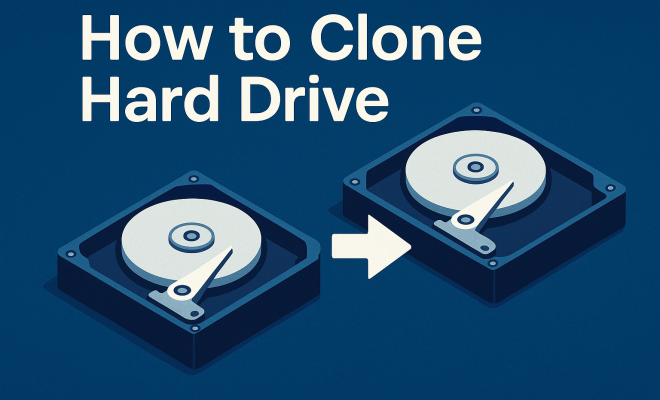
Before diving into the practical steps, it’s vital to understand what hard drive cloning entails. At its core, cloning a hard drive means creating an exact replica of a hard drive, including its operating system, applications, settings, and all data. Unlike simple file copying, cloning captures everything in a single image, making it easier to restore your system or migrate to a new drive.
When you clone a hard drive, you’re essentially making a bit-for-bit copy, which is crucial for ensuring the integrity of your data. This process is especially useful when upgrading to a larger hard drive or switching from an HDD to an SSD. The advantages of cloning include significantly reduced downtime, a smoother transition to new hardware, and peace of mind knowing your data is backed up.
2. Why Should You Clone Your Hard Drive?
There are numerous reasons for cloning your hard drive. One of the primary motivations is data backup. Regular backups are essential for preventing data loss due to hardware failures, accidental deletions, or malware attacks. Cloning your hard drive offers a comprehensive backup solution that captures everything in one go.
Additionally, cloning is a smart strategy when upgrading your hard drive. If you’re transitioning from an older, smaller HDD to a newer, larger SSD, cloning allows you to transfer your entire operating system and applications without the hassle of reinstalling everything. This not only saves time but also ensures you don’t lose any important settings or files.
Many professionals recommend cloning not only for upgrades but also as a preventive measure. By having a clone ready, you can quickly recover from unexpected data loss scenarios, minimizing downtime whether for personal or business needs.
3. Tools Needed for Cloning a Hard Drive
To successfully clone a hard drive, you need specific tools. The first requirement is a suitable hard drive cloning software. Numerous options are available, ranging from free to paid software, each with its own features and capabilities. Popular choices include:
- Macrium Reflect: A reliable free option that provides a user-friendly interface and robust features.
- Clonezilla: An open-source tool that’s great for advanced users looking for flexibility.
- Acronis True Image: A powerful paid software with additional features like cloud backup.
- EaseUS Todo Backup: Offers both free and paid versions with an intuitive interface.
In addition to software, you’ll need a second hard drive for the clone. This can be either an internal drive or an external USB drive. Ensure that the storage capacity of the new drive is equal to or greater than the original hard drive to accommodate all data.
Beyond software and hardware, consider having an external storage device. This setup can serve as an additional backup layer, allowing you to store copies of your clone or critical files away from your primary hardware.
4. Pre-Cloning Preparations
Before you start the cloning process, there are a few essential preparations to make. First, ensure that your existing hard drive is in good working condition. Run a disk check to identify any potential issues that could affect the cloning process. For Windows users, the built-in CHKDSK utility can help with this.
Next, back up any crucial data separately. While cloning is a reliable process, it’s always best to have an extra backup just in case something goes awry. Following this, clear any unnecessary files from your hard drive to make the cloning process faster and more efficient. Consider uninstalling applications you no longer use and deleting duplicate or obsolete files.
Another important step is to defragment your hard drive if you’re using an HDD. This process can help improve the cloning speed by organizing data more efficiently. It’s less of a concern for SSDs, but maintaining their health is crucial for performance. (See: understanding hard drive technology.)
5. Step-by-Step Guide to Clone a Hard Drive
Now that you are prepared, it’s time to dive into the cloning process. The steps may vary slightly depending on the software you choose, but the general outline remains consistent. Here’s a typical process using Macrium Reflect as an example:
- Download and Install Software: Install your chosen cloning software on your computer.
- Connect the New Hard Drive: Attach the new drive to your computer, either internally or via USB.
- Launch the Cloning Software: Open Macrium Reflect and select the source drive (the drive you wish to clone).
- Select Clone This Disk: Click on the option to clone the selected drive.
- Choose the Destination Drive: Select the new hard drive as the destination for the clone.
- Configure Clone Options: You may configure additional options such as partition sizes and file system types.
- Start Cloning: Initiate the cloning process. This may take some time, depending on the size of the data.
- Verify the Clone: Once cloning is complete, verify the clone by checking if the data is intact.
After cloning, you may need to adjust BIOS settings or change the boot order if you plan to use the new drive as your primary disk. Ensure you follow the instructions specific to your system for a successful transition.
It’s wise to keep the original drive intact for a while after cloning. This way, if any issues arise with the new drive, you can revert to the old one without losing any data or settings.
6. Post-Cloning Steps
After successfully cloning your hard drive, there are a few important steps to ensure everything works smoothly. First, you should check that the new hard drive is functioning correctly. Boot your computer using the new drive to verify that the operating system loads properly and that all your data is intact.
If you cloned your drive for an upgrade, consider wiping the old drive once you’re certain the new one is functioning as expected. This helps to prevent data redundancy and can free up space for other uses. However, ensure that you have a backup before doing this.
It’s also a good time to update your software and drivers on the new drive. Outdated drivers can sometimes lead to system instability, so making sure everything is current can help in achieving optimal performance.
7. Common Issues and Troubleshooting
While cloning a hard drive is generally straightforward, issues can sometimes arise. Here are a few common problems and their solutions:
- Insufficient Space: If the destination drive doesn’t have enough space, the cloning process will fail. Ensure the new drive has enough capacity by checking before starting.
- Clone Won’t Boot: If your cloned drive doesn’t boot up, it could be due to incorrect BIOS settings. Go into the BIOS setup and ensure the new drive is set as the primary boot device.
- Corrupted Data: If you notice missing files after cloning, it might be due to disk errors. Running a disk check on both the source and destination disks can help identify and fix these issues.
- Software Compatibility: Sometimes, the cloning software may not be fully compatible with the hardware. Ensure your software is up to date and check for any required patches or updates.
Staying calm and patient during the process is crucial. Most cloning software will provide diagnostic messages that can help you identify what went wrong and how to fix it.
8. Advanced Cloning Techniques
For those looking to take their cloning skills to the next level, there are advanced techniques worth exploring. One such method is sector-by-sector cloning, which copies every sector of the source disk, regardless of whether it contains data. This technique is particularly useful for recovery situations where the original disk is failing.
Another advanced option is using disk imaging instead of direct cloning. Disk imaging creates a compressed file of the entire hard drive, which can then be stored on another device. This method is beneficial for backup purposes as it saves space but requires restoration before use.
Lastly, consider utilizing cloud services for additional backup. While local cloning is effective, storing a copy of essential data in the cloud ensures an extra layer of security against physical data loss.
As technology advances, tools offer features like incremental cloning, which allows you to clone only the changes made since the last clone was created, significantly saving time and storage space.
9. Comparing Cloning and Imaging
It’s essential to understand the difference between cloning and imaging, as both methods serve different purposes. Cloning is about creating an exact replica of a hard drive, while imaging focuses on creating a compressed file of the drive’s contents.
Cloning is ideal for immediate disk transfers and upgrades, whereas imaging is better suited for backups and long-term storage. Imaging files can often be stored on smaller drives or in cloud storage, making them a space-efficient solution. (See: importance of data backup.)
Ultimately, the choice between cloning and imaging will come down to individual needs. If you need a direct replacement for your current drive, cloning is the way to go. If you’re looking for a backup solution that allows for more flexible storage options, disk imaging might be your best bet.
Understanding the right context for each method can help you optimize your data management strategy, ensuring that your important files are both accessible and secure.
10. The Future of Hard Drive Cloning
The technology surrounding hard drive cloning is continually evolving. As SSDs become more prevalent, cloning software is adapting to better support the unique features and requirements of solid-state drives. This includes supporting TRIM commands, which help manage unused data blocks on SSDs, ensuring optimal performance post-cloning.
Additionally, as data security becomes increasingly important, the future of cloning will likely incorporate more robust encryption features to protect sensitive information during the cloning process. With cloud-based storage options becoming more accessible, the integration of cloning software with cloud services may also become a standard feature.
As artificial intelligence and machine learning continue to develop, we may also see smarter cloning solutions that can automatically optimize the cloning process based on the user’s specific needs and usage patterns.
In conclusion, mastering the art of how to clone a hard drive equips you with the skills to safeguard your data and streamline your computing experience. Whether you’re upgrading your system, backing up crucial files, or simply exploring your options, understanding the cloning process opens up a world of possibilities for effective data management.
11. Frequently Asked Questions (FAQ)
What is the difference between cloning and backing up?
Cloning creates an exact copy of your hard drive, including the operating system, applications, and all data, while backing up typically involves saving just the data files in a compressed format. Cloning is generally used for drive replacement, and backups are used to protect against data loss.
Can I clone a hard drive with different sizes?
Yes, you can clone a hard drive to a drive of a different size. However, the destination drive must be equal to or larger than the used space on the source drive. If the destination is larger, you may be able to adjust the partition sizes after cloning.
Is cloning a hard drive safe?
Cloning is generally safe, but it’s essential to ensure you have backups before starting the process. There’s always a small risk of data corruption or loss if something goes wrong, so having extra copies of important files is a wise precaution.
How long does it take to clone a hard drive?
The time it takes to clone a hard drive depends on several factors, including the amount of data being cloned, the speed of your drives, and the method or software used. It could take anywhere from a few minutes to several hours.
Can I use my computer while cloning?
While most cloning software allows you to use your computer during the cloning process, it’s a good idea to limit heavy tasks to prevent any potential slowdowns or interruptions. For optimal performance, consider letting the cloning process run independently.
What should I do if something goes wrong during cloning?
If you encounter problems, refer to the software’s help resources or support forums. Most cloning software provides error messages that can help you troubleshoot the issue. Additionally, ensure that you have a backup of your important data in case recovery is needed. (See: how to safeguard your data.)
12. Best Practices for Hard Drive Cloning
When cloning a hard drive, following best practices can help ensure a smooth and successful process. Here are some recommendations:
- Perform Regular Clones: Rather than waiting until you’re ready to upgrade or replace a drive, consider making cloning a regular part of your data management routine. Regular clones can help you maintain current backups and ensure a simpler recovery process if needed.
- Use Reliable Software: Always choose reputable cloning software. Read user reviews and check for software updates to ensure you’re using the best tools available.
- Secure Your Clones: Store cloned drives securely. If you’re using external drives, keep them in a safe location, and consider encrypting them for additional protection.
- Test Your Clones: After cloning, test the cloned drive by booting from it or accessing files. This step helps ensure that everything transferred correctly and is functioning as expected.
- Keep Your System Updated: Make sure your operating system, drivers, and cloning software are always up to date. This practice minimizes compatibility issues and enhances performance.
13. Cloning for Gamers
For gamers, cloning hard drives can be a game-changer, allowing you to seamlessly transfer large game libraries from one drive to another. Gamers often require fast load times and high storage capacities, making SSDs a popular choice. Cloning your hard drive before upgrading can save hours spent re-downloading and reinstalling games.
Moreover, many gaming setups demand a specific configuration for optimal performance. Cloning helps maintain these configurations and ensures that all settings, mods, and saved games are preserved and immediately available on the new drive.
Statistics show that a significant number of gamers report frustrations with data loss or issues related to system upgrades. Having a cloning strategy can mitigate these problems, allowing gamers to focus on their gameplay rather than troubleshooting technical issues.
14. The Role of SSDs in Cloning
SSDs (Solid State Drives) have transformed the way we think about storage, with faster read and write speeds compared to traditional HDDs (Hard Disk Drives). When cloning to an SSD, there are a few specific considerations to keep in mind.
Firstly, it’s essential to utilize cloning software that supports SSD-specific features, like TRIM, which optimizes the drive’s performance by managing unused data blocks. Regular cloning can help maintain SSD health and enhance efficiency.
Additionally, it’s important to note that SSDs have different storage capacities than HDDs. While an SSD can store less data due to its higher performance characteristics, the actual space utilization is often more efficient, leading to better storage management. Being mindful of this difference can help users make informed decisions about how they clone and manage their drives.
15. Understanding the Limitations of Cloning
Despite the numerous advantages, cloning also has its limitations. Understanding these can help you make better decisions regarding data management:
- Software Limitations: Not all cloning software supports every type of file system or operating system. Before starting the process, ensure that your chosen software is compatible with the drives you’re working with.
- Data Transfer Speed: Cloning can be time-consuming, especially with large amounts of data. Consider your available time and plan accordingly to prevent interruptions.
- Potential Data Loss: If the source drive is failing, there’s a risk of incomplete data transfer. Prepare for this by running diagnostics and considering a sector-by-sector clone if necessary.
By being aware of these limitations, you can approach the cloning process with realistic expectations and better prepare for potential challenges.
“`
Trending Now
What did we miss? Let us know in the comments and join the conversation.