How to split PDF pages
“`html
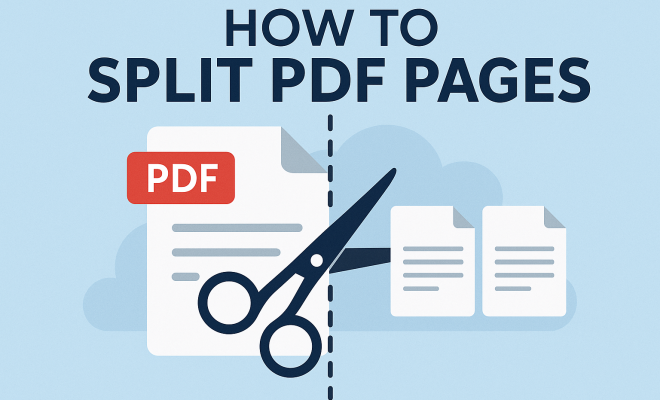
In our digital age, PDF files have become a standard format for sharing documents. Whether you’re a student needing to edit a research paper, a professional handling contracts, or simply someone who wants to organize personal documents, knowing how to split PDF pages can save you time and hassle. This guide will walk you through several effective methods to split PDF pages, offering practical insights to meet your unique needs.
1. Understanding PDFs and Their Structure
Before diving into the technicalities of splitting PDF pages, it’s essential to grasp what a PDF file is. PDF stands for Portable Document Format, a file format developed by Adobe in the early 1990s. Its primary purpose is to present documents, including text formatting and images, in a manner independent of application software, hardware, and operating systems.
PDFs are structured in such a way that they can contain multiple pages, each with its own settings and properties. When you need to split PDF pages, you’re essentially breaking down these multi-page documents into smaller, more manageable segments. This is particularly useful for large reports, eBooks, or any document where only certain pages are needed.
2. Why You Might Need to Split PDF Pages
There are several reasons why splitting PDF pages can be beneficial. For students, it may be necessary to isolate certain sections of a textbook for easier study. Businesses might need to extract pages from lengthy contracts or proposals to share only pertinent information with clients. Additionally, someone might want to split a PDF to create separate files for different departments or projects.
Beyond organization, splitting PDFs can also enhance collaboration. If you’re working with a team, sharing specific pages reduces confusion and ensures that everyone has the information they need without sifting through irrelevant content. Thus, learning how to effectively split PDF pages is a valuable skill in both academic and professional settings.
3. Using Online Tools to Split PDF Pages
Among the most convenient methods to split PDF pages is using online tools. Websites like Smallpdf, PDF2Go, and ILovePDF offer user-friendly interfaces that allow you to upload your PDF and specify how you want to split it. Typically, these platforms let you split by specific page numbers, ranges, or even by size.
For instance, if you have a 20-page PDF and you only need pages 5 to 10, you can easily enter these page ranges. After processing, the site will provide you with a downloadable link to your newly created PDF file. While online tools are convenient, remember to consider privacy and security when uploading sensitive documents.
4. Desktop Software Options for PDF Splitting
If you frequently work with PDFs, investing in desktop software may be worthwhile. Programs like Adobe Acrobat DC, Foxit PhantomPDF, and Nitro PDF Pro offer advanced features, including the ability to split PDF pages efficiently. These applications often allow for batch processing, meaning you can split multiple PDFs simultaneously.
For example, in Adobe Acrobat DC, you simply open your PDF, select “Organize Pages” from the toolbar, and then choose the option to split the document. You can decide to split by number of pages, file size, or top-level bookmarks. This level of control is especially useful for professionals dealing with large volumes of documents. (See: Understanding Portable Document Format.)
5. Splitting PDFs on Mobile Devices
In an increasingly mobile world, knowing how to split PDF pages on your smartphone or tablet can be incredibly useful. Both iOS and Android platforms have applications like PDF Expert and Adobe Acrobat Reader which allow you to split PDF files right from your device.
For instance, the Adobe Acrobat Reader app offers a straightforward way to manage PDF files on the go. You can easily select a PDF from your device, choose the pages you want to split, and save them as a new file. This mobile capability means you’re not tied to your desktop, making it easy to handle documents anytime and anywhere.
6. Using Command Line Tools for Advanced Users
If you’re tech-savvy or comfortable with coding, command line tools like PDFtk and Ghostscript can offer powerful options for splitting PDF pages. PDFtk, for instance, is a popular open-source tool that allows for splitting, merging, and manipulating PDF files via command-line commands.
To split a PDF using PDFtk, you might use a command like pdftk myfile.pdf cat 1-5 output newfile.pdf, which splits the first five pages of ‘myfile.pdf’ and saves them as ‘newfile.pdf’. This method is efficient for users who frequently deal with PDFs in bulk, providing automation and flexibility.
7. Best Practices for Splitting PDF Pages
While understanding the various methods to split PDF pages is crucial, implementing best practices ensures you do it effectively and securely. Here are some tips:
- Backup Your Original File: Before making changes, always keep a copy of the original PDF. This precaution protects against any mistakes during the splitting process.
- Double-Check Page Numbers: Ensure the page ranges you select are accurate. Miscalculating which pages to split can lead to missing important information.
- Secure Your Documents: If your PDF contains sensitive information, ensure that any online tools you use comply with security standards. Look for tools that offer end-to-end encryption.
- Utilize Batch Splitting: If you have multiple PDFs that need splitting, use software that allows batch processing to save time.
- Familiarize with the Tool: Whether you’re using desktop software or online tools, take a moment to explore their features. Understanding what each tool can do will help you maximize your efficiency.
By implementing these best practices, you can streamline your document management processes and make the task of splitting PDF pages much smoother.
8. Common Issues and Troubleshooting Tips
Occasionally, users may encounter issues while attempting to split PDF pages. Here are some common problems and how to troubleshoot them:
- File Size Limits: Many online tools have file size limits. If your PDF is too large, consider using desktop software or splitting it into smaller parts before uploading.
- Error Messages: If you receive an error message, ensure that the PDF is not corrupted. Try opening it in a different viewer or repair it using PDF repair tools.
- Wrong Page Ranges: If the output file contains unexpected pages, revisit your page range selection on the splitting tool.
- Quality Issues: If the quality of images or text is compromised after splitting, check the export settings of your tool and adjust them for better output.
Being aware of these common issues can save you frustration and help ensure a smoother experience when working with PDF documents.
9. Advanced Techniques for Splitting PDFs
If you’re looking to get more out of your PDF splitting, consider these advanced techniques that can help you manage your documents more effectively:
- Splitting by Keywords: Some advanced software allows you to split PDFs based on specific keywords or phrases. This is particularly useful if you want to extract relevant sections from a larger document.
- Automated Splitting: For users who regularly split similar PDFs, look into automation tools that can set specific rules for splitting. This can save time and effort in the long run.
- Creating Bookmarks: When splitting a PDF, consider creating bookmarks for each section. This can help users navigate the new files more easily, especially when dealing with lengthy documents.
- Integrating with Other Tools: If you use a document management system or other productivity tools, see if your PDF splitting software can integrate with them. This can streamline your workflow significantly.
10. Real-World Examples of PDF Splitting
Understanding how to split PDF pages can be enhanced through real-world examples. (See: Importance of document accessibility.)
For instance, a project manager working on a large construction proposal might need to extract sections relevant to different stakeholders. By splitting the PDF into parts for financial information, timelines, and project descriptions, the manager can provide tailored documents that are easier for recipients to process.
Similarly, educators often use PDF splitting to distribute only the relevant chapters of textbooks or course materials to students. By selecting and sending only specific pages, they can streamline the learning process and reduce paper waste.
In a legal context, attorneys frequently split PDFs to isolate specific clauses or agreements for client review. This ensures clients only see what pertains to them, fostering clearer communication and understanding.
11. Statistics on PDF Use
To appreciate the importance of mastering how to split PDF pages, it helps to look at some statistics regarding PDF usage:
- According to research by Adobe, over 1 trillion PDFs are viewed and shared annually worldwide.
- Over 70% of businesses report using PDFs as their primary document format due to its widespread compatibility and reliability.
- A study showed that 40% of professionals spend up to 2 hours each week managing PDF documents, highlighting the demand for efficient tools and methods.
- Over 60% of educational institutions now utilize PDFs for distributing course materials, emphasizing the need for effective document management in teaching.
12. Expert Perspectives on PDF Management
Experts in document management advocate the significance of mastering PDF manipulation. According to Dr. Sarah Thompson, a document management specialist, “Knowing how to efficiently split PDF pages is crucial in a world dominated by digital documentation. It empowers users to take control of their documents, making information sharing and collaboration more streamlined.”
Mark Johnson, a productivity consultant, notes, “The key to effective document management is understanding which tools suit your needs best. Whether you’re a student or a corporate executive, there’s a solution that can help you manage your PDFs more efficiently.”
13. FAQs About Splitting PDF Pages
Here are some frequently asked questions regarding splitting PDF pages:
- Can I split password-protected PDFs?
It depends on the tool you’re using. Some advanced software can handle password-protected files, but you’ll typically need to enter the password to access the content. - Is splitting PDFs reversible?
No, once you split a PDF into multiple files, the original document remains unchanged, but the new files will not automatically link back to it. - Are there quality losses when splitting PDFs?
This can depend on the tool used. High-quality software will maintain the original quality of text and images, while some free online tools may compress files, affecting quality. - What file formats can I convert split PDFs into?
Most software and online tools allow you to save split PDFs in various formats, including Word, Excel, and image formats like JPEG or PNG. - How can I ensure my PDFs remain secure?
Always use trusted software and services, and consider encrypting your PDFs before sharing sensitive information. Always check the privacy policies of any online tools you use.
14. Common Misconceptions About PDF Splitting
There are several misconceptions surrounding the process of splitting PDF pages. Addressing these can help users make more informed choices:
- Splitting Always Reduces Quality: Many users fear that splitting a PDF will inherently degrade the quality of the document. However, high-quality software and tools maintain the original resolution and clarity.
- PDFs Cannot Be Edited After Splitting: Once split, users can indeed edit the new PDF files. You can annotate or modify the extracted pages as needed.
- Only Tech-Savvy Individuals Can Split PDFs: While command line options exist for advanced users, there are plenty of user-friendly online and desktop tools that cater to all skill levels.
- PDF Splitting Is Only for Large Documents: Splitting can also be beneficial for smaller documents. If you need to send only certain pages or create a focused file for a specific audience, splitting can help, regardless of document size.
15. Comparing Free vs. Paid PDF Splitting Tools
When it comes to choosing PDF splitting tools, you’ll often encounter both free and paid options. Here’s a breakdown of their differences: (See: The role of PDFs in modern documentation.)
| Feature | Free Tools | Paid Tools |
|---|---|---|
| Basic Splitting Features | Often available | More options, including advanced splitting criteria |
| User Interface | May be simpler | Typically more polished and user-friendly |
| Quality of Output | Variable quality | Generally higher quality and reliability |
| Customer Support | Limited, if any | Comprehensive support available |
| Additional Features | Basic splitting only | Includes features like merging, editing, and annotation |
Choosing between free and paid options often comes down to your specific needs. If you only need to split PDFs occasionally, a free tool might suffice. However, if you’re managing documents regularly, investing in a paid option can save you time and enhance your overall experience.
16. Future Trends in PDF Technology
The use of PDF files continues to evolve, influenced by technological advancements and changing user needs. Here are some trends that may shape the future of PDF management:
- AI-Powered Tools: Artificial intelligence is being integrated into PDF management tools to automate processes like splitting, merging, and even content extraction based on context and relevance.
- Greater Integration with Cloud Services: As more businesses move to cloud-based solutions, PDF tools are likely to offer better integration with cloud storage platforms, enhancing collaboration and accessibility.
- Enhanced Security Features: With rising concerns over data privacy, expect to see more PDF tools incorporating advanced encryption and security features to protect sensitive information.
- Smart Document Organization: Future PDF tools may use machine learning to analyze and categorize documents automatically, making it easier to manage extensive PDF libraries.
- Interactive PDFs: The rise of interactive PDFs, which allow users to fill out forms, click buttons, and even incorporate multimedia elements, will create new challenges and opportunities for splitting and managing documents.
17. The Importance of Training in PDF Management
Whether you’re a student, professional, or business owner, understanding how to split PDF pages effectively can significantly impact your productivity. Training programs focusing on document management can help you and your team feel more confident in navigating PDF tools and features.
Consider enrolling in workshops or online courses that cover PDF editing and management to enhance your skills further. This investment not only improves individual efficiency but can also lead to better collaboration within teams, ensuring that everyone can access and utilize important documents efficiently.
18. The Bottom Line on PDF Splitting
As digital documents continue to dominate communication, mastering the skill to split PDF pages is not just beneficial but essential. Whether for academic, personal, or professional use, knowing how to efficiently manage PDFs can enhance productivity and collaboration. With the various tools, methods, and best practices available, you’re equipped to tackle any PDF challenge that comes your way.
In a world where information is key, being adept at handling your documents can set you apart. So, embrace these techniques and streamline your document management today!
“`
Trending Now
Frequently Asked Questions
How do I split a PDF into multiple pages?
You can split a PDF into multiple pages using various tools, including online PDF splitters, dedicated software like Adobe Acrobat, or free applications. Most tools allow you to select specific pages or ranges to extract, making it easy to create smaller, more manageable files.
What tools can I use to split PDF files?
There are several tools available for splitting PDF files, including online services like Smallpdf and PDF Splitter, as well as desktop applications like Adobe Acrobat and PDFsam. These tools offer user-friendly interfaces that make it easy to split your documents.
Why would I need to split a PDF document?
Splitting a PDF document can be useful for various reasons, such as isolating specific sections for study, sharing only relevant parts of a contract, or organizing files for different projects. It enhances collaboration by allowing team members to focus on the information they need.
Can I split a PDF file for free?
Yes, many online tools offer free options to split PDF files. Websites like ILovePDF and Sejda provide basic splitting functions without any cost, although some may have limitations on file size or features in their free versions.
Is it possible to split PDF pages on my phone?
Absolutely! There are mobile apps available for both Android and iOS that allow you to split PDF pages directly from your phone. Apps like Adobe Acrobat Reader and PDF Tools can help you manage your PDF files on the go.
What’s your take on this? Share your thoughts in the comments below — we read every one.