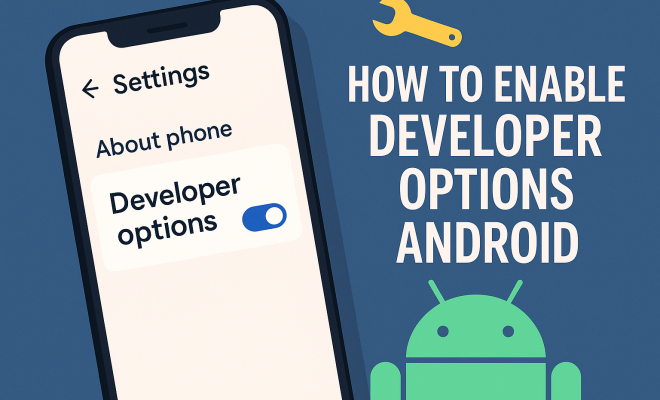
How to enable developer options Android
“`html
Are you looking to tap into the hidden functionalities of your Android device? Many users don’t realize that their smartphones come packed with developer options that can significantly enhance their user experience. In this guide, we’ll explore how to enable developer options Android, what these options include, and why they matter.
1. What Are Developer Options?
Developer options are a set of tools and settings designed primarily for app developers. However, they can be useful for advanced users wanting to experiment or optimize their Android experience. These options provide access to various features such as USB debugging, a range of performance metrics, and debugging tools that can help in app development and testing. While initially intended for developers, many of these features are beneficial for tech-savvy users who want to customize their devices.
For instance, you can change animation speeds to make your device feel snappier, monitor app performance, and even simulate different network conditions. However, it’s important to tread lightly when accessing these options, as some settings can affect your device’s performance or battery life if not used correctly.
2. How to Enable Developer Options on Android
Enabling developer options on your Android device is a straightforward process, and it typically involves the following steps:
- Open the Settings app on your device.
- Scroll down and select About phone or About device.
- Find the Build number entry.
- Tap the Build number seven times in quick succession.
- You should then see a message that says “You are now a developer!”
- Return to the main Settings menu, and you’ll find Developer options listed.
This method is generally consistent across various Android devices, though the exact wording may vary slightly depending on the manufacturer and Android version. If you’re using Android 8.0 (Oreo) or later, you might need to first tap on Software information before finding the Build number.
3. Key Features of Developer Options
Once you’ve successfully enabled developer options, you’ll find a wealth of features that can be adjusted. Here’s a closer look at some of the most useful:
- USB Debugging: This feature allows your device to communicate with a computer for debugging applications. It’s crucial for developers but can also help advanced users troubleshoot issues.
- Stay Awake: When this option is enabled, your screen will stay on while charging, making it easier to view notifications or use apps without interruption.
- Animation Scales: You can adjust the speed of window and transition animations, which can make your device feel faster and more responsive.
- Background Process Limit: You can limit the number of background processes, which may improve performance on older devices.
These options, among others, allow users to fine-tune their Android experience to suit their personal preferences. For example, by adjusting animation scales, you can create a smoother and quicker interaction with your device, improving the overall user experience.
4. Why Use Developer Options? Key Benefits
While developer options might seem like a treasure trove for developers, there are several benefits for everyday users as well. Here are some compelling reasons to explore these features:
- Improved Performance: Many devices slow down over time, but tweaking the background process limit can help maintain performance by reducing workload.
- Enhanced Customization: Developer options allow for deeper customization of your Android experience, letting you change how your device behaves.
- Better Troubleshooting: Features like USB debugging can help troubleshoot issues, especially when connecting to a PC for software development or recovery purposes.
Moreover, if you’re someone who loves to tinker with settings, developer options give you a playground of advanced features that aren’t available to the average user. Just remember to be cautious — while many options are beneficial, some can lead to unexpected behavior if misconfigured. (See: Learn more about Android operating system.)
5. Common Issues When Enabling Developer Options
Despite its simplicity, you might encounter some issues while enabling developer options or using them. Here are some common problems and how to resolve them:
- Settings Not Visible: If you don’t see developer options after enabling them, try restarting your device. Occasionally, the changes take a moment to reflect.
- Inadvertently Changing Settings: It’s easy to toggle a setting and forget what it does. Always take note of any changes you make, or better yet, keep a list of the default settings so you can revert if needed.
- Device Performance Issues: If you notice lag or excessive battery drain after enabling certain features, it may be wise to revert those changes and observe the difference.
Being aware of these potential pitfalls can help you navigate developer options more effectively. If you’re unsure about a specific feature, a quick internet search or consultation with an expert can provide clarity.
6. Best Practices for Using Developer Options
Using developer options can be rewarding, but it’s essential to use them wisely. Here are some best practices to ensure a positive experience:
- Understand Before You Change: Research the function of each option before toggling it. Knowledge helps prevent unintentional disruptions.
- Experiment Gradually: Make one change at a time. This way, if something goes wrong, you’ll know exactly what caused the issue.
- Monitor Performance: Keep an eye on your device’s performance, battery life, and app behavior after changing settings. It will help you gauge the impact of your adjustments.
These practices can help you make the most of developer options without putting your device at risk. By understanding the implications of your changes, you can enjoy a smoother and more tailored Android experience.
7. Advanced Developer Options: A Glimpse into the Future
As Android evolves, so do developer options. Newer versions of Android often come with updated or additional features in the developer section. For example, Android 12 introduced a new Privacy Dashboard in developer options that gives insights into how frequently apps are accessing sensitive data. This kind of transparency is invaluable for users concerned with privacy.
Moreover, with trends leaning towards machine learning and AI, we can expect future developer options to include advanced testing and optimization tools that leverage these technologies to enhance user experiences. Keeping an eye on these developments allows tech enthusiasts to stay ahead of the curve, adapting their devices to utilize the latest features.
8. Real-World Applications of Developer Options
The impact of developer options extends beyond mere customization. Here are some real-world scenarios in which these features can be particularly useful:
- App Development: For budding developers, utilizing USB debugging and performance monitoring tools in developer options can streamline the testing phase of app creation, allowing for quicker iterations and improvements.
- Performance Testing: If you’re running a critical business application on your device, you can use developer options to monitor and limit background processes, ensuring your app runs smoothly under heavy load.
- Battery Management: By limiting background processes, you can significantly improve battery life, especially important for power users or travelers who rely on their devices throughout the day.
These examples illustrate that developer options can play a vital role in not just enhancing user experience but also in ensuring reliable performance in professional settings.
9. Statistics and Trends in Android Developer Options Usage
Understanding how users engage with developer options can provide insights into their importance. Recent surveys indicate that around 30% of Android users have at least explored developer options, with 10% consistently using specific features. Furthermore, among developers, over 75% use USB debugging as a standard practice during app development. (See: New York Times article on Android Developer Options.)
As Android continues to grow, the demand for customization and performance optimization through developer options is likely to increase. This trend signifies that both casual users and developers will continue to leverage these tools to enhance their Android experience.
10. Frequently Asked Questions (FAQ)
Here are some commonly asked questions about enabling and using developer options on Android:
- Can I disable developer options after enabling them?
No, you can’t completely disable developer options, but you can toggle off individual features. Simply going into developer options and turning settings off is often enough. - Will enabling developer options void my warranty?
No, enabling developer options does not void your warranty. However, making significant changes or rooting your device might affect warranty coverage, so proceed with caution. - Is it safe to use developer options on my main device?
Yes, as long as you don’t change critical settings without understanding them. Most features are safe to use and can enhance your experience. - Can I use developer options on any Android device?
Most Android devices support developer options, but the exact features available may vary based on the manufacturer and Android version. - What should I do if something goes wrong after using developer options?
If you experience issues, you can revert individual settings or perform a factory reset to restore default settings, albeit losing some personal data.
11. More Advanced Features of Developer Options
Beyond the basic features that many users engage with, developer options include several advanced tools that can yield significant benefits for developers and serious users alike. Here’s a look at some of the more sophisticated features:
11.1 GPU Rendering Profile
This feature allows you to visualize how your device processes graphics. By enabling GPU profiling, you can analyze how apps are utilizing the GPU for rendering tasks. This can help developers optimize their applications for better performance. For example, if an app is slow, examining the rendering profile can shed light on whether the application is struggling due to heavy graphical loads.
11.2 Show CPU Usage
Activating the CPU usage indicator in the developer options can help you monitor how much processing power different apps are consuming in real-time. This is particularly useful for identifying resource-hogging apps that may be causing overall device slowdown. By keeping an eye on CPU usage, you can make informed decisions about which apps to keep or uninstall.
11.3 Strict Mode
Strict Mode can help developers detect accidental disk or network access on the application’s main thread, which can lead to performance issues. When enabled, it gives visual cues when the application is doing something that could affect the user experience adversely. This allows developers to refine their code for smoother operation.
11.4 Debugging GPU Overdraw
This feature helps developers see how much of the screen is being redrawn multiple times during a single frame. If too much overdraw is occurring, it can lead to slower performance and battery drain. By debugging this, developers can optimize the rendering process to ensure the best performance without unnecessary resource usage.
12. Developer Options vs. Rooting: What’s the Difference?
Many users often confuse enabling developer options with rooting their device. While both give users more control over their Android experience, they serve different purposes:
- Developer Options: These are built-in settings within Android that allow you to tweak various aspects of the system. You don’t need to unlock your bootloader or void your warranty to access developer options.
- Rooting: Rooting involves gaining administrative privileges (root access) to your Android device. This is more intrusive than developer options and can void your warranty. It allows for extensive customization, installing custom ROMs, and removing system bloatware, but it comes with risks such as potential bricking of your device.
In most cases, developer options provide sufficient tools for power users and developers without requiring the risks associated with rooting.
13. Best Devices for Using Developer Options
Not all Android devices are created equal when it comes to utilizing developer options. Some manufacturers provide more robust features or better integration than others. Here are some devices that excel in this regard:
- Google Pixel Series: The Pixel devices usually receive the latest Android updates and have a clean, stock Android experience, making it easier to access and utilize developer options effectively.
- OnePlus Devices: OnePlus is known for its OxygenOS, which is highly customizable. It offers great developer options integration for users who want to experiment.
- Xiaomi Devices: Xiaomi phones, particularly those in the Mi and Redmi lines, come with a rich set of developer options and customization settings that are user-friendly.
- Samsung Galaxy Series: Samsung’s flagship devices offer a range of developer tools, especially for those interested in app development or performance tweaking.
These devices provide a mixture of deep customization and robust developer options, making them ideal for users who want to explore beyond the ordinary.
14. Enabling Developer Options: A Security Perspective
While developer options can be incredibly beneficial, they also raise some security concerns. For instance, enabling USB debugging can expose your device to potential risks, especially if connected to untrusted computers. Here’s how to stay safe while using developer options:
- Turn Off USB Debugging When Not in Use: Only enable USB debugging when you need to connect to a computer for development or troubleshooting. Disable it afterward to prevent unauthorized access.
- Be Wary of Unknown Sources: If you’re sideloading apps (installing apps from sources outside the Google Play Store), ensure that you trust the source to reduce the risk of malware.
- Regularly Update Your Device: Keeping your Android device updated helps protect against vulnerabilities that could be exploited if developer options are enabled.
By adhering to these security practices, you can safely enjoy the benefits of developer options while minimizing risks.
15. Final Thoughts: The Power of Knowledge
Understanding how to enable developer options Android and the benefits they offer empowers you as a user. You no longer have to rely solely on default settings; instead, you can customize your experience to fit your needs. Whether you’re troubleshooting, enhancing performance, or simply exploring, developer options are a key part of harnessing the full power of your Android device.
“`
Trending Now
Frequently Asked Questions
How do I enable developer options on my Android phone?
To enable developer options on your Android phone, open the Settings app, scroll down to About phone, find the Build number, and tap it seven times quickly. You will see a message confirming that you are now a developer. Developer options will then appear in the main Settings menu.
What are developer options in Android?
Developer options in Android are a set of settings designed for app developers, providing access to tools like USB debugging, performance metrics, and animation controls. While aimed at developers, these features can enhance the experience for advanced users looking to customize their devices.
Why should I enable developer options on my Android device?
Enabling developer options allows you to access advanced features that can enhance your Android experience. You can optimize performance, change animation speeds, monitor app performance, and simulate different network conditions, which can be beneficial for tech-savvy users.
Are there risks to using developer options on Android?
Yes, there are risks associated with using developer options. Some settings can affect your device's performance or battery life if not used correctly. It's essential to be cautious and only change settings if you understand their impact.
Can I disable developer options on Android?
Yes, you can disable developer options on Android. Simply go to the Developer options menu in your Settings and toggle it off. This will prevent access to the developer settings, but it won't uninstall any apps or change existing configurations.
Agree or disagree? Drop a comment and tell us what you think.