How to map network drive Windows
“`html
Mapping a network drive in Windows can transform how you access files and resources within a network. It allows users to create a direct pathway to shared folders or drives on other computers or servers. Whether you’re working from home, in a corporate office, or on a school network, understanding how to effectively map network drive Windows can significantly boost your productivity. In this comprehensive guide, we’ll break down everything you need to know, from the basics to advanced configurations, troubleshooting, and best practices.
1. Understanding Network Drives
Before diving into the specifics of mapping network drives, it’s essential to understand what they are. A network drive is essentially a storage location on a local area network (LAN) that users can access for file storage and sharing. Unlike local drives, which are physically connected to your PC, network drives exist on another computer or server, allowing multiple users to access the same files concurrently.
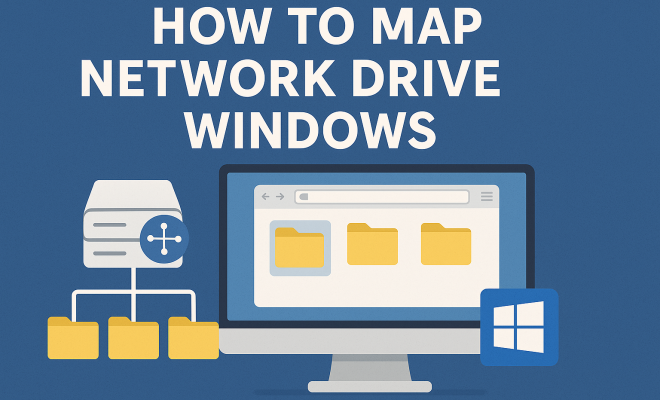
Mapping a network drive creates a shortcut to these locations, making it easier to find and access shared resources without having to navigate through the entire network each time. When a network drive is mapped, it appears in Windows Explorer just like any local drive, often designated by a letter such as “Z:” or “Y:”.
2. Benefits of Mapping Network Drives
Mapping network drives comes with several advantages that can streamline your workflow. Here are some key benefits:
- Convenience: Once a drive is mapped, accessing files is as simple as clicking on its icon in Windows Explorer.
- Collaboration: Teams can easily share documents and resources, enhancing collaboration without the need for email attachments or multiple copies.
- Organization: Mapped drives help in organizing files in a meaningful way, keeping everything structured and easy to find.
- Accessibility: Users can access shared drives remotely, as long as they have the necessary permissions, making it easier to work from various locations.
3. How to Map a Network Drive in Windows
Mapping a network drive in Windows is a straightforward process. Follow these steps to get started:
- Open File Explorer (you can do this by pressing Windows + E).
- Click on This PC from the left sidebar.
- In the ribbon at the top, select the Computer tab, then click on Map network drive.
- Choose a drive letter from the dropdown menu.
- In the folder field, enter the path to the folder you want to map. This path usually starts with “\” followed by the network name and shared folder name (e.g., \\ServerName\SharedFolder).
- If you want the drive to reconnect every time you log in, check the box that says Reconnect at sign-in.
- Click Finish to complete the process.
Once you’ve followed these steps, your new network drive should appear under This PC, and you can access it just like a local drive.
4. Using the Command Prompt to Map Network Drives
For advanced users or those who prefer command-line interfaces, mapping a network drive via Command Prompt is also an option. Here’s how you can do it:
- Open the Command Prompt by searching for it in the Start menu.
- Type the following command: net use Z: \\ServerName\SharedFolder, replacing “Z:” with your desired drive letter and the path with the network location.
- Press Enter to execute the command.
This method allows for quick mapping without needing to go through the graphical interface, which can be a time-saver if you frequently need to map drives.
5. Common Issues and Troubleshooting
Even with a straightforward process, you may encounter some common issues when attempting to map network drive Windows. Here are a few problems and their solutions:
- Drive Not Connecting: If your mapped drive isn’t connecting, ensure you have the correct network path and that the shared folder is accessible. You may need to check your network settings or ask your network administrator for help.
- Access Denied: This usually means you don’t have the necessary permissions. Confirm that you are logged in with the correct user account that has access rights to the shared folder.
- Drive Disappears After Reboot: If you find that your mapped drive does not reconnect after restarting your computer, ensure you have checked the Reconnect at sign-in option when mapping the drive.
For more complex issues or persistent problems, consider consulting your IT department or researching specific error codes online. (See: Understanding network drives.)
6. Best Practices for Managing Mapped Drives
To optimize your experience with mapped drives, consider these best practices:
- Organize Shared Folders: Ensure that shared folders are well-organized and properly named to make them easier to find for all users.
- Regularly Update Permissions: As team members join or leave, update permissions for shared folders to maintain security and accessibility.
- Document Drive Mapping: Keep a written record of mapped drives, including their paths and any special instructions. This can be beneficial for onboarding new employees.
- Use Scripts for Mass Mapping: In larger organizations, consider using logon scripts to automate the mapping of multiple drives for users, saving time and reducing errors.
Implementing these practices can help streamline access and ensure a smoother experience when using network drives.
7. Mapping Network Drives for Remote Work
With the rise of remote work, mapping network drives has become crucial for many employees. Here’s how to ensure that you can access your network drives while working remotely:
- VPN Access: Most remote workers will need to connect to a Virtual Private Network (VPN) to access network resources. Make sure to establish your VPN connection before attempting to map drives.
- Check Firewall Settings: Sometimes, firewalls on your home network can block access to work resources. Ensure that your firewall settings allow connections to your office network.
- Use Cloud Solutions: For organizations using cloud storage solutions, consider mapping drives to cloud folders for easier remote access and collaboration.
By following these tips, remote workers can maintain seamless access to essential files and resources.
8. Advanced Techniques for Network Drive Mapping
For those looking to go beyond the basics, advanced techniques can enhance your network drive mapping experience:
- Using Group Policy: In a corporate environment, administrators can use Group Policy to automate the mapping of network drives for all users, ensuring consistency and security.
- PowerShell Scripts: For advanced users, PowerShell can be used to map drives with more complex settings, such as automatically mapping based on user credentials or location.
- Network Drive Caching: Enable offline files to allow access to mapped network drives even when disconnected from the network. This can be particularly useful for traveling employees.
- Linking Multiple Drives: You can link multiple network drives to a single folder on your computer, providing a centralized access point for related projects or department resources, making it easier to switch between them without cluttering your main drive list.
These advanced techniques can significantly enhance functionality and make managing network drives more efficient in larger environments.
9. Security Considerations for Mapped Drives
When dealing with mapped drives, security should always be a priority. Here are some considerations to keep in mind:
- Use Strong Passwords: Always use strong, unique passwords for accounts that access shared network drives. This helps protect sensitive information from unauthorized access.
- Limit Access: Only grant access to users who absolutely need it. The principle of least privilege minimizes risks associated with file sharing.
- Regular Audits: Conduct regular audits of who has access to shared drives and what permissions they have. This can help identify any unauthorized access.
- Encryption: Use encryption for sensitive data stored on network drives to protect it from being viewed by unauthorized users.
By implementing these security measures, you can help ensure that your files remain safe and protected from potential threats.
10. Real-World Examples of Mapped Network Drives in Business
To better illustrate the impact of mapped drives, let’s explore how businesses leverage this technology:
1. Collaborative Projects: In a marketing agency, teams often work on collaborative campaigns. By mapping a network drive that contains all project resources, from images to documents, teams can access what they need quickly, improving workflow efficiency.
2. Centralized Data Management: A financial firm may use mapped network drives to store sensitive client information. By restricting access to only authorized personnel and mapping drives on secure servers, they ensure that data management adheres to compliance standards.
3. Educational Institutions: Schools and universities often use mapped drives for shared resources such as lecture notes, course materials, and collaborative projects among students and faculty. This centralization facilitates easy access to learning tools and promotes teamwork. (See: Computer safety and networking.)
In each of these scenarios, the use of mapped network drives not only enhances accessibility but also fosters collaboration and efficiency, highlighting their importance in various sectors.
11. Frequently Asked Questions (FAQ)
1. What is the purpose of mapping a network drive?
Mapping a network drive allows users to create a shortcut to shared folders or drives on a network, making it easier to access and share files without navigating through the entire network each time.
2. Can I map a network drive without admin privileges?
Yes, in most cases, users can map network drives without admin privileges as long as they have the necessary permissions to access the shared folder on the network.
3. Can I map a network drive to a cloud service?
Yes, you can map network drives to cloud services such as OneDrive or Google Drive, which allows you to access your cloud files as if they were stored locally on your computer.
4. What should I do if I can’t find my mapped drive?
If you can’t find your mapped drive, ensure that you are connected to the network, check if the drive is still mapped, and that you have the correct permissions. You may also need to reconnect it through File Explorer.
5. Is it possible to map the same network drive on multiple computers?
Yes, multiple computers can map the same network drive, allowing different users to access the shared files simultaneously, provided they have the necessary permissions.
6. Can I change the drive letter of a mapped network drive?
Yes, you can change the drive letter of a mapped network drive. You will need to disconnect the existing mapped drive first and then remap it with the desired drive letter.
7. What types of network protocols are used for mapping drives?
Common network protocols for mapping drives include SMB (Server Message Block), which is used in Windows environments, and NFS (Network File System), often used in Unix/Linux systems. Understanding the protocol can help you troubleshoot connectivity issues.
8. How can I view all mapped drives on my computer?
You can view all mapped drives in Windows by opening File Explorer and selecting “This PC,” where you will see all your drives listed. Alternatively, you can run the command net use in the Command Prompt to list all mapped drives.
9. What happens if the server where the network drive is located goes down?
If the server goes down, you won’t be able to access the mapped drive until the server is restored. You may receive error messages indicating that the network resource is unavailable. (See: Guide to using network drives.)
10. How do I remove a mapped network drive?
You can remove a mapped network drive by right-clicking on its icon in File Explorer and selecting Disconnect. Alternatively, you can use the command net use Z: /delete in the Command Prompt, replacing “Z:” with the appropriate drive letter.
12. Enhancing Productivity with Mapped Drives
Utilizing mapped drives can significantly enhance productivity, especially in collaborative environments. For instance, a sales team may use a mapped drive to access up-to-date customer databases, sales reports, and marketing materials all in one place. This centralization ensures that everyone on the team is working with the latest information, reducing the chances of errors or miscommunication due to outdated files.
Moreover, businesses can implement user-specific folders within mapped drives that cater to different departments. For example, the HR department might have a dedicated section for employee records, while the IT department manages software installation files and licenses. This tailored access not only streamlines tasks but ensures that sensitive information is kept secure and only accessible to authorized personnel.
13. Future Trends in Network Drive Mapping
With technological advancements, the future of network drive mapping is likely to evolve in several ways:
- Integration with Cloud Services: As more organizations transition to hybrid cloud environments, the ability to map drives directly to cloud services will become increasingly important. Tools that integrate local and cloud storage seamlessly will enhance the flexibility of access.
- AI and Automation: Artificial Intelligence could play a role in streamlining the mapping process, automatically suggesting optimal drive mappings based on user behavior and preferences.
- Improved Security Protocols: As cybersecurity threats increase, future network drive mapping solutions will likely incorporate more advanced security measures, such as multi-factor authentication and enhanced encryption for data in transit.
- Mobile Access: With the rise of mobile devices in the workplace, ensuring that employees can map network drives on smartphones and tablets will enhance accessibility, allowing for work on-the-go.
Staying ahead of these trends can help organizations leverage mapped drives more effectively and maintain a competitive edge in their respective industries.
14. Conclusion: The Importance of Mapping Network Drives in Today’s Work Environment
In an increasingly connected world where collaboration and efficiency are paramount, knowing how to map network drive Windows is more relevant than ever. Mastering this skill not only facilitates smoother workflows but also enhances team collaboration and organization.
Whether you’re a casual user or an IT professional, understanding the intricacies of network drive mapping can empower you to make the most of your network’s resources. With the right knowledge and skills, you can navigate your work environment more effectively and stay ahead in today’s fast-paced technological landscape.
“`
Trending Now
Frequently Asked Questions
How do I map a network drive in Windows?
To map a network drive in Windows, open File Explorer, click on 'This PC', then select 'Map network drive' from the ribbon. Choose a drive letter, enter the folder path of the network location, and click 'Finish'. The drive will appear in File Explorer for easy access.
What is the benefit of mapping a network drive?
Mapping a network drive provides several benefits, including easier access to shared files, improved collaboration among team members, better organization of resources, and remote access capabilities, making it a valuable tool for enhancing productivity.
Can I access a mapped network drive remotely?
Yes, you can access a mapped network drive remotely, provided you have the necessary permissions and a stable internet connection. This allows you to work on files from different locations, enhancing flexibility and productivity.
What does it mean to map a network drive?
Mapping a network drive means creating a shortcut to a shared folder or drive on a local area network (LAN). This makes it easier to access files and resources, as the mapped drive appears in Windows Explorer just like a local drive.
How do I troubleshoot a mapped network drive?
To troubleshoot a mapped network drive, first check your network connection and ensure you have the correct permissions. If the drive is not visible, try disconnecting and remapping it. Additionally, verify that the target computer or server is online and accessible.
What’s your take on this? Share your thoughts in the comments below — we read every one.