How to change default browser Windows
“`html
If you’ve ever found yourself frustrated by links opening in a browser you don’t prefer, you’re not alone. Many Windows users want to change default browser Windows settings to ensure their online experiences align with their preferences. Fortunately, this process is straightforward, and in this article, we’ll guide you through every step you need to take, along with some background and tips to get the most out of your browsing experience.
1. Understanding Default Browsers
A default browser is the application that takes the lead whenever you click on a link. Whether you’re accessing a link in an email, a document, or an app, the default browser is where that link will open. Windows has built-in browsers like Microsoft Edge, but you might prefer alternatives like Google Chrome, Mozilla Firefox, or Opera. Knowing how to change your default browser is crucial for customizing your computing experience.
Default browsers can impact your online activities significantly. They’re not just about aesthetics; they come with different features, privacy policies, and performance metrics. Research indicates that users are more productive and satisfied when they browse in their preferred environment. For instance, some browsers may offer better bookmark management, add-ons, or privacy settings that align with your needs.
2. Why Change Your Default Browser?
There are several compelling reasons to consider switching your default browser. Performance is often at the top of the list; certain browsers handle web pages faster, have better memory management, or provide smoother experiences with multimedia content. Additionally, user interfaces vary significantly. You might prefer the minimalist design of one browser over another’s cluttered interface.
Security is another major consideration. Some browsers consistently update their security features faster than others, protecting you better against phishing attacks and malware. For example, Google Chrome implements robust security protocols, while Firefox prioritizes user privacy. Choosing the right browser could mean the difference between a safe browsing experience and one fraught with risks.
Another factor is compatibility with specific websites or web applications. Some sites are optimized for certain browsers, meaning you may have a smoother experience and better functionality if you use the recommended browser. This can be particularly true for web-based applications used in educational or professional environments.
3. Steps to Change Your Default Browser on Windows 10
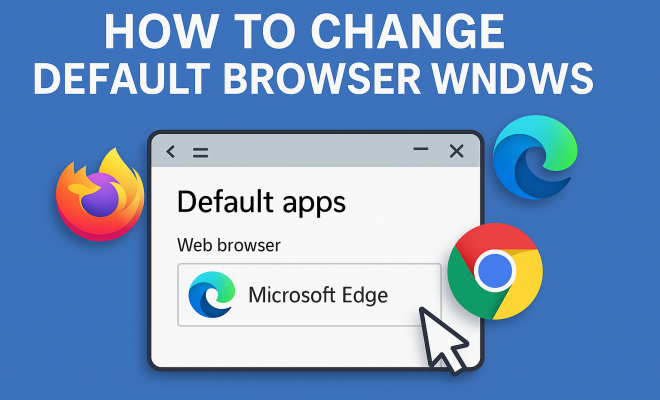
Changing your default browser in Windows 10 is a simple task that can be completed in just a few clicks. To begin, follow these steps:
- Open the Settings app by pressing Windows + I.
- Select the Apps option.
- In the left sidebar, click on Default apps.
- Scroll down until you find Web browser. Click on the current browser (likely Microsoft Edge).
- From the list of installed browsers, choose your preferred one and click on it.
Once you perform these steps, your chosen browser will be set as the default. This means any links you click will now open in your preferred browser instead of the previous one.
After making this change, it’s a good idea to test it. Open emails, documents, or any application that contains a hyperlink to make sure it opens in the new default browser. If it doesn’t, you may need to repeat the steps or check for any unusual settings that could interfere.
4. How to Change Default Browser on Windows 11
Windows 11 has introduced a slightly different approach to change default browsers. Here’s how:
- Click on the Start menu and select Settings.
- Navigate to Apps and then select Default apps.
- Scroll down to find your preferred browser or search for it in the search box.
- Click on the browser to open its file associations.
- For each file type and link type (like .htm, .html, HTTP, HTTPS), click on the current default, then select the new browser.
This method allows you to specify exactly what types of links open in your preferred browser, giving you more granular control. This is particularly useful if you want to use different browsers for different types of web content, such as using Chrome for work-related applications and Edge for personal browsing.
5. Troubleshooting Common Issues
Sometimes, you may encounter issues when trying to change default browser Windows settings. For example, the default browser might revert back to Microsoft Edge after a Windows update, or you may find your preferred browser does not show as an option. In such cases, try the following: (See: Understanding web browsers and their functions.)
- Make sure your browser is up-to-date. An outdated browser may not register as an option in the default settings.
- Check for any Windows updates that might impact your settings.
- Restart your computer after making changes to ensure they take effect.
If you’re still experiencing issues, reinstalling your preferred browser can sometimes resolve conflicts with Windows settings. Additionally, checking the support forums for your specific browser can provide helpful insights and solutions from other users who faced similar challenges.
6. Maintaining Your Preferred Browsing Experience
Once you’ve successfully changed default browser Windows settings, it’s essential to maintain that experience. Regular updates for your browser can ensure you have the latest security patches and features. Most modern browsers can be set to update automatically, but it’s worth checking periodically.
Additionally, consider customizing the settings within your browser. Change your homepage, manage your bookmarks, and take advantage of extensions that enhance functionality. For example, if you’re using Chrome, extensions like AdBlock or Evernote Web Clipper can significantly improve your browsing experience.
Don’t forget about your privacy settings as well. Many browsers offer features to manage cookies and tracking, and adjusting these settings can protect you from unwanted ads and data collection practices.
7. What to Do If You Want More Than One Default Browser
If you’re the kind of user who enjoys the features of multiple browsers, you might wonder how to manage them efficiently. While you can only set one default browser, it’s easy to switch between them as needed. Some users create shortcuts on their desktop for quick access to their preferred browsers.
You can also designate different browsers for specific tasks. For example, you might use Chrome for work-related tasks due to its integration with Google services, while utilizing Firefox for personal browsing because of its strong privacy features. This strategy allows you to benefit from the unique advantages each browser offers without sacrificing convenience.
For advanced users, there are even browser extensions and tools that allow you to open specific links in designated browsers automatically. This can streamline your workflow, especially if you frequently switch between tasks that require different browsers.
8. Understanding Browser Privacy Settings
Privacy is a significant concern for many users, especially with increasing awareness of online tracking and data collection practices. Each browser has its own approach to privacy settings. When you change default browser Windows, take time to familiarize yourself with the privacy controls of your new choice.
For instance, Firefox has a reputation for being privacy-centric, offering robust tracking protection features, while Chrome, though popular, has faced criticism over its data collection practices. Investigate each browser’s privacy policies and settings, and adjust them to your comfort level. You may want to enable features like Do Not Track, or use private browsing modes to enhance your security online.
It’s also worth exploring the use of Virtual Private Networks (VPNs) for an additional layer of security while browsing. VPNs can mask your IP address, making it more difficult for websites to track your activity online. This is particularly beneficial if you are using public Wi-Fi networks.
9. The Future of Web Browsing
As technology evolves, so do web browsers. With new developments like integrated AI features, enhanced security protocols, and improved user interfaces, the future of browsing looks promising. It’s essential to stay updated on these trends, as they can affect how you decide to change default browser Windows and which browser you choose.
Keep an eye on emerging browsers that focus on speed, privacy, or specific user needs. Browsers like Brave and Vivaldi are gaining traction for their unique features and user-first approaches. As you consider your options, remember to evaluate how these innovations align with your browsing habits.
Additionally, the rise of progressive web apps (PWAs) is changing how we think about browsers. These apps can often function independently of traditional browsers, offering a more app-like experience while still being accessed through the web. It’s an exciting time to explore how these advancements can enhance your user experience.
10. Expert Perspectives on Choosing a Default Browser
Experts in the tech industry often emphasize the importance of choosing the right browser based on individual needs. For instance, cybersecurity professionals frequently recommend browsers that prioritize user privacy and regular updates, such as Firefox or Brave. In contrast, developers might prefer Chrome for its comprehensive set of developer tools and compatibility with various platforms. (See: Importance of choosing the right software.)
Reviews from tech websites consistently highlight that user preference is paramount. What works best for one person might not suit another at all. Many experts suggest testing out multiple browsers before making a final decision, especially since most browsers are free to download and try.
Consider reading reviews or watching comparison videos online, as these resources can provide insights from real users and industry professionals alike about the strengths and weaknesses of each browser.
11. Frequently Asked Questions (FAQ)
What is a default browser?
A default browser is the web application that automatically opens when you click on a web link. It’s the browser that the operating system uses by default for browsing the Internet.
Why is it important to change my default browser?
Changing your default browser can enhance your browsing experience by allowing you to use a browser that better fits your speed, usability, and privacy preferences. It can make your online activities more efficient and secure.
Will changing my default browser affect my bookmarks and settings?
No, changing your default browser does not delete bookmarks or settings from other browsers. Each browser maintains its own set of bookmarks and configurations. However, you may want to manually transfer bookmarks if you wish to have them in your new default browser.
Can I change my default browser back if I don’t like the new one?
Absolutely! You can change your default browser at any time by following the same steps you used to set the new one. Just select your previous browser from the list of installed browsers.
Are there any risks involved in switching browsers?
Generally, switching browsers poses minimal risks. However, it’s essential to ensure that the browser you choose has a good security track record. Always download browsers from official websites to avoid security risks from malicious software.
12. Additional Browser Features to Consider
When deciding to change default browser Windows, you might want to consider various additional features that can enhance your browsing experience. Each browser comes with a unique set of functionalities that may suit your needs better than others.
For instance, some browsers offer built-in VPN services, ad-blockers, or even an integrated password manager. These features can save you from needing additional extensions or services, which can clutter your browser environment. Browsers like Opera provide a free built-in VPN, while others like Chrome offer extensions that can help in managing your passwords effectively.
Additionally, the ability to sync your browsing data across devices is a notable feature. Browsers such as Chrome and Firefox allow you to synchronize bookmarks, history, and open tabs across all your devices, making it easier for you to continue your activities without any interruptions.
Gaming enthusiasts might prefer browsers that optimize for gaming performance, reducing latency and improving speed. Certain browsers also come with gaming modes or features that improve performance while streaming or playing online games. If you often play games on your browser, it’s worth exploring those options. (See: Reasons for changing your default browser.)
13. Statistical Insights on Browser Usage
Understanding browser usage statistics can also influence your decision when selecting a default browser. According to recent surveys, Google Chrome holds a significant market share, accounting for over 60% of all web traffic. This dominance is often attributed to its speed, extensive library of extensions, and seamless integration with Google services.
In contrast, Safari remains a popular choice among Mac users, while Firefox has carved out a niche focusing on privacy and open-source development. Interestingly, browsers like Edge are gaining ground, particularly with Windows users, largely by improving their feature sets and performance.
According to a report by StatCounter, Edge’s market share has increased significantly, reflecting Microsoft’s efforts to enhance its browser experience and encourage users to switch. In 2023, Edge reached approximately 4% of global users, showcasing a gradual but notable increase.
These statistics can help guide your choice, especially if you consider trends and user preferences. Choosing a browser with a substantial user base may contribute to better support and a more robust ecosystem of extensions and tools.
14. Community Recommendations
Engaging with online communities can also provide valuable insights into which browser to choose as your default. Platforms like Reddit and tech forums often host discussions about users’ experiences with different browsers. These communities can offer first-hand accounts of performance, security features, and functionality.
For instance, you might find dedicated threads discussing the pros and cons of the latest browser versions, user-submitted tips for enhancing performance, and recommendations for extensions that improve usability or security. Peer reviews can shed light on lesser-known browsers that might suit specific needs, such as enhanced privacy or better integration with certain web applications.
Additionally, consider participating in polls or surveys within these communities. They often measure user satisfaction and preferences, helping you gauge how popular a browser is among certain demographics. This can be particularly useful if you’re trying to make an informed decision based on collective user feedback.
15. Final Thoughts
Changing your default browser on Windows is a relatively simple process that can have a significant impact on your online experience. By choosing a browser that fits your needs—be it for speed, security, usability, or privacy—you can create a more enjoyable and efficient browsing environment.
So, whether you’re a casual browser or a power user, taking the time to customize your default settings can lead to a more tailored online experience. Don’t hesitate to experiment with different browsers until you find the one that feels just right for you. Remember, the internet is your oyster, and the choice of your browser can help you make the most of it!
“`
Trending Now
Frequently Asked Questions
How do I change my default browser in Windows?
To change your default browser in Windows, go to Settings > Apps > Default apps. Under 'Web browser,' select the current default browser and choose your preferred browser from the list. This will ensure that all links open in your chosen browser.
Why is it important to have a default browser?
Having a default browser is important because it determines which application opens when you click on web links. This can enhance your browsing experience by ensuring that you use the browser that best fits your preferences for speed, security, and features.
Can I set multiple default browsers on Windows?
No, Windows only allows you to set one default browser at a time. However, you can install multiple browsers and switch between them as needed, but only one will be the default for opening links.
What are the benefits of changing my default browser?
Changing your default browser can improve performance, provide a user interface you prefer, and enhance security features. Different browsers offer unique benefits, such as better privacy controls, faster loading times, and customizable options that can significantly enhance your online experience.
Which browser is best to set as default?
The best browser to set as default depends on your needs. Google Chrome is known for speed and extensive features, Firefox offers strong privacy controls, and Microsoft Edge integrates well with Windows. Evaluate your preferences to choose the one that suits you best.
What did we miss? Let us know in the comments and join the conversation.