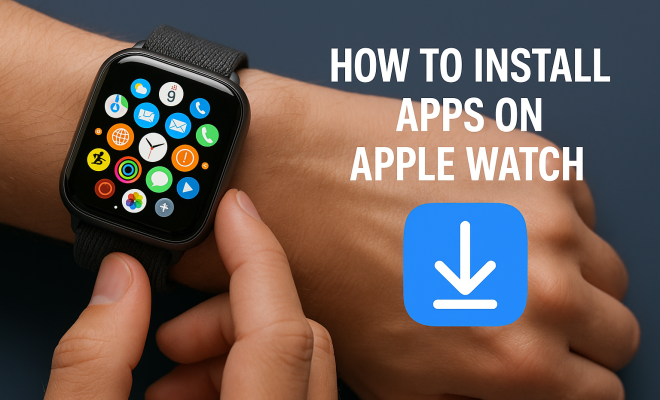
How to install apps on Apple Watch
“`html
1. The Evolution of the Apple Watch
The Apple Watch has come a long way since its initial launch in 2015. Designed to complement the iPhone, it has evolved into a standalone device with its own ecosystem of applications. As of 2023, Apple has released several iterations, each improving functionality, design, and user experience. These enhancements have expanded the device’s capabilities beyond simple notifications and fitness tracking to include a wide variety of applications that enhance daily life.
From the initial fitness-focused apps to sophisticated health-monitoring tools and productivity applications, the Apple Watch now caters to diverse user needs. Understanding how to install apps on Apple Watch is crucial for maximizing its potential and tailoring it to your lifestyle. Whether you’re a fitness enthusiast or someone who just wants to stay organized, knowing how to get the right apps on your watch can truly enhance your experience.
2. Preparing for App Installation
Before diving into the installation process, it’s essential to ensure your Apple Watch is set up correctly. First, you need to make sure your Apple Watch is paired with your iPhone. This pairing is fundamental as the watch relies on the iPhone for app management.
To check if your iPhone and Apple Watch are paired, open the Apple Watch app on your iPhone. If they are not paired, follow the on-screen instructions to link them. Additionally, ensure both devices have the latest software updates. Keeping your devices updated not only provides new features but also ensures compatibility with the latest apps. You can check for software updates by going to Settings on your iPhone and navigating to General > Software Update.
3. Using the App Store on Your iPhone
The most straightforward way to install apps on Apple Watch is through the App Store on your iPhone. Open the App Store app and browse or search for apps that support Apple Watch. You’ll notice many apps feature a “Watch” label, signifying their compatibility with the device.
Once you find an app you want, tap the “Get” button, and the app will be downloaded to your iPhone. After installation, the app will automatically sync with your Apple Watch if it supports the watchOS version. You can also manage which apps are installed on your watch by navigating to the Apple Watch app on your iPhone, selecting the app from the list, and toggling the “Show App on Apple Watch” option.
4. Installing Apps Directly on the Apple Watch
For users who prefer a more direct approach, you can also install apps on Apple Watch directly from the watch itself. Make sure your Apple Watch is connected to Wi-Fi or a cellular network. Then, simply open the App Store app on your Apple Watch.
Here, you can browse featured apps or search for specific ones using the built-in search feature. Once you find an app you want to install, tap on it, and then tap the “Get” button. This method is particularly useful for those who are always on the go and want to quickly add new apps without reaching for their iPhone.
5. Managing Installed Applications
Once you’ve installed apps on your Apple Watch, managing them becomes essential for optimal use. You can easily organize your apps by arranging them in a way that suits your routine. To do this, lightly press and hold the app icon until it begins to jiggle. From there, you can drag it to your desired location. (See: CDC on physical activity and health.)
Additionally, if you find that you don’t use certain apps, you can uninstall them. To remove an app, either use the iPhone’s Apple Watch app or the watch itself. On the watch, simply press and hold the app icon and tap the “X” that appears. Remember, removing an app from your Apple Watch does not delete it from your iPhone, allowing you to reinstall it later if needed.
6. Third-Party Apps to Consider
The Apple Watch offers a plethora of third-party applications designed to enhance its functionality. Some notable categories include fitness tracking, health monitoring, productivity, and entertainment. Apps like Strava for fitness enthusiasts, Headspace for mindfulness, and Todoist for productivity are just the tip of the iceberg.
When choosing which apps to install, consider your lifestyle and needs. If you’re aiming to improve your fitness, opt for apps that provide workout tracking or nutrition management. For productivity, look for applications that help you manage tasks or schedules. This tailored approach ensures that your Apple Watch serves as a valuable tool in your daily routine.
7. Staying Updated: App and System Updates
Keeping your apps and the watchOS up to date is crucial for performance and security. Most apps will automatically update when your iPhone is connected to Wi-Fi. However, you might want to check manually if an update is available. Open the App Store on your iPhone, select your profile icon, and check for updates under the “Available Updates” section.
Similarly, watchOS updates are essential for ensuring your Apple Watch runs smoothly. You can check for updates by going to the Apple Watch app on your iPhone, selecting “General,” and then “Software Update.” Keeping both your apps and system updated not only improves functionality but also enhances security, protecting your data from potential vulnerabilities.
8. Common Issues and Troubleshooting
While installing apps on your Apple Watch is generally straightforward, users may encounter issues. Common problems include apps not syncing, installation failures, or connectivity issues. If you find that certain apps aren’t appearing on your watch, ensure that they support watchOS and are updated to the latest version.
For installation issues, try restarting both your Apple Watch and iPhone. A simple reboot often resolves minor glitches. If problems persist, consider unpairing and re-pairing your Apple Watch with your iPhone, which can help reset any underlying issues. Apple’s support website also provides troubleshooting tips specific to different problems, making it a valuable resource.
9. Future of Apps on the Apple Watch
The future of apps on the Apple Watch looks promising, with Apple continually enhancing its ecosystem. The introduction of new features like integrated health monitoring tools, improved app functionalities, and increased third-party support are just a few indicators of what’s to come.
As developers continue to create innovative applications tailored for the watch, users can expect a broader range of functionalities that cater to health, lifestyle, and productivity. Keeping an eye on upcoming trends in wearable technology will help you stay ahead and ensure your Apple Watch remains a vital part of your tech arsenal.
10. Top Apps to Install on Your Apple Watch
While the Apple Watch supports a myriad of applications, certain ones stand out due to their unique features and functionalities. Here’s a closer look at some must-have apps that can significantly enhance your experience: (See: New York Times article on Apple Watch apps.)
- MyFitnessPal: Perfect for individuals focused on their diet and fitness, this app allows you to track your meals and workouts right from your wrist.
- Sleep Cycle: This app monitors your sleep patterns and wakes you up at the optimal time, ensuring you feel refreshed and ready for the day.
- Carrot Weather: With its quirky personality and accurate forecasts, Carrot Weather offers a fun way to check the weather without needing your phone.
- Music App: For music lovers, the Apple Music app enables you to control your music right from your wrist, making it easy to skip tracks or adjust volume during workouts.
- Whistle: If you often misplace your phone, this app allows you to locate your device by simply whistling, bringing an element of ease to finding lost belongings.
11. Understanding App Permissions
When installing apps on your Apple Watch, understanding permissions is important. Many apps will request access to your location, health data, or notifications. It’s essential to review these permissions carefully when installing a new app. Overarching privacy concerns mean that you should only grant permissions that align with how you intend to use the app.
For instance, a fitness tracking app may require access to your location to log your runs accurately. On the other hand, a weather app may only need permission to send notifications, which you can customize later. You can adjust these settings in the Apple Watch app on your iPhone by selecting the specific app and viewing its permissions.
12. Statistics on Apple Watch Usage
The Apple Watch has seen tremendous growth in user adoption and app downloads since its launch. Recent statistics indicate that:
- In 2023, Apple Watch shipments reached over 100 million units, solidifying its position as the top-selling smartwatch globally.
- Over 50% of Apple Watch users regularly utilize fitness apps, showcasing the device’s strength in the health and wellness sector.
- Roughly 30% of Apple Watch owners have downloaded at least ten or more apps, indicating a strong desire to customize their device.
- The Apple Watch’s App Store features over 20,000 apps specifically designed for the watch, reflecting the growing interest in wearable technology.
13. Expert Perspectives on the Importance of Apps
Industry experts emphasize the role of apps in enhancing the Apple Watch experience. According to Jessica Moore, a tech analyst at Industry Insights, “The variety and functionality of apps are what truly differentiate the Apple Watch from other wearables. It’s not just about telling time; it’s about seamlessly integrating technology into daily life.”
Similarly, Dr. Andrew Lin, a health tech guru, states, “With the right health and fitness apps, the Apple Watch becomes an invaluable tool for monitoring and improving health. Users can track their progress, set goals, and even receive coaching, which can lead to significant lifestyle changes.”
14. Frequently Asked Questions
Here are some common questions people have when it comes to installing apps on their Apple Watch:
Q: Can I install any app on my Apple Watch?
A: Not all apps are compatible with the Apple Watch. Look for apps that specifically mention Apple Watch support in the App Store.
Q: Do I need an iPhone to install apps on my Apple Watch?
A: Yes, your Apple Watch needs to be paired with an iPhone to install and manage apps.
Q: How much storage does the Apple Watch have for apps?
A: The storage capacity varies depending on the model, but generally, newer models can store more apps and data compared to older versions.
Q: Can I use apps on my Apple Watch without my iPhone?
A: While some apps require your iPhone for installation and initial setup, many apps, especially fitness and health ones, can function independently once installed.
Q: How do I know if an app is compatible with my Apple Watch?
A: Check the app’s description in the App Store; it will indicate whether it is compatible with Apple Watch and which features it supports.
15. Additional Tips for Optimizing Your Apple Watch Experience
To get the most out of your Apple Watch, consider these additional tips:
- Personalize Your Watch Face: Customizing your watch face can provide quick access to the information most important to you, whether it’s fitness stats, calendar events, or music controls.
- Use Siri: Take advantage of Siri on your Apple Watch to quickly launch apps, send messages, or check the weather hands-free.
- Explore Health Features: Dive deeper into the health-monitoring capabilities of your Apple Watch, such as heart rate tracking and ECG. These features can be invaluable for monitoring your well-being.
- Set Up Notifications Wisely: Configure your notifications to ensure that only the most important alerts come through to your watch, helping you stay focused and organized.
16. Understanding Battery Life and App Usage
The Apple Watch is designed for all-day use, but app usage can impact battery life. Here are a few tips to help manage battery consumption:
- Limit Background App Refresh: Some apps update their data while not in use. Go to the settings in the Apple Watch app on your iPhone to limit which apps can refresh in the background.
- Reduce Notifications: Each notification can require processing power, which can drain the battery. Consider which notifications are essential to receive on your watch.
- Utilize Power Saving Mode: If you know you won’t be able to charge your watch for an extended period, consider activating Power Saving Mode, which disables features like heart rate notifications and background app refresh.
17. Innovative Apps That Are Changing How We Use the Apple Watch
As technology evolves, so do the applications available for the Apple Watch. Here are some innovative apps that are pushing the boundaries of what your watch can do:
- HeartWatch: This app provides detailed analytics about your heart rate, allowing for deeper insights into your cardiovascular health over time.
- Streaks: A habit-tracking app that motivates users to keep up with their goals by turning them into daily challenges you can track right from your wrist.
- Fitbod: Perfect for gym-goers, this app creates a personalized workout plan based on your gym equipment and fitness goals, making it easier to stay on track.
- Pill Reminder: For those on medication, this app sends reminders for when to take your pills, helping users manage their health effectively.
18. Conclusion: Enhancing Your Apple Watch Experience
The Apple Watch is more than just a timepiece; it’s a powerful tool that can enhance various aspects of your daily life through the right applications. By understanding how to install apps on Apple Watch and choose ones that align with your needs, you can make the most of this wearable technology. With the continuous improvements and innovations in both hardware and software, the potential of what your Apple Watch can achieve is virtually limitless. Stay informed, explore new apps regularly, and adapt your watch to fit your lifestyle to unlock its full potential.
“`
Trending Now
Frequently Asked Questions
How do I install apps on my Apple Watch?
To install apps on your Apple Watch, first ensure it is paired with your iPhone. Then, open the App Store on your iPhone, search for compatible apps, and download them. The apps will automatically sync to your Apple Watch.
Can I install apps on Apple Watch without an iPhone?
No, you cannot install apps directly on the Apple Watch without an iPhone. The watch relies on the iPhone for app management and installation.
What should I do if my Apple Watch won't install apps?
If your Apple Watch isn't installing apps, ensure it is paired with your iPhone and both devices have the latest software updates. Restart both devices and try again if issues persist.
Are all iPhone apps compatible with Apple Watch?
Not all iPhone apps are compatible with Apple Watch. Look for apps in the App Store that specifically mention Apple Watch support to ensure functionality on your device.
How can I check for software updates on Apple Watch?
To check for software updates on your Apple Watch, open the Apple Watch app on your iPhone, go to 'My Watch', then 'General', and select 'Software Update' to see if any updates are available.
What did we miss? Let us know in the comments and join the conversation.