How to set up Apple Watch
“`html
Getting a new Apple Watch is exciting, but the setup process can sometimes feel daunting. Whether you’re new to the Apple ecosystem or an experienced user, knowing how to effectively set up your Apple Watch can enhance your experience and ensure you’re making the most of this powerful device. In this guide, we’ll break down the steps, tips, and essential insights to help you get started smoothly.
1. Understanding Your Apple Watch
Before you dive into the setup, it’s essential to understand what an Apple Watch can do for you. Beyond merely telling time, your Apple Watch serves as an extension of your iPhone, giving you notifications, fitness tracking, and even the ability to answer calls. Depending on the model you choose, you might have access to advanced features like ECG monitoring, heart rate tracking, and GPS functionality. Understanding these features will help you determine what you want to prioritize during setup.
The Apple Watch comes in various models, each with distinct features and price points. The latest models, like the Apple Watch Series 8, have enhanced health monitoring capabilities, while the Apple Watch SE provides a more budget-friendly option without sacrificing essential functionalities. Knowing your model’s specifications will prepare you for what to expect during the setup process.
2. Preparing for the Setup
To ensure a smooth experience when you set up your Apple Watch, preparation is key. First, make sure your iPhone is updated to the latest version of iOS. Generally, Apple Watch pairs best with the most recent iOS, so check for updates in your iPhone’s settings.
Next, charge your Apple Watch. If it’s your first time using the device, it may need a little juice. Connect it to the charger and let it power up for a while. Also, ensure that your iPhone has Bluetooth and Wi-Fi turned on, as these connections are necessary for the pairing process.
3. Pairing Your Apple Watch with Your iPhone
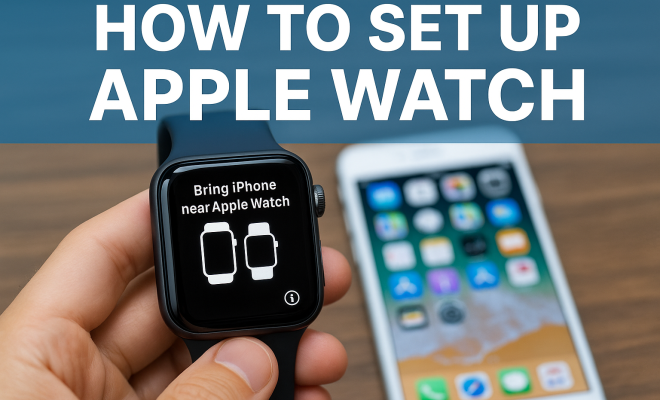
Now that you’re prepared, it’s time to set up your Apple Watch by pairing it with your iPhone. Start by turning on your Apple Watch by pressing and holding the side button until you see the Apple logo. You’ll be greeted with a startup screen that instructs you to bring your iPhone close to the watch.
Open the Apple Watch app on your iPhone. The app will guide you through the pairing process. You’ll see an animation on the watch face; simply point your iPhone’s camera at the animation, and the two devices will connect. If you prefer, you can also pair manually by tapping ‘Pair Manually’ on your Apple Watch and following the on-screen instructions.
4. Customizing Your Settings
Once paired, the next step in your Apple Watch setup is customizing your settings. You’ll have the chance to choose whether to set up your watch as a new device or restore it from a backup if you’ve previously owned one. Setting it up as new gives you a clean slate and allows for a personalized experience.
During customization, you can choose which apps and features to sync with your Apple Watch. Do you want to receive notifications from specific apps? Select them during the setup. Additionally, you can configure your health and fitness settings, allowing your watch to monitor your activity levels more accurately. Remember to enable location services if you plan on using GPS features, as this will enhance tracking during workouts.
5. Exploring Watch Faces and Complications
One of the most fun aspects of the Apple Watch is customizing watch faces. After you’ve paired your devices, you can explore various watch faces that suit your style or functional needs. Press firmly on the watch face, then swipe left or right to browse the available options. (See: CDC on physical activity.)
Each watch face can be customized with complications—small widgets that display information like weather, calendar events, or fitness tracking stats. Tap ‘Edit’ to adjust what complications you want to display, giving you quick access to important information right from your wrist. Experiment with different faces and complications until you find a combination that feels right for you.
6. Downloading Apps for Your Apple Watch
Now that you’ve set up your Apple Watch, it’s time to enhance its functionality by downloading apps. Navigate to the Apple Watch app on your iPhone and browse the App Store. You’ll find a variety of apps designed specifically for the Apple Watch, from fitness trackers to productivity tools. Popular choices include Strava for running, Sleep Cycle for sleep tracking, and even games for those moments when you need a quick distraction.
Keep in mind that not all apps will be available for the Apple Watch, but many iPhone apps have a companion watch version. For the best experience, focus on apps that will add value to your daily routine. After downloading an app, be sure to customize its settings in the companion app to tailor your notifications and functionality.
7. Health and Fitness Tracking Features
The Apple Watch is renowned for its health and fitness features. After setup, you’ll want to explore options like activity tracking, heart rate monitoring, and workout tracking. The Activity app on your watch will give you an overview of your movement, exercise, and standing goals, which you can customize based on your fitness level.
Utilizing features like the ECG app or blood oxygen monitoring can provide valuable insights into your health. If you’re serious about fitness, you might consider using the Apple Watch’s built-in GPS for accurate distance tracking during outdoor runs or bike rides. Don’t forget to regularly check your health metrics through the Health app on your iPhone, which can aggregate data from both your watch and other connected devices.
8. Troubleshooting Common Setup Issues
Even with the best preparation, you may encounter some hiccups while trying to set up your Apple Watch. One common issue is the inability to pair the watch and iPhone. If this happens, try restarting both devices. To restart your Apple Watch, press and hold the side button until you see the power options. For the iPhone, simply hold the side button until the sliders appear.
If pairing still isn’t successful, make sure your devices are within close range and that Bluetooth is enabled. Sometimes, resetting the network settings on your iPhone can help resolve connectivity issues. If all else fails, consider resetting your Apple Watch to factory settings and attempting the setup process again.
9. Maintaining Your Apple Watch
After successfully setting up your Apple Watch, maintenance becomes crucial for optimal performance. Regularly update your watchOS to take advantage of new features and security enhancements. Keeping your Apple Watch charged is also essential, as many of its features rely on sufficient battery life.
Additionally, cleanliness plays a role in maintaining your device. Regularly clean your watch and band with a soft, lint-free cloth, and avoid exposing it to harsh chemicals. If your wristband is made of a material prone to odors, consider washing it periodically. By implementing these maintenance tips, you can ensure your Apple Watch remains in top condition for years to come.
10. Advanced Features to Consider
Once you’ve settled into using your Apple Watch, you might want to explore some of its more advanced features. For instance, if you have an Apple Watch Series 4 or later, the ECG (electrocardiogram) app can help monitor your heart’s rhythm. This feature is particularly useful for anyone with a family history of heart issues, as it can give an early warning of potential problems.
Another incredible feature is the ability to monitor your sleep. If you enable sleep tracking, your Apple Watch will keep tabs on your sleeping patterns, helping you understand your sleep quality. This function can be a game-changer for anyone looking to improve their health and well-being, as it provides insights that can assist in developing better sleep habits.
Consider also the Apple Watch’s ability to track a wide array of workouts. Whether you’re swimming, cycling, or doing yoga, you can choose from various workout types to get accurate metrics. Plus, with the introduction of the Mindfulness app in watchOS 8, you now have tools to help manage stress and maintain mental well-being. (See: New York Times Apple Watch review.)
11. Battery Life and Optimization Tips
Battery life can be a concern for many Apple Watch users, especially if you’re using it extensively for workouts or notifications. Typically, the Apple Watch offers around 18 hours of battery life under regular use, but this can vary based on settings and usage patterns. Here are a few tips to help you optimize battery life:
- Limit Notifications: Fewer notifications mean less strain on the battery. Customize which notifications you receive on your watch to save power.
- Reduce Brightness: Lower the screen brightness in your watch settings. This small change can significantly extend battery life.
- Turn Off Always-On Display: If your model supports an always-on display, consider disabling it to conserve battery during moments of inactivity.
- Enable Power Saving Mode: When you’re doing a workout, use the power-saving mode to extend battery life further.
12. Frequently Asked Questions (FAQ)
How do I reset my Apple Watch?
If you need to reset your Apple Watch, go to the Settings app on the watch, select General, then Reset. From there, you can choose Erase All Content and Settings. This process will remove all data, so ensure you back up what you need first.
Can I set up my Apple Watch without my iPhone?
While initial setup requires an iPhone, you can use your Apple Watch independently after it has been set up. However, many features are enhanced when paired with an iPhone, such as syncing notifications and accessing apps.
What should I do if my Apple Watch won’t charge?
If your Apple Watch isn’t charging, ensure that the charger is plugged into a power source. Try cleaning the back of the watch and the charger to remove any debris. If it still doesn’t work, consider trying a different charging cable or adapter.
How do I update my Apple Watch OS?
To update your Apple Watch, make sure it’s connected to your iPhone. Open the Apple Watch app on your iPhone, go to My Watch > General > Software Update, and follow the prompts to download and install any available updates.
Can I customize the watch faces on my Apple Watch?
Absolutely! You can customize watch faces directly from your Apple Watch or through the Apple Watch app on your iPhone. Add complications and select styles that fit your needs and preferences, allowing for a truly personalized experience.
13. Setting Up Family Setup
If you have family members who aren’t using their own iPhones, you can set up a feature called Family Setup. This is especially useful for kids or older adults who may not have a smartphone. With Family Setup, you can manage their Apple Watch from your iPhone. You can configure their settings, control which apps they can access, and even set up location alerts so you can keep track of their whereabouts.
To set this up, your family member will need a compatible Apple Watch, and you’ll need to use your iPhone to configure it. The process is similar to pairing a normal Apple Watch, but you’ll select the Family Setup option. This feature allows family members to enjoy the benefits of the Apple Watch, including fitness tracking and communication, without needing their own iPhone.
14. Using Your Apple Watch for Contactless Payments
Another fantastic feature of the Apple Watch is its ability to make contactless payments using Apple Pay. This feature allows you to pay for items at participating retailers without having to pull out your iPhone or wallet. To set this up, open the Watch app on your iPhone, navigate to Wallet & Apple Pay, and add your credit or debit card information.
Once your card is set up, you can simply double-click the side button on your Apple Watch and hold it near the payment terminal. A tap will confirm the payment, making it a quick and convenient option for shopping. Remember to check with your bank about any specific requirements to use Apple Pay.
15. Keeping Your Apple Watch Secure
As with any smart device, keeping your Apple Watch secure is crucial. Setting up a passcode on your watch ensures that your personal information remains safe. You can set this up during the initial setup process or later through the settings menu. A passcode will lock your watch if it’s removed from your wrist, adding another layer of security.
In addition to a passcode, consider enabling features like two-factor authentication for your Apple ID. This adds an extra step when accessing your account, making it harder for unauthorized users to gain access. Also, regularly review the apps and permissions on your watch to ensure you’re only allowing trusted applications to access your information.
16. Maximizing Connectivity with Wi-Fi and Cellular Options
If you have an Apple Watch with cellular capabilities, you can stay connected even when your iPhone isn’t nearby. This feature allows you to make calls, send messages, and stream music directly from your watch. Setting up cellular service is done through the Apple Watch app on your iPhone, where you’ll select your carrier and follow their setup process. Keep in mind that this usually involves an additional monthly fee.
For Wi-Fi connectivity, your Apple Watch can connect to known Wi-Fi networks, allowing you to utilize various features without needing your phone. This is particularly useful if you’re out for a run or at the gym and don’t want to carry your iPhone. Your watch will automatically connect to Wi-Fi networks that you’ve previously connected to with your iPhone.
17. Exploring Customization Options: Bands and Accessories
Customization doesn’t just stop at watch faces; Apple offers a wide range of bands and accessories to enhance your Apple Watch experience. From sporty silicone bands for workouts to elegant leather options for formal occasions, there’s a band to suit every style. Changing bands is quick and easy, allowing you to switch based on your mood or activity. You can also explore third-party accessories, like charging docks and cases, to take your Apple Watch experience to the next level.
When selecting accessories, consider your lifestyle. If you’re very active, you might prefer a sweat-resistant band. For work or formal events, a classic leather or metal band might be more appropriate. The versatility of the Apple Watch hardware allows you to adapt it seamlessly into various aspects of your life.
18. Conclusion: Unlocking the Potential of Your Apple Watch
Setting up your Apple Watch can be an enjoyable experience if you take the time to understand its capabilities and customize it to your preferences. With this guide, you’re well on your way to unlocking the full potential of your device. Whether you’re tracking workouts, managing notifications, or simply checking the time, your Apple Watch is ready to enhance your daily life.
“`
Trending Now
Frequently Asked Questions
What do I need to set up my Apple Watch?
To set up your Apple Watch, ensure your iPhone is updated to the latest iOS version, and that Bluetooth and Wi-Fi are enabled. Additionally, charge your Apple Watch before pairing, as it may need power for the setup process.
How do I pair my Apple Watch with my iPhone?
To pair your Apple Watch with your iPhone, open the Apple Watch app on your iPhone and follow the on-screen instructions. Make sure your Apple Watch is charged and within range of your iPhone during the pairing process.
What features does the Apple Watch offer?
The Apple Watch offers a variety of features including fitness tracking, heart rate monitoring, ECG capabilities, notifications, and the ability to answer calls. Different models may have additional functionalities, so check your specific model for details.
Do I need an iPhone to use an Apple Watch?
Yes, an iPhone is required to set up and use an Apple Watch effectively. The Apple Watch serves as an extension of your iPhone, providing notifications and syncing data between the two devices.
Can I set up my Apple Watch without my iPhone?
No, you cannot complete the setup process for your Apple Watch without an iPhone. The initial pairing and configuration require the Apple Watch app on your iPhone to establish a connection.
Agree or disagree? Drop a comment and tell us what you think.