How to fix microphone not working on Zoom
“`html
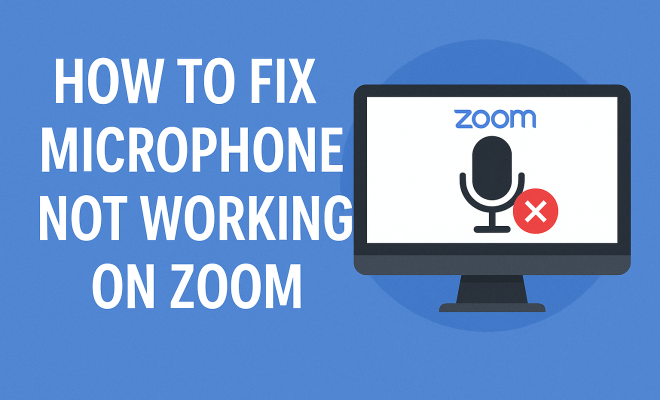
Zoom has become an integral part of our daily communication, whether for work, education, or social gatherings. However, one common issue that users face is the microphone not working during calls. This problem can be frustrating, especially when you need to communicate effectively. If you’re struggling to fix microphone not working on Zoom, you’re not alone. Fortunately, there are several solutions you can try that may resolve the issue quickly. In this article, we’ll explore seven practical steps to help you troubleshoot and fix your microphone problems on Zoom.
1. Check Your Device Settings
The first step in resolving any microphone issues on Zoom is to ensure that your device settings are configured correctly. Start by checking the microphone settings on your computer or mobile device. For Windows users, navigate to Settings > System > Sound. Here, you can see if your microphone is detected and adjust the volume levels. For Mac users, go to System Preferences > Sound > Input to check similar settings. Ensure that the right microphone is selected and that the input volume is set to an appropriate level.
Additionally, make sure that your microphone isn’t muted. Many devices have physical mute buttons that you might accidentally press. If you’re using an external microphone, check if it’s plugged in securely and functioning properly. For laptops, ensure the built-in microphone is enabled in case you’re using an external one.
2. Adjust Zoom Audio Settings
If your device settings are correct but you’re still facing issues, it’s time to delve into Zoom’s audio settings. Open Zoom and navigate to the Settings menu. Under the Audio section, you’ll find various settings related to your microphone. Ensure that the correct microphone is selected from the dropdown menu. Test your microphone by speaking and watching the input level bar to see if it responds.
You can also click the Test Mic button to confirm whether your voice is being picked up. If you hear your own voice during the playback, your microphone is functioning properly with Zoom. If not, consider switching to another microphone option available in the settings.
3. Update Zoom and Your Device Drivers
Outdated software can often lead to functionality problems. Ensure that you’re using the latest version of Zoom by checking for updates within the app. Click on your profile icon in the top right corner, select Check for Updates, and install any available updates. Zoom frequently rolls out updates that include bug fixes and improvements, which might resolve your microphone issue.
It’s also essential to update your device’s audio drivers. For Windows users, go to the Device Manager, locate Audio Inputs and Outputs, right-click on your microphone device, and select Update Driver. For Mac users, updates are generally handled automatically with system updates, but it’s good to check for macOS updates regularly.
4. Test Your Microphone with Other Applications
Sometimes, the problem may not lie with Zoom itself but with the microphone or the operating system. To determine if the microphone is functioning, test it with other applications like Voice Memos (on iOS), Sound Recorder (on Windows), or any other audio recording software. If the microphone works in these applications, the issue likely resides within Zoom. (See: Noise and hearing loss prevention.)
If the microphone doesn’t work in any applications, it may indicate a hardware issue. Consider trying a different microphone or using a headset if available. Alternatively, check if any other applications are interfering with microphone access.
5. Check Your Privacy Settings
Privacy settings on your operating system can prevent applications from accessing your microphone, leading to issues during Zoom calls. For Windows users, head to Settings > Privacy > Microphone. Ensure that microphone access is enabled for all apps, especially Zoom. For Mac users, go to System Preferences > Security & Privacy > Microphone and confirm that Zoom has permission to use the microphone.
Adjusting these settings can often resolve microphone issues. Remember that changes may require you to restart Zoom or your device for them to take effect.
6. Reinstall Zoom
If you’ve tried all the above solutions and your microphone still isn’t working on Zoom, reinstalling the application could be the next logical step. Uninstall Zoom from your device, restart your computer, and then download the latest version of Zoom from their official website. Reinstallation often fixes persistent bugs and glitches that might be causing your microphone issues.
When reinstalling, make sure to back up your settings and any recordings you need. Once you have the fresh installation, go through the audio settings again to ensure your microphone is correctly configured.
7. Contact Zoom Support
If you’ve exhausted all troubleshooting options and your microphone is still not working on Zoom, it may be time to reach out to Zoom Support. They can provide specialized assistance and guide you through more advanced troubleshooting steps. Visit the Zoom Support website and look for the support options available, including live chat and email support.
Before contacting support, have all relevant information ready, such as your device type, operating system, and a detailed description of the problem. This will help them assist you more efficiently.
8. Understanding Microphone Types and Compatibility
Microphones come in various types and configurations, and their compatibility with Zoom can affect performance. USB microphones are particularly popular for Zoom calls because they generally offer plug-and-play simplicity and often come with built-in sound processing. If you’re using a 3.5mm jack microphone, you may need to ensure that your device supports this connection type.
It’s also worth noting that some microphones may perform better in different environments. For instance, condenser microphones can be sensitive to background noise, while dynamic microphones tend to pick up less ambient sound, making them ideal for noisy settings. Knowing the type of microphone you’re using can help you understand its limitations and adjust your settings accordingly. (See: Zoom privacy and security concerns.)
9. Common Microphone Issues on Zoom and Their Fixes
Microphone issues can manifest in various ways during a Zoom call. Here are some common problems you might encounter along with their potential fixes:
- Sound Quality Issues: If your voice sounds distorted or robotic, this could be due to a poor internet connection. Try switching to a wired connection if possible, or ensure you have a stable Wi-Fi signal.
- One-way Audio: If others can hear you but you can’t hear them, ensure that your speaker settings are configured correctly in Zoom. Go to the Audio section in Settings to adjust the speaker output.
- Intermittent Audio: If your microphone cuts in and out sporadically, it could be a bandwidth issue. Check if other applications are consuming your internet bandwidth and close them if necessary.
10. Advanced Troubleshooting Steps
For those who have tried the basic troubleshooting steps without success, these advanced checks might help:
- Disable Audio Enhancements: Some devices come with audio enhancement settings that can interfere with microphone function. For Windows, navigate to Device Manager, right-click on your microphone, select Properties, go to Enhancements, and disable all enhancements.
- Check for Conflicting Applications: Applications like Skype, Discord, or any voice-over-IP software running simultaneously with Zoom can cause conflicts. Close these applications to see if it resolves the issue.
- Firewall and Antivirus Settings: Sometimes, security software may block microphone access. Review your firewall and antivirus settings to ensure Zoom is allowed to use the microphone.
11. Frequently Asked Questions (FAQ)
What should I do if I can hear others but they can’t hear me?
If others can hear you but you cannot hear them, check your speaker settings in Zoom. Ensure the correct audio output device is selected and not muted. You can also try adjusting the volume levels in the audio settings.
How do I know if my microphone is working on Zoom?
To test your microphone in Zoom, go to the Audio settings and look for the Test Mic option. Speak into your microphone; if you see the input level bar respond, it’s working. Additionally, you can do a test call to a friend to confirm functionality.
Why does my microphone make a buzzing sound during calls?
A buzzing sound may indicate interference from nearby electronic devices or a loose connection. Ensure your microphone is securely connected and try moving it away from other electronic devices. Also, check for any physical damage to the cable or microphone itself.
Can I use Bluetooth headphones with Zoom?
Yes, Bluetooth headphones can be used with Zoom. Make sure they are properly connected before you start your Zoom meeting. You can select your Bluetooth headphones as the audio input and output devices in the Zoom audio settings.
What if my microphone works on other applications but not on Zoom?
If your microphone works in other applications but not in Zoom, try adjusting your Zoom audio settings. Check the microphone selection and ensure that Zoom has permission to access your microphone. If issues persist, try reinstalling Zoom.
12. Keeping Your Zoom Experience Smooth
In addition to troubleshooting microphone issues, maintaining a smooth Zoom experience involves ensuring your software and hardware are up to date. Regularly check for updates not only for Zoom but also for your operating system and drivers. Consider investing in quality audio equipment if you frequently rely on Zoom for meetings or classes. Good quality microphones and headsets can greatly enhance your audio experience, making communication clearer and more effective. (See: MIT technology resources.)
It’s also a good practice to familiarize yourself with Zoom’s latest features, as they often include improvements that can benefit your communication. For instance, using Zoom’s background noise suppression feature can help filter out unwanted sounds, allowing your voice to come through more clearly. Always keep an eye on Zoom’s official blog or update notes for new features and improvements that might help enhance your virtual meetings.
13. Understanding Different Operating Systems and Microphone Compatibility
When troubleshooting microphone issues, it’s crucial to recognize that different operating systems can handle audio devices differently. For instance, Windows has a more extensive range of audio settings compared to macOS, which can streamline the process for users but might also lead to complications if the settings aren’t correctly configured. You might also find that certain microphones are optimized for specific operating systems. For example, some USB microphones may work seamlessly on macOS but have limited functionality on older versions of Windows. Always check compatibility before purchasing new audio equipment.
14. Popular Microphones for Zoom Calls
If you’re considering upgrading your microphone to improve your Zoom experience, here are some popular choices that are known for their performance:
- Blue Yeti: This USB microphone is known for its versatility and high sound quality. It features multiple pickup patterns, making it suitable for various recording situations, whether you’re in a noisy room or need to capture a more focused sound.
- Audio-Technica ATR2100x-USB: This microphone offers both USB and XLR connectivity, making it adaptable for different setups. It’s ideal for those who may want to use it for both home recording and live performances.
- Rode NT-USB: Known for its excellent sound quality, this mic is perfect for podcasting and Zoom calls. It comes with a pop filter and a stand, which makes it easy to set up.
15. Preparing for a Zoom Meeting: Best Practices
Preparation can play a significant role in ensuring a successful Zoom meeting. Here are some best practices to follow:
- Test Your Equipment Ahead of Time: Before the meeting starts, test your microphone and camera. Make sure everything is working as it should, so you don’t run into issues when it’s time to join the meeting.
- Choose a Quiet Environment: Background noise can disrupt your meeting and make it difficult for others to hear you. Try to find a quiet room with minimal distractions.
- Communicate Your Needs: If you’re presenting, ensure that you communicate with your audience about any specific audio requirements they might need to meet in order to hear you clearly.
16. Conclusion
Encountering issues like a microphone not working on Zoom can be incredibly frustrating, especially in a time where virtual conversations are a part of daily life. By following the steps outlined above, you can often resolve the problem quickly and get back to communicating effectively. Whether it’s adjusting settings, updating software, or reaching out for technical support, you have the tools to tackle this common issue head-on. Don’t let microphone problems hold you back from your conversations!
“`
Trending Now
Frequently Asked Questions
Why is my microphone not working on Zoom?
There are several reasons your microphone may not work on Zoom, including incorrect device settings, muted microphones, or issues with Zoom's audio settings. Start by checking your device's microphone settings and ensuring the correct microphone is selected in Zoom's audio settings.
How do I check my microphone settings on Zoom?
To check your microphone settings on Zoom, open the app and go to the Settings menu. Click on the Audio section, where you can select your microphone from the dropdown menu and test it to ensure it's functioning properly.
What should I do if my microphone is muted on Zoom?
If your microphone is muted on Zoom, simply click the microphone icon in the Zoom interface to unmute it. Additionally, check your device settings to ensure that the microphone itself is not muted or disabled.
How can I test my microphone in Zoom?
To test your microphone in Zoom, navigate to the Audio settings in the Zoom app. Speak into your microphone and observe the input level bar; it should respond to your voice. You can also use the Test Mic button for additional confirmation.
What if my external microphone isn’t working on Zoom?
If your external microphone isn’t working on Zoom, ensure it is securely plugged in and functioning correctly. Check both the device's microphone settings and Zoom's audio settings to confirm that the correct microphone is selected and that it is not muted.
Have you experienced this yourself? We’d love to hear your story in the comments.