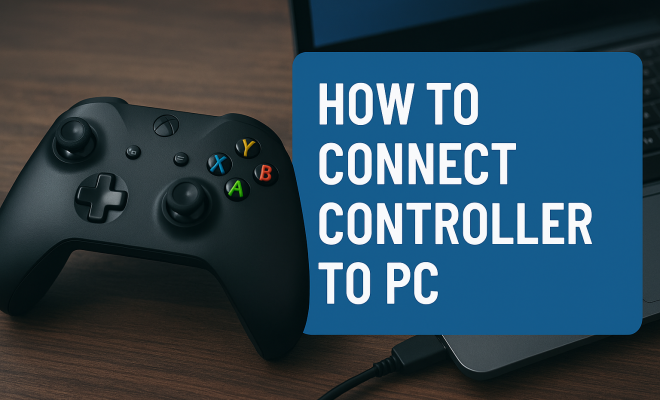
How to connect controller to PC
“`html
Whether you’re an avid gamer or just looking to enhance your gaming experience, knowing how to connect a controller to PC is essential. With the rise of PC gaming, many enthusiasts are turning to controllers for more comfortable gameplay. However, the process can be confusing for those unfamiliar with the different types of controllers available and the connection methods. In this comprehensive guide, we’ll cover everything you need to know to connect your controller to a PC seamlessly.
1. Understanding Controller Types
Before diving into how to connect a controller to PC, it’s crucial to understand the types of controllers available. The two most common types are wired and wireless controllers. Wired controllers connect directly to your PC via a USB port, offering a simple plug-and-play solution. They usually provide a reliable connection with zero latency.
On the other hand, wireless controllers use Bluetooth technology to connect to your PC. This means you need to ensure your computer supports Bluetooth or has a Bluetooth adapter. While they offer the convenience of freedom from cables, wireless controllers may be subject to latency and battery life issues. Both types of controllers have their own benefits and challenges, so the choice often comes down to personal preference.
2. Preparing for Connection
Before you attempt to connect a controller to your PC, make sure you have everything ready. For wired controllers, ensure you have a free USB port. For wireless controllers, check that your PC’s Bluetooth is enabled and functioning. If you’re using a dedicated gaming controller, ensure it is charged and within range of your PC.
Another important step is to install any necessary drivers or software. Some controllers, especially proprietary ones like the Xbox or PlayStation controllers, come with specific drivers that can enhance compatibility and performance. You can usually find these on the manufacturer’s website. Having everything set up beforehand can significantly streamline the connection process.
3. Connecting Wired Controllers
Connecting a wired controller is straightforward. Simply plug the controller’s USB cable into an available USB port on your PC. For Windows users, the operating system typically recognizes the controller automatically. You may see a notification indicating that the device is being set up.
Once connected, you can test your controller to ensure it’s working correctly. Open the game you intend to play and navigate to the settings menu. Look for the controller options to see if your device is recognized and can be configured. If you encounter issues, try a different USB port or restart your computer to refresh the connection.
4. Connecting Wireless Controllers
Connecting wireless controllers requires a few more steps than their wired counterparts. Start by ensuring your controller is charged. Next, enable Bluetooth on your PC. You can do this by navigating to the settings menu, selecting “Devices,” and then clicking on “Bluetooth & other devices.” Toggle Bluetooth on if it isn’t already.
To pair your controller, put it into pairing mode. For example, with an Xbox Wireless Controller, you need to press and hold the pairing button until the Xbox logo starts flashing. Once in pairing mode, return to your PC and select “Add Bluetooth or other device.” Choose Bluetooth, and your PC should detect the controller. Select it to finalize the connection.
5. Troubleshooting Connection Issues
Even with the best preparation, you might run into issues while trying to connect your controller to your PC. If your controller isn’t recognized, the first step is to check the USB cable for wired controllers or the Bluetooth settings for wireless ones. Ensure that the controller is powered and close enough to the PC.
Another common issue is driver problems. If the controller isn’t working correctly, try updating your drivers via the Device Manager. Right-click on the Start Menu, select Device Manager, find your controller under “Human Interface Devices,” right-click on it, and select “Update driver.” If all else fails, consult the manufacturer’s website for troubleshooting tips specific to your controller model. (See: Overview of game controllers.)
6. Configuring Controller Settings
Once your controller is successfully connected, you might want to adjust the settings for optimal performance. Many games have customizable controls, allowing you to map buttons according to your preference. This is especially useful for complex games that might require different actions for different buttons.
In addition, software like Steam has built-in controller configuration that lets you customize your controller’s layout. If you’re playing a game from Steam, navigate to the game’s properties, then to “Controller.” Here, you can configure your controller settings to improve your gameplay experience.
7. Using Steam Big Picture Mode
If you’re a Steam user, utilizing Big Picture Mode can enhance how you connect your controller to your PC. Big Picture Mode is designed for controller use, making navigation easier and more intuitive. To enter this mode, simply click the controller icon in the upper right corner of the Steam client.
Once in Big Picture Mode, your controller should work with any game that supports it. From here, you can access the Steam library, adjust settings, and even browse the store. Additionally, you can configure your controller settings within this mode, specifying button functions and sensitivity levels, which can greatly enhance your gaming experience.
8. Popular Controllers and Compatibility
Now that you know how to connect a controller to a PC, let’s discuss some popular controllers and their compatibility. The Xbox Wireless Controller is one of the most frequently used controllers for PC gaming due to its seamless compatibility with Windows systems. Simply plug it in via USB, or connect via Bluetooth if you prefer wireless.
PlayStation controllers, such as the DualShock 4 and DualSense, are also compatible with PCs. While they may require additional software for full functionality, many users find them comfortable and feature-rich. Third-party options like the Logitech F310 or Razer Wolverine are also excellent choices, offering customizable buttons and high-quality performance.
9. Common Features of Controller Types
When looking to connect a controller to your PC, it’s beneficial to consider the common features among various controller types. For example, many modern controllers come equipped with motion sensors and haptic feedback, enhancing the immersion in games. The DualSense controller, for instance, offers adaptive triggers that provide varying resistance levels based on gameplay, creating a more engaging experience.
Additionally, some controllers include built-in rechargeable batteries, while others might require AA batteries. This can influence your choice, as rechargeable options often save you money in the long run, but may require more frequent charging sessions. It’s worth considering how you play games and whether you prefer the convenience of charging or the simplicity of changing batteries.
10. Advanced Controller Features and Settings
Beyond basic connectivity, many controllers come with advanced features that can enhance gameplay. For instance, some models feature customizable LED lights, which can be used to indicate player status or battery levels. Additionally, programmable buttons allow gamers to create macros, enabling complex moves or actions with a single press. This is particularly useful in competitive gaming scenarios where every millisecond counts.
Another aspect to consider is the ability to adjust sensitivity settings for analog sticks. A controller that allows for fine-tuning of these settings can greatly impact your performance in fast-paced games, such as first-person shooters or racing titles. Players can often find a sweet spot between responsiveness and control, giving them a competitive edge.
11. Compatibility with Different Operating Systems
While most controllers are designed with Windows in mind, many are also compatible with other operating systems like macOS and Linux. However, the level of functionality may vary. For instance, connecting an Xbox controller to a Mac can be done seamlessly, but users may face difficulties with PlayStation controllers without third-party applications.
If you’re planning to use your controller across different platforms, it’s essential to check compatibility beforehand. Some controllers even come with software that allows easy switching between systems. This flexibility can enhance usability, especially for gamers who play on multiple devices. (See: Health effects of computer use.)
12. Controller Maintenance Tips
After you’ve set up your controller and enjoyed countless gaming sessions, it’s crucial to maintain it for longevity. Regular cleaning is key—dust and dirt can accumulate over time, affecting performance. Wipe down the exterior with a microfiber cloth and use compressed air to blow out any debris from the buttons and crevices.
Battery care is also important for wireless controllers. If your controller uses rechargeable batteries, make sure to avoid overcharging them, as this can lead to reduced battery life over time. For those using AA batteries, consider investing in a quality rechargeable battery pack to save on costs and reduce waste.
13. Frequently Asked Questions (FAQ)
Can I use any controller with my PC?
Most modern controllers can connect to PCs, but the degree of compatibility can vary. Xbox controllers tend to have the easiest setup, followed by PlayStation controllers. Always check the manufacturer’s specifications before purchasing a controller for PC use.
Do I need special software to connect a PlayStation controller to my PC?
While it’s possible to connect a PlayStation controller without additional software, you may need third-party applications like DS4Windows to access full functionality, including button mapping and specific features.
What is the difference between Bluetooth and wired connections?
Bluetooh connections offer the convenience of being wireless, giving you more freedom of movement. However, they may introduce some latency compared to wired connections, which provide a direct link to your PC, resulting in a more stable and responsive performance.
How do I know if my controller is fully charged?
Most modern controllers have LED indicators that show the battery status. If you’re using a wired connection while the controller is charging, it will often indicate charging through a steady light. For wireless controllers, check your PC’s battery settings or the manufacturer’s app for battery life details.
Can I connect multiple controllers to my PC?
Yes, you can connect multiple controllers to your PC, especially if you’re setting up for multiplayer gaming. Just ensure that each controller is properly paired and recognized by your system. Depending on the game, you may need to configure each controller to ensure they operate correctly in a multiplayer setting.
14. Common Pitfalls When Connecting Controllers
While connecting a controller to your PC is generally straightforward, there are some pitfalls to be aware of. One common issue is forgetting to enable Bluetooth on your PC, which can lead to frustration when trying to connect a wireless controller. Always double-check that Bluetooth is activated before attempting to pair.
Another common mistake is not updating your drivers. Outdated drivers can lead to compatibility issues. Make it a habit to regularly check for updates, especially if you notice performance problems or if your controller isn’t recognized.
15. Controller Accessories and Enhancements
Once you have successfully connected your controller to your PC, you might want to consider enhancing your experience with various accessories. Some players invest in controller grips or skins that can provide better handling or a personal touch. These accessories can improve comfort during long gaming sessions and help prevent slippage when you’re in the heat of competition. (See: Latest trends in gaming controllers.)
Additionally, there are specialized charging docks available for many popular controllers. These docks not only keep your controllers charged but also provide a neat and organized storage solution. If your gaming setup is a focal point in your room, having a dedicated charging station can enhance your overall aesthetic.
16. Exploring Third-Party Software for Controllers
Many gamers gravitate towards third-party software to enhance the functionality of their controllers. Software like ReWASD, JoyToKey, or Xpadder allows you to map keyboard actions to your controller buttons, providing a more tailored gameplay experience, especially for games that may not natively support controllers.
Such software can be especially beneficial for non-gaming applications as well. If you find yourself often working on your PC and want a more relaxed setup, these programs can help you utilize your controller for tasks like scrolling through documents or navigating web pages.
17. Statistics and Trends in Controller Usage
The gaming landscape has seen a shift in controller usage over the years. According to a recent survey, approximately 65% of PC gamers reported using a controller for certain types of games, primarily action and racing genres, where a controller can provide a more intuitive experience compared to a mouse and keyboard.
Additionally, the rise of cross-platform play has further boosted controller usage, with many players opting for controllers for a competitive edge against opponents using similar devices. The preference for controllers is also reflected in sales data, showing a consistent increase in controller sales in parallel with the growth of PC gaming.
18. Final Thoughts: Embracing the Controller Experience
Connecting a controller to your PC can dramatically enhance your gaming experience, providing comfort and ease that traditional keyboard and mouse setups might lack. Whether you choose a wired or wireless controller, understanding the setup process and potential issues will ensure a smooth experience. With the right preparation and configuration, you can unlock a new level of enjoyment in your gaming journey.
So, whether you’re battling enemies in an action game or exploring vast open worlds, using a controller can make all the difference. Stay informed about your controller’s compatibility and connectivity options, and you’ll be ready to game without any hitches!
“`
Trending Now
Frequently Asked Questions
How do I connect a wired controller to my PC?
To connect a wired controller to your PC, simply plug it into an available USB port. Most wired controllers are plug-and-play, meaning they should be recognized automatically by your system without needing additional software.
Can I use a wireless controller on my PC?
Yes, you can use a wireless controller on your PC by connecting it via Bluetooth. Ensure your PC has Bluetooth capabilities, then put the controller in pairing mode and follow the prompts on your PC to establish a connection.
Do I need drivers to connect my controller to PC?
In some cases, you may need to install specific drivers for your controller, especially for proprietary models like Xbox or PlayStation controllers. Check the manufacturer's website for any necessary software to ensure optimal performance.
What are the differences between wired and wireless controllers?
Wired controllers connect directly to your PC via USB, offering a reliable and low-latency experience. Wireless controllers use Bluetooth for connectivity, providing more freedom of movement but may introduce latency and require battery management.
How do I troubleshoot a controller connection issue on PC?
To troubleshoot connection issues, first check that your controller is charged (if wireless) and confirm that it's in pairing mode. Ensure Bluetooth is enabled on your PC or try using a different USB port for wired connections. Updating drivers can also resolve compatibility problems.
Agree or disagree? Drop a comment and tell us what you think.