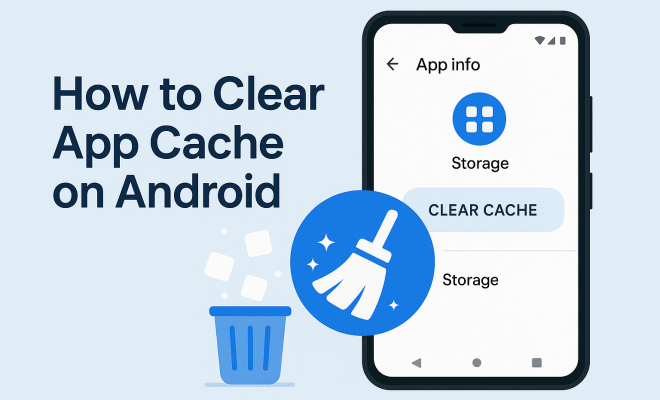
How to clear app cache on Android
“`html
Maintaining an Android device involves more than just regular updates and avoiding malware; you also need to manage app storage effectively. One of the most crucial practices in this regard is knowing how to clear app cache Android. This process can significantly improve your device’s performance, resolve glitches, and free up precious storage space. Let’s dive into what app cache is, why it matters, and how to clear it effectively.
1. What Is App Cache?
Every time you use an app on your Android device, it stores temporary data known as cache. This data helps the app to load faster during subsequent uses, as it doesn’t have to retrieve the same information from the internet repeatedly. For example, social media apps often cache images and posts so they can be displayed quickly without waiting for a fresh download each time.
While cache is beneficial, it can accumulate over time, leading to potential performance issues. Outdated or corrupted cache files can cause apps to misbehave, leading to crashes or slowdowns. That’s where knowing how to clear app cache Android comes in handy.
2. Why You Should Clear App Cache
There are several compelling reasons to consider clearing your app cache regularly. First, it helps in improving the overall performance of your Android device. Overloaded cache can lead to sluggishness, and clearing it can result in faster loading times.
Second, apps can sometimes store corrupted cache files that cause them to malfunction. Clearing the cache can resolve unexpected crashes and bugs, ensuring a smoother user experience. Finally, it can free up storage space. Android devices often come with limited storage, and clearing the cache can reclaim several megabytes, or even gigabytes, depending on how many apps you’ve used.
3. How to Clear App Cache on Android: Step-by-Step Guide
Clearing app cache on Android devices is straightforward. Here’s a simple step-by-step guide to help you through the process:
- Step 1: Go to your device’s Settings app.
- Step 2: Scroll down and select Apps or Applications, depending on your device model.
- Step 3: Find the app for which you want to clear the cache.
- Step 4: Tap on the app’s name to open its settings.
- Step 5: Look for the option labeled Storage or Storage & cache.
- Step 6: Tap Clear Cache to remove cached data.
Repeat these steps for any other apps as necessary. It’s recommended to start with apps that consume a lot of data, like social media or streaming services.
4. Using the Android Settings Menu
The Android Settings menu is a powerful tool to manage your device. Within this menu, you can not only clear app cache but also manage other app-related settings. For example, in some Android versions, you may find options to manage permissions, notifications, and data usage for each app.
Moreover, the Settings menu allows you to view how much cache each application is using. This can guide you in deciding which apps require a cache cleanup the most. If you notice an app consuming significantly more cache than others, it may be a sign that it’s time to clear that cache.
5. Using Third-Party Apps
If you’re looking for a more automated way to clear app cache Android, you might consider using third-party applications designed for this purpose. Apps like CCleaner and SD Maid can help you declutter your device by managing app cache and other unwanted files. (See: Importance of cleaning and maintenance.)
However, while these tools can be effective, use them with caution. It’s crucial to download from reputable sources and check reviews to ensure you’re not compromising your device’s security. Some of these apps even offer features like one-click cleaning, scheduled cache clearing, and a detailed overview of your storage usage.
6. Cache vs. Data: What’s the Difference?
When managing your app settings, you might notice options to clear both cache and data. Understanding the difference is vital to avoid losing important information. Cache is temporary data that enhances performance, while data includes user-specific content, settings, and login information.
Clearing the cache will not delete user data, meaning your login credentials and personalized settings will remain intact. On the other hand, clearing the app data will reset the app to its original state, removing all user-specific settings and requiring you to log in again.
Knowing when to clear cache versus data can prevent unnecessary headaches. Generally, if an app is misbehaving, try clearing the cache first.
7. When to Clear App Cache
While it’s good practice to regularly clear app cache, there are specific scenarios when it’s particularly beneficial to do so. If you notice that an app is lagging, freezing, or crashing frequently, clearing the cache can often resolve these issues.
Additionally, immediately after an app update, clearing the cache can help the app run smoothly, especially if the update has introduced new features or changes that might conflict with the existing cache. Lastly, if your device is running low on storage, a cache cleanup can quickly free up space.
8. How Often Should You Clear Cache?
The frequency of clearing app cache largely depends on your usage habits. For heavy users of specific apps, a monthly clean-up might be beneficial, while casual users may find that quarterly cleaning is sufficient.
Some users prefer to set reminders to clear app cache regularly, while others might do it as part of a broader device maintenance routine that includes deleting unused apps and files. Ultimately, it’s about finding a balance that works for your device and usage.
9. The Bottom Line
Knowing how to clear app cache Android is a simple yet powerful tool in maintaining your device’s efficiency. Regular cache management can enhance performance, free up space, and prevent app malfunctions. Whether you choose to do it manually through the settings or opt for third-party apps, keeping your cache in check is crucial for a seamless Android experience.
As technology continues to evolve, staying informed about device management practices ensures that you maximize your Android device’s potential. So, next time your device starts to lag or a favorite app misbehaves, remember that a quick cache clearing is often just what you need.
10. Advanced Techniques to Manage Cache
For those who are tech-savvy and want to take their cache management to the next level, consider these advanced techniques:
- Use ADB Commands: If you’re comfortable using Android Debug Bridge (ADB), you can execute commands that clear cache from the command line. This method can help in clearing cache for multiple apps at once, saving time.
- Automate with Tasker: Tasker is an automation app that can perform actions based on various triggers. You can set it to clear cache at specific times or when your device reaches a certain storage limit.
- Root Your Device: Rooting provides system-level access, allowing you to use apps like Titanium Backup, which can manage cache more effectively. However, rooting can void your warranty and expose your device to security risks, so proceed with caution.
11. The Impact of Cache on Performance
Understanding the impact of cache on performance can help you make informed decisions about when to clear it. Studies have shown that cache can significantly reduce loading times—some users report up to a 50% improvement in app responsiveness after clearing the cache. This is particularly noticeable in resource-heavy apps like games and video streaming services. (See: Managing Android apps effectively.)
On the flip side, excessive cache can lead to issues such as app crashes or unresponsive behavior. For instance, if an app has a cache size of 1GB, it can become unwieldy and difficult for the app to manage, especially on devices with limited RAM. Keeping an eye on cache sizes and clearing them periodically can prevent performance bottlenecks.
12. Common Myths About Clearing Cache
There are many misconceptions about cache management that can lead to confusion. Here are a few common myths debunked:
- Myth 1: Clearing cache deletes my personal data. This is false; clearing cache only removes temporary files.
- Myth 2: I should clear cache daily. Unless you’re facing performance issues, daily clearing is unnecessary.
- Myth 3: All apps need cache cleared regularly. Some apps manage their cache efficiently and may not require frequent clearing.
13. Frequently Asked Questions (FAQ)
What happens if I clear app cache?
When you clear app cache, the temporary files that apps store to speed up operations are deleted. This can free up storage space and potentially resolve issues with the app.
Will I lose any important data when I clear cache?
No, clearing cache does not delete any important user data, such as login information or personal settings. However, you may notice that some apps take longer to load the first time you open them after clearing cache.
How can I tell which apps are using the most cache?
In the Android Settings menu, you can view the storage used by each app, including cache size. This can help you identify which apps may need a cache cleanup.
Can I set up my device to automatically clear cache?
Yes, some third-party applications allow you to schedule cache clearing. Alternatively, apps like Tasker can be configured for automated cleaning based on triggers like time or storage levels.
Should I clear the cache for all apps at once or one by one?
It’s usually more effective to clear cache for apps that are causing issues or that you use frequently. Clearing all apps at once may not provide immediate benefits and could be more time-consuming.
How do I know if my device needs cache cleared?
Signs that your device may benefit from cache clearing include slow performance, apps crashing frequently, or if you receive notifications about low storage space.
14. The Hidden Costs of App Cache
While it might seem harmless, app cache can have hidden costs beyond mere storage usage. For instance, excessive cache buildup can lead to higher battery consumption as apps struggle to access outdated or corrupted data. This might result in your device heating up more than normal and your battery draining faster.
Moreover, when an app caches outdated information, it can lead to a poor user experience. For example, a weather app might show you out-of-date forecasts if it relies on cached data rather than fetching the latest updates from the internet. Regularly clearing cache can ensure that you receive the most accurate and current information from your apps.
15. How Cache Affects Your Apps
The specific impact of cache on individual apps can vary widely. For example, social media apps like Facebook or Instagram may cache a significant amount of images and videos. This allows for smoother scrolling and quicker access to your feed, but it can also lead to massive cache sizes that slow down the app’s performance over time.
On the other hand, productivity apps like Google Docs or Microsoft Office rely less on cache because they frequently sync with their cloud services. Therefore, users of these apps might notice less of a performance hit from cache. Understanding how different types of apps utilize cache can help you prioritize which apps to monitor and clean regularly.
16. Tips for Managing Cache Without Frequent Clearing
Instead of constantly clearing your app cache, you can adopt some practices to manage cache more effectively:
- Use Lite Versions of Apps: Many popular apps offer ‘lite’ versions that consume less storage and data, which may also lead to lower cache usage. These are particularly beneficial if you have limited device storage.
- Regularly Update Your Apps: Developers often optimize their apps to handle cache better in newer versions. Keeping your apps up to date can reduce the issues caused by excessive caching.
- Control Media Quality: In streaming apps, adjust the quality settings to lower resolutions when not needed. This can prevent the app from caching large files that take up unnecessary space.
17. The Future of Cache Management on Android
As technology progresses, the way we manage cache and app data will continue to evolve. With advancements in cloud computing and machine learning, future versions of Android may incorporate smarter cache management techniques that can automatically optimize cache without user intervention.
We may also see improved tools that allow users to visualize their cache usage more effectively, making it easier to identify which apps need attention. Additionally, the integration of AI in app management may lead to predictive algorithms that clear cache only when necessary, striking a balance between performance and storage without manual input.
18. Conclusion
Managing app cache on your Android device is vital for maintaining optimal performance and ensuring a smooth user experience. By understanding how cache works, when to clear it, and the differences between cache and data, you can take proactive steps to keep your device running efficiently. Whether you prefer manual methods or automated solutions, being aware of your app cache can save you from future headaches.
Keep exploring options, stay informed, and don’t hesitate to adopt best practices to ensure that your Android device serves you well in the long run. After all, a well-maintained device is key to enjoying all the amazing apps and features it has to offer!
“`
Trending Now
Frequently Asked Questions
What is app cache on Android?
App cache on Android is temporary data stored by applications to help them load faster during subsequent uses. This data can include images, posts, and other content, which allows apps to operate more efficiently. However, over time, this cached data can accumulate and lead to performance issues.
Why should I clear app cache on my Android?
Clearing app cache on your Android device can improve performance by reducing sluggishness, resolve issues caused by corrupted files, and free up valuable storage space. Regularly clearing cache can lead to a smoother user experience and faster loading times for your apps.
How do I clear app cache on Android?
To clear app cache on your Android device, go to 'Settings', select 'Apps', choose the app you want to clear cache for, and tap on 'Storage'. From there, you can select 'Clear Cache' to remove temporary files and improve the app's performance.
Does clearing app cache delete my data?
No, clearing app cache does not delete your personal data or settings within the app. It only removes temporary files that help the app load faster. Your app data, such as login information and saved preferences, will remain intact.
How often should I clear app cache on Android?
The frequency of clearing app cache on Android depends on your usage. It's a good practice to clear cache every few weeks or when you notice apps slowing down or misbehaving. Regular maintenance can help keep your device running smoothly.
Have you experienced this yourself? We’d love to hear your story in the comments.