How to use authenticator app
“`html
In a digital landscape where cyber threats loom large, securing your online accounts is not just an option—it’s a necessity. One of the most effective methods for enhancing account security is two-factor authentication (2FA), and at the heart of this system lies the authenticator app. If you’ve ever wondered how to use authenticator app, you’ve come to the right place. This guide will take you through the essential details, practical insights, and current relevance of authenticator apps.
1. Understanding Authenticator Apps
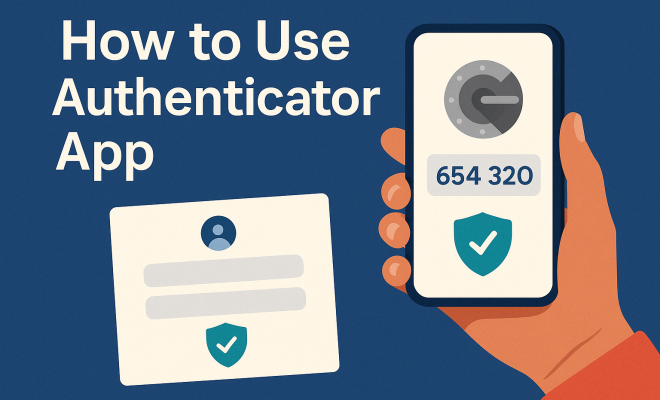
Authenticator apps are tools designed to add an extra layer of security to your online accounts. They generate time-sensitive codes (usually six digits) that you use alongside your password during the login process. Unlike SMS-based verification, which can be intercepted, authenticator apps operate offline, making them more secure.
Popular options include Google Authenticator, Authy, and Microsoft Authenticator. These applications generate one-time codes based on a shared secret key and the current time, ensuring that even if someone knows your password, they can’t access your account without the unique code generated by your authenticator app.
Understanding the mechanics behind these apps can deepen your appreciation for their security features. They typically use algorithms like the Time-based One-Time Password (TOTP) algorithm, which generates new codes every 30 seconds. This means that even if someone steals your password, they’d also need access to your authenticator app to log in, which significantly decreases the chances of unauthorized access.
2. Why You Need an Authenticator App
The rise in data breaches has made it clear that passwords alone are insufficient for securing sensitive information. In fact, a report from Verizon highlighted that 81% of data breaches are linked to weak or compromised passwords. By using an authenticator app, you significantly reduce the risk of unauthorized access to your accounts.
Moreover, many services now encourage or even require two-factor authentication, making the use of an authenticator app not just advisable, but essential. From social media to banking, the scope of accounts that can benefit from this heightened security is vast. If you’re serious about protecting your digital identity, learning how to use authenticator app is a crucial step.
Beyond the statistics, consider the broader implications of using an authenticator app. The increase in remote work and online transactions has made accounts more vulnerable than ever. A single breach can have cascading effects, exposing not just personal information but potentially leading to financial loss or identity theft. Adopting an authenticator app is a step towards safeguarding not only your accounts but also your peace of mind.
3. Getting Started with an Authenticator App
To begin using an authenticator app, the first step is to download one from your app store. Google Authenticator is a popular choice, but you might prefer Authy for its multi-device support and backup options. Once installed, launch the app and make sure to familiarize yourself with its interface.
Next, you’ll typically need to link your first online account. This process usually involves navigating to the security settings of the service you want to secure, selecting 2FA, and choosing the option to set up an authenticator app. You’ll either scan a QR code or enter a setup key provided by the service, which the app will then use to generate the unique codes.
It’s worth noting that some services have additional security features that go beyond just linking the authenticator app. For example, some might require you to verify your identity through an email or SMS before allowing you to enable 2FA. Taking the time to read through the instructions provided by each service can ensure a smooth setup process.
4. Scanning QR Codes and Entering Setup Keys
The most common method for linking accounts involves scanning a QR code. When setting up 2FA on a website, you’ll see a QR code displayed along with instructions. Open your authenticator app and select the option to add a new account, which will usually prompt you to scan a QR code. Align the QR code within the camera’s viewfinder, and the app will automatically register the account.
If scanning a QR code is not an option, you can manually enter the setup key provided by the website. This key is typically a long string of letters and numbers that the authenticator app will use to generate time-based codes. Make sure you enter it accurately, as even a single incorrect character could disrupt the functionality. (See: Two-factor authentication overview.)
Understanding how the QR code works can also make the setup process easier. The QR code contains the information needed to generate your unique codes, including the shared secret key and possibly your account name. This ensures that every time your authenticator app generates a code, it’s tied to that specific account, adding another layer of security.
5. Using the Authenticator App for Login
Once you have linked your account to the authenticator app, using it for login is straightforward. When you attempt to log in, after entering your username and password, you’ll be prompted to enter the code generated by your authenticator app.
Open the app and locate the account you want to access. You’ll see a six-digit code that changes every 30 seconds. Enter this code on the website to complete the login process. Remember, these codes are time-sensitive, so make sure you enter them promptly. If you miss the window, simply wait for the next code to generate.
For added convenience, some authenticator apps allow you to customize the names of the accounts you add. This way, you can easily identify which code belongs to which account, especially if you have multiple accounts linked to the same app. Clear labeling can save you from confusion during login, particularly on busy days when you’re switching between multiple platforms.
6. Backing Up Your Codes
One of the critical aspects of using an authenticator app is ensuring you have a backup plan in case you lose access to your device. Many apps, like Authy, offer cloud backup features, allowing you to recover your codes on a new device.
For applications that don’t provide backup options, it’s a good practice to write down your backup codes offered during the initial setup of 2FA. Keep these codes in a secure location. If you ever lose your phone or it becomes damaged, these backup codes will allow you to regain access to your accounts without going through lengthy recovery processes.
In addition to writing down backup codes, consider using a password manager that can securely store your authentication information. Many modern password managers also support two-factor authentication and can autofill codes when logging into accounts. This can streamline the login process and enhance security by keeping everything in one safe place.
7. Common Issues and Troubleshooting
While authenticator apps are generally user-friendly, you may occasionally encounter issues. One common problem is code mismatch; the code in the app does not work, even though you entered it correctly. This can often happen if your device’s clock is out of sync. Ensure your device’s time settings are set to automatic and are configured to the correct time zone.
If you find yourself locked out of an account due to a lost phone or other issues, consult the service provider’s support resources. Most major platforms have recovery options in place for such scenarios, allowing you to regain access to your account.
Another frequent issue is related to app updates. Sometimes, after an update, the authenticator app may not sync properly with the server, causing codes to be invalid. Regularly check for updates and read release notes to be aware of any changes that might affect app functionality.
8. Choosing the Right Authenticator App
Not all authenticator apps are created equal. While Google Authenticator is straightforward and widely used, it lacks some features present in its competitors. For instance, Authy offers multi-device capability, enabling you to access your codes from different devices. This is particularly useful if you frequently switch between a phone and a desktop.
Another strong contender is Microsoft Authenticator, which integrates seamlessly with Microsoft services and provides cloud backup options. When choosing an authenticator app, consider what features are most important to you, including ease of use, backup capabilities, and compatibility with the services you use most often.
Additionally, think about user reviews and expert recommendations when selecting your authenticator app. Some apps provide unique features like biometric authentication or passwordless login options, which can enhance security and convenience further. Research can help you make a well-informed decision that suits your specific needs.
9. The Future of Authenticator Apps
As technology evolves, so does the landscape of digital security. Authenticator apps are becoming more sophisticated, with features like biometric authentication and passwordless login options gaining traction. For instance, some services are exploring integration with hardware security keys, which can offer an even higher level of security. (See: NIST guidelines on authentication.)
Moreover, the push for better security practices is likely to make 2FA more common in everyday applications. As you learn how to use authenticator app effectively, you’re not just protecting yourself now—you’re preparing for a future where online security will be paramount. Embracing these tools today sets the foundation for a more secure digital life tomorrow.
Looking ahead, artificial intelligence may also play a role in enhancing security measures. Predictive algorithms could help identify unusual login attempts and prompt additional verification steps, making it harder for cybercriminals to succeed. Staying informed about these developments can help you adapt your security measures over time.
10. Frequently Asked Questions (FAQ)
What happens if I lose my phone with the authenticator app?
If you lose your phone, you can still gain access to your accounts using the backup codes you saved during the 2FA setup. If the authenticator app supports cloud backup, you can also restore your codes on a new device by logging into your account with your credentials.
Can I use multiple authenticator apps for the same account?
Yes, you can use multiple authenticator apps for the same account as long as they generate the same TOTP codes. To set up additional apps, you’ll need to scan the QR code or input the setup key into each authenticator app you wish to use.
Are authenticator apps safe to use?
Generally, authenticator apps are considered safe and provide a more secure option compared to SMS-based authentication. They are less susceptible to interception and phishing attacks. However, it’s essential to keep your device secure and use strong passwords to protect your accounts.
What should I do if my authenticator app is not working?
If your authenticator app is not providing the correct codes, first check your device’s time settings to ensure they are accurate. If the issue persists, try restarting the app or your device. If all else fails, use your backup codes or check the service’s recovery options to regain access.
Can I transfer my authenticator app to a new phone?
Yes, many authenticator apps have features that allow you to transfer your accounts to a new device. For example, Authy offers a backup and restoration feature, while Google Authenticator requires you to set up the accounts again by scanning the QR codes or entering the setup keys. Always check the specific app’s guidelines for transferring data securely.
11. Advanced Features of Authenticator Apps
Many authenticator apps come equipped with advanced features that not only bolster security but also enhance user experience. For example, some apps allow for biometric authentication such as fingerprint scanning or facial recognition to access the app itself. This adds a layer of protection by ensuring that even if someone gets your phone, they can’t access your authentication codes without your biometric data.
Additionally, multi-device synchronization is a feature worth considering. Some apps, like Authy, allow you to sync your authentication codes across multiple devices, which can be a lifesaver if you frequently switch between a phone and a tablet or computer. This way, you won’t be locked out of your accounts when you don’t have your primary device on hand.
Another notable feature is the ability to generate backup codes directly within the app. Some apps allow you to generate a set of backup codes in case you lose access to your device. This feature can streamline the process of regaining access to your accounts without the need for a lengthy recovery process.
Moreover, user experience is also enhanced through customization options, allowing you to change themes or color codes for different accounts. This can make finding the right code quicker, especially when you’re in a rush.
12. Case Studies: The Impact of Authenticator Apps
To illustrate the effectiveness of authenticator apps, consider some real-world case studies. A well-known example is the high-profile hack of Twitter in 2020, where attackers gained access to accounts of celebrities and public figures. The breach highlighted how inadequate password security can lead to significant consequences. If those accounts had two-factor authentication enabled via an authenticator app, the attackers would have encountered an additional barrier, making unauthorized access much more difficult. (See: CDC on digital security practices.)
Similarly, a study by Google found that the use of 2FA can block up to 100% of automated bots and phishing attacks. This statistic underlines the importance of using authenticator apps as part of a robust cybersecurity strategy. The more layers of security you implement, the harder it becomes for attackers to gain access.
In another instance, a company reported a 75% decrease in successful phishing attempts after implementing 2FA through authenticator apps for its employees. This shows that the adoption of such security measures not only protects individual accounts but also contributes to the overall integrity of organizations.
13. Comparing SMS vs. Authenticator Apps
The debate between SMS-based authentication and authenticator apps is ongoing, and it’s essential to understand the key differences. SMS verification relies on sending codes via text messages, making it vulnerable to interception through various methods, including SIM swapping and phishing attacks. Cybercriminals can easily trick mobile carriers into transferring a victim’s phone number to a new SIM, allowing them access to SMS codes.
In contrast, authenticator apps generate codes locally on your device. This means they aren’t transmitted over the network, making them more secure. While SMS can be convenient, it’s not as reliable as using an authenticator app, especially for sensitive accounts like banking or email.
Additionally, the latency of SMS delivery can sometimes result in delays, causing frustration during the login process. With authenticator apps, you have immediate access to the latest code, ensuring a smoother experience. Overall, while both methods provide an extra layer of security, opting for an authenticator app is the safer choice for protecting your accounts.
14. Future Trends in Authentication Technologies
As we continue to advance into a more digital-centric world, the landscape of authentication technologies will evolve. Expect to see the rise of biometric authentication becoming more prevalent, with options like facial recognition and iris scans being integrated into various services. Authenticator apps may also evolve to support these technologies, providing a seamless experience while ensuring security.
Additionally, behavioral biometrics is an emerging field that analyzes patterns in user behavior, such as typing speed and mouse movements, to create a unique profile for each user. This technology could eventually serve as an additional layer of security, complementing traditional 2FA methods.
Moreover, the concept of passwordless authentication is gaining traction. This method relies on factors such as one-time codes, hardware tokens, or biometrics to eliminate the need for passwords entirely. As security breaches continue to rise, the push for these advanced authentication methods will likely lead to a decline in traditional password usage.
In conclusion, understanding how to use authenticator app and staying informed on the latest trends can empower you to secure your online presence effectively. Embracing these innovations will not only enhance your security but also set a standard for digital safety in the future.
“`
Trending Now
Frequently Asked Questions
What is an authenticator app?
An authenticator app is a security tool that generates time-sensitive codes used alongside your password for two-factor authentication (2FA). These apps, such as Google Authenticator or Authy, enhance account security by providing a unique code that changes every 30 seconds, making it difficult for unauthorized users to access your accounts.
How does an authenticator app work?
Authenticator apps work by generating one-time codes based on a shared secret key and the current time using algorithms like Time-based One-Time Password (TOTP). When you log in, you enter your password and the code from the app, providing an extra layer of security against unauthorized access.
Why should I use an authenticator app?
Using an authenticator app is essential for enhancing the security of your online accounts. With 81% of data breaches linked to weak passwords, these apps significantly reduce the risk of unauthorized access by requiring a time-sensitive code in addition to your password.
What are the best authenticator apps?
Some of the best authenticator apps include Google Authenticator, Authy, and Microsoft Authenticator. These apps are widely used for their reliability and security features, providing a robust solution for two-factor authentication to protect your online accounts.
Can authenticator apps be used offline?
Yes, authenticator apps can be used offline. Unlike SMS-based verification, which requires an internet connection, authenticator apps generate codes based on time and a shared secret key, allowing you to access your codes without needing an internet connection.
Have you experienced this yourself? We’d love to hear your story in the comments.