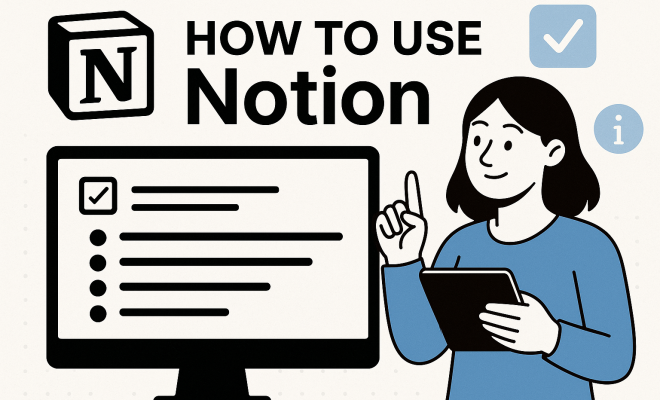
Master Notion: Your Ultimate Guide to Digital Organization
“`html
1. Introduction to Notion
In the modern age of digital organization, Notion stands out as a versatile tool that combines note-taking, task management, and database functionalities into one cohesive platform. Launched in 2016, Notion has rapidly gained popularity for its flexibility and customizability. It is favored by individuals, teams, and organizations alike for its ability to adapt to various workflows. But how to use Notion to maximize its potential? This guide dives deep into the nuances of Notion, offering insights and practical tips to help you harness its capabilities effectively.
2. Understanding Notion’s Interface
Before diving into the specifics of how to use Notion, it’s crucial to familiarize yourself with its interface. Notion’s layout is clean and minimalist, allowing users to focus on content rather than clutter. When you first log in, you’ll encounter a sidebar on the left, which holds your workspace, pages, and templates.
The main workspace is where the magic happens. You can create pages in a hierarchical structure, allowing for nested pages. Each page can contain various types of content, from text and images to databases and embedded files. Understanding this layout helps in organizing your information efficiently.
3. Creating and Organizing Pages
One of the first steps in learning how to use Notion is mastering page creation and organization. To create a page, simply click the “+” icon in the sidebar or use the keyboard shortcut. Pages can be customized with titles, icons, and covers, offering a personal touch to your workspace.
To maintain organization, consider using a system of tags or categories. For instance, you might have separate pages for personal projects, work tasks, or even a reading list. Notion allows you to link pages together, creating a network of related information. This interconnectedness is one of the key features that makes Notion a superior choice for knowledge management.
4. Utilizing Templates for Efficiency
Notion offers a plethora of built-in templates designed to streamline your work processes. You can find templates for everything from project management to meeting notes and personal goals. To access templates, simply click on “Templates” in the sidebar.
Using templates can significantly reduce the time spent on setup. For instance, if you’re handling a project, the project management template can provide a structured layout, including task lists, timelines, and team assignments. This not only enhances efficiency but also helps maintain consistency across different projects.
5. Task Management in Notion
If you’re searching for “how to use Notion” specifically for task management, you’re in luck. Notion excels in this area, allowing users to create to-do lists, Kanban boards, and calendars. To create a task list, you can simply start a new page or use a template. Tasks can be customized with due dates, tags, and priorities, enabling you to track progress easily.
For a more visual approach, the Kanban board feature is invaluable. This allows you to move tasks between columns based on their status—such as To Do, In Progress, and Done. Additionally, integrating reminders can ensure you never miss a deadline, making it a robust tool for personal and team productivity.
6. Database Functionality: A Game Changer
Notion’s powerful database feature sets it apart from many other productivity tools. You can create databases for various purposes, such as tracking contacts, managing inventories, or cataloging books. Each entry in a database can be customized with properties like dates, tags, and file uploads.
Linking databases is another powerful aspect of Notion. For example, you might have a database for projects that links to a task database, allowing you to see which tasks belong to which project at a glance. This data connectivity fosters a seamless workflow, making it easier to stay organized and informed. (See: Notion software overview on Wikipedia.)
7. Collaboration Across Teams
Another key advantage of learning how to use Notion is enhancing teamwork and collaboration. Notion allows you to invite team members to your workspace and assign roles such as admin or member. This feature is vital for organizations that rely on shared information and collaboration on projects.
In addition, comments and mentions facilitate real-time communication within the platform. You can tag team members in comments for feedback, promoting a collaborative environment. The ability to view version history also means you can track changes and revert to previous versions if needed, ensuring that your team remains cohesive and informed.
8. Integrating Notion with Other Tools
While Notion is powerful on its own, its capabilities expand even further when integrated with other tools. For those wondering how to use Notion in conjunction with their existing workflow, you’ll be pleased to know that Notion supports integrations with numerous applications like Google Drive, Trello, and Slack.
For example, integrating Google Calendar can allow you to manage your schedule directly within Notion. This means you can view tasks and deadlines in one place—eliminating the need to switch between multiple applications. By leveraging these integrations, you can tailor your Notion experience to fit seamlessly into your daily routine.
9. Best Practices for Using Notion Effectively
To truly harness the power of Notion, applying best practices is essential. First, take the time to plan your workspace setup. Think about how you want to categorize information and what templates would be beneficial. Having a clear structure will make it easier to navigate your workspace later.
Also, don’t shy away from exploring the community resources. Notion has a vibrant ecosystem where users share templates and tips. Engaging with this community can provide insights into advanced functionalities and creative uses of Notion that you might not have considered.
10. Frequently Asked Questions (FAQ)
10.1. What is Notion best used for?
Notion is best used for project management, note-taking, knowledge management, and team collaboration. Its flexibility allows it to adapt to various needs, making it suitable for personal use, small teams, and even large organizations.
10.2. Can I use Notion offline?
Yes, Notion has offline capabilities, allowing you to access your pages without an internet connection. However, some features, such as real-time collaboration and syncing, will require a connection to function fully.
10.3. Is Notion secure for sensitive information?
Notion employs various security measures, including data encryption, but users should always be cautious when storing sensitive information. It’s a good practice to avoid sharing personal details if you’re using a free public workspace.
10.4. How does Notion compare to other productivity tools?
When compared to other productivity tools like Trello or Asana, Notion stands out due to its all-in-one capabilities. Unlike Trello, which focuses primarily on task management, Notion combines databases, note-taking, and project management into one platform. This makes it a versatile solution for users who want a single tool to manage different aspects of their work.
10.5. Are there any notable companies using Notion?
Absolutely! Many companies, including major players like IBM and Figma, use Notion for project management, documentation, and team collaboration. This speaks volumes about its reliability and effectiveness in professional settings.
10.6. Can I customize Notion to suit my needs?
Yes, Notion is highly customizable. You can modify templates, create your own layouts, and use various types of content blocks to tailor it to your specific needs. This flexibility is one of the reasons why many users find Notion so appealing.
11. Advanced Features of Notion
Once you’ve mastered the basics of how to use Notion, you might want to explore some of its more advanced features that can further enhance your productivity. For instance, Notion allows you to create linked databases, which can be incredibly useful for managing complex projects. (See: New York Times review of Notion.)
Linked databases let you reference data from one database in another. This means you can create a master project database that pulls in tasks from various task databases. With this setup, you can get a comprehensive overview without having to manually update multiple pages. This feature is particularly helpful for team projects where many moving parts need to be tracked simultaneously.
12. Customizing Your Notion Experience
One of the most exciting aspects of Notion is the ability to customize it to reflect your personal style and workflow. You can change the aesthetics by customizing page covers, icons, and color themes. This not only makes your workspace visually appealing but can also enhance your motivation to use the tool regularly.
Additionally, you can create custom templates tailored to your workflow. If you often find yourself doing similar tasks, setting up a unique template can save you time. For instance, you could create a custom meeting notes template that includes fields for agenda items, attendees, and action items, making it easy to replicate for future meetings.
13. Using Notion for Education
Students and educators can benefit immensely from Notion’s capabilities. Whether you’re organizing class notes, tracking assignments, or collaborating on group projects, Notion offers a robust platform to manage your academic life. You can create a database for each class, linking lecture notes, assignments, and study resources—all in one place.
For example, a student might set up a page for a specific course that includes a syllabus, lecture notes, a calendar of due dates, and a section for study materials. This integrated approach not only improves organization but also helps students stay on top of their academic responsibilities.
14. Integrating Workflows with Notion
As your familiarity with Notion grows, you may want to consider how to integrate your workflows more seamlessly. For instance, you can automate repetitive tasks by using tools like Zapier or Integromat to connect Notion with other apps you already use. This automation can save you time and reduce manual errors.
For example, you might set up a Zap that automatically creates a new task in Notion every time you receive an email marked with a specific tag in Gmail. Such integrations can drastically improve efficiency by ensuring that no important tasks fall through the cracks.
15. Common Use Cases for Notion
Understanding how to use Notion effectively often involves knowing the various use cases it can serve. Here are some common scenarios where Notion shines:
15.1. Personal Knowledge Management
Many users utilize Notion as a personal wiki to store and manage knowledge. This could include everything from recipes and travel itineraries to research notes and book summaries. The ability to create interconnected pages allows users to build a structured knowledge base that is easy to navigate and update.
15.2. Content Planning and Blogging
For bloggers and content creators, Notion can serve as an editorial calendar with features that allow you to track ideas, plan publication schedules, and even store drafts. You can create a database for blog posts where each entry contains information like the post title, status, publication date, and SEO keywords. (See: Research on digital organization tools.)
15.3. Project Tracking for Freelancers
Freelancers can benefit from Notion’s project management capabilities. You can set up a dashboard that tracks client projects, deadlines, and invoices all in one place. By using Kanban boards or timelines, you can easily visualize your workload and manage multiple clients simultaneously.
15.4. Event Planning
Notion can also be a powerful tool for organizing events. Whether it’s a wedding, a conference, or a meetup, you can create a dedicated page that includes a timeline, task assignments, budget tracking, and guest lists. This organized approach makes it easier to keep all the moving parts in check.
16. Utilizing Notion for Personal Development
Many users turn to Notion for personal growth and self-improvement. You can design a personal development dashboard that includes goal tracking, habit tracking, and journaling. For example, you might create a habit tracker that logs your daily activities, helping you stay accountable for your goals.
Additionally, Notion can host reading lists and learning goals, supporting your ambitions to acquire new knowledge or skills. By having everything in one place, you can keep your personal development journey organized and focused.
17. Community Resources and Learning
The Notion community is vibrant and full of resources that can assist you in mastering the tool. From YouTube tutorials and Reddit threads to dedicated Notion blogs, there’s a wealth of knowledge available. You can find templates shared by other users, tips on advanced features, and answers to common questions. Engaging with this community can enhance your experience and provide new perspectives on how to use Notion effectively.
18. Transitioning to Notion: Tips for New Users
If you’re transitioning from another productivity tool to Notion, here are some tips to make the shift smoother:
- Assess Your Needs: Start by listing out what you currently use and what features you need from Notion. This will help you set up a workspace that meets your requirements.
- Start Small: Don’t overwhelm yourself by trying to migrate everything at once. Begin with a few essential pages or projects to get a feel for how Notion works.
- Leverage Templates: Use templates as a starting point. Notion’s templates can help you set up your workspace more efficiently and get familiar with the layout.
- Experiment: Take time to play around with various features. The more you experiment, the more comfortable you’ll become with Notion’s functionality.
19. Conclusion: The Future of Notion in Personal and Professional Settings
As we look ahead, Notion continues to evolve and adapt to the needs of its users. With regular updates and new features, it remains a top choice for anyone aiming to improve their productivity. Whether you’re a student organizing notes, a freelancer managing clients, or a corporate team coordinating projects, knowing how to use Notion effectively can transform your workflow.
Don’t hesitate to explore its various features and make it your own. The potential to customize Notion means it can fit into almost any workflow, making it a powerful ally in achieving your organizational goals.
“`
Trending Now
Frequently Asked Questions
What is Notion used for?
Notion is a versatile digital organization tool that combines note-taking, task management, and database functionalities. It is used by individuals and teams to manage projects, organize information, and create customized workflows, making it a popular choice for both personal and professional use.
How do I create a page in Notion?
To create a page in Notion, simply click the '+' icon in the sidebar or use the keyboard shortcut. You can customize each page with titles, icons, and covers, allowing you to personalize your workspace and maintain organization.
Can I link pages in Notion?
Yes, Notion allows you to link pages together, creating a network of related information. This feature enhances organization and helps you navigate between different topics or projects efficiently, making it easier to manage your knowledge.
What features does Notion offer?
Notion offers a range of features including note-taking, task management, database creation, and the ability to embed various types of content. Its clean interface and customizable options make it a powerful tool for organizing both personal and team projects.
Is Notion suitable for team collaboration?
Absolutely! Notion is designed for both individuals and teams, allowing for real-time collaboration. Users can share pages, comment on content, and work together on projects, making it an ideal platform for collaborative efforts in various settings.
What did we miss? Let us know in the comments and join the conversation.