How to crop in Photoshop
“`html
When working with digital images, cropping is one of the most fundamental yet powerful tools to enhance your work. Knowing how to crop in Photoshop not only streamlines your workflow but also elevates the aesthetics of your images. Whether you’re a beginner seeking to learn the ropes or a seasoned pro looking to refine your techniques, this guide covers everything you need to know about cropping in Photoshop.
1. Understanding the Basics of Cropping
Before diving into the specifics of how to crop in Photoshop, it’s essential to grasp the concept of cropping itself. Cropping refers to the process of removing unwanted outer areas from an image. This can help focus attention on the main subject, adjust the composition, or improve the overall aesthetic appeal of the photograph.
In Photoshop, cropping can serve various purposes: eliminating distractions, changing the aspect ratio, and making images fit specific dimensions for printing or online use. It’s also a non-destructive process. With the right settings, you can keep the original image intact while creating a copy with your desired changes, allowing for flexibility in your editing.
2. The Cropping Tool: Your Go-To Feature
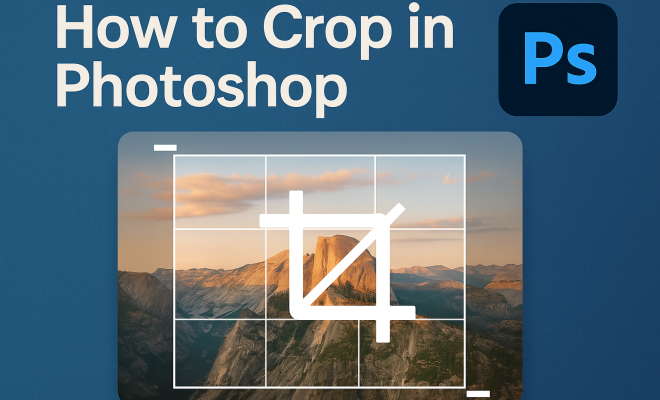
The primary tool for cropping in Photoshop is the Crop Tool, conveniently located in the Tools panel. To access it, simply click on the crop icon or press the shortcut key ‘C’. Once selected, you’ll notice a cropping rectangle appear over your image. You can adjust this area by dragging the corners or sides, which provides a visual representation of what will remain in the final image.
Photoshop also includes options to constrain the crop to specific aspect ratios or dimensions. This is particularly useful when preparing images for social media platforms, print, or specific screen sizes. By clicking on the options bar at the top, you can set a fixed ratio, like 16:9 for videos or 4:5 for Instagram posts, helping you maintain consistency across your projects.
3. Using Guides and Grids for Precision
For more precise cropping, Photoshop offers the ability to use guides and grids. These features help align your subjects according to various compositional rules, such as the Rule of Thirds or the Golden Ratio. To enable grids, go to View > Show > Grid. You can also customize the grid settings in Preferences for a more tailored experience.
By combining the Crop Tool with grids, you can ensure that essential elements of your image are positioned harmoniously. This not only enhances the visual interest but also guides the viewer’s eye to where you want it to focus, making your images more compelling.
4. Non-Destructive Cropping: How to Keep Your Original Image
One of the most significant advantages of cropping in Photoshop is the ability to do it non-destructively. By using the Crop Tool while ensuring the “Delete Cropped Pixels” option is unchecked in the options bar, you preserve the original image data. This means the parts you crop out won’t be permanently deleted—instead, they remain hidden and can be accessed later if needed.
Non-destructive cropping is particularly useful when you’re experimenting with different compositions. You can adjust the cropping area multiple times without worrying about losing any original pixel information, giving you the freedom to explore various creative directions.
5. Advanced Cropping Techniques: Beyond the Basics
Once you’re comfortable with the basic cropping techniques, it’s time to explore some advanced methods. One such technique involves using the Perspective Crop Tool, designed for architectural images or photos where perspective distortion occurs. By utilizing this tool, you can adjust the perspective while cropping, providing a more accurate representation of the subject. (See: Cropping in photography.)
Additionally, the Slice Tool allows you to divide an image into multiple pieces. This can be helpful when creating web graphics or layouts, allowing you to crop and export different sections of an image efficiently. Learning these advanced techniques can significantly enhance your photo editing capabilities and give you an edge in competitive creative fields.
6. How to Crop for Social Media: Aspect Ratios and Dimensions
With the rise of social media, understanding how to crop in Photoshop for various platforms is crucial. Different platforms have specific aspect ratios that can affect how your image is displayed. For instance, Instagram favors square (1:1) and portrait (4:5) formats, while Facebook and Twitter often use landscape (16:9) formats.
By knowing the ideal dimensions for each platform, you can crop effectively to ensure your images look their best on social media. This not only increases engagement but also maintains a professional look across your profiles. Many users overlook the importance of proper cropping, but those who grasp it can significantly improve their online presence.
7. Tips for Effective Cropping: Composition and Subject Focus
Cropping isn’t just about removing unwanted areas; it’s also about enhancing composition. One of the best practices is to always ensure your subject is well-framed. This means allowing enough space around the subject to avoid a cramped look. Keeping in mind the Rule of Thirds, try to place your subject along the intersecting lines or points for a more dynamic composition.
Another tip is to consider the direction your subject is facing. If a person or object is looking or pointing to one side of the frame, leave more space in that direction, creating a sense of balance. This subtle adjustment can transform an ordinary image into a striking visual narrative.
8. Common Mistakes to Avoid When Cropping
Even experienced Photoshop users can fall into common cropping pitfalls. One major mistake is cropping too tightly around a subject. This can leave little room for the viewer to breathe, making the image feel cramped. Always leave a bit of negative space to enhance the overall composition.
Another error is neglecting the resolution. When cropping, especially in high-resolution images, users often forget that enlarging cropped sections can lead to pixelation. Always check the resolution after cropping to ensure your image maintains its quality. By avoiding these common mistakes, you can ensure your final images are both professional and visually appealing.
9. Exploring the Impact of Cropping on Image Storytelling
Cropping plays a vital role in storytelling through photography. The way you frame your subject can significantly influence the narrative of the image. For example, cropping an image to emphasize a lone figure in a vast landscape can evoke feelings of solitude, while leaving more background can indicate context and environment, adding richness to the story. Think of cropping as a way to guide the viewer’s emotional response to your work.
Consider this: an image of a busy street can take on a completely different meaning depending on how you crop it. A tight crop around a single person can highlight themes of isolation and introspection, whereas a wider crop that includes the bustling background can convey energy and activity. By adjusting your crop, you can manipulate the viewer’s perception and engage them on a deeper level.
10. Real-World Applications of Cropping
Understanding how to crop in Photoshop is essential in various professional fields. For photographers, cropping is a critical part of the editing process that can enhance the visual impact of their portfolios. Graphic designers often use cropping to create compelling advertisements that convey messages succinctly, with cropped images that capture attention quickly.
In the fashion industry, cropping is used to highlight clothing details or models, ensuring the focus remains where it needs to be. In journalism, editors crop images to fit layouts and tell stories more effectively. Each of these applications showcases the versatility and importance of cropping in visual communication. (See: How to crop images in Photoshop.)
11. Statistics: The Importance of Cropping in Visual Media
Recent studies show that images with effective cropping receive up to 67% more engagement on social media compared to poorly cropped images. This statistic highlights the importance of attention to detail in image editing. For instance, a well-cropped Instagram photo can lead to significantly higher likes and shares, which in turn can grow your audience and improve the reach of your content.
In marketing, visuals that are cropped to focus on key elements can boost conversion rates by up to 80%. This indicates that cropping isn’t merely an aesthetic choice; it’s a strategic decision that can influence how effectively your message is communicated. Understanding these statistics emphasizes the need for attentive cropping practices in your digital art and photography.
12. Frequently Asked Questions (FAQ) about Cropping in Photoshop
What is the difference between cropping and resizing?
Cropping involves removing parts of an image to focus on a specific area or to enhance composition, while resizing changes the dimensions of the entire image without necessarily removing any content. Resizing can affect image quality, while cropping can help maintain it by focusing on the essential elements.
Can I crop in Photoshop without losing image quality?
Yes, if you use non-destructive cropping by ensuring the “Delete Cropped Pixels” option is unchecked. This way, the cropped areas are hidden, not deleted, allowing you to adjust your crop without sacrificing quality.
How do I maintain aspect ratio when cropping?
To maintain a specific aspect ratio while cropping, use the Crop Tool and set your desired ratio in the options bar at the top. This ensures that your crop will stay within the specified dimensions, which is particularly useful for preparing images for social media or print.
What are some common cropping ratios for social media?
Common cropping ratios include 1:1 for Instagram posts, 16:9 for YouTube thumbnails, 4:5 for Instagram Stories, and 1080×1080 pixels for Facebook posts. Knowing these ratios can help you design images that are optimized for each platform.
Is there a shortcut for the Crop Tool in Photoshop?
Yes, the shortcut key for the Crop Tool in Photoshop is ‘C’. This allows for quick access to the tool without having to navigate through the Tools panel.
Can I crop a video in Photoshop?
Yes, you can crop video layers in Photoshop similarly to how you would with images. Simply select the video layer, choose the Crop Tool, and adjust the crop area as needed. This feature is useful for creating engaging video clips directly within your image editing workflow.
What is the difference between the Crop Tool and the Perspective Crop Tool?
The Crop Tool allows you to remove unwanted areas from your image while maintaining the same perspective. In contrast, the Perspective Crop Tool is specifically designed to adjust the perspective of an image, making it particularly useful for correcting images of buildings or other subjects where distortion may occur.
Are there any keyboard shortcuts to quickly apply a crop?
After selecting the Crop Tool and adjusting the crop area, you can simply press ‘Enter’ to apply the crop. If you want to cancel the crop, hit ‘Esc’. This quick method can save you a lot of time when working on multiple images.
13. Creative Cropping Techniques to Explore
Once you’ve mastered the basics of cropping in Photoshop, it’s time to explore some creative techniques that can add flair to your images. For instance, try using unconventional crop shapes; instead of a standard rectangle, consider cropping into a circle, triangle, or even a custom shape. This can be done by using the shape tools to create a clipping mask. Such creativity will give your images a distinctive look that stands out.
Another technique is to create a diptych or triptych by cropping sections of one image or multiple images into smaller, cohesive parts. These segmented images can tell a more complex story or highlight different facets of the same subject. This can be especially effective in art showcases or portfolio presentations.
14. Integration with Other Tools in Photoshop
Cropping doesn’t exist in isolation; it works best when integrated with other editing tools. After cropping, consider using the Healing Brush or Clone Stamp to fix any blemishes or distractions that may have been more noticeable once the image was cropped. Adjusting exposure and contrast after cropping can also give your cropped images a professional touch, ensuring they pop with vibrancy.
Additionally, applying filters or adjustments like sharpening can enhance the cropped areas, making the final image visually engaging. Understanding how these tools work in conjunction with cropping can elevate your overall editing process.
15. The Role of Cropping in Different Photography Genres
Different photography genres often require specific cropping approaches. For portrait photography, tighter crops can help focus on a subject’s expressions and details, while landscapes might benefit from wider crops to include more of the environment. In sports photography, capturing the action might mean cropping out distractions around the main event. Understanding genre-specific cropping strategies can help you tailor your editing style to achieve the best results for each type of photography.
16. Conclusion: Elevate Your Photography with Effective Cropping
In summary, knowing how to crop in Photoshop is a fundamental skill that can significantly enhance your image editing capabilities. From utilizing the Crop Tool effectively to understanding advanced techniques, the ability to crop thoughtfully will help you create striking images. Whether you’re preparing photos for personal use or professional projects, mastering cropping will undoubtedly improve your overall photographic skills.
“`
Trending Now
Frequently Asked Questions
How do I crop an image in Photoshop?
To crop an image in Photoshop, select the Crop Tool from the Tools panel or press 'C'. Drag the corners of the cropping rectangle to adjust the area you want to keep, then press Enter to apply the crop. You can also set specific aspect ratios in the options bar for consistent dimensions.
What is the purpose of cropping an image?
Cropping an image helps to remove unwanted outer areas, focus attention on the main subject, adjust composition, and enhance the overall aesthetic. It can also change the aspect ratio and fit images for specific uses like printing or online sharing.
Can cropping in Photoshop be undone?
Yes, cropping in Photoshop is a non-destructive process if you use the right settings. You can keep the original image intact while creating a cropped copy, allowing you to revert to the original at any time if needed.
How do I maintain aspect ratio while cropping in Photoshop?
To maintain aspect ratio while cropping in Photoshop, select the Crop Tool and set a fixed ratio in the options bar at the top. This ensures that your crop adheres to specific dimensions, such as 16:9 for videos or 4:5 for Instagram posts.
Is there a shortcut to crop in Photoshop?
Yes, the shortcut to access the Crop Tool in Photoshop is the letter 'C'. This allows you to quickly select the tool and start cropping your images without navigating through the Tools panel.
What did we miss? Let us know in the comments and join the conversation.