
How to update smart TV software
“`html
As technology advances at a rapid pace, keeping your smart TV updated is essential for accessing the latest features, security improvements, and overall performance enhancements. This guide will walk you through the importance of updating smart TV software and provide step-by-step instructions to ensure your device remains at peak performance.
1. Why Update Smart TV Software?
The primary reason for updating your smart TV software is to improve functionality. TV manufacturers regularly release updates to enhance user experience, troubleshoot bugs, and add new features. For instance, an update might offer better streaming capabilities, improved picture quality, or even new apps that weren’t available previously. Additionally, updates often include critical security patches that help protect your device from vulnerabilities.
Without regular updates, your smart TV might become sluggish, lack compatibility with new apps, or even expose your personal information to hacking attempts. Imagine trying to stream the latest blockbuster only to find that your outdated software can’t handle it. Regular software updates are your best defense against such frustrating scenarios.
2. Checking Your Current Software Version
Before you embark on the journey to update smart TV software, it’s crucial to check which version your TV is currently running. Most smart TVs allow you to check the software version in the settings menu. Generally, you can find this option under “Settings” or “System” followed by “About” or “Software Information.” Familiarizing yourself with your current version helps you understand what updates are necessary and what improvements to expect.
For example, if you find you’re several versions behind, it’s a clear indication that your TV is missing out on essential updates. You can usually find the latest version number on the manufacturer’s website or customer support page. This knowledge arms you with the necessary information to effectively update your smart TV.
3. Common Methods to Update Smart TV Software
There are generally two primary methods to update smart TV software: over-the-air (OTA) updates and manual updates via USB. Over-the-air updates are convenient and usually occur automatically, provided your TV is connected to the internet. You may be prompted to install the update when it becomes available.
If your TV doesn’t support OTA updates or if you prefer to control the update process manually, you can usually download the software from the manufacturer’s website onto a USB drive. You then plug the USB drive into the TV, and the update process begins. It’s always best to follow the specific instructions provided by your manufacturer for both methods.
4. Preparing Your Smart TV for an Update
Before you initiate the update process, take a few preparatory steps to ensure everything goes smoothly. First, make sure your TV is connected to a stable internet connection. If you’re using Wi-Fi, ensure the signal is strong to avoid interruptions during the update.
Next, check if your TV has enough power. It’s advisable not to perform updates during a storm or power outage. If possible, plug your TV into a surge protector to safeguard against power fluctuations. Lastly, free up some storage space on your TV, as updates can require additional memory.
5. Performing the Update
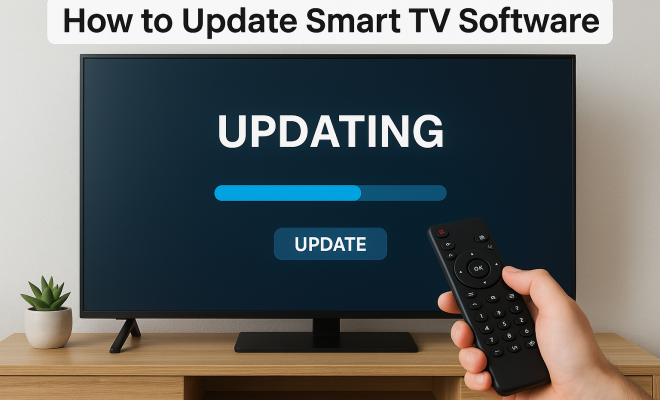
Once you’re set, it’s time to perform the update. For OTA updates, go to the settings menu and look for the “Software Update” or “Update Now” option. Click on it, and if an update is available, follow the on-screen prompts to download and install it. During this process, it’s crucial not to turn off the TV or unplug it, as this can lead to software corruption.
If you are updating via USB, ensure you have downloaded the correct software file from the manufacturer’s website. Plug the USB into your TV, navigate to the settings menu, and select the option that allows you to update from USB. Follow the prompts as the TV installs the update. Depending on the size of the update, this can take several minutes.
6. Post-Update Tasks
After the update completes, your TV will typically restart. Once it powers back up, revisit the settings menu to confirm that the software has indeed been updated to the latest version. This is a good time to adjust any settings that may have reverted back to factory defaults during the update. (See: importance of software updates.)
Additionally, test out major apps like streaming services to ensure everything is functioning correctly. Sometimes, an update can cause compatibility issues with certain applications, so it’s wise to check and troubleshoot if necessary.
7. Troubleshooting Update Issues
Even with the best preparation, you might encounter some hiccups during the update process. Common issues include the update freezing or failing to install entirely. If this happens, try restarting your TV and re-attempting the update. It may also help to reset your TV to factory settings before trying again, but be cautious, as this will erase all custom settings and installed apps.
If issues persist, consult the manufacturer’s customer service or community forums. They may have specific instructions for dealing with particular error codes or problems related to your model.
8. How Often Should You Update Smart TV Software?
The frequency of updates can vary based on the brand and model of your smart TV. Some manufacturers provide regular updates every few months, while others may only issue major updates annually. It’s good practice to check for updates at least once every month or so.
Being proactive about updates ensures that your TV continues to perform optimally and is equipped with the latest features. Additionally, it helps maintain security, as manufacturers often address vulnerabilities in their updates.
9. Considerations for Older Smart TVs
If you have an older smart TV, you might wonder whether it’s worth the effort to update its software. While the general advice is to keep your devices updated, you should consider the age of the model and the likelihood of receiving updates. Some manufacturers cease support for older models after a certain point.
If your model has not received updates for several years, it may not be worth the effort to update software, especially if the performance issues are significant. In such cases, evaluating whether to invest in a new TV may be more beneficial.
10. Final Thoughts
Updating your smart TV software is an essential task that can significantly enhance your viewing experience. From better performance to increased security, the benefits are clear. By following the steps outlined in this guide, you’ll be well-prepared to manage your smart TV’s software updates.
As technology evolves and your viewing habits change, keeping your smart TV updated will ensure you’re always at the forefront of home entertainment. So, don’t let your device fall behind — make “update smart TV software” a regular part of your tech maintenance routine. Happy watching!
11. Benefits of Regularly Updating Smart TV Software
Regularly updating your smart TV software can bring a host of benefits that enhance both usability and security. A significant advantage is the addition of new features that improve user experience. For example, recent updates have introduced features like voice control, personalized recommendations, and enhanced viewing modes tailored for specific types of content, such as sports or movies.
Security is another critical aspect. Smart TVs have become more vulnerable to hacking as they connect to the internet and other smart devices in your home. According to a study by cybersecurity firm Kaspersky, around 40% of users have experienced at least one security threat involving their smart home devices, including TVs. Regular updates help patch known security vulnerabilities and protect sensitive information.
Additionally, performance enhancements are often included in updates. These can lead to faster loading times, smoother navigation, and reduced lag when switching between apps. Such improvements can transform your viewing experience, making it much more enjoyable and hassle-free.
12. The Role of Smart TV Manufacturers in Software Updates
Smart TV manufacturers play a crucial role in the software update process. They are responsible for monitoring software performance, identifying bugs, and developing patches to fix issues as they arise. Manufacturers like Samsung, LG, and Sony typically have dedicated teams focused on software development and customer support to ensure their devices run efficiently.
Some companies, like Apple with its Apple TV, have a reputation for providing consistent updates over a longer period, while others may only focus on newer models. Understanding a manufacturer’s update policy before purchasing a smart TV can help you make a more informed decision. It’s also worth noting that some manufacturers provide users with the ability to schedule updates or even roll back to a previous version if necessary. (See: security patches for smart TVs.)
13. Popular Smart TV Brands and Their Update Policies
Different brands have varying approaches to software updates. Here are some insights into the policies of popular smart TV manufacturers:
- Samsung: Samsung regularly releases updates for its smart TVs, typically every few months. They have a dedicated update section on their website where users can check for the latest software versions.
- LG: LG provides updates for several years after a model’s release. They often focus on enhancing the smart features and usability of their TVs, so you can expect significant improvements over time.
- Sony: Sony’s update cycle can vary, but they are generally committed to providing updates for their devices for several years. They also emphasize improving security with their updates.
- TCL: As a newer player in the market, TCL has made a name for itself by providing regular updates to its smart TV software, particularly for its Roku-enabled models, ensuring access to the latest apps and features.
14. How to Know if Your Smart TV Needs an Update
Identifying whether your smart TV requires an update isn’t always straightforward. Here are some signs to look out for:
- Slow Performance: If your TV starts lagging during navigation or takes longer to open apps, it might be time to check for updates.
- App Compatibility Issues: If certain apps are crashing or not functioning as expected, newer software may be required to resolve these issues.
- Security Alerts: If you receive notifications about potential security threats or vulnerabilities, an update may be essential to safeguard your device.
- Missing Features: If you’ve heard about new features that your TV model should support but can’t find them, your software may need an update.
15. FAQ: Update Smart TV Software
What happens if I don’t update my smart TV software?
If you neglect to update your smart TV software, you risk exposing your device to security vulnerabilities, experiencing slower performance, and missing out on new features and improvements.
Can I manually check for updates on my smart TV?
Yes, you can manually check for updates in the settings menu of your smart TV. Look for options like “Software Update” or “Check for Updates.”
How long does a smart TV update take?
The duration of a smart TV update can vary based on the size of the update and your internet speed. Generally, updates can take anywhere from a few minutes to half an hour to complete.
Will updating my smart TV erase my settings?
Most updates do not erase your settings, but some updates may reset specific configurations to factory defaults. It’s best to note any unique settings you have configured just in case.
Can I schedule updates for my smart TV?
Some smart TVs have the option to schedule updates during specific times, while others may automatically update at a designated time. Check your TV’s settings to see if this option is available.
What should I do if my smart TV won’t update?
If your smart TV fails to update, try restarting the device, ensuring a stable internet connection, or checking the manufacturer’s support site for troubleshooting tips specific to your model.
How can I improve my smart TV’s performance after an update?
After an update, you can enhance your smart TV’s performance by clearing cache data from apps, removing unused applications, and periodically restarting your TV to maintain optimal functionality.
16. Additional Features That May Be Available After Updating
When you update your smart TV software, you might unlock a variety of new features. One such feature is support for new streaming services. As platforms like Disney+ and Apple TV+ continue to grow, manufacturers may push updates that enhance compatibility with these services.
Another exciting aspect is the introduction of new visual technologies. For example, updates may enable support for HDR (High Dynamic Range) content, which can significantly improve picture quality. This feature is especially important for those who value stunning visuals while watching movies or playing games. (See: enhancements in smart TV technology.)
Some updates may also refine existing features, such as voice recognition capabilities or smart home integration. As smart home technology becomes more commonplace, updating your smart TV can help it communicate better with devices like voice assistants, smart lights, and security cameras.
17. Impact of Smart TV Updates on Streaming Quality
Streaming quality can be directly influenced by software updates. For instance, many updates target improvements in streaming protocols, which can enhance buffering speeds and reduce lag. According to a survey by Streaming Media, 72% of users reported better streaming performance after a software update.
Moreover, updates may optimize network settings to ensure a smoother playback experience. This is especially relevant for users with slower internet connections who might experience interruptions or quality drops. With the right updates, your TV can adapt to changing network conditions to maintain a consistent viewing experience.
18. Customer Experiences and Feedback
User feedback on updates can vary significantly. Some users rave about the improvements they see after an update, praising enhanced interfaces and newly available features. Others, however, may share negative experiences, such as new bugs introduced or existing issues exacerbated by the update.
For instance, a popular community discussion found that certain models of smart TVs had issues with their remote functionality after an update. This feedback often leads manufacturers to address these concerns promptly, pushing out further patches to rectify such problems. Reviews and forums can be invaluable resources for understanding potential issues and benefits of specific updates.
19. When to Consult Manufacturer Support
If you encounter persistent issues with your smart TV after an update, it may be time to consult manufacturer support. Reaching out can provide you with tailored troubleshooting steps based on your specific model and software version. Additionally, manufacturers often have insights into common issues experienced by other users post-update.
Moreover, if you’re not seeing the expected improvements or new features after an update, support can clarify whether further updates are planned or if the features you anticipated are not available on your model. Always keep your purchase receipt and warranty information handy when contacting support to facilitate quicker assistance.
20. Summary of Best Practices for Smart TV Software Updates
To wrap up, here are some best practices to keep in mind when updating your smart TV software:
- Regularly check for updates, at least once a month.
- Follow manufacturer instructions closely for both OTA and USB updates.
- Ensure your TV is connected to a stable power source and internet connection during updates.
- Take note of your settings prior to an update to easily restore them if necessary.
- Engage with community forums or customer support if issues arise post-update.
By adhering to these practices, you can maximize the benefits of your smart TV updates and enjoy a seamless viewing experience.
“`
Trending Now
- read the full story
- this guide on why official development assistance is more crucial than ever for global stability
- this guide on why iran oil prices aren’t spiking: the market’s surprising reaction explained
- our breakdown of the hidden importance of legal disclaimers: what you need to know
Frequently Asked Questions
Why is it important to update my smart TV software?
Updating your smart TV software is crucial for improving functionality, accessing new features, and enhancing security. Manufacturers regularly release updates to fix bugs, improve performance, and ensure compatibility with new apps, thereby providing a better overall user experience.
How do I check my smart TV's current software version?
To check your smart TV's current software version, navigate to the settings menu, typically found under 'Settings' or 'System,' then look for 'About' or 'Software Information.' This helps you determine if an update is needed.
What happens if I don't update my smart TV?
If you don't update your smart TV, it may become sluggish, lack compatibility with new apps, and expose your personal information to security vulnerabilities. Regular updates help ensure optimal performance and protection against potential threats.
How often should I update my smart TV software?
It's advisable to check for smart TV software updates at least once a month. However, you should also look for updates whenever you notice performance issues or when new features and apps are announced by the manufacturer.
Where can I find the latest software version for my smart TV?
You can find the latest software version for your smart TV on the manufacturer's official website or their customer support page. This information will help you determine if your TV requires an update.
What’s your take on this? Share your thoughts in the comments below — we read every one.


