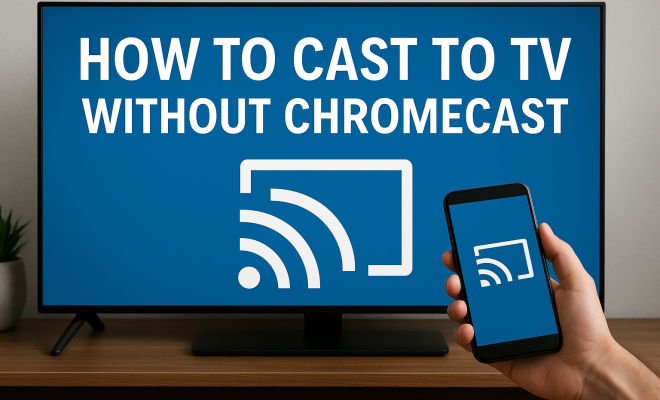
How to cast to TV without Chromecast
“`html
Streaming content on a big screen can enhance your viewing experience, but for those who don’t own a Chromecast, the options might seem limited. In this guide, we’ll explore how to cast to TV without Chromecast using various alternative methods and devices. Whether you’re looking to mirror your smartphone, project a laptop screen, or stream from apps, we’ve got you covered with practical insights and easy-to-follow steps.
1. Using Smart TV’s Built-in Features
Most modern Smart TVs come equipped with built-in casting technologies. These features often support popular standards like Miracast or DLNA, enabling you to connect your devices without needing additional hardware. If you’re looking to cast to TV without Chromecast, your first step should be to check if your TV supports these functionalities.
For example, if you have a Samsung Smart TV, you can use the Smart View feature to mirror your smartphone or tablet’s screen. Simply ensure that your TV and device are connected to the same Wi-Fi network, select the screen mirroring option from your device settings, and choose your TV from the list of available devices. The setup process is typically straightforward and requires minimal configuration.
2. Using Apple AirPlay
If you own an Apple device, AirPlay is a seamless way to cast to your TV without Chromecast. Many Smart TVs, especially models from LG, Samsung, and Sony, include AirPlay support. This feature allows users to stream or mirror content directly from an iPhone, iPad, or Mac to the television.
To use AirPlay, ensure your Apple device and the TV are on the same Wi-Fi network. On your iPhone, swipe down from the top right corner to open the Control Center, tap on Screen Mirroring, and select your TV. For Mac users, clicking the AirPlay icon in the menu bar will allow you to connect to your TV. This is particularly useful for sharing photos, videos, or even presentations directly on a larger screen.
3. Utilizing HDMI Cables
For those who prefer a wired connection, using an HDMI cable is a reliable alternative to casting wirelessly. Whether you’re connecting a laptop, desktop, or mobile device, an HDMI cable can transmit both video and audio signals directly to your TV.
To connect, simply plug one end of the HDMI cable into your device and the other into an available HDMI port on your TV. You might need to switch the TV’s input source to the appropriate HDMI channel. This method not only provides a stable connection with minimal lag, but it also supports high-definition video playback. It’s especially beneficial for gamers who require a fast and stable connection during gameplay.
4. Using Third-party Apps
Several third-party apps enable users to cast content to their TVs without requiring a Chromecast. Apps like AllCast and LocalCast allow you to stream photos, videos, and music from your smartphone or tablet directly to your TV, provided both devices are on the same Wi-Fi network.
To get started, download the chosen app from your device’s app store. Once installed, open the app, select the media you want to cast, and look for the casting option within the app. This approach can be especially useful for those who want to access content stored directly on their devices, as well as content from online services. (See: Understanding Smart TVs and their features.)
5. Using a Fire Stick or Roku
If you’re looking to cast to TV without Chromecast and own an Amazon Fire Stick or Roku device, you’re in luck. Both platforms come with built-in casting options that allow you to stream content from your phone or computer.
For Fire Stick users, the Fire TV app can be installed on your mobile device, which offers a screen mirroring feature. Simply open the app, connect to your Fire Stick, and start casting. Roku devices also support screen mirroring; just enable the feature in the settings and follow similar steps to connect your mobile device or computer to the TV.
6. Using Windows 10’s ‘Project to This PC’ Feature
Windows 10 offers a built-in feature called ‘Project to this PC’ that allows your computer to act as a screen receiver, enabling you to cast your computer’s screen to a compatible Smart TV. This feature works best with devices that support Miracast.
To set this up, navigate to the Settings menu on your Windows PC. Click on ‘System’ and then select ‘Projecting to this PC.’ From there, adjust the settings to allow devices to project to your computer. Once configured, you can simply press the Windows key + P on your keyboard and select ‘Connect to a wireless display.’ Your Smart TV should appear in the list of available devices, and you can select it to begin projecting your screen.
7. Using Game Consoles
If you own a gaming console like the PlayStation or Xbox, you can use these systems to cast to your TV without needing Chromecast. Both consoles support various media streaming applications that allow you to cast or mirror content from your mobile device or computer.
For instance, with the PlayStation, you can use the PS4 or PS5 to stream media through apps like YouTube or Netflix directly. Similarly, Xbox provides access to the Xbox app, which allows you to stream media from your mobile device to the console, which is then displayed on your TV. This method is particularly appealing for gamers who want to switch between gaming and streaming without changing devices.
8. Exploring Alternative Streaming Devices
If you don’t have Chromecast and don’t want to rely on built-in TV features, consider investing in alternative streaming devices. Options like the Nvidia Shield, Apple TV, or even a simple HDMI dongle can offer casting capabilities similar to Chromecast.
These devices often come with their own ecosystems and apps, allowing you to stream content from various services effortlessly. They typically include screen mirroring functionalities compatible with both Android and Apple devices, making them versatile options for casting to TV without Chromecast. The initial investment can pay off in terms of convenience and the range of content available at your fingertips.
9. Common Issues and Troubleshooting
Despite the variety of options available for casting to your TV without Chromecast, you may occasionally run into issues. Here are some common problems users face and how to troubleshoot them:
- Connection Problems: If your devices don’t connect, ensure they’re on the same Wi-Fi network. Restarting your router can sometimes help.
- Audio and Video Sync Issues: If the audio lags behind the video, check the settings of your casting app or TV. Some apps provide options to adjust the audio delay.
- App Compatibility: Not all apps support casting. Make sure the app you’re using has the casting feature enabled or try a different app.
- Screen Resolution Issues: If the image quality is poor, check both the casting settings on your device and the resolution settings on your TV. Adjusting these can lead to improvements.
10. Device Comparisons: Chromecast vs Alternatives
When considering how to cast to TV without Chromecast, it helps to compare the alternatives. Below is a brief comparison of some popular options: (See: Health implications of screen time.)
| Device | Pros | Cons |
|---|---|---|
| Smart TVs | Built-in features, no extra cost | Limited to specific brands and models |
| Apple TV | Seamless integration with Apple devices | More expensive than other options |
| Roku | User-friendly interface, wide app support | Some models may not support 4K |
| Fire Stick | Affordable, Alexa integration | Less flexible than other devices |
| HDMI Cables | Reliable connection, no lag | Tethered to the TV, limited mobility |
11. Frequently Asked Questions (FAQ)
Here are some common questions regarding casting to TV without Chromecast:
1. Can I cast my phone to TV without an app?
Yes, many Smart TVs support native screen mirroring options like Miracast or DLNA, allowing you to cast without downloading an app.
2. Do I need an internet connection to cast to my TV?
For most casting methods, both devices should be on the same Wi-Fi network. However, some methods, like HDMI cables, only require a connection to the TV.
3. Can I use my laptop to cast to the TV?
Absolutely! You can use HDMI cables, or if your TV supports it, you can use your laptop’s screen mirroring features to cast wirelessly.
4. Is there a limit to what I can cast?
It depends on the device and app you are using. Some apps may limit the type of content you can cast, while others may provide broader access.
5. What if my TV doesn’t support casting?
If your TV lacks built-in casting features, consider using a streaming device like Roku or Amazon Fire Stick, or simply connect via HDMI.
12. Future of Casting Technology
As technology advances, we can expect even more seamless options for casting to TVs without using Chromecast. The rise of new standards like Wi-Fi 6 and enhanced Bluetooth capabilities may further streamline the casting process, allowing for faster connections and higher quality streams.
Additionally, innovations in AI and smart home technology could integrate casting functionalities into everyday devices, making it easier than ever to share content on larger screens. The potential for cross-platform compatibility is also promising, allowing for a more unified experience across different brands and devices.
13. Examining the Cost of Alternatives
When evaluating how to cast to TV without Chromecast, it’s essential to consider the costs associated with the alternatives. While some options, like using built-in Smart TV features, come at no additional cost, others might require investments in hardware or apps.
For example, streaming devices like Roku or Amazon Fire Stick typically range from $30 to $50, depending on the model and features. On the other hand, HDMI cables are generally inexpensive, often available for under $10. If you’re looking for a more comprehensive solution with advanced features, investing in devices like the Apple TV can set you back anywhere from $150 to $200.
It’s also worth considering the long-term benefits. An investment in a device that enhances your viewing experience and offers additional features—like voice control or access to exclusive content—might be worthwhile. It’s all about finding the right balance between your budget and your streaming needs.
14. Security Considerations
When casting to your TV, especially over Wi-Fi, it’s vital to keep security in mind. Open networks can expose your devices to potential threats. Always ensure that your home Wi-Fi is secured with a strong password.
Furthermore, some casting apps may request access to personal data or device features, so it’s essential to review the permissions you grant. Look for reputable apps in official app stores to minimize risks. Keeping your devices updated with the latest security patches can also help protect your information and privacy.
15. Real-World Use Cases
Understanding how to cast to TV without Chromecast opens doors to various practical applications. Here are some real-world scenarios that illustrate the diverse uses of casting technology:
- Family Movie Nights: Want to enjoy a movie with family or friends? Use your phone’s video library to cast films directly to the TV without any additional devices.
- Gaming Competitions: Gamers can mirror their gameplay on larger screens, allowing friends to watch in real-time during gaming sessions, enhancing the overall experience.
- Business Presentations: Professionals can use screen mirroring features to display presentations or reports on larger screens during meetings without the hassle of connecting wires.
- Fitness Classes: Stream workout videos from your tablet to the TV, making it easier to follow along in your living room.
16. Conclusion: The Versatile Landscape of Casting
As streaming technology continues to evolve, the options for casting to your TV without a Chromecast have become more abundant and accessible. By leveraging your existing devices and exploring available alternatives, you can enhance your viewing experience without feeling tethered to one specific brand or product. So, whether it’s a Smart TV, a game console, or a simple HDMI cable, you have plenty of options to cast to your TV without Chromecast and enjoy your favorite content on a larger screen.
“`
Trending Now
Frequently Asked Questions
How can I cast to my TV without Chromecast?
You can cast to your TV without Chromecast by using your Smart TV's built-in features like Miracast or DLNA, utilizing Apple AirPlay for Apple devices, or connecting via HDMI cables from your laptop or smartphone.
What devices support casting without Chromecast?
Many modern Smart TVs support casting through built-in features like Miracast and AirPlay. Additionally, devices such as laptops and smartphones can connect using HDMI cables to project content onto your TV.
Can I use my smartphone to cast to a TV?
Yes, you can use your smartphone to cast to a TV by checking if your Smart TV supports screen mirroring features like Miracast or by using Apple AirPlay if you have an Apple device.
What is the easiest way to mirror my screen to a TV?
The easiest way to mirror your screen to a TV is by using your Smart TV's built-in screen mirroring feature, or if you have an Apple device, utilizing AirPlay for seamless connectivity.
Do I need special equipment to cast to my TV?
No special equipment is needed to cast to your TV if it has built-in casting features. You can use your existing Smart TV capabilities, AirPlay for Apple devices, or simply connect with an HDMI cable.
What did we miss? Let us know in the comments and join the conversation.