The Tech Edvocate

Top Menu

  • Advertisement
  • Apps
  • Home Page
  • Home Page Five (No Sidebar)
  • Home Page Four
  • Home Page Three
  • Home Page Two
  • Home Tech2
  • Icons [No Sidebar]
  • Left Sidbear Page
  • Lynch Educational Consulting
  • My Account
  • My Speaking Page
  • Newsletter Sign Up Confirmation
  • Newsletter Unsubscription
  • Our Brands
  • Page Example
  • Privacy Policy
  • Protected Content
  • Register
  • Request a Product Review
  • Shop
  • Shortcodes Examples
  • Signup
  • Start Here
    • Governance
    • Careers
    • Contact Us
  • Terms and Conditions
  • The Edvocate
  • The Tech Edvocate Product Guide
  • Topics
  • Write For Us
  • Advertise

Main Menu

  • Start Here
    • Our Brands
    • Governance
      • Lynch Educational Consulting, LLC.
      • Dr. Lynch’s Personal Website
      • Careers
    • Write For Us
    • The Tech Edvocate Product Guide
    • Contact Us
    • Books
    • Edupedia
    • Post a Job
    • The Edvocate Podcast
    • Terms and Conditions
    • Privacy Policy
  • Topics
    • Assistive Technology
    • Child Development Tech
    • Early Childhood & K-12 EdTech
    • EdTech Futures
    • EdTech News
    • EdTech Policy & Reform
    • EdTech Startups & Businesses
    • Higher Education EdTech
    • Online Learning & eLearning
    • Parent & Family Tech
    • Personalized Learning
    • Product Reviews
  • Advertise
  • Tech Edvocate Awards
  • The Edvocate
  • Pedagogue
  • School Ratings

logo

The Tech Edvocate

  • Start Here
    • Our Brands
    • Governance
      • Lynch Educational Consulting, LLC.
      • Dr. Lynch’s Personal Website
        • My Speaking Page
      • Careers
    • Write For Us
    • The Tech Edvocate Product Guide
    • Contact Us
    • Books
    • Edupedia
    • Post a Job
    • The Edvocate Podcast
    • Terms and Conditions
    • Privacy Policy
  • Topics
    • Assistive Technology
    • Child Development Tech
    • Early Childhood & K-12 EdTech
    • EdTech Futures
    • EdTech News
    • EdTech Policy & Reform
    • EdTech Startups & Businesses
    • Higher Education EdTech
    • Online Learning & eLearning
    • Parent & Family Tech
    • Personalized Learning
    • Product Reviews
  • Advertise
  • Tech Edvocate Awards
  • The Edvocate
  • Pedagogue
  • School Ratings
  • Slik leser du casinovurderinger utover poengsummen

  • Casinoomtaler som sammenligningsverktøy for ulike spillbehov

  • Slik skiller du dokumenterte casinoopplysninger fra reklameløfter

  • Bevisverdi i casinoanmeldelser

  • Klare begreper gjør casinoomtaler lettere å vurdere

  • Hvordan finner du casinoomtaler som passer dine prioriteringer?

  • Bak spillisten: slik vurderer du utvalg og leverandører

  • Slik vurderer du casinoer med konsekvente kriterier

  • Lisens og jurisdiksjon i casinoanmeldelser: slik vurderer du opplysningene

  • The Brutal Truth: How Microsoft Buyouts Could Gut Your Favorite Xbox Games

Assistive Technology
Home›Assistive Technology›Ways to Temporarily Disable Windows Security in Windows 11

Ways to Temporarily Disable Windows Security in Windows 11
By Matthew Lynch
June 22, 2023
0
Spread the love

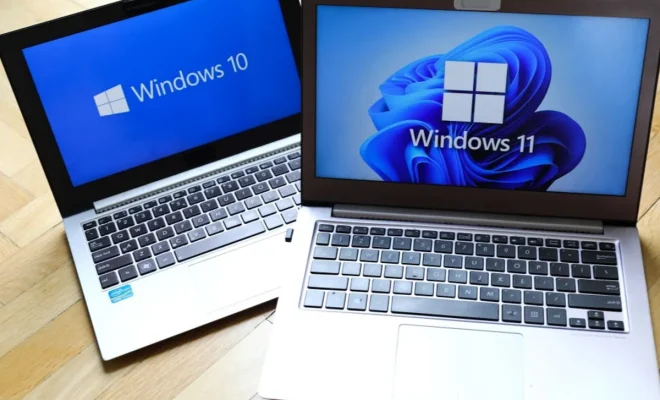
Windows 11 has promised to improve the security of its operating system, with enhanced security features that build upon the already robust Windows 10 security platform. However, there may be times when you need to disable a security feature temporarily. This article outlines ways to temporarily disable Windows security in Windows 11.

1. Turn off Windows Defender Antivirus

Windows Defender Antivirus is the built-in antivirus software in Windows 11 that helps protect your device from threats like viruses, malware, ransomware, and spyware. To disable it temporarily, follow these steps:

Step 1: Open Start menu and type Security, then click on “Windows Security” to open it.

Step 2: Click on “Virus & threat protection.”

Step 3: Click on “Manage settings” under the “Virus & threat protection settings” section.

Step 4: Turn off the toggle switch of “Real-time protection” to temporarily disable the Windows Defender antivirus.

Note: This is not recommended to turn off the antivirus feature for a long time. It may expose your computer to security risks such as a virus or malware attack.

2. Disable Windows Firewall

Windows Firewall is a security feature that filters incoming and outgoing network traffic. If you need to disable it temporarily, follow these steps:

Step 1: Open Start menu and type Control Panel. Then click on “Control Panel” to open it.

Step 2: Click on “System and Security.”

Step 3: Click on “Windows Defender Firewall.”

Step 4: Select “Turn Windows Defender Firewall on or off.”

Step 5: Select “Turn off Windows Defender Firewall (not recommended)” to disable it temporarily.

Note: This is not recommended to turn off the firewall feature for a long time. It may expose your computer to security risks such as network attacks.

3. Disable User Account Control (UAC)

User Account Control (UAC) is a security feature that helps prevent unauthorized access to your computer. If you need to disable it temporarily, follow these steps:

Step 1: Open Start menu and type Control Panel.

Step 2: Click on “Control Panel” to open it.

Step 3: Click on “User Accounts.”

Step 4: Click on “Change User Account Control settings.”

Step 5: Move the slider to the bottom to “Never notify” to disable UAC temporarily, then click on “OK.”

Note: This is not recommended to disable UAC for a long time. It may expose your computer to security risks such as unauthorized access.

Conclusion

Windows 11 has made significant improvements to its security features, which aim to protect your computer from various threats. However, there may be situations where you need to disable some security features temporarily. Make sure to enable them back after you complete your task. It is important to keep in mind that disabling security features can expose your computer to attacks and increase the risk of security breaches.


Previous Article

How to Use Lyrics to Search for ...

Next Article

How to Use Clonezilla to Clone Your ...

Matthew Lynch

Related articles More from author

  • Assistive Technology

    How (and Why) to Post an Instagram Collab

    June 12, 2023
    By Matthew Lynch
  • Assistive Technology

    How to Create an iMessage Group Chat

    June 15, 2023
    By Matthew Lynch
  • Assistive Technology

    How to Hide Speaker Wire in the Home

    June 10, 2023
    By Matthew Lynch
  • Assistive Technology

    How to Fix the “This App Can’t Open” Error in Windows 10 & 11

    June 11, 2023
    By Matthew Lynch
  • Assistive Technology

    How to Fix It When Your Roku Remote Is Not Working

    June 6, 2023
    By Matthew Lynch
  • Assistive Technology

    How to Track Your Child’s Phone and Keep Them Safe

    June 9, 2023
    By Matthew Lynch

Search

Login & Registration

  • Log in
  • Entries feed
  • Comments feed
  • WordPress.org

Newsletter

Signup for The Tech Edvocate Newsletter and have the latest in EdTech news and opinion delivered to your email address!

About Us

Since technology is not going anywhere and does more good than harm, adapting is the best course of action. That is where The Tech Edvocate comes in. We plan to cover the PreK-12 and Higher Education EdTech sectors and provide our readers with the latest news and opinion on the subject. From time to time, I will invite other voices to weigh in on important issues in EdTech. We hope to provide a well-rounded, multi-faceted look at the past, present, the future of EdTech in the US and internationally.

We started this journey back in June 2016, and we plan to continue it for many more years to come. I hope that you will join us in this discussion of the past, present and future of EdTech and lend your own insight to the issues that are discussed.

Newsletter

Signup for The Tech Edvocate Newsletter and have the latest in EdTech news and opinion delivered to your email address!

Contact Us

The Tech Edvocate
910 Goddin Street
Richmond, VA 23231
(601) 630-5238
[email protected]

Copyright © 2026 Matthew Lynch. All rights reserved.