The Tech Edvocate

Top Menu

  • Advertisement
  • Apps
  • Home Page
  • Home Page Five (No Sidebar)
  • Home Page Four
  • Home Page Three
  • Home Page Two
  • Home Tech2
  • Icons [No Sidebar]
  • Left Sidbear Page
  • Lynch Educational Consulting
  • My Account
  • My Speaking Page
  • Newsletter Sign Up Confirmation
  • Newsletter Unsubscription
  • Our Brands
  • Page Example
  • Privacy Policy
  • Protected Content
  • Register
  • Request a Product Review
  • Shop
  • Shortcodes Examples
  • Signup
  • Start Here
    • Governance
    • Careers
    • Contact Us
  • Terms and Conditions
  • The Edvocate
  • The Tech Edvocate Product Guide
  • Topics
  • Write For Us
  • Advertise

Main Menu

  • Start Here
    • Our Brands
    • Governance
      • Lynch Educational Consulting, LLC.
      • Dr. Lynch’s Personal Website
      • Careers
    • Write For Us
    • The Tech Edvocate Product Guide
    • Contact Us
    • Books
    • Edupedia
    • Post a Job
    • The Edvocate Podcast
    • Terms and Conditions
    • Privacy Policy
  • Topics
    • Assistive Technology
    • Child Development Tech
    • Early Childhood & K-12 EdTech
    • EdTech Futures
    • EdTech News
    • EdTech Policy & Reform
    • EdTech Startups & Businesses
    • Higher Education EdTech
    • Online Learning & eLearning
    • Parent & Family Tech
    • Personalized Learning
    • Product Reviews
  • Advertise
  • Tech Edvocate Awards
  • The Edvocate
  • Pedagogue
  • School Ratings

logo

The Tech Edvocate

  • Start Here
    • Our Brands
    • Governance
      • Lynch Educational Consulting, LLC.
      • Dr. Lynch’s Personal Website
        • My Speaking Page
      • Careers
    • Write For Us
    • The Tech Edvocate Product Guide
    • Contact Us
    • Books
    • Edupedia
    • Post a Job
    • The Edvocate Podcast
    • Terms and Conditions
    • Privacy Policy
  • Topics
    • Assistive Technology
    • Child Development Tech
    • Early Childhood & K-12 EdTech
    • EdTech Futures
    • EdTech News
    • EdTech Policy & Reform
    • EdTech Startups & Businesses
    • Higher Education EdTech
    • Online Learning & eLearning
    • Parent & Family Tech
    • Personalized Learning
    • Product Reviews
  • Advertise
  • Tech Edvocate Awards
  • The Edvocate
  • Pedagogue
  • School Ratings
  • A Visitors Guide to Long Beach (CA), United States

  • A Visitor’s Guide to Fresno (CA), United States

  • A Visitors Guide to New Orleans (LA), United States

  • A Visitors Guide to Sacramento (CA), United States

  • A Visitors Guide to Lyon, France

  • JisuLife Ultra2 Portable Fan: A Powerful Multi-Function Cooling Solution

  • A Visitors Guide to Viña del Mar, Chile

  • A Visitors Guide to Århus, Denmark

  • A Visitors Guide to Bakersfield (CA), United States

  • A Visitors Guide to Aurora (CO), United States

Online Learning & eLearning
Home›Online Learning & eLearning›Instructions for a Mediacom Cable Remote

Instructions for a Mediacom Cable Remote
By Matthew Lynch
March 27, 2023
0
Spread the love

Mediacom Cable is a trusted and reliable cable TV provider that has gained popularity in recent years. Among the many features of their services is the Mediacom Cable Remote, which allows users to easily navigate their cable programming options. In this article, we will provide instructions on how to use the Mediacom Cable Remote effectively.

Step 1: Power On

The first step is to turn on your television set and cable box. You can do this by pressing the power button on your Mediacom Cable Remote. The power button is marked with a small circle with a line coming out of the top.

Step 2: Choose Input Source

After your TV and cable box are turned on, you need to choose the input source on your TV. To do this, press the “TV” button on your remote. You will see a list of input options on your TV screen, including cable, HDMI, and USB. Use the arrow buttons on the remote to select “Cable,” which is the default input source for Mediacom Cable TV.

Step 3: Channel Selection

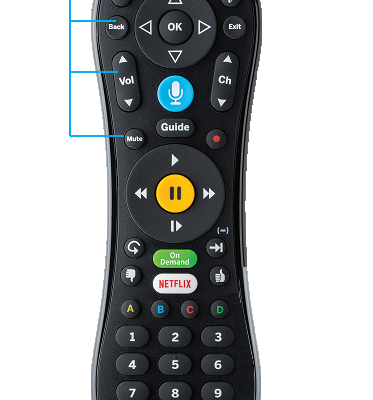
Once you’ve selected the Cable input source, you can navigate through the available channels using the channel up and down buttons on your remote. These buttons are located on the right-hand side of the remote and have arrows pointing up and down.

Step 4: Volume Control

To control the volume on your TV, use the volume control buttons on the Mediacom Cable Remote. These buttons are located on the left-hand side of the remote and are marked with plus (+) and minus (-) signs.

Step 5: Accessibility

The remote also offers accessibility options such as closed captioning and audio descriptions. Press the text button on your remote to turn on closed captioning, which displays the audio as text on the screen. You can also activate audio descriptions, which describe the audio in a program for people with visual impairments, by pressing the AD button on your remote.

Step 6: Recording Shows

To record a show, you need to set up a DVR or digital video recorder. Once you have set up your DVR, press the “Recording” button on your remote to initiate recording. You can also use this button to pause and resume recording.

Step 7: Navigation

The Mediacom Cable Remote comes with advanced navigation features, such as a Back button that takes you to the previous screen and a Guide button that provides a program guide. You can also search for specific programs or channels using the Search button on your remote.

Conclusion The Mediacom Cable Remote is a powerful tool for navigating through your cable programming options. We hope this article has provided useful instructions to help you use your remote effectively. Remember to keep your remote clean and free of obstructions, and replace the batteries as necessary to ensure optimal performance. Enjoy your Mediacom Cable experience!

Previous Article

Instagram is letting some people post on ...

Next Article

iOS 16: How to Set Different Lock ...

Matthew Lynch

Related articles More from author

  • Online Learning & eLearning

    What Is a Raspberry Pi Cluster and What Is It For?

    June 23, 2023
    By Matthew Lynch
  • Online Learning & eLearning

    Can Blockchain Technology Improve Online Learning?

    May 30, 2023
    By Matthew Lynch
  • Online Learning & eLearning

    How to Watch My U-Verse on the Internet

    March 27, 2023
    By Matthew Lynch
  • Online Learning & eLearning

    3 Essential Online Learning Best Practices

    December 21, 2021
    By Matthew Lynch
  • Online Learning & eLearning

    Recover Deleted Text Messages on Your iPhone Without Having to Restore

    March 29, 2023
    By Matthew Lynch
  • Online Learning & eLearning

    Top 6 Ways to Fix Printer Driver Is Unavailable Error on Windows 11

    April 3, 2023
    By Matthew Lynch

Search

Login & Registration

  • Register
  • Log in
  • Entries feed
  • Comments feed
  • WordPress.org

Newsletter

Signup for The Tech Edvocate Newsletter and have the latest in EdTech news and opinion delivered to your email address!

About Us

Since technology is not going anywhere and does more good than harm, adapting is the best course of action. That is where The Tech Edvocate comes in. We plan to cover the PreK-12 and Higher Education EdTech sectors and provide our readers with the latest news and opinion on the subject. From time to time, I will invite other voices to weigh in on important issues in EdTech. We hope to provide a well-rounded, multi-faceted look at the past, present, the future of EdTech in the US and internationally.

We started this journey back in June 2016, and we plan to continue it for many more years to come. I hope that you will join us in this discussion of the past, present and future of EdTech and lend your own insight to the issues that are discussed.

Newsletter

Signup for The Tech Edvocate Newsletter and have the latest in EdTech news and opinion delivered to your email address!

Contact Us

The Tech Edvocate
910 Goddin Street
Richmond, VA 23231
(601) 630-5238
[email protected]

Copyright © 2025 Matthew Lynch. All rights reserved.