The Tech Edvocate

Top Menu

  • Advertisement
  • Apps
  • Home Page
  • Home Page Five (No Sidebar)
  • Home Page Four
  • Home Page Three
  • Home Page Two
  • Home Tech2
  • Icons [No Sidebar]
  • Left Sidbear Page
  • Lynch Educational Consulting
  • My Account
  • My Speaking Page
  • Newsletter Sign Up Confirmation
  • Newsletter Unsubscription
  • Our Brands
  • Page Example
  • Privacy Policy
  • Protected Content
  • Register
  • Request a Product Review
  • Shop
  • Shortcodes Examples
  • Signup
  • Start Here
    • Governance
    • Careers
    • Contact Us
  • Terms and Conditions
  • The Edvocate
  • The Tech Edvocate Product Guide
  • Topics
  • Write For Us
  • Advertise

Main Menu

  • Start Here
    • Our Brands
    • Governance
      • Lynch Educational Consulting, LLC.
      • Dr. Lynch’s Personal Website
      • Careers
    • Write For Us
    • The Tech Edvocate Product Guide
    • Contact Us
    • Books
    • Edupedia
    • Post a Job
    • The Edvocate Podcast
    • Terms and Conditions
    • Privacy Policy
  • Topics
    • Assistive Technology
    • Child Development Tech
    • Early Childhood & K-12 EdTech
    • EdTech Futures
    • EdTech News
    • EdTech Policy & Reform
    • EdTech Startups & Businesses
    • Higher Education EdTech
    • Online Learning & eLearning
    • Parent & Family Tech
    • Personalized Learning
    • Product Reviews
  • Advertise
  • Tech Edvocate Awards
  • The Edvocate
  • Pedagogue
  • School Ratings

logo

The Tech Edvocate

  • Start Here
    • Our Brands
    • Governance
      • Lynch Educational Consulting, LLC.
      • Dr. Lynch’s Personal Website
        • My Speaking Page
      • Careers
    • Write For Us
    • The Tech Edvocate Product Guide
    • Contact Us
    • Books
    • Edupedia
    • Post a Job
    • The Edvocate Podcast
    • Terms and Conditions
    • Privacy Policy
  • Topics
    • Assistive Technology
    • Child Development Tech
    • Early Childhood & K-12 EdTech
    • EdTech Futures
    • EdTech News
    • EdTech Policy & Reform
    • EdTech Startups & Businesses
    • Higher Education EdTech
    • Online Learning & eLearning
    • Parent & Family Tech
    • Personalized Learning
    • Product Reviews
  • Advertise
  • Tech Edvocate Awards
  • The Edvocate
  • Pedagogue
  • School Ratings
  • Trader Joe’s March 2026 Arrivals: Affordable Gems and Customer Favorites

  • Mark Sprague Takes the Helm as Director of St. Pete-Clearwater International Airport

  • Consumer Attitudes Toward Editing Claim Images: A Growing Concern for Insurers

  • ProstaVive: A Comprehensive Review of the Prostate Health Supplement in 2026

  • Discover Trader Joe’s Top Picks for 2026: Customer Choice Awards Highlights

  • U.S. Stock Market Faces Uncertainty Amid Rising Oil Prices and Geopolitical Tensions

  • Asian Markets Show Mixed Results Amid Rising Oil Prices and U.S. Futures Decline

  • Stability in Fuel Prices Amidst Global Crude Market Turmoil: An Analysis

  • Crude Oil Prices Surge Amid Tensions in the Strait of Hormuz

  • Indian Stock Market Opens Flat Amid Geopolitical Tensions and Oil Price Fluctuations

Digital & Mobile Technology
Home›Digital & Mobile Technology›How to Use FaceTime on Your Laptop

How to Use FaceTime on Your Laptop
By Matthew Lynch
May 30, 2023
0
Spread the love

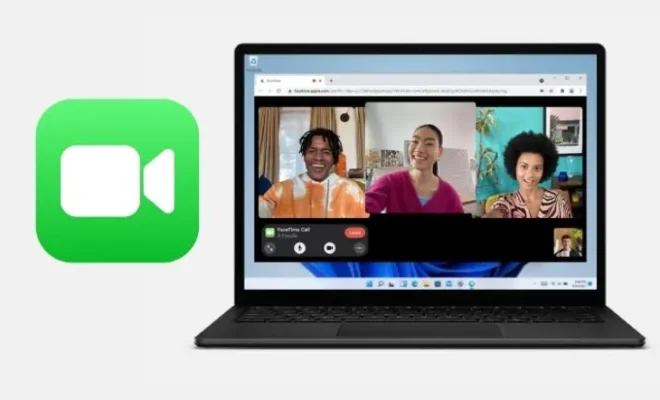
As the popularity of video calling continues to grow, Apple users are fortunate to have access to an outstanding video and audio communicating platform called FaceTime. Initially, FaceTime was solely developed for Apple’s iPhones and iPads. But with the advancement in technology, it is now possible to use this platform on laptops. In this article, we will discuss step-by-step How to Use FaceTime on Your Laptop.

Before digging into the tutorial, users need to understand that it is exclusively available for macOS and iOS devices. For that reason, if you don’t have an Apple laptop, you can’t use FaceTime on your computer. Additionally, FaceTime on laptops run on MacBook or iMac starting with OS X Mavericks.

The first step in using FaceTime on your laptop is ensuring that the device has the most recent version of macOS. Typically, the application comes pre-installed on your computer, so if you don’t see it on your machine, then it means you have to download it from the App Store.

One thing users should keep in mind is that FaceTime needs an internet connection, and video calls need a stable and fast connection. So, to use FaceTime seamlessly, you need a reliable internet connection. You can use Wi-Fi, ethernet, or any reliable sources for a stable connection.

Once you’ve confirmed that your device has a stable internet connection, here are the steps to follow to use FaceTime on your laptop: –

1. First, open the FaceTime application by searching for it in the Finder or Launchpad. Once you open it, the application prompts you to log in to your Apple ID account. If you don’t have one, don’t worry; you can create an account by providing your details at www.apple.com/itunes/.

2. After logging in, select the audio or video icon to make a call. In this case, audio calls are symbolized using a phone receiver, and video calls are shown using a camera.

3. After clicking the icon, enter the phone number or email of the recipient you want to call. The enrollment process assigned to persons logging into FaceTime is what you use to contact other FaceTime users.

4. Wait for the contact to accept the call, and once he or she accepts, the video call connection is made.

5. Lastly, enjoy your video or audio chat with the recipient.

In conclusion, using FaceTime on your MacBook device is easy, and following the above steps enables you to use the platform to communicate with your friends and family seamlessly. With a reliable internet connection, you’ll enjoy high-quality audio and video calls without any hitches. So, ensure that you connect to a fast, stable, and reliable internet source before using FaceTime on your laptop.


Previous Article

How to use Apple AirPlay to mirror ...

Next Article

How to Use FaceTime on Android and ...

Matthew Lynch

Related articles More from author

  • Digital & Mobile Technology

    How to Share Files Between Android and Windows on Your Network

    May 8, 2023
    By Matthew Lynch
  • Digital & Mobile Technology

    How to Download Your Gmail MBOX Data and What to Do With It

    July 31, 2023
    By Matthew Lynch
  • Digital & Mobile Technology

    Best Music Editors of 2023

    June 6, 2023
    By Matthew Lynch
  • Digital & Mobile Technology

    Rename Command

    June 10, 2023
    By Matthew Lynch
  • Digital & Mobile Technology

    8 Tricks to Keep Your iPad’s Battery as Healthy as Possible

    July 31, 2023
    By Matthew Lynch
  • Digital & Mobile Technology

    How to Automatically Dial Extensions on Android

    September 7, 2023
    By Matthew Lynch

Search

Login & Registration

  • Register
  • Log in
  • Entries feed
  • Comments feed
  • WordPress.org

Newsletter

Signup for The Tech Edvocate Newsletter and have the latest in EdTech news and opinion delivered to your email address!

About Us

Since technology is not going anywhere and does more good than harm, adapting is the best course of action. That is where The Tech Edvocate comes in. We plan to cover the PreK-12 and Higher Education EdTech sectors and provide our readers with the latest news and opinion on the subject. From time to time, I will invite other voices to weigh in on important issues in EdTech. We hope to provide a well-rounded, multi-faceted look at the past, present, the future of EdTech in the US and internationally.

We started this journey back in June 2016, and we plan to continue it for many more years to come. I hope that you will join us in this discussion of the past, present and future of EdTech and lend your own insight to the issues that are discussed.

Newsletter

Signup for The Tech Edvocate Newsletter and have the latest in EdTech news and opinion delivered to your email address!

Contact Us

The Tech Edvocate
910 Goddin Street
Richmond, VA 23231
(601) 630-5238
[email protected]

Copyright © 2025 Matthew Lynch. All rights reserved.