The Tech Edvocate

Top Menu

  • Advertisement
  • Apps
  • Home Page
  • Home Page Five (No Sidebar)
  • Home Page Four
  • Home Page Three
  • Home Page Two
  • Home Tech2
  • Icons [No Sidebar]
  • Left Sidbear Page
  • Lynch Educational Consulting
  • My Account
  • My Speaking Page
  • Newsletter Sign Up Confirmation
  • Newsletter Unsubscription
  • Our Brands
  • Page Example
  • Privacy Policy
  • Protected Content
  • Register
  • Request a Product Review
  • Shop
  • Shortcodes Examples
  • Signup
  • Start Here
    • Governance
    • Careers
    • Contact Us
  • Terms and Conditions
  • The Edvocate
  • The Tech Edvocate Product Guide
  • Topics
  • Write For Us
  • Advertise

Main Menu

  • Start Here
    • Our Brands
    • Governance
      • Lynch Educational Consulting, LLC.
      • Dr. Lynch’s Personal Website
      • Careers
    • Write For Us
    • The Tech Edvocate Product Guide
    • Contact Us
    • Books
    • Edupedia
    • Post a Job
    • The Edvocate Podcast
    • Terms and Conditions
    • Privacy Policy
  • Topics
    • Assistive Technology
    • Child Development Tech
    • Early Childhood & K-12 EdTech
    • EdTech Futures
    • EdTech News
    • EdTech Policy & Reform
    • EdTech Startups & Businesses
    • Higher Education EdTech
    • Online Learning & eLearning
    • Parent & Family Tech
    • Personalized Learning
    • Product Reviews
  • Advertise
  • Tech Edvocate Awards
  • The Edvocate
  • Pedagogue
  • School Ratings

logo

The Tech Edvocate

  • Start Here
    • Our Brands
    • Governance
      • Lynch Educational Consulting, LLC.
      • Dr. Lynch’s Personal Website
        • My Speaking Page
      • Careers
    • Write For Us
    • The Tech Edvocate Product Guide
    • Contact Us
    • Books
    • Edupedia
    • Post a Job
    • The Edvocate Podcast
    • Terms and Conditions
    • Privacy Policy
  • Topics
    • Assistive Technology
    • Child Development Tech
    • Early Childhood & K-12 EdTech
    • EdTech Futures
    • EdTech News
    • EdTech Policy & Reform
    • EdTech Startups & Businesses
    • Higher Education EdTech
    • Online Learning & eLearning
    • Parent & Family Tech
    • Personalized Learning
    • Product Reviews
  • Advertise
  • Tech Edvocate Awards
  • The Edvocate
  • Pedagogue
  • School Ratings
  • This One AI Breakthrough Will Forever Change How Students Learn

  • This Astonishing AI Breakthrough Could End Standardized Testing Forever

  • The Astonishing Reason Why Law Firms Are Paying Lawyers to Learn AI Right Now

  • The AI Revolution in Law: Why Firms Are Counting AI Training as Billable Hours

  • The Quiet Revolution: How AI Tools Are Reshaping Law Firms Forever

  • The AI Cyberattack That Just Stole 68,000 Lives — And How It Changes Everything

  • This One AI Tool Makes Robot Text Sound Human — And It’s Practically Free For Life

  • This Game-Changing AI Refund Policy Could Cost Companies Billions

  • This Financial Cyberattack Tool Is Reshaping Security — Here’s How to Fight Back

  • This AI Tool Stole 68,000 Identities: Are Your Cyber Defense Strategies Ready?

Assistive Technology
Home›Assistive Technology›How to Use Apple Music Sing on Your iPhone, iPad, and Apple TV

How to Use Apple Music Sing on Your iPhone, iPad, and Apple TV
By Matthew Lynch
June 14, 2023
0
Spread the love

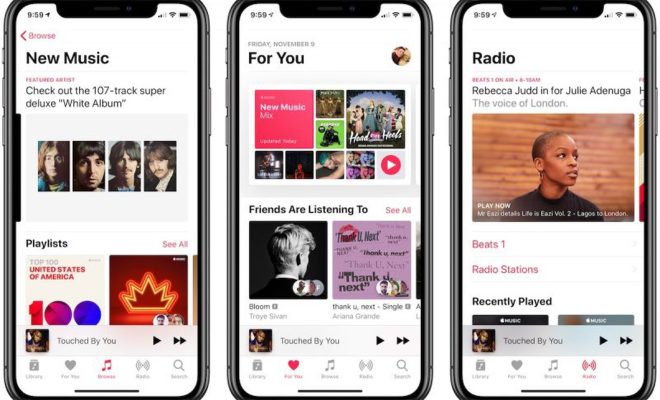
Apple Music Sing is a feature that allows you to sing along with your favorite songs and record your own vocals. It’s available on iPhone, iPad, and Apple TV, and it’s a fun way to get even more enjoyment out of your Apple Music subscription. In this article, we’ll walk you through how to use Apple Music Sing on each of these devices.

Using Apple Music Sing on iPhone

To use Apple Music Sing on your iPhone, open the Apple Music app and navigate to a song you want to sing along with. Once you’ve started playing the song, tap the “Lyrics” button at the bottom of the screen. This will open the song’s lyrics, and you’ll see a microphone button at the bottom of the screen.

Tap the microphone button to begin recording your vocals. You can sing along with the song as it plays, or wait for the instrumental break to showcase your voice. When you’re finished recording, tap the checkmark to save your performance. You can then share your recording on social media or save it to your device’s camera roll.

Using Apple Music Sing on iPad

Using Apple Music Sing on your iPad is similar to using it on your iPhone. Open the Apple Music app and navigate to a song you want to sing along with. Tap the “Lyrics” button at the bottom of the screen, and then tap the microphone button to begin recording your vocals.

One advantage of using Apple Music Sing on your iPad is the larger screen size. This makes it easier to read the lyrics and follow along with the song. You can also use headphones with your iPad to get a better audio recording of your performance.

Using Apple Music Sing on Apple TV

To use Apple Music Sing on your Apple TV, first make sure you’ve updated to the latest version of tvOS. Then, open the Apple Music app on your Apple TV and navigate to a song you want to sing along with. Press the “Select” button on your remote to bring up the song’s lyrics, and then use the arrow buttons to highlight the microphone icon.

Press the Play/Pause button on your remote to begin recording your vocals. You can then hear your voice alongside the music through your TV’s speakers. Once you’re finished recording, press the Play/Pause button again to stop the recording. You can then share your performance on social media or save it to your iCloud Drive.

Previous Article

Hard Drive Sizes Explained: Why 1TB Is ...

Next Article

How to Retrieve Google Backup Photos

Matthew Lynch

Related articles More from author

  • Assistive Technology

    Fixes When Your AirPods or AirPods Case Isn’t Charging

    June 7, 2023
    By Matthew Lynch
  • Assistive Technology

    How to Connect a Printer to Wi-Fi

    June 14, 2023
    By Matthew Lynch
  • Assistive Technology

    How to Add a New Room to Google Home

    July 15, 2023
    By Matthew Lynch
  • Assistive Technology

    How to Remove the OneDrive Icon From File Explorer in Windows 11

    June 12, 2023
    By Matthew Lynch
  • Assistive Technology

    How to Add a User to the Sudoers List in Linux

    July 15, 2023
    By Matthew Lynch
  • Assistive Technology

    Ways to Fix the Clipboard History When It Stops Working in Windows 11

    June 14, 2023
    By Matthew Lynch

Search

Login & Registration

  • Log in
  • Entries feed
  • Comments feed
  • WordPress.org

Newsletter

Signup for The Tech Edvocate Newsletter and have the latest in EdTech news and opinion delivered to your email address!

About Us

Since technology is not going anywhere and does more good than harm, adapting is the best course of action. That is where The Tech Edvocate comes in. We plan to cover the PreK-12 and Higher Education EdTech sectors and provide our readers with the latest news and opinion on the subject. From time to time, I will invite other voices to weigh in on important issues in EdTech. We hope to provide a well-rounded, multi-faceted look at the past, present, the future of EdTech in the US and internationally.

We started this journey back in June 2016, and we plan to continue it for many more years to come. I hope that you will join us in this discussion of the past, present and future of EdTech and lend your own insight to the issues that are discussed.

Newsletter

Signup for The Tech Edvocate Newsletter and have the latest in EdTech news and opinion delivered to your email address!

Contact Us

The Tech Edvocate
910 Goddin Street
Richmond, VA 23231
(601) 630-5238
[email protected]

Copyright © 2026 Matthew Lynch. All rights reserved.