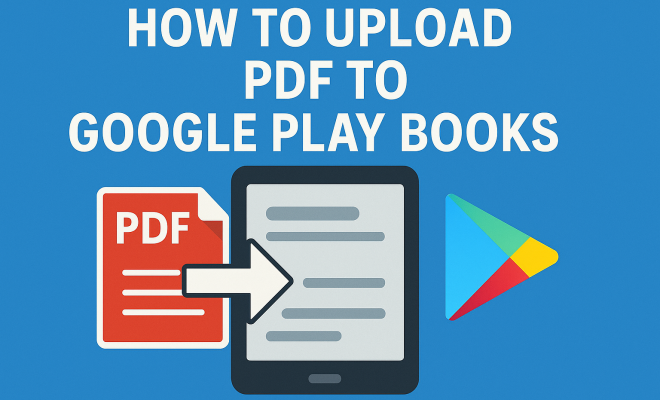
How to upload PDF to Google Play Books
“`html
Google Play Books has transformed the way readers access and enjoy books. With a vast library at your fingertips, the platform also allows users to upload their own content, including PDFs. If you’re wondering how to upload PDF to Google Play Books, you’re in the right place. This comprehensive guide will walk you through the process, from preparation to troubleshooting common issues.
1. Understanding Google Play Books
Before diving into the uploading process, it’s essential to grasp what Google Play Books is and how it functions. Launched in 2010, this platform serves as a digital library where users can purchase, rent, or upload their books. It supports various file formats, including EPUB and PDF, making it a versatile choice for readers and authors alike.
One of the standout features of Google Play Books is its ability to sync across devices. You can start reading on your smartphone and continue on your tablet or computer. This seamless integration ensures you don’t miss a beat, regardless of where you are or which device you’re using.
With increasing competition from other digital reading platforms, Google Play Books remains committed to enhancing user experience. Regular updates not only fix bugs but also introduce new features that keep the platform relevant and user-friendly.
2. Why Upload PDFs to Google Play Books?
Uploading a PDF to Google Play Books isn’t just about convenience; it opens up a world of possibilities for both casual readers and aspiring authors. For readers, it allows you to carry your entire library in one app, alongside the vast collection available for purchase. On the other hand, authors can use this feature to share their works with a broader audience without needing to go the traditional publishing route.
Additionally, Google Play Books offers features like highlighting, note-taking, and customizable reading settings, enhancing the reader’s experience. By uploading your PDFs, you harness these tools to engage with your content more dynamically.
Furthermore, having your PDFs uploaded allows you to access your materials from anywhere, which is a huge advantage for students or professionals who frequently need to refer to their notes or documents. This flexibility can significantly improve productivity and learning outcomes.
3. Preparing Your PDF for Upload
Before you upload a PDF to Google Play Books, there are a few steps to ensure your document is ready. First, check the file size and format. Google Play Books accepts PDFs up to 100 MB, which is generally sufficient for most texts. However, if your PDF exceeds this limit, you might need to compress it using various online tools or software.
It’s also wise to ensure your PDF is well-formatted for readability. Consider the following tips:
- Use a standard font size and type for text.
- Ensure images are high resolution to avoid pixelation.
- Include bookmarks or a table of contents for easier navigation.
By taking the time to format your PDF properly, you’ll enhance the reading experience for anyone who accesses your document. Prioritizing the user experience in this way can lead to better engagement with your material, whether it’s for study purposes or creative sharing.
4. Steps to Upload PDF to Google Play Books
Now that you have your PDF ready, let’s get into the nitty-gritty of uploading it to Google Play Books. Here’s a step-by-step guide: (See: Google Play Books overview.)
Step 1: Open the Google Play Books app on your device or visit the website on your computer.
Step 2: Sign in with your Google account. If you don’t have one, you’ll need to create an account.
Step 3: Navigate to the My Books section. On mobile, this can be found in the menu. On desktop, it’s typically located on the left sidebar.
Step 4: Click on the Upload Files button. This option allows you to select the PDF file you’ve prepared.
Step 5: Browse your files and select the PDF you want to upload. After you’ve made your selection, click Open.
Step 6: Wait for the file to upload. Depending on your internet speed and file size, this may take a few moments.
Step 7: Once uploaded, you’ll see your PDF available in your library. You can now access it from any device linked to your Google account.
Ensuring your document is properly named and categorized can simplify future searches. Consider adding descriptive keywords to the file name, which can assist in identifying the content quickly when you need it later.
5. Managing Your Uploaded PDFs
After successfully uploading your PDF to Google Play Books, you might want to manage your content. Google Play Books provides various options to organize your library effectively. You can create collections to categorize your books, delete unwanted files, or even edit the metadata for better identification.
To manage your uploaded PDFs, simply go to the My Books section and select the PDF you wish to edit. From there, you can change the title, add author information, or delete the file altogether. This flexibility allows you to keep your library neat and tailored to your preferences.
Also, consider leveraging Google Play Books’ highlighting and note-taking features to create a more interactive experience with your PDFs. These features are excellent for studying or reviewing content, as they allow you to revisit important sections easily.
6. Reading and Interacting with PDFs
Once your PDF is uploaded, it’s time to dive into reading! Google Play Books offers a user-friendly interface for navigating your document. You can zoom in and out, switch between horizontal and vertical scrolling, and even adjust the brightness for optimal reading conditions. (See: CDC on digital content accessibility.)
One notable feature is the ability to highlight text and add notes. This is particularly useful for students or anyone who likes to engage deeply with their reading material. Simply tap and hold on the text you want to highlight, and select the appropriate tool from the menu that appears.
Additionally, Google Play Books supports text-to-speech functionality, which can be a game-changer for auditory learners or those who prefer listening to reading. This feature allows the app to read aloud your PDFs, providing a different way to interact with your content.
7. Troubleshooting Common Issues
Like any technology, you may encounter issues when uploading PDF files to Google Play Books. Here are some common problems and their solutions:
- File Size Too Large: If your PDF exceeds 100 MB, consider compressing it using online tools like Smallpdf or Adobe Acrobat.
- File Not Uploading: Ensure that your internet connection is stable. If the problem persists, try clearing your cache or using a different browser.
- Formatting Issues: If your PDF appears jumbled or unreadable, check your formatting settings before uploading. Re-save your PDF with proper settings to ensure compatibility.
- Account Issues: If you encounter problems related to your Google account, such as being unable to upload, check if your account is verified or if there are any restrictions on it.
By being proactive about these common hurdles, you can enhance your experience and enjoy your reading without interruptions.
8. Exploring Alternatives to Google Play Books
While Google Play Books offers a robust platform for uploading and reading PDFs, you might wonder about other alternatives available. Several options cater to different needs:
- Amazon Kindle: Ideal for avid readers who want to access extensive eBook collections. However, Kindle has specific formatting requirements, primarily favoring MOBI files.
- Apple Books: A great choice for Apple users, providing a clean interface and seamless syncing across Apple devices.
- Adobe Acrobat Reader: Best for those who prioritize PDF features, such as annotation and editing, rather than eBook reading.
- Microsoft OneDrive: While primarily a cloud storage service, OneDrive allows you to store and access PDFs securely and can be paired with other reading apps for a versatile experience.
Each platform has its strengths and weaknesses, so consider what features matter most to you as you decide where to upload your PDFs. If you’re looking for a more robust editing experience, for instance, Adobe Acrobat may be the way to go, while Google Play Books shines in its reading and management capabilities.
9. The Future of Digital Reading with Google Play Books
As technology continues to evolve, so do the ways we interact with literature. Google Play Books is at the forefront of this transformation, offering innovative features and improving user experience regularly. With enhancements like AI-driven recommendations and better integration with other Google services, the platform is positioned to remain a leading choice for readers and authors alike.
Moreover, as more people shift towards digital reading, the demand for user-friendly upload options will likely grow. Google Play Books is well-equipped to meet this demand, making it easier than ever to upload PDF to Google Play Books and enjoy a personalized reading library.
Recent trends also show that interactive content is on the rise, with readers seeking more than just static text. Google Play Books may incorporate more multimedia elements into its offerings, providing users with enriched reading experiences that go beyond traditional formats.
10. Enhancing Your PDF Upload Experience
When you upload your PDF to Google Play Books, you might want to consider additional strategies to enhance your reading experience. Here are a few tips to get the most out of your uploaded content: (See: New York Times on digital reading trends.)
- Use Descriptive Titles: Make sure your PDF uploads have clear and descriptive titles. This helps you quickly identify your content later.
- Regularly Update Your Library: As you read or gather new materials, keep your library fresh. Remove files you no longer need to keep your collection organized.
- Explore Google Play Books Features: Familiarize yourself with features like reading statistics and personalized recommendations that can enhance your experience.
- Engage with Others: Consider sharing your thoughts or reviews of the PDFs you’ve read with friends or community forums. Engaging in discussions can deepen your understanding and enjoyment of the content.
11. Understanding DRM and Uploading PDFs
Digital Rights Management (DRM) is an essential factor to consider when uploading your PDFs. Google Play Books does not allow uploading of copyrighted materials unless you own the rights. It’s crucial to ensure that you have the right to distribute the content you are uploading. Here are some key points to remember:
- Public Domain Works: You can freely upload PDFs that are in the public domain.
- Self-Published Works: If you’re an author, you can upload your original content without issues, provided you own the rights.
- Copyrighted Materials: Avoid uploading materials you do not own. This could lead to your account being flagged or suspended.
Understanding these guidelines helps you navigate the complexities of digital content management, ensuring that your uploads remain compliant and your reading experiences are uninterrupted.
12. Statistics on Digital Reading Trends
The landscape of digital reading is rapidly changing, and statistics provide insight into these trends. Here are some notable statistics that highlight the growth and popularity of platforms like Google Play Books:
- According to a recent survey by the Pew Research Center, 27% of Americans reported reading an eBook in the past year, a number that has steadily increased over the past decade.
- Market research from Statista indicates that the eBook market is projected to surpass $20 billion by 2026, illustrating a significant shift towards digital literature.
- In 2022, approximately 30% of all books sold in the U.S. were eBooks, showcasing the growing preference for digital formats.
- Furthermore, a 2023 report highlighted that 58% of readers prefer digital books for their convenience and portability, emphasizing the importance of platforms like Google Play Books.
These statistics underscore the importance of platforms like Google Play Books in meeting the needs of modern readers and creating accessible reading experiences.
13. Expert Perspectives on the Future of Digital Publishing
Experts in the field of digital publishing offer valuable insights into the future of platforms like Google Play Books. According to a 2023 report by the International Publishers Association, digital publishing is expected to expand significantly, driven by increasing smartphone penetration and the demand for instantaneous access to literature. Here are some key insights:
- Convenience and Accessibility: Experts emphasize that the convenience of accessing a vast library from any device is a significant driver of digital reading adoption.
- Integration with AI: The rise of AI technologies is anticipated to enhance personalized reading experiences, making it easier for users to discover relevant content.
- Engagement Tools: Future platforms may include more interactive features, such as augmented reality (AR) experiences, to engage readers in new ways.
- Sustainability in Publishing: There’s a growing trend towards eco-friendly publishing, with experts advocating for digital formats as a more sustainable option compared to print.
14. FAQs About Uploading PDFs to Google Play Books
Here are some frequently asked questions regarding the process of uploading PDFs to Google Play Books:
- Can I upload multiple PDFs at once? No, Google Play Books does not currently support batch uploading. You must upload each PDF individually.
- What file formats does Google Play Books support? Google Play Books supports PDF and EPUB formats for uploads.
- Will my PDFs be available offline? Yes, once uploaded, you can download your PDFs for offline reading through the app.
- Can I share my uploaded PDFs with others? No, uploaded PDFs are tied to your Google account and cannot be shared with other users.
- How can I delete a PDF from my library? You can easily delete a PDF by selecting it in the My Books section and choosing the delete option from the menu.
- What should I do if my PDF doesn’t upload? Check your internet connection and file compatibility. Ensure you have the right file format and size before attempting to upload again.
- Does Google Play Books have a limit on the number of PDFs I can upload? While there isn’t a specific limit to the number of PDFs you can upload, the total storage available may vary based on your Google account.
In a world where information is abundant but time is scarce, tools that simplify access to literature will be invaluable. Embracing platforms like Google Play Books will not only enrich your reading experience but also contribute to the ever-changing landscape of digital literature.
“`
Trending Now
Frequently Asked Questions
How do I upload a PDF to Google Play Books?
To upload a PDF to Google Play Books, first, ensure your book is in PDF format. Open the Google Play Books app or website, navigate to the 'My Books' section, and select 'Upload files.' Choose your PDF file, and it will be processed and added to your library.
What file formats does Google Play Books support?
Google Play Books supports several file formats, including PDF and EPUB. This versatility allows users to upload their own books and documents, enhancing their reading experience on the platform.
Can I read my uploaded PDFs on multiple devices?
Yes, Google Play Books allows you to sync your uploaded PDFs across multiple devices. You can start reading on your smartphone and continue seamlessly on your tablet or computer, ensuring access to your library anytime, anywhere.
Why should I upload my PDF to Google Play Books?
Uploading your PDF to Google Play Books offers convenience and enhances your reading experience. It allows you to store all your books in one app, access features like highlighting and note-taking, and reach a broader audience if you're an author.
What are the benefits of using Google Play Books for readers?
Google Play Books provides a vast library, the ability to upload personal content, and features like customizable reading settings, highlighting, and note-taking. This combination enhances the overall reading experience and keeps your library organized.
Agree or disagree? Drop a comment and tell us what you think.