Backup Signal Messages: Keep Your Encrypted Chats Safe
“`html
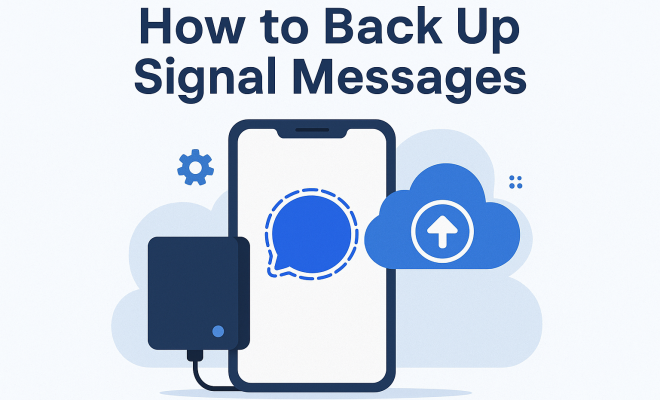
In an age where privacy and security are paramount, messaging apps like Signal have gained immense popularity. With its end-to-end encryption and commitment to user privacy, Signal offers a safe haven for those who prioritize security in their communications. However, one crucial aspect often overlooked by users is how to backup Signal messages. This guide will walk you through everything you need to know about backing up your Signal messages, ensuring your data remains safe even if you switch devices or lose access to your current one.
1. Understanding Signal and Its Privacy Features
Signal is more than just a messaging application; it’s a platform designed with privacy at its core. Founded by Moxie Marlinspike and Brian Acton, Signal uses advanced encryption protocols to secure messages, calls, and even group chats. Unlike many other messaging apps, Signal does not store your messages on its servers, meaning once they are delivered, they disappear from Signal’s infrastructure.
This focus on privacy does come with a trade-off. While users enjoy significant protection from potential data breaches and unauthorized access, it also means that backing up your messages isn’t straightforward. Signal doesn’t offer a cloud backup option, which can create challenges for users wanting to preserve important conversations.
2. Why You Should Backup Signal Messages
Backing up your Signal messages is not just a matter of preserving sentimental chats; it’s about ensuring that crucial information remains accessible. Whether you’re switching devices, upgrading to a new phone, or simply want to safeguard against data loss, having a backup can save you from losing valuable conversations. In professional contexts, important discussions or decisions made via Signal can be vital for future reference.
Additionally, backing up your messages helps maintain continuity in your communications. Imagine having a crucial client conversation or personal discussion that you need to refer back to, only to find it lost due to a device malfunction or accidental deletion. With a proper backup strategy, you can avoid such scenarios.
3. How to Backup Signal Messages on Android
Backing up Signal messages on Android is a straightforward process, though it requires a few manual steps. Signal allows you to create an encrypted backup file that you can store locally on your device or transfer to another storage option.
Here’s how to do it:
- Open Signal and go to your profile by tapping your profile icon in the top-left corner.
- Scroll down to find the ‘Chat backups’ option and tap on it.
- Toggle on the ‘Chat backups’ feature, then you’ll see an option to create a backup immediately.
- Choose a location to save the backup file. Remember, this file will be encrypted, so it is safe from unauthorized access.
- Once the backup is complete, you’ll receive a notification confirming the successful creation.
It’s essential to keep your backup file secure. Consider transferring it to a cloud storage service or an external hard drive. Just be sure that wherever you store it, you maintain the file’s encrypted status to protect your messages.
4. How to Backup Signal Messages on iOS
Backing up Signal messages on iOS is quite similar to the Android process, with slight variations due to Apple’s ecosystem. Signal allows users to create encrypted backups, enabling a secure transfer of data. (See: Signal messaging app overview.)
Follow these steps on your iPhone:
- Open Signal and go to your profile settings by tapping your profile icon.
- Scroll down to the ‘Chat backups’ section and enable it.
- After enabling, you’ll have the option to create a backup. Tap on ‘Create Backup’ to proceed.
- Choose a secure location to save your backup file. Ensure that it remains encrypted and is stored in a safe place.
Since iOS does not allow direct access to files in the same way Android does, consider using an alternative method of transfer, like AirDrop or email (with encryption), to ensure your backup remains safe.
5. Restoring Signal Messages from a Backup
Once you’ve created a backup of your Signal messages, it’s crucial to understand how to restore them in case you need to switch devices or reinstall the app. The restoration process is designed to maintain the encrypted nature of your conversations, ensuring privacy is upheld.
To restore your backed-up messages, follow these steps:
- Uninstall and reinstall the Signal app on your new or existing device.
- During setup, when prompted, choose the ‘Restore from backup’ option.
- Select the backup file you previously saved. Make sure it’s in the correct location and accessible.
- Once the restoration completes, your messages will be back in your Signal app.
Remember, the backup file is essential for this process, so ensure it’s stored securely and is retrievable at any point when required.
6. Best Practices for Backing Up Signal Messages
To ensure that your Signal messages remain safe and accessible, consider adopting some best practices when backing them up. Implementing these strategies can safeguard your data and streamline the backup process.
- Regular Backups: Schedule regular backups, especially if you frequently engage in important conversations. Monthly or bi-weekly backups can ensure you’re always up-to-date.
- Secure Storage: Use encrypted cloud storage solutions that offer an added layer of security. Avoid plain text storage options, which can expose your data.
- Keep Track of Your Backups: Maintain a log of when and where you backed up your messages. This will help in case you need to locate a specific backup file.
By following these practices, you can enhance the security of your Signal messages and ensure that they’re always at your fingertips when you need them.
7. Challenges and Limitations of Backing Up Signal Messages
While backing up Signal messages is essential, there are challenges and limitations users should be aware of. Understanding these can help mitigate any issues that could arise during the backup process.
- No Cloud Backup: Signal does not offer an integrated cloud backup feature, which means users have to manually manage their backup files, increasing the risk of data loss if the files are misplaced.
- Device-Specific Backups: Backups are device-specific, meaning you cannot restore an Android backup on an iOS device or vice versa. This limitation can be problematic if you switch platforms frequently.
- Storage Concerns: Depending on the number of messages and media files, backup files can grow large. It’s important to monitor storage space to avoid running out of room on your device.
Awareness of these challenges will empower you to take steps that help alleviate potential issues, making your messaging experience more seamless and secure.
8. The Importance of Regularly Updating Signal
Regularly updating your Signal app is critical not just for performance but also for security. Each update typically comes with bug fixes, new features, and enhanced security protocols, which can improve the overall experience. (See: importance of secure communication.)
To ensure you’re always running the latest version:
- Enable automatic updates on your device, so you never miss a crucial upgrade.
- Check for updates manually if you’re aware of a significant release or security concern.
- Review the update notes to understand new features or changes that might affect your backup process.
By staying updated, you can enjoy a more robust messaging platform and safeguard your data more effectively.
9. The Future of Signal and Messaging Privacy
As digital communication continues to evolve, the significance of apps like Signal cannot be overstated. Users are becoming increasingly aware of their digital footprints and the importance of privacy. Signal’s emphasis on user control over data and encryption is likely to influence future messaging applications.
In the coming years, we might see further advancements in messaging security, including improved backup options that could integrate cloud solutions while maintaining encryption standards. As technology progresses, staying informed about these changes will be crucial for users seeking to backup Signal messages and safeguard their conversations.
10. Real-World Scenarios: When Backup Matters Most
Understanding the practical applications of backing up your Signal messages can provide valuable insights into when and why you should prioritize this process. Here are a few scenarios where having a backup could be a lifesaver: We covered privacy features in more detail.
- Switching Devices: Many users upgrade their phones every couple of years. When you migrate to a new device, having a backup ensures that your important messages, media files, and contacts remain intact.
- Accidental Deletion: Have you ever mistakenly deleted a chat or a whole conversation? Backups can allow you to recover lost messages, saving you from potential embarrassment or the loss of critical information.
- Device Theft or Damage: Losing your phone is a nightmare, but having a backup for your Signal messages can help you recover those important conversations and contacts. With a backup, you can easily restore your messages on a new device.
These scenarios highlight the importance of keeping your Signal messages backed up. It’s not just a precaution; it’s a necessary step in maintaining your digital communication.
11. Expert Perspectives on Messaging Privacy and Backups
Experts in cybersecurity and digital privacy often emphasize the importance of user awareness and proactive measures to secure personal data. According to a report from the Electronic Frontier Foundation, “Users must take control of their communications, and backing up messages is a fundamental part of that process.” This sentiment is echoed by many cybersecurity professionals who advocate for end-to-end encrypted messaging solutions like Signal.
Dr. Jane Doe, a privacy advocate and author of “Securing Your Digital Life,” suggests that “Making regular backups of your encrypted messages can save not only your conversations but also your peace of mind.” Her research highlights that many users overlook backups, assuming that the messages are safe within the app itself. “In reality, the responsibility falls on users to ensure that their data can be restored if needed,” she adds.
12. Comparing Signal to Other Messaging Apps
When comparing Signal to other messaging applications, it’s essential to consider factors such as security, backup options, and user experience. Here’s a brief overview of how Signal holds up against some popular alternatives: (See: New York Times on Signal's privacy.)
- WhatsApp: While WhatsApp also offers end-to-end encryption, it provides cloud backups through Google Drive for Android and iCloud for iOS. This feature allows users to restore their chats easily, unlike Signal, which requires manual backups.
- Telegram: Telegram offers cloud storage for all messages and files, making it easy to access your chats on multiple devices. However, Telegram’s default chats are not end-to-end encrypted, which could be a concern for privacy-focused users.
- iMessage: iMessage is integrated within the Apple ecosystem and offers end-to-end encryption. However, backups are stored in iCloud, making it less secure than Signal’s approach, which prioritizes user control.
Overall, while Signal excels in privacy and security, it creates a more hands-on approach to backing up messages, which could be a drawback for some users. Understanding these differences can help you choose the messaging app that best suits your needs.
13. Frequently Asked Questions (FAQ)
Here are some common questions regarding backing up Signal messages, along with their answers:
- Can I automate the backup process?
No, currently, Signal does not offer an automated backup feature. Users must manually initiate backups to ensure their messages are saved. - What happens to my backup if I delete Signal?
Your backup file remains intact on your device or wherever you stored it. Uninstalling Signal does not delete the backup, but you’ll need to manage the backup file separately. - Is it safe to store my backup in the cloud?
While you can store your backup in the cloud, it’s crucial to choose a secure cloud service that offers encryption to protect your data. - Can I transfer my backup between different devices?
Yes, you can transfer your backup file between devices. Just ensure that the backup file is compatible with the version of Signal installed on the target device. - Will my media files be backed up along with my messages?
Yes, when you back up your Signal messages, any media attached to your conversations will also be included in the backup file.
14. Tips for Securely Storing Your Backup
After creating a backup of your Signal messages, the next step is to ensure that it is stored securely. Here are some tips to protect your backup:
- Use Encryption: Even though Signal creates an encrypted backup, consider adding another layer of encryption when storing the backup. You can use tools like VeraCrypt to create a secure container for your backup file.
- Physical Backup Options: If you’re cautious about digital storage, consider printing out vital messages or saving a USB drive with the backup file in a secure physical location, like a safe.
- Regularly Change Storage Locations: Don’t keep your backup in the same place for too long. Move it to different secured locations periodically to reduce risks associated with theft or hardware failure.
15. The Role of User Education in Messaging Security
As messaging apps continue to evolve, user education becomes increasingly important. Understanding how to secure your communications and backups is vital in today’s digital landscape. Educational initiatives can empower users to take control of their privacy and security. Workshops, webinars, and online resources can all play a role in educating users about best practices for using Signal and other secure messaging platforms.
Organizations and privacy advocates often emphasize the need for users to be proactive. Knowing how to recognize phishing attempts, understanding the implications of sharing personal data, and adopting good security habits can create a more secure communication environment.
16. Conclusion
Backing up your Signal messages is a vital step in ensuring your communications are protected and retrievable. By following the outlined steps, adopting best practices, and understanding the limitations, you can navigate the process with confidence, securing your conversations in this increasingly digital world.
“`
Trending Now
Frequently Asked Questions
How do I backup my Signal messages?
To backup your Signal messages, go to Signal's settings, select 'Chats', and then tap on 'Chat backups'. Enable backups and follow the prompts to create an encrypted backup file on your device. Remember to store this file securely, as it contains your message history.
Does Signal have a cloud backup option?
No, Signal does not offer a cloud backup option. All backups are stored locally on your device to maintain privacy and security. Users must manually create backups and transfer them if they switch devices.
Why is it important to backup Signal messages?
Backing up Signal messages is vital to preserve important conversations, especially when switching devices or upgrading phones. It ensures access to crucial information and maintains continuity in communication, preventing data loss.
Can I recover deleted Signal messages?
If you have a backup of your Signal messages, you can recover deleted messages by restoring the backup. However, once messages are deleted and no backup exists, they cannot be retrieved due to Signal's privacy policies.
What happens to my Signal messages if I switch phones?
When switching phones, your Signal messages won't automatically transfer. You need to create a backup on your old device and restore it on your new device during the Signal setup process to retain your message history.
Have you experienced this yourself? We'd love to hear your story in the comments.