The Tech Edvocate

Top Menu

  • Advertisement
  • Apps
  • Home Page
  • Home Page Five (No Sidebar)
  • Home Page Four
  • Home Page Three
  • Home Page Two
  • Home Tech2
  • Icons [No Sidebar]
  • Left Sidbear Page
  • Lynch Educational Consulting
  • My Account
  • My Speaking Page
  • Newsletter Sign Up Confirmation
  • Newsletter Unsubscription
  • Our Brands
  • Page Example
  • Privacy Policy
  • Protected Content
  • Register
  • Request a Product Review
  • Shop
  • Shortcodes Examples
  • Signup
  • Start Here
    • Governance
    • Careers
    • Contact Us
  • Terms and Conditions
  • The Edvocate
  • The Tech Edvocate Product Guide
  • Topics
  • Write For Us
  • Advertise

Main Menu

  • Start Here
    • Our Brands
    • Governance
      • Lynch Educational Consulting, LLC.
      • Dr. Lynch’s Personal Website
      • Careers
    • Write For Us
    • The Tech Edvocate Product Guide
    • Contact Us
    • Books
    • Edupedia
    • Post a Job
    • The Edvocate Podcast
    • Terms and Conditions
    • Privacy Policy
  • Topics
    • Assistive Technology
    • Child Development Tech
    • Early Childhood & K-12 EdTech
    • EdTech Futures
    • EdTech News
    • EdTech Policy & Reform
    • EdTech Startups & Businesses
    • Higher Education EdTech
    • Online Learning & eLearning
    • Parent & Family Tech
    • Personalized Learning
    • Product Reviews
  • Advertise
  • Tech Edvocate Awards
  • The Edvocate
  • Pedagogue
  • School Ratings

logo

The Tech Edvocate

  • Start Here
    • Our Brands
    • Governance
      • Lynch Educational Consulting, LLC.
      • Dr. Lynch’s Personal Website
        • My Speaking Page
      • Careers
    • Write For Us
    • The Tech Edvocate Product Guide
    • Contact Us
    • Books
    • Edupedia
    • Post a Job
    • The Edvocate Podcast
    • Terms and Conditions
    • Privacy Policy
  • Topics
    • Assistive Technology
    • Child Development Tech
    • Early Childhood & K-12 EdTech
    • EdTech Futures
    • EdTech News
    • EdTech Policy & Reform
    • EdTech Startups & Businesses
    • Higher Education EdTech
    • Online Learning & eLearning
    • Parent & Family Tech
    • Personalized Learning
    • Product Reviews
  • Advertise
  • Tech Edvocate Awards
  • The Edvocate
  • Pedagogue
  • School Ratings
  • The Future of Civilization: Economic Trends Reshaping Our World

  • Top Fintech Stocks to Watch: Insights from March 8, 2026

  • Canada’s Economic Landscape Faces Challenges Amid Slowing Population Growth

  • Vancouver Gains Canada’s First Prediction Market as Toronto Startup Makes Strategic Move

  • Anthropic Controversy: Implications for Startups in Defense Technology

  • AI Startup Thinking Machines Lab Faces Leadership Exodus to Meta Amid Rapid Growth

  • UN Highlights Gender Disparities in Legal Rights on International Women’s Day

  • Video Game Workers Unite: A New Union Emerges Amid Labor Rights Challenges

  • NIH’s Controversial Decertification of Research Union Raises Concerns for Early-Career Scientists

  • The Generational Shift: Why Grandparents Are Warmer and More Lenient with Grandchildren

Digital & Mobile Technology
Home›Digital & Mobile Technology›How to Type Upside Down

How to Type Upside Down
By Matthew Lynch
June 10, 2023
0
Spread the love

Have you ever wanted to type upside down for fun or to add a unique twist to your online messages? Typing upside down may seem complicated, but it’s actually quite easy once you know the tricks. In this article, we’ll guide you through the steps to type upside down.

Step 1: Use a Special Tool

The easiest way to type upside down is to use a special tool. There are many free online tools available that can flip your text upside down. All you need to do is type your text into the tool, and it will do the rest for you. Some popular tools include Upside Down Text, FlipText, and FlipYourText.

Step 2: Copy and Paste

Once you have generated your upside-down text using the tool, all you need to do is copy and paste the text into the desired location. This can be done on social media platforms like Facebook, Twitter, or Instagram, or even in messaging apps like WhatsApp and Messenger.

Step 3: Use Special Characters (Optional)

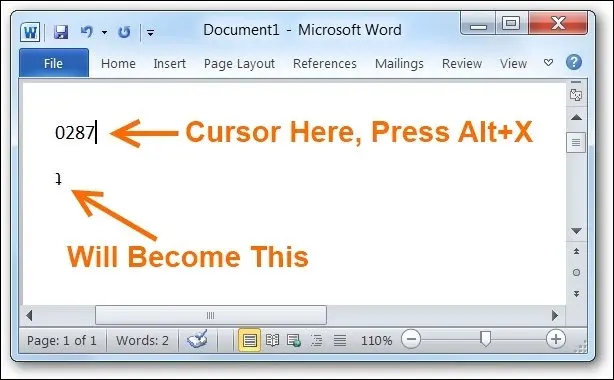
If you don’t want to use a tool and want to type upside down manually, you can use special characters to achieve this effect. Here are some of the characters you can use:

– Flipping Words Upside Down: Some letters, when flipped, look like different letters. For example, “u” flipped upside down looks like “n,” “p” looks like “d,” and “b” looks like “q.” By using these flipped letters, you can create upside-down text. For example, “ʇxǝʇ uʍop ǝpᴉsdn sƃuᴉɥʇ” is “text upside down” flipped.
– Upside-Down Fonts: Some fonts, like the “Upside Down” font, are designed to look like upside-down letters. You can download this font or similar fonts and use them to type upside down.
– Use a Mirror: Another way to type upside down manually is to use a mirror. Simply write your text backwards and then hold it up to the mirror, which will reflect the text in an upside-down position.

Conclusion

Whether you want to add a unique touch to your online messages or simply have fun with upside-down text, there are many tools and tricks you can use to achieve this effect. By using online tools, copying and pasting generated text, or manually typing with special characters, you can easily type upside down in no time.


Previous Article

How to Fix It When Google Maps ...

Next Article

The 5 Best Motorola Apps of 2023

Matthew Lynch

Related articles More from author

  • Digital & Mobile Technology

    Ways to Fix Safari Not Working on an iPhone

    June 23, 2023
    By Matthew Lynch
  • Digital & Mobile Technology

    What is Live Support?

    May 23, 2023
    By Matthew Lynch
  • Digital & Mobile Technology

    Here Is Everything You Need to Know About Windows Product Keys

    June 21, 2023
    By Matthew Lynch
  • Digital & Mobile Technology

    How to View and Delete Your Amazon Prime Video Watch History

    August 5, 2023
    By Matthew Lynch
  • Digital & Mobile Technology

    Which Company Has the Best iPad Data Plans?

    June 21, 2023
    By Matthew Lynch
  • Digital & Mobile Technology

    How to Back Up and Restore the Windows Registry

    August 1, 2023
    By Matthew Lynch

Search

Login & Registration

  • Register
  • Log in
  • Entries feed
  • Comments feed
  • WordPress.org

Newsletter

Signup for The Tech Edvocate Newsletter and have the latest in EdTech news and opinion delivered to your email address!

About Us

Since technology is not going anywhere and does more good than harm, adapting is the best course of action. That is where The Tech Edvocate comes in. We plan to cover the PreK-12 and Higher Education EdTech sectors and provide our readers with the latest news and opinion on the subject. From time to time, I will invite other voices to weigh in on important issues in EdTech. We hope to provide a well-rounded, multi-faceted look at the past, present, the future of EdTech in the US and internationally.

We started this journey back in June 2016, and we plan to continue it for many more years to come. I hope that you will join us in this discussion of the past, present and future of EdTech and lend your own insight to the issues that are discussed.

Newsletter

Signup for The Tech Edvocate Newsletter and have the latest in EdTech news and opinion delivered to your email address!

Contact Us

The Tech Edvocate
910 Goddin Street
Richmond, VA 23231
(601) 630-5238
[email protected]

Copyright © 2025 Matthew Lynch. All rights reserved.