
How to turn off Find My iPhone
“`html
In a world where technology connects us more than ever, privacy concerns have become a hot topic. One feature that often raises questions among Apple users is Find My iPhone. While it’s a useful tool for locating lost devices, there are moments when you might want to disable it. Whether you’re selling your device, sharing it with someone else, or simply prefer to keep your location private, knowing how to turn off Find My iPhone is essential. In this comprehensive guide, we’ll explore the steps involved, the reasons for disabling this feature, and the implications of doing so.
1. Understanding Find My iPhone
Before diving into the how-to, let’s clarify what Find My iPhone is. Launched in 2010, this feature is part of Apple’s Find My app, allowing users to track their devices using GPS technology. It provides users with the ability to find lost iPhones, iPads, Macs, and even AirPods. Not only does it show the device’s location on a map, but it also enables users to remotely lock, erase, or make the device play a sound to help locate it.
Find My iPhone offers a significant layer of security, especially in today’s world where stolen devices are a common issue. However, this same feature can feel invasive, especially when considering privacy. Users have reported feeling uneasy knowing that their devices can be tracked, prompting the need to know how to turn off Find My iPhone.
2. Reasons to Turn Off Find My iPhone
There are several valid reasons for disabling Find My iPhone. One of the most common scenarios is when you are planning to sell or give away your device. Apple requires that Find My iPhone is turned off before a device can be deactivated from your Apple ID. This is to prevent unauthorized users from accessing your information or tracking the device.
Another reason might be when you’re using someone else’s device temporarily. If you borrow a friend’s iPhone, there may be times when you want to turn off Find My iPhone to respect their privacy. Additionally, some users choose to disable the feature for personal reasons, such as wanting a break from constant location tracking. Understanding these motivations helps emphasize the importance of knowing how to turn off Find My iPhone.
3. How to Turn Off Find My iPhone on iOS
The process of turning off Find My iPhone varies slightly based on your device and operating system version, but here’s a straightforward guide for the majority of iOS devices.
- Open Settings: Start by launching the Settings app on your iPhone.
- Tap on Your Name: At the top of the Settings menu, tap your name or Apple ID banner.
- Select Find My: In the Apple ID section, you will see a “Find My” option. Tap on it.
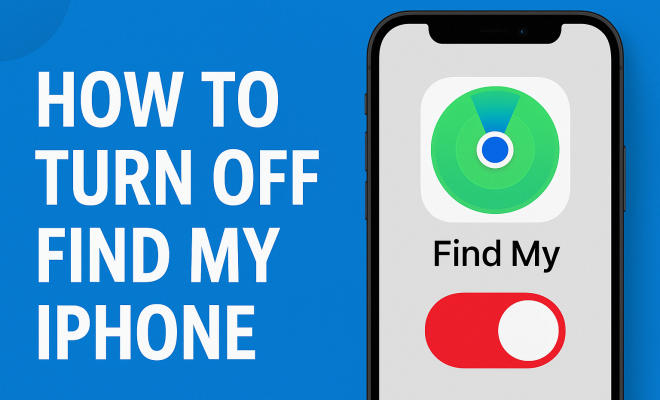
- Disable Find My iPhone: You’ll see the option for “Find My iPhone.” Tap on it and toggle the switch to turn it off. You may be prompted to enter your Apple ID password for security reasons.
Once completed, you’ll receive a notification indicating that Find My iPhone has been turned off successfully. If you’re using an iPhone with iOS 13 or later, the process is nearly identical, ensuring ease of use.
4. How to Turn Off Find My iPhone on iPad and Mac
Disabling Find My iPhone on an iPad or Mac is just as straightforward as it is on an iPhone. Here’s how:
On iPad:
- Open the Settings app.
- Tap on your Apple ID name at the top of the screen.
- Navigate to the “Find My” section.
- Toggle off “Find My iPad” and enter your Apple ID password if prompted.
On Mac:
- Click on the Apple logo in the top-left corner of your screen.
- Select System Preferences.
- Click on Apple ID and then select “iCloud” from the sidebar.
- Uncheck the box next to “Find My Mac.” You may need to enter your Apple ID password.
Whether you’re using an iPad or Mac, the steps are designed to be user-friendly, ensuring that you can quickly disable the feature without hassle.
5. What Happens When You Turn Off Find My iPhone?
Disabling Find My iPhone has several implications. First and foremost, once you turn off this feature, you won’t be able to track your device if it gets lost or stolen. This means you’d have to rely on other methods to try to recover it, which can be less effective.
Additionally, turning off Find My iPhone also disables Activation Lock, an essential security feature. Activation Lock prevents anyone else from using your device if it’s locked. This is crucial for protecting your personal information. Before you decide to turn off Find My iPhone, carefully consider the risks involved, especially concerning the potential loss or theft of your device.
6. How to Turn Off Find My iPhone Remotely
In some cases, you might need to turn off Find My iPhone remotely, especially if you can’t access the device physically. Here’s how to do it: (See: Wikipedia article on Find My iPhone.)
- Visit the iCloud website on your computer.
- Log in with your Apple ID and password.
- Click on “Find iPhone.”
- From the All Devices drop-down menu, select the device you want to remove.
- Choose “Remove from Account.”
Once you remove the device, Find My iPhone will no longer be active for that item. This is particularly helpful if you’ve sold your iPhone but forgot to disable the feature beforehand.
7. Common Issues When Turning Off Find My iPhone
While the process is generally straightforward, users may encounter some issues when attempting to turn off Find My iPhone. One common problem is forgetting the Apple ID password. If you find yourself in this situation, resetting your password through Apple’s account recovery process will be necessary.
Another issue could arise if the device is not connected to the internet. If your iPhone or iPad isn’t online, you may not be able to disable the feature until it regains connectivity. In such cases, waiting until you have a stable internet connection is essential. Additionally, some users may be prompted with error messages that can be frustrating. These often relate to account authentication issues, requiring you to double-check your login credentials.
8. Alternatives to Find My iPhone
If you’re concerned about privacy but want to keep some tracking capabilities, consider looking into alternatives. For instance, you can use third-party tracking apps that offer similar functionalities without the persistent location tracking features that Find My iPhone has.
- Google Maps Location Sharing: You can share your real-time location with friends or family through Google Maps.
- Life360: This app is designed for families, allowing members to share their locations with one another.
- Glympse: A user-friendly app that enables you to share your location temporarily with others.
These alternatives provide flexibility without the constant monitoring aspect that some users may find uncomfortable.
9. Final Thoughts: Weighing the Pros and Cons
Ultimately, knowing how to turn off Find My iPhone is critical for any Apple device user. While it’s an excellent tool for security, there are times when disabling it is necessary. As you consider whether to disable this feature, weigh the pros and cons carefully: the security benefits of being able to track your device against your desire for privacy.
Turning off Find My iPhone is easy, but once disabled, remember that you’re risking losing access to your device if it goes missing. By understanding the implications and following the steps outlined in this guide, you’ll be well-equipped to manage your Apple devices according to your preferences and comfort level.
10. Impact of Privacy on Digital Life
In today’s digital landscape, privacy has taken center stage. With data breaches and misuse of personal information becoming all too common, users are increasingly cautious about the apps and services they use, including location tracking features. When weighing whether to turn off Find My iPhone, it’s important to consider how much privacy you’re willing to sacrifice for convenience. Studies indicate that a significant percentage of users express discomfort about being tracked, even if the purpose is to enhance security.
According to a survey by Pew Research Center, approximately 60% of Americans feel that their privacy is being eroded by technology. This sentiment has led many to take proactive steps, such as disabling location services or opting out of tracking features like Find My iPhone. Understanding your comfort level with privacy can provide clarity when deciding how to handle your devices.
11. Statistics on Lost Devices
Speaking of security, let’s talk about the statistics surrounding lost or stolen devices. According to a report from the Consumer Electronics Association, around 40 million smartphones are lost each year in the United States alone. That’s a staggering number, and it emphasizes the importance of features like Find My iPhone. However, the same report indicates that a good portion of those who lost their devices did not have tracking enabled, which could have potentially prevented many of those losses.
Furthermore, the National Insurance Crime Bureau reports that phone thefts have increased by 30% in the last few years. With these numbers in mind, turning off Find My iPhone can seem risky. The potential for recovery using tracking features is significantly higher, so weighing the need for privacy against the possibility of device loss is crucial.
12. Expert Opinions on Device Tracking and Privacy
Experts in digital security often have differing views on the trade-offs between convenience and privacy. Security analyst Bruce Schneier argues, “In a world where everything is connected, we have to think carefully about what we share.” He emphasizes that while convenience features are great, they should not come at the cost of our personal information.
On the other hand, cybersecurity expert Dr. Jessica Barker believes that users should be empowered to make their own choices concerning their privacy. “The power should be in the hands of the users,” she states, indicating that people should decide for themselves when and where their location should be shared. This debate highlights the ongoing conversation about privacy in the tech realm and what it means for everyday users.
13. Frequently Asked Questions (FAQ)
Q1: Can I turn off Find My iPhone without the password?
A1: Unfortunately, you cannot disable Find My iPhone without entering your Apple ID password. This feature is designed to protect your device from unauthorized access. (See: CDC on technology and privacy concerns.)
Q2: What if I forgot my Apple ID password?
A2: If you forgot your Apple ID password, you can reset it using Apple’s account recovery options. This typically involves answering security questions or using a trusted device to receive a verification code.
Q3: Is there any way to track my device if Find My iPhone is turned off?
A3: If Find My iPhone is turned off, tracking capabilities are significantly limited. You may rely on your cellular provider’s location services, but these may not be as precise as Apple’s tracking feature.
Q4: What are the consequences of not having Find My iPhone enabled?
A4: The primary consequence is the inability to track your device if it’s lost or stolen. Additionally, without Find My iPhone, Activation Lock won’t be available, which could make it easier for someone else to use your device.
Q5: How do I know if Find My iPhone is turned off?
A5: You can check the status of Find My iPhone by going to Settings > Your Name > Find My. If it is turned off, it will say “Find My iPhone is Off.”
Q6: Can I turn off Find My iPhone if my device is lost?
A6: If your device is lost and you are unable to physically access it, you can turn it off remotely through the iCloud website by removing the device from your account.
Q7: Are there any risks associated with turning off Find My iPhone?
A7: Yes, the primary risk is that you’ll not be able to track your device if it’s lost or stolen. Additionally, deactivating it removes the security of Activation Lock, making it easier for someone else to use your device without your permission.
14. Understanding the Security Features of Find My iPhone
Before you decide to turn off Find My iPhone, it’s crucial to understand the security features that come with it. Apart from just tracking your device, Find My iPhone provides several protective measures that help ensure your data stays secure.
For example, Activation Lock prevents anyone from using your iPhone without your Apple ID and password. This means that even if someone steals your phone and wipes it, they can’t activate it without your credentials. Additionally, if you report a stolen phone to the authorities, they might ask for this information to help track it down.
Apple has also integrated a feature called Lost Mode within Find My iPhone. When enabled, this mode locks your device and displays a custom message on the screen, which can be helpful in encouraging good samaritans to return it. You can also set a phone number that they can call to reach you directly.
These features underscore the importance of maintaining Find My iPhone, especially in high-risk environments where theft may be more prevalent.
15. When Is It Necessary to Keep Find My iPhone Enabled?
Even if you have a desire for privacy or are contemplating turning off Find My iPhone, there are specific situations where keeping it enabled is crucial. For example, if you frequently travel or commute in public transportation, having the ability to track your device can be immensely beneficial. Lost phones often end up in public places, and having Find My iPhone active gives you a higher chance of retrieval. (See: New York Times on Apple and privacy.)
Similarly, if you have children who own iPhones, it can offer peace of mind knowing you can locate them if they get lost. In such cases, the benefits of having Find My iPhone outweigh concerns about privacy. The ability to find your loved ones or your own device can provide a sense of security that is hard to replace.
16. What to Do Before Selling or Gifting Your Device
Before turning off Find My iPhone to sell or gift your device, it’s essential to take a few additional steps to protect your personal data. First, ensure all your data is backed up to iCloud or your computer. This ensures that you won’t lose important information when the device changes hands.
Next, navigate to Settings > General > Reset, and select “Erase All Content and Settings.” This action will wipe your device completely and restore it to factory settings, making it ready for the next user. Remember to turn off Find My iPhone before doing this, as it is mandatory for the reset to complete successfully.
Finally, log out of your Apple ID and other accounts linked to the device to ensure your information is no longer accessible. Once these steps are completed, you can confidently sell or give away your device without worrying about your privacy or data security.
17. Protecting Your Privacy in a Tech-Driven World
As technology continues to evolve, so do the challenges regarding privacy. While Find My iPhone is a beneficial feature, it’s essential for users to remain vigilant about their data and how it’s shared. Regularly reviewing app permissions and understanding what data is collected can help you manage your digital footprint.
Consider utilizing privacy-focused features and apps that minimize tracking. For example, you might want to explore VPNs (Virtual Private Networks) for secure browsing or utilize browsers that focus on privacy, like Firefox or Brave. These tools allow you to take control of your online presence and limit unwanted tracking.
Ultimately, being proactive about your privacy can empower you to make informed choices about the technology you use and how you engage with it.
18. Conclusion: Empower Yourself with Knowledge
Knowing how to turn off Find My iPhone is just one piece of the puzzle when it comes to managing your digital privacy and security. Understanding the implications, benefits, and alternatives can help you make informed choices that align with your comfort level and lifestyle. As you navigate your digital life, remember that knowledge is power, and being informed allows you to take control of your personal information.
Whether you decide to keep Find My iPhone enabled for security reasons or turn it off for privacy, the choice ultimately lies in your hands. Stay aware of the risks and benefits, and adjust your settings and habits to create the safest digital environment for yourself.