How to enable Do Not Disturb on iPhone
“`html
Introduction: In our hyper-connected world, it’s easy to feel overwhelmed by constant notifications from messages, social media, and countless apps vying for your attention. If you often find yourself distracted, you might be wondering how to enable Do Not Disturb on your iPhone. This feature is more than just a simple toggle; it’s a powerful tool that can help you reclaim your focus and prioritize your personal time, whether you’re working, relaxing, or sleeping.
1. Understanding Do Not Disturb
The Do Not Disturb (DND) feature on your iPhone is designed to silence incoming calls, alerts, and notifications. Apple introduced this feature to help users manage their time better and enhance their productivity. When enabled, you won’t receive any notifications, but you can still allow calls from certain people or repeated calls in case of emergencies.
DND is particularly useful in situations where interruptions are unwelcome, such as during meetings, while studying, or at night when you need quality sleep. With customizable settings, you have control over who can still reach you even when DND is active.
2. How to Enable Do Not Disturb on iPhone
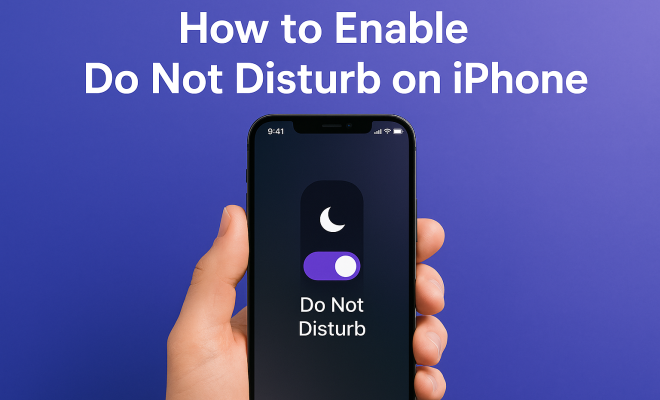
Enabling Do Not Disturb on your iPhone is a straightforward process. Here’s how you can do it:
- Using Control Center: Swipe down from the upper right corner of the screen (or swipe up from the bottom on older iPhone models) to access the Control Center. Look for the crescent moon icon, and tap it to turn on DND.
- Through Settings: Go to Settings > Focus > Do Not Disturb. Here, you can toggle the feature on, customize your options, and set specific times for the feature to activate automatically.
It’s that easy! Now, you can enjoy uninterrupted time without the distraction of incessant notifications.
3. Customizing Your DND Settings
One of the best things about the DND feature is its customizability. By going into Settings > Focus > Do Not Disturb, you can tailor your experience. You can choose who can call you or send messages while DND is enabled. This is particularly useful if you want only important contacts to reach you.
Additionally, the iPhone allows you to create a list of apps that can still send notifications during DND. This means you can stay updated on critical apps while blocking out the noise from less important ones. This level of control is what makes the DND feature so valuable.
4. Scheduling Do Not Disturb
For a seamless experience, consider scheduling your Do Not Disturb settings. You can set specific times for DND to activate automatically, which is perfect for regular sleep patterns or work hours. To schedule, head to Settings > Focus > Do Not Disturb and select Add Schedule. You can choose the days of the week and the hours during which you want DND activated.
By scheduling DND, you won’t have to remember to turn it on and off, allowing you to focus more on your tasks without interruptions. It’s an excellent way to establish boundaries in your daily routine. (See: Do Not Disturb feature explained.)
5. Using Focus Modes with DND
The introduction of Focus modes in iOS 15 has taken the DND feature to another level. Focus allows users to create different modes tailored to various activities, such as Work, Personal, or Sleep. Each mode can have its own DND settings that dictate which notifications you receive and from whom.
This means you can switch to a Work Focus mode and allow notifications from colleagues while silencing everything else. Similarly, when you’re in Sleep mode, you can restrict all notifications except for urgent calls. This flexibility allows you to curate your notifications based on context, enhancing productivity and well-being.
6. Emergency Bypass: A Lifesaver Feature
One of the most helpful aspects of the DND feature is the Emergency Bypass. This setting allows specific contacts to reach you even when DND is on. To enable this, go to the contact you want to bypass, edit their details and toggle on the Emergency Bypass option for calls and texts.
This is particularly useful for ensuring that family members or close friends can reach you in case of emergencies, granting you peace of mind while still enjoying the benefits of DND. It balances the need for focus with the necessity of being available when it really matters.
7. Considerations for Different Scenarios
Understanding when and how to use Do Not Disturb can enhance your efficiency in various situations. For instance, during a meeting, you might want to set DND to allow only calls from your manager or team leader. Similarly, while studying, you can completely silence everything but allow critical notifications from educational apps.
If you’re using your iPhone for sleep, consider scheduling DND to automatically activate an hour before bedtime, ensuring that you won’t be disturbed by any notifications. Each scenario can benefit from a tailored DND approach that maximizes your productivity and well-being.
8. Integration with Other Devices
Another advantage of the Do Not Disturb feature is its ability to integrate with other Apple devices. If you’re using an iPad or a Mac and have enabled DND on your iPhone, the feature can sync across all your devices. This means you will not receive notifications from any Apple device when DND is active on one.
This seamless integration is particularly beneficial for those who use multiple Apple products. The result is a unified experience where distractions are minimized across all devices, allowing for a more focused environment.
9. Staying Informed: Updates and Tips
As Apple continues to update its software, the features and functionalities of Do Not Disturb may evolve. Staying informed about these changes can help you maximize the efficiency of your iPhone’s DND settings. Regularly checking for iOS updates is also advisable, as new options and enhancements can dramatically improve your user experience.
Additionally, consider exploring online forums and communities where users share tips and tricks for optimizing Do Not Disturb. Engaging with these resources can provide insights into how others are using the feature, which can inspire you to adjust your own settings for better personal and professional productivity. (See: Managing stress and distractions.)
10. Benefits of Using Do Not Disturb
Using Do Not Disturb on your iPhone comes with a variety of benefits that can significantly enhance your daily life. Here are a few key advantages:
- Increased Productivity: With fewer notifications distracting you, it’s easier to stay focused on your tasks. Studies show that frequent interruptions can decrease productivity by up to 40%. By managing notifications, you can create a more effective work environment.
- Better Sleep Quality: Many users report improved sleep quality after regularly using DND during the night. By blocking notifications that could wake you up, you can enjoy uninterrupted rest, which is essential for overall health.
- Improved Mental Health: Constant notifications can contribute to feelings of anxiety and stress. By enabling DND, you give yourself the space to relax without the pressure of being constantly available. This can help improve your mental well-being.
- Enhanced Focus in Social Settings: When you’re out with friends or family, activating DND can help you be present in the moment. It encourages you to engage more meaningfully with those around you, fostering better relationships.
11. Do Not Disturb vs. Focus Modes
While both Do Not Disturb and Focus modes aim to minimize distractions, they serve different purposes. Do Not Disturb is a blanket approach that silences all notifications. Focus modes, on the other hand, are more nuanced and allow for tailored experiences depending on your current activity.
For example, if you’re in a creative meeting, you might enable a Focus mode that allows calls from your team while silencing social media notifications. Conversely, if you’re aiming for complete peace, activating Do Not Disturb is a better choice. Understanding this difference helps you to optimize when and how to use each feature effectively.
12. Common Misconceptions about Do Not Disturb
There are several misconceptions surrounding the Do Not Disturb feature that can lead to confusion:
- My Phone is Off: Many people think that enabling DND means their phone is turned off. This is not the case; your phone remains on, and you can still make and receive calls, depending on your settings.
- All Notifications are Blocked: Some users believe that all notifications are silenced when DND is activated. However, with the right settings, you can customize which notifications still come through.
- DND is Only for Sleep: While many use DND at night, it can be beneficial at any time of day. Whether you’re in a meeting, studying, or enjoying personal time, DND can be a useful tool.
13. Do Not Disturb FAQ
What happens if someone calls me while Do Not Disturb is enabled?
If someone calls you while DND is enabled, the call will go straight to voicemail unless that contact is on your allowed list or they call again within three minutes (if you have repeated calls enabled).
Can people still text me when Do Not Disturb is on?
Generally, text notifications are silenced while DND is active. However, you can allow messages from certain contacts or apps by customizing your DND settings.
Can I still receive alarms when Do Not Disturb is enabled?
Yes, alarms will still sound even when Do Not Disturb is turned on. This is important for ensuring you wake up on time or remember important reminders.
Is there a way to see missed notifications after I disable Do Not Disturb?
Yes, once you turn off DND, any missed notifications will appear in your Notification Center. You can check this by swiping down from the top of your screen.
How do I know if Do Not Disturb is active on my iPhone?
When DND is enabled, you will see a crescent moon icon in the status bar at the top of your screen. This serves as a reminder that notifications are silenced.
14. Practical Examples of DND Use Cases
To better understand how to enable Do Not Disturb on your iPhone effectively, let’s explore some practical examples of how different individuals can benefit from this feature:
- The Student: A college student may enable DND to silence notifications from social media and games during study hours. This helps them concentrate on their coursework without distractions.
- The Professional: During meetings or while working on important projects, a professional can activate DND to avoid interruptions from non-essential communications, allowing them to maintain focus and productivity.
- The Parent: Parents might use DND at night to ensure their children aren’t disturbed by notifications, creating a peaceful environment conducive to sleep.
- The Vacationer: When vacationing, an individual can use DND to enjoy their time off without being overwhelmed by work emails and messages.
15. Advanced DND Settings for Power Users
If you’re someone who really wants to get the most out of the Do Not Disturb feature, there are advanced settings that can further enhance your experience. For instance, you can create multiple Focus modes that serve different aspects of your day. Here are some ideas:
- Workout Mode: When you’re at the gym, you might want to allow music and fitness-related notifications while silencing everything else. This way, you can stay motivated without the distractions of calls or texts.
- Drive Mode: If you’re driving, enabling this mode can help reduce distractions. It can automatically send a reply to anyone who tries to contact you, letting them know you’re on the road and will get back to them later.
- Creative Mode: For artists or writers, creating a Focus mode that allows only specific apps—like your note-taking or drawing app—can help you get into the creative zone without interruptions from social media or other notifications.
By customizing these settings, you can create a personalized experience that enhances your productivity and well-being while using your iPhone.
16. Tips for Making the Most of Do Not Disturb
As you start to incorporate Do Not Disturb into your daily routine, consider these tips to maximize its effectiveness:
- Evaluate Your Contacts: Regularly update your allowed contacts list. As your priorities change, who you want to hear from may need to be adjusted.
- Utilize Scheduled DND: Try different schedules for DND. For example, you might only need it during work hours or while in class. Experiment with what works best for you.
- Limit App Notifications: Go through your apps and adjust their notification settings to ensure you’re only getting alerts that truly matter. This can reduce the need for DND altogether.
- Use Visual Indicators: If you’re in a shared environment, consider using visual cues (like a colored light) to let others know when you’re in a DND mode. This can prevent interruptions from people who may not realize you’re busy.
17. Do Not Disturb for Families: Creating a Peaceful Home Environment
In families, managing notifications can become a collective effort. By enabling Do Not Disturb for everyone in the household during family time, you can create a peaceful environment where everyone is present. Here are some strategies:
- Family Meetings: Set regular times for family meetings where everyone agrees to put their devices away. Enabling DND during these times can help everyone focus on each other.
- Family Game Night: When playing games, activating DND ensures that no one is distracted by incoming calls or messages, allowing for full engagement.
- Mealtime Without Distractions: Encourage everyone to enable DND during meals. This can foster better conversations and deeper connections among family members.
Final Thoughts: Enabling Do Not Disturb on your iPhone is more than just a way to silence notifications; it’s a strategic approach to managing your time and focus. By understanding the ins and outs of DND and customizing it to your needs, you can create a more productive and peaceful environment. Whether you’re at work, spending time with loved ones, or simply taking a break, mastering the DND feature can profoundly impact your daily life.
“`
Trending Now
Frequently Asked Questions
How do I turn on Do Not Disturb on my iPhone?
To enable Do Not Disturb on your iPhone, swipe down from the upper right corner of the screen to access the Control Center and tap the crescent moon icon. Alternatively, go to Settings > Focus > Do Not Disturb to toggle the feature on and customize your options.
What happens when Do Not Disturb is enabled on iPhone?
When Do Not Disturb is activated on your iPhone, incoming calls, alerts, and notifications are silenced. You can still allow calls from specific contacts or repeated calls in case of emergencies, ensuring you stay undisturbed while still being reachable if necessary.
Can I customize Do Not Disturb settings on iPhone?
Yes, you can customize your Do Not Disturb settings on your iPhone. Go to Settings > Focus > Do Not Disturb, where you can adjust who can contact you during this mode and set specific times for it to activate automatically.
Is Do Not Disturb the same as Airplane mode on iPhone?
No, Do Not Disturb is not the same as Airplane mode. While Do Not Disturb silences notifications and calls, Airplane mode disables all wireless communications, including cellular, Wi-Fi, and Bluetooth connections. You can use Do Not Disturb while still receiving calls or using the internet.
How do I schedule Do Not Disturb on my iPhone?
To schedule Do Not Disturb on your iPhone, go to Settings > Focus > Do Not Disturb. From there, you can set specific times for the feature to activate automatically, allowing you to enjoy uninterrupted time during your preferred hours.
What’s your take on this? Share your thoughts in the comments below — we read every one.