How to take scrolling screenshots
“`html
1. What Are Scrolling Screenshots?
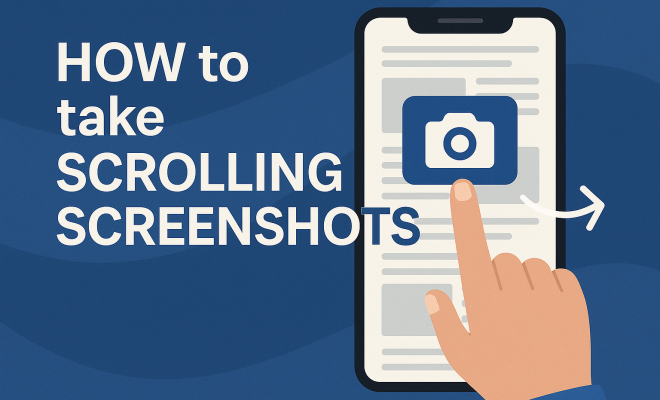
Scrolling screenshots are a powerful tool that allows you to capture an entire webpage or a lengthy conversation in a single image. Unlike standard screenshots, which only capture the visible portion of your screen, scrolling screenshots enable you to take a picture of everything that’s displayed when you scroll down. This capability is particularly useful for sharing content that doesn’t fit neatly into one screen, such as long articles, chat histories, or social media feeds.
As technology continues to evolve, the need for effective communication increases. Whether you’re a student needing to share research notes, a professional documenting a lengthy email thread, or simply someone wanting to save a recipe from a website, scrolling screenshots can simplify the process. They condense information into a single, easily shareable file, saving time and effort.
2. Why Use Scrolling Screenshots?
The advantages of scrolling screenshots are numerous. For starters, they enhance clarity by providing a full context of the material being shared. Instead of sending multiple screenshots and potentially losing track of the conversation or information, one scrolling screenshot captures everything in one go. This is not only convenient for the sender but also for the recipient, who can view the complete picture without any confusion.
Additionally, scrolling screenshots are more visually appealing. They often maintain the original layout and design of the content, giving it a polished look. Whether you’re sharing on social media, in a presentation, or with colleagues, a single, cohesive image looks far more organized than a disjointed series of screenshots. This aesthetic aspect can make your communication more effective.
3. How to Take Scrolling Screenshots on Various Devices
Taking scrolling screenshots varies based on your device or operating system. Let’s break down the process for some popular platforms:
- Windows: On Windows devices, third-party applications like Snagit or ShareX can be used to capture scrolling screenshots. Both tools offer easy-to-follow instructions, often requiring you to select the area you want to capture and then scroll automatically.
- Mac: Mac users can utilize the native screenshot tool in combination with third-party apps like CleanShot X or Snagit for scrolling screenshots. Simply initiate a screenshot and select the scrolling option when prompted.
- iOS: For iPhone users, Apple has integrated scrolling screenshot functionality directly into the iOS system. After taking a regular screenshot, tap on the preview, then select the ‘Full Page’ option. The entire webpage will be captured, and you can save it as a PDF.
- Android: Android devices vary by manufacturer; however, many modern Android smartphones come with built-in scrolling screenshot features. Typically, you’ll need to take a standard screenshot first, followed by a prompt that offers the option to capture more of the screen as you scroll.
4. Best Tools for Taking Scrolling Screenshots
While many devices offer built-in options for scrolling screenshots, several applications elevate the experience with additional features. Here are some of the most efficient tools available:
- Snagit: Known for its versatility, Snagit supports multiple platforms and offers extensive editing features post-capture. This tool allows users to create a variety of content formats, from simple screenshots to instructional videos.
- ShareX: This free, open-source tool is perfect for Windows users who need something powerful without the cost. Its scrolling screenshot feature is robust, allowing users to customize how their captures are taken.
- Picsew: An excellent choice for iOS users, Picsew provides a seamless way to combine multiple screenshots into one. It offers several editing features and is especially useful for social media sharing.
- LongShot: Exclusive for Android, LongShot excels in capturing scrolling screenshots. It’s easy to use and can automatically stitch images together, making for quick and efficient captures.
5. Practical Insights: Optimization Tips for Scrolling Screenshots
Now that you know how to take scrolling screenshots, let’s look into optimizing them for different needs. Here are some tips:
- Resolution Matters: Always ensure your screenshots are taken in high resolution to maintain clarity. Check your device settings to make sure you’re capturing at the highest quality.
- Editing Tools: Take advantage of the editing features available in most screenshot tools. You can highlight important areas, annotate, or blur sensitive information before sharing.
- File Formats: Consider the best file format for your needs. JPEG is more compressed but may lose some quality, while PNG retains clarity but takes more space. PDF is also an option if you’re sharing documents.
6. Current Relevance and Uses of Scrolling Screenshots
In a world driven by digital communication, scrolling screenshots have become increasingly relevant. They play a vital role in professional settings, especially in industries where information sharing is crucial. Imagine a project manager needing to share a long email thread with a team; a scrolling screenshot can depict the entire conversation in one image, making it far more effective than forwarding multiple emails. (See: Wikipedia article on screenshots.)
In academia, students can use scrolling screenshots to compile research or lecture notes, especially from online sources. This can be incredibly useful in study groups where visual aids help with retention. Additionally, for social media influencers or marketers, scrolling screenshots can capture entire feeds or articles, making it easier to highlight trends or important information succinctly.
7. Common Challenges and How to Overcome Them
Despite their usefulness, users may encounter common challenges while taking scrolling screenshots. Here are some issues and solutions:
- Inconsistent Quality: If the image quality is inconsistent, try adjusting your device’s resolution settings or using a dedicated app that allows for higher quality captures.
- Stitching Errors: Sometimes, when using third-party apps, the stitching of images may not match perfectly. Ensure you take your time to align images properly during the capture process, and review the final result before saving.
- Limited Functionality on Older Devices: Older devices may not support scrolling screenshot features. In these cases, consider updating your device or using simple screen recording tools as an alternative, which can capture the scrolling in video format.
8. Future of Scrolling Screenshots
The future of scrolling screenshots is promising, as technology advances continue to improve user experience. Innovations may include better AI functionalities that can automatically suggest what parts of a webpage to capture based on user preferences. Additionally, app developers are likely to enhance collaboration features, allowing multiple users to annotate and edit scrolling screenshots in real-time.
As remote work and digital communication become the norm, scrolling screenshots could play a vital role in streamlining collaboration and maintaining clarity in conversations. The trend of integrating screenshots into productivity tools is likely to grow, making them even more accessible.
9. Final Thoughts on Scrolling Screenshots
Scrolling screenshots are more than just a handy tool; they are a testament to the evolution of digital communication. By simplifying how we share and present information, they bridge the gap between lengthy content and user accessibility. Whether for personal use, academic pursuits, or professional communication, mastering scrolling screenshots can significantly enhance your digital interactions.
So, the next time you find yourself needing to share a lengthy piece of information, remember that a scrolling screenshot could make all the difference—no more fragmented conversations or lost context. Embrace this technology, and you’ll wonder how you ever managed without it!
10. Advanced Uses of Scrolling Screenshots
As scrolling screenshots become more integrated into our daily communications, users are discovering advanced techniques and applications for them. Here are some ideas on how you can leverage scrolling screenshots beyond simple captures:
- Research and Documentation: In fields like academia or journalism, scrolling screenshots can serve as a means to document sources. By capturing entire articles or studies, you maintain the integrity of the original content while providing a reference for your work.
- Customer Support: In tech support or customer service roles, agents can use scrolling screenshots to capture entire conversations with clients or issues displayed on a screen. This can provide context to support tickets and ensure that all relevant information is available for resolution.
- Social Media Monitoring: Brands can use scrolling screenshots to keep track of social media trends, comments, and user feedback. By capturing conversations or posts in their entirety, they can create comprehensive reports on brand perception and customer interactions.
- Portfolio Development: Designers and developers can showcase their work by using scrolling screenshots to capture an entire project. This could include showing off a website’s full layout or an app’s user interface, providing potential clients with a complete picture of the work.
11. Statistics on Usage and Impact
While specific statistics on scrolling screenshot usage may be limited, various studies underline the importance of visual communication in our digital age. Here are some key insights:
- A study by 3M found that visuals are processed 60,000 times faster than text, highlighting the importance of tools like scrolling screenshots that convey information visually.
- According to a report from HubSpot, 54% of consumers want to see more video content from businesses, indicating that visual aids—including screenshots—can significantly enhance engagement.
- Research by the Nielsen Norman Group suggests that users recall information presented visually more effectively than text alone. This validates the use of scrolling screenshots in preserving context and clarity.
These statistics showcase the growing need for effective visual communication tools in a fast-paced digital environment, making scrolling screenshots a vital resource for anyone looking to enhance their communication strategies. (See: CDC tips on social media communication.)
12. FAQ: Understanding Scrolling Screenshots
What are the benefits of using scrolling screenshots over traditional ones?
Scrolling screenshots allow you to capture and share more extensive content in one image, providing context and clarity that traditional screenshots cannot. This prevents confusion that can arise from fragmented screenshots.
Are scrolling screenshots editable?
Yes, many tools that allow you to take scrolling screenshots also provide editing features. You can annotate, highlight, and blur parts of the screenshot before sharing, making it easy to emphasize important areas or protect sensitive information.
Can I take scrolling screenshots of any website or app?
While you can take scrolling screenshots of most websites and apps, some may have restrictions or specific layouts that complicate the process. If you encounter issues, consider trying different tools or capturing multiple segments manually.
Are there any privacy concerns with scrolling screenshots?
Yes, privacy is a valid concern. When capturing scrolling screenshots, be cautious not to include sensitive personal information or confidential data. Ensure that you review the screenshot before sharing it to protect privacy.
Is there a limit to how much content I can capture in a scrolling screenshot?
Most tools have limits based on device memory and processing power. However, you can usually capture an extensive amount of content, especially with dedicated screenshot tools optimized for longer captures.
Can scrolling screenshots help in remote work environments?
Absolutely! Scrolling screenshots can enhance collaboration and communication in remote work settings by providing clear visual documentation of ideas, feedback, and discussions, which is especially important when teams are not physically together.
13. Comparing Scrolling Screenshots and Other Capture Tools
When discussing scrolling screenshots, it’s essential to compare them with other capture tools available today. Here’s how they stack up against screen recordings and traditional screenshots:
- Scrolling Screenshots vs. Screen Recordings: Screen recordings can capture dynamic content like video or animations, which scrolling screenshots cannot. However, scrolling screenshots provide a static view that is often easier to share and quicker to produce when dealing with text-heavy information.
- Scrolling Screenshots vs. Traditional Screenshots: Traditional screenshots are limited to what is visible on your screen at the moment, which can omit essential context. Scrolling screenshots capture everything in one go, ensuring that all information is conveyed.
- Scrolling Screenshots vs. Web Clipping Tools: Web clipping tools like Evernote can save entire pages or snippets of content. While they are excellent for saving information for personal use, scrolling screenshots are more effective for sharing complete content visually.
This comparison highlights the unique advantages scrolling screenshots offer, particularly for users who prioritize clarity and context in their communication. (See: New York Times on scrolling screenshots.)
14. Integrating Scrolling Screenshots into Your Workflow
For many professionals, integrating scrolling screenshots into daily workflows can enhance productivity and communication. Here are some ways to effectively incorporate this tool:
- Documentation: Use scrolling screenshots to document processes or instructions, especially for complex software tools. This allows for easy reference and ensures that everyone is on the same page.
- Feedback Collection: When gathering feedback from team members on design or content, scrolling screenshots can capture specific areas of concern or praise, making it easier for everyone to understand the context of the feedback.
- Team Collaboration: During collaborative projects, sharing scrolling screenshots can help visualize discussions surrounding particular aspects of a project, ensuring clarity and alignment among team members.
- Training and Onboarding: New employees can benefit from scrolling screenshots that provide visual guides to company tools or resources, improving their onboarding experience and reducing the learning curve.
15. Best Practices for Sharing Scrolling Screenshots
Sharing scrolling screenshots requires some thought to maximize their effectiveness. Here are best practices to consider:
- Context is Key: When sharing a scrolling screenshot, always provide context. Explain what the screenshot represents and why it’s important, which helps recipients understand its relevance.
- Choose the Right Platform: Depending on your audience, choose the right platform for sharing. For example, professional tools like Slack or Microsoft Teams may be more appropriate in a workplace setting, while social media might work better for casual sharing.
- Optimize for Viewing: Before sharing, ensure that your scrolling screenshot is cropped and formatted correctly. Ensure it’s legible on different devices, particularly mobile, as many users access content this way.
- Be Mindful of Copyright: Always consider copyright issues when sharing screenshots of online content. If you’re capturing information from a site, make sure you have permission to share that content.
16. The Role of Scrolling Screenshots in Modern Communication
In today’s fast-paced digital environment, the role of scrolling screenshots has evolved. They serve as an essential medium for communication, bridging the gap between traditional textual communication and the need for visual representation. The growing acceptance of visual content in professional and personal settings emphasizes how important tools like scrolling screenshots are becoming.
Platforms like Discord, Slack, and even email clients increasingly support scrolling screenshots, signaling their importance in communication strategies. As more people start to recognize the benefits of visual documentation, it’s likely that scrolling screenshots will continue to gain traction in various fields.
17. Conclusion
Scrolling screenshots are a game changer in how we share information. They provide a neat, organized way to convey lengthy content without the confusion that comes from multiple screenshots. As technology evolves, so too will the applications and functionalities of scrolling screenshots. By understanding their potential and integrating them into your daily communications, you can enhance clarity, efficiency, and engagement. So, whether you’re using them for work or personal use, scrolling screenshots are undoubtedly a tool worth mastering.
“`
Trending Now
Frequently Asked Questions
What are scrolling screenshots?
Scrolling screenshots are images that capture an entire webpage or lengthy content in one shot, unlike standard screenshots that only show the visible portion of the screen. They are useful for sharing long articles, chat histories, or social media feeds in a single, coherent image.
Why should I use scrolling screenshots?
Scrolling screenshots enhance clarity by providing complete context in one image, reducing the need for multiple screenshots. They are visually appealing, preserving the original layout and design, making communication more organized and effective when sharing information.
How do I take scrolling screenshots on my device?
The process of taking scrolling screenshots varies by device and operating system. Common methods include using built-in features on smartphones or specific software applications on computers. Refer to your device's guidelines for detailed instructions.
Can I take scrolling screenshots on a Mac?
Yes, on a Mac, you can take scrolling screenshots using third-party tools like Snagit or using browser extensions that support this feature. These tools allow you to capture an entire webpage or document in one seamless image.
Are scrolling screenshots easy to share?
Absolutely! Scrolling screenshots condense lengthy information into a single image, making them easy to share via email, social media, or messaging apps. This convenience helps maintain context and clarity for the recipient.
What’s your take on this? Share your thoughts in the comments below — we read every one.