Master Google Sheets Sharing: Boost Team Collaboration
“`html
In the age of collaboration, Google Sheets has become a cornerstone tool for teams and individuals alike. Whether you’re managing a budget, tracking a project, or conducting data analysis, sharing Google Sheets efficiently can enhance teamwork and streamline workflows. This article will provide an in-depth look at the various methods to share Google Sheets, the nuances of permissions, practical tips, and current relevance to ensure you make the most of this powerful tool.
1. Understanding Google Sheets and Its Features
Google Sheets is part of the Google Workspace suite, enabling users to create, edit, and collaborate on spreadsheets online. A significant advantage of Google Sheets is its cloud-based nature, which allows real-time collaboration. This means multiple users can work on the same sheet simultaneously, seeing each other’s changes in real time.
Another appealing feature is its accessibility. Users can access Google Sheets from any device with an internet connection, making it convenient for remote teams and individuals on the go. Additionally, Google Sheets supports various functionalities, including charts, pivot tables, and formulas, allowing users to perform complex data analysis while collaborating effectively.
Beyond these features, Google Sheets also supports custom scripting through Google Apps Script, enabling users to create custom functions and automate tasks, which is beneficial for repetitive data entry or calculations. Custom templates also allow users to kickstart projects using pre-built formats tailored to various industries, such as finance, marketing, or project management.
2. Why Sharing Google Sheets Matters
Sharing Google Sheets is essential for collaborative projects, making it easier to gather insights, manage tasks, and analyze data collectively. By sharing a Google Sheet, you enable colleagues or stakeholders to contribute their perspectives, which can lead to better decision-making.
Moreover, effective sharing can improve productivity. With access to the same document, team members can avoid duplication of efforts and maintain a single source of truth. This not only saves time but also helps in keeping everyone aligned on the project’s goals.
Statistics show that organizations that utilize collaborative tools like Google Sheets experience a 30% increase in productivity. This showcases the importance of shared resources in the modern workplace, helping teams operate more effectively, especially in remote environments.
3. How to Share Google Sheets: Step-by-Step Guide
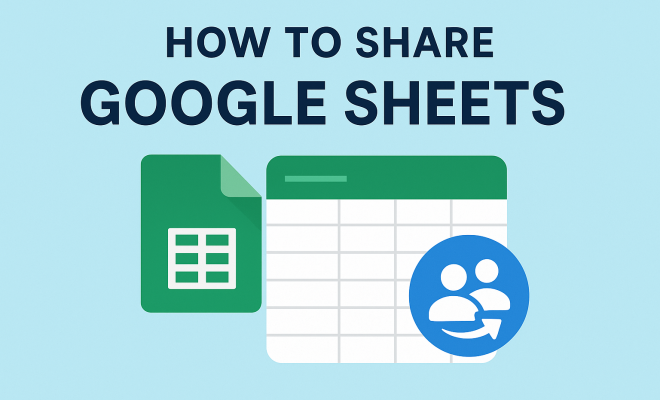
Sharing Google Sheets is straightforward. Here’s how to do it in a few simple steps:
- Open your Google Sheet: Start by opening the Google Sheet you want to share.
- Click on the Share button: Located in the upper right corner, the Share button will prompt a sharing menu.
- Add people or groups: In the sharing settings, enter the email addresses of the individuals or groups you wish to share the document with.
- Select permissions: Choose the level of access—Viewer, Commenter, or Editor—based on how much control you want to give them.
- Click Send: After adjusting the settings, click the Send button to notify the recipients.
This process is simple, yet it opens the door to collaboration and effective communication.
In addition to inviting specific users, you can also share with an entire domain if you’re using Google Workspace. This is particularly useful for organizations where collaboration across teams is essential. This feature allows for quick sharing and ensures that everyone within the organization can access necessary documents. (See: Wikipedia page on Google Sheets.)
4. Understanding Permissions: Viewer, Commenter, Editor
When you share Google Sheets, the permissions you grant are crucial for maintaining control over your document. Here’s a breakdown of the different permission levels:
- Viewer: Users can view the content but cannot make changes or leave comments. This option is ideal for stakeholders who need access to information without influencing the document.
- Commenter: This setting allows users to leave comments and suggestions without altering the actual content. It’s particularly useful during the review phase of a project.
- Editor: Editors can make changes directly to the sheet. This option is best for team members who need to collaborate actively on the content.
Choosing the right permission level is essential to ensure that your document remains secure while encouraging constructive collaboration. You may also want to consider setting “Anyone with the link” permissions if you need to share the document with a larger audience outside your immediate contacts.
5. Using Shareable Links for Wider Access
For broader sharing, you can create a shareable link to your Google Sheet. This feature is particularly handy when you want to distribute the document to a larger audience or when the recipients are not in your contact list.
To create a shareable link, click on the Share button, then select Get link. You can customize the access level for anyone with the link, choosing between Viewer, Commenter, or Editor. Once you have the link, you can send it via email, chat, or any other communication channel.
However, be cautious with this feature to avoid unintended access. Ensure you understand the implications of making your document accessible to anyone with the link. Google also provides an option to restrict access to specific people, which can help maintain confidentiality if needed.
6. Advanced Sharing Options: Managing Access and Notifications
Google Sheets provides advanced sharing features that allow you to manage access more finely. For instance, you can set expiration dates for access, which is particularly useful for temporary collaborators or when a project reaches its conclusion.
To manage access, click on the Share button, select a contributor, and then click on the dropdown next to their access level. Here, you can set an expiration date or remove their access entirely. Additionally, you can notify users via email when they’ve been granted access, ensuring they’re aware of the collaboration.
These advanced options provide an additional layer of security and control over your data, making it easier to manage who can see and edit your work. You can also view the activity within the sheet, such as who accessed it and what changes were made, which aids in tracking contributions and maintaining accountability.
7. Collaborating in Real-Time: Tips and Best Practices
When it comes to collaborating effectively in Google Sheets, real-time editing is a game changer. To get the most out of this feature, consider a few best practices:
- Communicate clearly: Use comments to discuss specific data points or changes. This keeps conversations organized and ensures everyone is on the same page.
- Use version history: Google Sheets automatically saves your changes. If something goes awry, you can access previous versions through File > Version history.
- Set deadlines and responsibilities: Clearly define who is responsible for what. You can even use conditional formatting to highlight tasks or deadlines.
By implementing these practices, you can enhance communication, accountability, and overall productivity within your team. Additionally, using color coding for different tasks or team members can visually enhance the organization of your data.
8. Integrating Google Sheets with Other Google Workspace Tools
One of the standout features of Google Sheets is its ability to integrate seamlessly with other Google Workspace tools like Google Drive, Google Docs, and Google Slides. This integration facilitates a more comprehensive workflow. For example, you can link data from Google Sheets directly into a Google Docs file or presentation, allowing for a cohesive report or presentation.
You can also automate tasks between Google Sheets and other applications using Google Apps Script or Zapier. This can save time and reduce manual data entry tasks, promoting greater efficiency. For example, you could set up a Zap that automatically updates a Google Sheet whenever a new entry is made in a Google Form. (See: CDC Youth Risk Behavior Survey.)
Taking full advantage of these integrations can greatly enhance your productivity and streamline your collaborative efforts. Furthermore, using Google Calendar can help set reminders for deadlines related to tasks listed in your sheets, ensuring nothing falls through the cracks.
9. Staying Secure While Sharing Google Sheets
Security is a top concern when sharing any document, and Google Sheets is no exception. To keep your data secure while collaborating, consider the following strategies:
- Regularly review access: Periodically check who has access to your sheets and remove permissions for those who no longer need it.
- Use two-factor authentication: This adds an extra layer of security to your Google account, making it harder for unauthorized users to gain access.
- Educate collaborators: Ensure that everyone understands the importance of data security practices, such as not sharing passwords or sensitive information.
By being proactive about security, you can share Google Sheets with confidence, knowing that your data is protected. Additionally, consider using tools like Google Vault for archiving and data retention, which can be crucial for compliance purposes.
10. Common Use Cases for Sharing Google Sheets
Sharing Google Sheets can be beneficial in various scenarios. Here are some common use cases:
- Project Management: Teams can track progress, assign tasks, and monitor deadlines in a centralized sheet.
- Budget Tracking: Multiple stakeholders can input their expenses, making it easier to monitor the budget in real time.
- Data Analysis: Analysts can collaborate on data sets, aggregate findings, and share insights quickly.
- Event Planning: Organizers can track RSVP lists, budget allocations, and tasks associated with an event.
- Sales Forecasting: Sales teams can collaborate on projections, input sales data, and track performance metrics.
These examples highlight how versatile Google Sheets can be across different industries, enhancing collaboration and efficiency in various processes.
11. Frequently Asked Questions (FAQs)
1. How do I stop sharing my Google Sheet?
To stop sharing, click the Share button, select the person or group you want to remove, and click the Remove icon. This will revoke their access immediately.
2. Can I password protect a Google Sheet?
Google Sheets does not offer a direct password protection feature for individual sheets. However, you can control access through permissions and share settings to limit who can view or edit your document.
3. What happens if I share a Google Sheet and someone makes changes?
If you grant someone Editor access, they can make changes directly to the sheet. You can always revert to a previous version using the version history feature if needed.
4. Can I share Google Sheets with users outside my organization?
Yes, you can share sheets with users outside your organization. Just ensure you set the permissions appropriately when sharing.
5. How can I track who made changes to my Google Sheet?
You can track changes by using the version history feature, which shows detailed logs of who made changes and what those changes were. (See: New York Times article on Google Sheets.)
6. Is there a way to share Google Sheets without revealing personal email addresses?
Yes, consider using the shareable link option with restricted permissions. This way, users can access the sheet without needing to be added individually by email.
12. Best Practices for Sharing Google Sheets in Large Teams
When working with larger teams, sharing Google Sheets requires a bit more strategy to ensure that everyone is on the same page. Here are some best practices:
- Establish a naming convention: When creating multiple sheets, use a consistent naming convention that clearly defines the purpose and date of each document. This will prevent confusion and make it easier to find specific sheets later.
- Use tabs wisely: Organize related data within a single Google Sheet using different tabs. This reduces the number of sheets you need to manage and helps keep information consolidated.
- Utilize comments and notes: Encourage team members to leave comments on specific cells for questions or suggestions. This maintains context and helps track discussions related to particular data points.
- Train your team: Conduct training sessions for your team on how to use Google Sheets effectively, covering everything from basic functions to advanced features. A well-informed team will collaborate more effectively.
- Set a regular review process: Schedule periodic check-ins to review the shared sheets. This will keep everyone accountable and ensure that data remains accurate and up to date.
13. How to Handle Conflicting Edits
Conflicting edits can occur when multiple users edit the same cell at the same time. Google Sheets has features to manage this, but you can also take proactive steps:
- Use the comment feature: Instead of making changes directly in the spreadsheet, team members can leave comments to discuss potential changes. Once a consensus is reached, someone can make the actual edits.
- Regular updates: Encourage team members to refresh their view frequently to ensure they are working with the most current data. This helps minimize conflicts.
- Assign roles: Designate one person as the editor for critical sections of a sheet where conflicts tend to occur. This person will be responsible for making changes while others can provide input via comments.
14. Integrating Third-Party Tools with Google Sheets
In addition to Google’s own suite of tools, many third-party applications offer integrations with Google Sheets. For example:
- Data analytics tools: Platforms like Tableau or Microsoft Power BI can pull data directly from Google Sheets for advanced reporting and visualization.
- Marketing software: Tools like HubSpot can integrate with Google Sheets, allowing you to pull lead data directly into a sheet for analysis.
- Project management tools: Applications like Asana or Trello can sync with Google Sheets, helping teams manage tasks and timelines more efficiently.
Leverage these integrations to enhance functionality and streamline workflows across different platforms.
15. Beyond Sharing: Best Practices for Maintaining Data Integrity
While sharing Google Sheets is crucial for collaboration, maintaining data integrity is just as important. Here are some tips:
- Data validation: Use data validation rules to restrict the types of data that can be entered in certain cells. This prevents errors and ensures consistent data entry.
- Backup regularly: Make a habit of creating periodic backups of your sheets, especially if they contain critical data. You can download a copy via File > Download.
- Limit permissions judiciously: Only grant Editor access to those who truly need it. Keeping a tighter control over editing rights can minimize unintended changes and maintain data quality.
- Set up alerts: Use Google Sheets’ notification rules to alert you when changes are made. This can help you quickly address any unwanted alterations.
Sharing Google Sheets effectively can transform the way you and your team work together. By understanding the ins and outs of permissions, utilizing advanced sharing options, and following best practices for collaboration and security, you can harness the full potential of this versatile tool. From casual users to power users, mastering the art of sharing Google Sheets can pave the way for a more effective and collaborative environment.
“`
Trending Now
Frequently Asked Questions
How do I share a Google Sheet with someone?
To share a Google Sheet, open the sheet, click on the 'Share' button in the top right corner, enter the email addresses of the people you want to share with, and set their permissions (Viewer, Commenter, or Editor). Finally, click 'Send' to share the sheet.
Can you share Google Sheets without a Google account?
No, to access a shared Google Sheet, the recipient must have a Google account. However, you can change the sharing settings to allow anyone with the link to view or edit the sheet without signing in.
What are the different permissions when sharing Google Sheets?
When sharing Google Sheets, you can set three types of permissions: Viewer (can only view), Commenter (can view and comment), and Editor (can view, comment, and edit). Adjust these settings based on how much access you want to grant.
How do I stop sharing a Google Sheet?
To stop sharing a Google Sheet, click on the 'Share' button, find the person or group you want to remove, click on the dropdown next to their name, and select 'Remove'. This will revoke their access to the sheet.
Can multiple users edit a Google Sheet at the same time?
Yes, Google Sheets allows real-time collaboration, meaning multiple users can edit the same sheet simultaneously. Each user's changes are visible to others instantly, enhancing teamwork and productivity.
What did we miss? Let us know in the comments and join the conversation.