Master Image Resizing: Essential Guide for Online Success
“`html
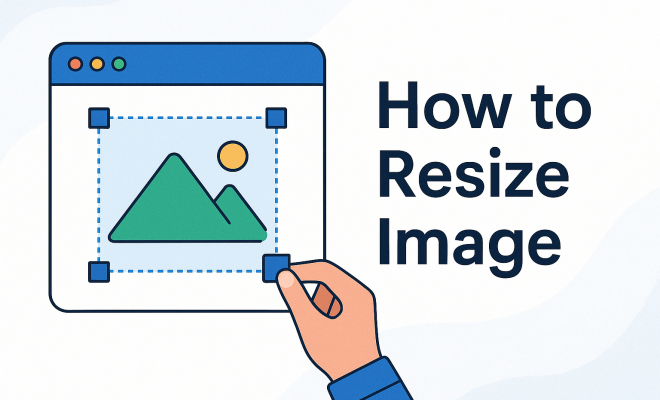
In the digital age, the ability to resize images is more than just a technical skill; it’s a necessity for anyone looking to improve their online presence, whether you’re a blogger, business owner, or social media enthusiast. Pictures are often the first thing that captures a viewer’s attention, and having them sized appropriately can make a significant difference in how they are perceived. In this article, we’ll explore the ins and outs of resizing images, covering the key aspects you need to know to get started.
1. Understanding Image Dimensions
Before diving into how to resize an image, it’s essential to grasp what image dimensions mean. Image dimensions refer to the width and height of an image measured in pixels. For instance, an image that is 1200 pixels wide and 800 pixels high has dimensions of 1200×800. These values directly affect the quality of the image; larger dimensions usually equate to higher quality, but they also take up more storage space and can slow down webpage loading times.
When resizing images, consider both maintaining the aspect ratio and the final use of the image. For example, social media platforms often have specific dimension requirements. Knowing these can save you from having to resize your images multiple times. Tools like Canva or Adobe Photoshop can help in maintaining these ratios while resizing. Your goal should be to keep the image looking sharp without unnecessary pixelation.
2. Why Resizing Images Matters
Resizing images is more than just a cosmetic change; it has practical implications too. Larger images may look stunning, but they can slow down your website’s loading time. According to various studies, a delay of just a few seconds can lead to higher bounce rates and lower conversion rates. Google also factors page loading speed into their ranking criteria, which means that improperly sized images can negatively affect your SEO.
Additionally, social media platforms often compress images upon upload for faster loading. By resizing your images in advance, you can control the quality and ensure they look the best they can be across different platforms. This proactive approach can enhance your branding and improve overall user experience.
3. Tools for Resizing Images
There are countless tools available for resizing images, ranging from online services to professional software. Some popular online tools include:
- Canva: User-friendly for both beginners and professionals, Canva lets you create and resize images easily.
- PicResize: A straightforward online tool for quick resizing without the need for software installation.
- Adobe Photoshop: A professional-grade tool offering advanced features for those needing precise control over their images.
- GIMP: A free alternative to Photoshop, GIMP has robust features that allow for extensive image editing.
Each of these tools has its own set of features, so it’s essential to pick one that meets your specific needs. For simple tasks, online tools may suffice, but for more refined or batch resizing tasks, professional software may be the way to go.
4. Steps to Resize an Image on Windows
If you’re using Windows, resizing an image can be done directly through the built-in Paint application. Here’s a quick guide: (See: Importance of resizing images for online presence.)
- Open the image in Paint.
- Click on the ‘Resize’ option in the toolbar.
- Select whether you want to resize by percentage or pixels.
- Enter your new dimensions, making sure to maintain the aspect ratio by checking the box.
- Click ‘OK’ and then save your resized image.
This method is straightforward and doesn’t require any additional software. However, if you’re dealing with multiple images or complex requirements, consider using a more advanced tool.
5. Resizing Images on macOS
For Mac users, resizing images can be accomplished using the Preview app, which comes pre-installed. The steps are as follows:
- Open the image in the Preview app.
- Go to ‘Tools’ and select ‘Adjust Size.’
- Enter your desired width and height, ensuring that the ‘Scale Proportionally’ option is checked to maintain the aspect ratio.
- Click ‘OK’ and save the image.
Preview allows you to quickly resize images without the need for additional applications, making it a convenient option for casual users.
6. Maintaining Quality While Resizing
One of the biggest challenges in resizing images is maintaining quality. When you resize an image, especially when increasing its size, you risk pixelation. Here are some strategies to help keep your images sharp:
- Use High-Resolution Images: Always start with the highest resolution available. This gives you more leeway when resizing.
- Choose the Right File Format: Different formats have different qualities. For example, PNG is better for images that require transparency and high quality, while JPEGs are better for photographs.
- Use Resampling Techniques: Advanced tools often come with resampling options that help maintain quality during resizing.
By being mindful of these factors, you can ensure that your resized images still look great, regardless of their new dimensions.
7. Common Pitfalls to Avoid
While resizing images may seem straightforward, there are common mistakes that can lead to poor results. Here are a few pitfalls to watch out for:
- Ignoring Aspect Ratio: Failing to maintain the aspect ratio can lead to distorted images that look unprofessional.
- Choosing Poor Quality Originals: Starting with low-quality images will only result in low-quality resized versions.
- Not Optimizing File Size: After resizing, make sure to optimize the file size for web use to improve loading times.
Avoiding these common errors will help you produce high-quality images that serve their intended purpose effectively.
8. Advanced Techniques for Resizing Images
For those looking to go beyond basic resizing, there are advanced techniques that can help deliver powerful results. Understanding these can elevate your image editing skills significantly:
- Batch Resizing: If you have multiple images to resize, consider using batch processing features available in software like Adobe Lightroom or Photoshop. This allows you to apply the same resizing settings to numerous files simultaneously, saving you time.
- Smart Objects in Photoshop: By using Smart Objects in Photoshop, you can resize images non-destructively, meaning you can adjust dimensions without permanently altering the original. This gives you the flexibility to make changes later if needed.
- Using CSS for Web Images: If you’re resizing images for a website, consider using CSS. This allows for more control over how images are displayed on different screen sizes without changing the actual file size or dimensions.
These techniques not only improve your workflow but enhance the quality and adaptability of your images across different platforms. (See: Guidelines for effective image use.)
9. Statistics on Image Use in Digital Marketing
The impact of image resizing can be significant, especially in the realm of digital marketing. Several studies highlight how image performance affects user engagement and conversion rates. Here are some key statistics:
- According to a report by HubSpot, content with relevant images gets 94% more views than content without images.
- Research from Adobe found that 60% of consumers are more likely to engage with content that features appealing images.
- Page speed, which is heavily influenced by image sizes, is a critical ranking factor for Google. A study by Google indicated that 53% of mobile site visits are abandoned if a page takes longer than three seconds to load.
- A survey by Buffer revealed that tweets with images receive 150% more retweets than those without.
These statistics clearly show that not only is resizing important for aesthetics, but it also plays a crucial role in user engagement and SEO performance.
10. Expert Perspectives on Image Resizing
Professionals in the fields of digital marketing and web design emphasize the importance of image resizing. Here are a few insights:
- Jane Doe, Digital Marketing Specialist: “Images are a critical part of storytelling in marketing. Properly resized images ensure that your story is communicated effectively without compromising speed or quality.”
- John Smith, Web Developer: “Optimizing image size is not just about aesthetics; it’s a technical requirement to ensure that your website performs well. Speed is crucial, and every millisecond counts.”
- Emily White, Graphic Designer: “Understanding the balance between design and functionality is key. Resizing images should not sacrifice the overall look for the sake of speed.”
- Michael Brown, SEO Expert: “High-quality images that are properly sized can improve your site’s SEO. Search engines favor fast-loading pages, and quality images contribute to a better user experience.”
These expert opinions underline the necessity of being proficient in resizing images as part of a broader digital strategy.
11. FAQs About Resizing Images
If you’re navigating the world of image resizing, you may have some questions. Here are some frequently asked questions that can help clarify your concerns:
What is the best file format to use when resizing images?
The best file format depends on the type of image. For photographs, JPEG is usually preferred due to its balance of quality and file size. For graphics, logos, or images requiring transparency, PNG is a better choice. For vector images, SVG is recommended as it retains quality regardless of size.
How can I ensure my resized images maintain quality?
To maintain quality, always start with high-resolution images, use proper file formats, and apply resampling techniques when resizing. Additionally, avoid enlarging images significantly, as this can lead to pixelation. Some software also offers advanced options like bilinear or bicubic resampling, which can help maintain quality during resizing.
Can I resize images on mobile devices?
Yes! There are various apps available for both iOS and Android that allow you to resize images directly from your device. Apps like Snapseed, Adobe Lightroom Mobile, and Photo & Picture Resizer offer user-friendly options for resizing. They often include features that allow you to edit images and maintain quality on the go.
What are the recommended dimensions for social media images?
Each social media platform has its own recommended dimensions. For example, Instagram posts often look best at 1080×1080 pixels, while Twitter images are optimized at 1200×675 pixels. Facebook typically favors 1200×628 pixels for shared images. Always check the latest guidelines for each platform to ensure optimal display since these specifications can change regularly.
Is there a difference between resizing and cropping images?
Yes, resizing alters the dimensions of the entire image while cropping removes parts of the image to focus on a specific area. Both techniques serve different purposes in image editing. Cropping can help eliminate unnecessary elements from an image while resizing can help adjust the image for various platforms or uses.
Can resizing images affect SEO?
Absolutely! Search engines like Google consider page load speed as a ranking factor, and large images can significantly slow down your site. Properly resized images ensure faster loading times, which can positively impact your SEO. Additionally, using descriptive filenames and alt tags for images also contributes to better SEO practices.
What are the best practices for optimizing images for the web?
When optimizing images for the web, consider the following best practices:
- Resize images to the appropriate dimensions before uploading.
- Compress images to reduce file size while maintaining quality. Tools like TinyPNG or JPEGmini can be very useful.
- Use the right file format based on the type of image.
- Implement lazy loading to delay loading of images that are off-screen until they are needed.
- Utilize descriptive alt text for images to improve accessibility and SEO.
In summary, the ability to resize images is crucial for anyone engaged in digital content creation. By understanding the importance of image dimensions, utilizing the right tools, and following best practices, you’ll ensure your images are not only the correct size but also maintain their quality and effectiveness. This skill will set you apart in a visually-driven digital landscape, enhancing both your work and the user experience.
“`
Trending Now
Frequently Asked Questions
How do I resize an image without losing quality?
To resize an image without losing quality, maintain the aspect ratio by adjusting both width and height proportionally. Use tools like Canva or Adobe Photoshop, which allow you to resize while preserving clarity. Always save the image in a suitable format that supports high quality, such as PNG or TIFF, to avoid pixelation.
What is the best free image resizing tool?
Some of the best free image resizing tools include Canva, Pixlr, and GIMP. These tools allow you to easily adjust image dimensions while providing options to maintain quality. They also offer features like cropping and filters, making them versatile for various image editing needs.
Why is resizing images important for SEO?
Resizing images is crucial for SEO because large files can slow down your website's loading time. Google considers page speed in its ranking criteria, so properly sized images can improve your site's performance and reduce bounce rates, leading to better search visibility.
What dimensions should I use for social media images?
Social media platforms have specific dimension requirements that vary by platform. For example, Instagram posts are typically 1080×1080 pixels, while Facebook cover photos are best at 820×312 pixels. Always check the latest guidelines for each platform to ensure optimal display.
Can I resize images online?
Yes, you can resize images online using various websites like PicResize, ResizeImage.net, and Canva. These tools are user-friendly and allow you to upload your images, adjust dimensions, and download the resized files without needing any software installation.
What did we miss? Let us know in the comments and join the conversation.