Restore Your Wi-Fi: A Complete Guide to Resetting Your Router
“`html
In our tech-driven world, a reliable internet connection is essential. Whether you’re streaming your favorite shows, attending virtual meetings, or simply browsing the web, you need your router to be functioning optimally. However, there are times when your connection can falter, leading to sluggish speeds or even complete outages. This is where knowing how to reset a router becomes invaluable. In this guide, we’ll explore the ins and outs of resetting your router, why it’s important, and step-by-step methods to do it effectively.
1. Understanding Your Router
Before diving into the various methods of resetting your router, it’s crucial to understand what a router is and its role in your home network. A router is a device that connects multiple devices to the internet through a single IP address. It also allows these devices to communicate with one another within a local network.
Most modern routers offer various features, such as built-in firewalls, DHCP (Dynamic Host Configuration Protocol), and Wi-Fi capabilities. An understanding of these features can help diagnose issues. For instance, if your devices can’t connect to Wi-Fi, it might be a router issue rather than a problem with your internet service provider (ISP).
2. Why You Might Need to Reset Your Router
There are several reasons you might find yourself needing to reset your router. A common trigger is persistent internet connectivity issues. These can manifest as slow speeds, intermittent drops, or the inability to connect altogether. Other scenarios include after changing your ISP, moving your router to a new location, or even after a firmware update that has gone awry.
Resetting your router can effectively clear out any cached data, resolve configuration issues, and restore factory settings. It’s often the first step in troubleshooting connectivity problems, making it a useful skill to have in your tech toolkit.
3. Types of Resets: Soft Reset vs. Hard Reset
When it comes to resetting your router, you typically have two options: a soft reset and a hard reset. A soft reset is often done by simply unplugging the router and plugging it back in after a minute. This can clear temporary glitches without affecting your settings.
On the other hand, a hard reset restores your router to its factory settings. This means all configurations, including your Wi-Fi name (SSID) and password, will be erased. A hard reset is necessary when the soft reset does not resolve connectivity issues, or if you’ve forgotten your router’s password and need to start fresh.
4. How to Soft Reset Your Router
Soft resetting your router is a straightforward process and should be your first action when facing connectivity issues. Here’s how to do it:
- Step 1: Locate your router’s power cable.
- Step 2: Unplug the power cable and wait for about 30 seconds.
- Step 3: Plug the power cable back in and wait for the router to fully restart. This usually takes about 1-2 minutes.
Once your router is back online, check your internet connection. If the problem persists, it may be time to consider a hard reset. (See: Understanding what a router is.)
5. How to Hard Reset Your Router
Performing a hard reset is slightly more involved. Here’s a detailed process to reset your router to factory settings:
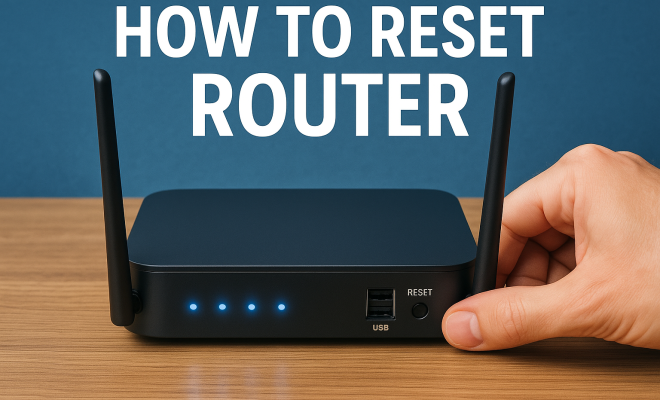
- Step 1: Locate the reset button on your router. This is usually a small, recessed button that may require a paperclip or similar object to press.
- Step 2: With the router powered on, press and hold the reset button for about 10-15 seconds. You should notice the lights on the router begin to flash, indicating that the reset process is underway.
- Step 3: After releasing the button, wait for the router to reboot. This will take a few minutes.
After the reset is complete, you’ll need to set up your router again. Be sure to have your ISP information handy for reconfiguration.
6. Reconfiguring Your Router
Once you’ve reset your router, it’s time to set it back up. Here are the steps to follow:
- Step 1: Connect your computer or device to the router using an Ethernet cable or via Wi-Fi (if available).
- Step 2: Open a web browser and enter the router’s IP address into the address bar. Common addresses are 192.168.0.1 or 192.168.1.1.
- Step 3: Log in using the default credentials, usually found on a sticker on the router or in the manual. The common default username is admin and the password is often admin or password.
- Step 4: Follow the prompts to set up your internet connection, configure Wi-Fi settings, and adjust other preferences.
Keep in mind that some ISPs provide specific setup instructions, so it’s worth checking their website or customer support pages for guidance.
7. Important Considerations When Resetting Your Router
Resetting your router can solve many issues, but there are important factors to consider. First, note that a hard reset will erase all your custom settings. You’ll need to set up your Wi-Fi network again, including the SSID and password.
Also, be prepared for potential downtime. After a reset, some devices may take longer to connect as they reacquire an IP address from the router. If you have smart home devices, you might also need to reconnect them to your network. Keeping a record of your settings before performing a hard reset can save time and hassle later.
8. When to Seek Professional Help
While many connectivity issues can be resolved by resetting your router, there are times when professional help is necessary. If you’ve reset your router multiple times and still experience problems, the issue might lie with your ISP or the router itself.
Moreover, hardware issues, such as a failing power supply or damaged internal components, can also affect performance. In such cases, contacting your ISP or a professional technician might provide a more long-term solution. Be aware that routers do have a lifespan, and if your device is several years old, it may be time for an upgrade.
9. Maintaining a Healthy Home Network
To prevent the need for frequent resets, it’s essential to maintain your home network effectively. Regularly update your router’s firmware to ensure you have the latest security features and bug fixes. Additionally, consider conducting periodic speed tests to monitor your internet performance.
Also, keep your router in a well-ventilated area away from other electronic devices to avoid interference. Lastly, regularly review connected devices and remove any that are no longer in use, as too many devices can overwhelm your router.
By understanding how to reset a router and the steps to maintain it, you can ensure a more stable and reliable internet connection for all your digital needs. (See: Importance of reliable internet connections.)
10. Common Router Issues and Their Solutions
It’s helpful to recognize common issues that might prompt a reset. Here are some frequent problems and actionable solutions:
- Intermittent Connection: If your internet connection drops frequently, try changing the channel on your Wi-Fi router settings. Congestion can occur if too many nearby networks are using the same channel.
- Slow Speeds: Frequently experiencing low speeds could indicate that your router is outdated. Consider upgrading to a dual-band or tri-band router that can handle more devices and provide better performance.
- Unrecognized Devices: Sometimes, devices may fail to connect due to MAC address filtering settings. Review your router’s settings to allow new devices.
- Security Issues: If your network has been compromised, resetting your router can help. After resetting, make sure to change the default admin login and set a strong Wi-Fi password.
Identifying these issues can save you time and frustration and help you determine when a reset is necessary.
11. Router Performance and Upgrades
As technology advances, the demands on your home network grow. If you find that you’re constantly resetting your router, it might be time to consider an upgrade. Here’s what to look for:
- Wi-Fi Standards: Make sure your router supports the latest Wi-Fi standards, such as Wi-Fi 6, which offers better speed and capacity for multiple devices.
- Range: Evaluate the range of your router. If you have a large home, a mesh network system could be a better solution as it allows for seamless coverage throughout your space.
- Quality of Service (QoS): Look for routers that have QoS features, which can prioritize bandwidth for specific applications or devices, ensuring smoother performance for gaming or streaming.
Assessing your current and future needs can help you select a router that minimizes the need for resets and enhances overall performance.
12. FAQs About Resetting Routers
Here are some frequently asked questions about resetting routers, to clarify common concerns:
Q1: Will I lose my internet connection if I reset my router?
A: Yes, resetting your router will temporarily disrupt your internet connection. However, this is often a necessary step to resolve connectivity issues.
Q2: How often should I reset my router?
A: There’s no set frequency; you should only reset your router if you’re experiencing problems. Regular maintenance, like firmware updates, can often prevent issues.
Q3: Can I reset my router remotely?
A: Some routers allow remote management through their web interface or a dedicated app, enabling you to reset them remotely. Check your router’s documentation for specific details.
Q4: What if I can’t access my router after a reset?
A: If you can’t access the router after a reset, it’s possible that you need to use the default login credentials, which can usually be found on the device or in its manual. (See: Technical aspects of routers.)
Q5: How do I know if my router needs resetting?
A: Signs that your router may need resetting include frequent disconnections, slow speeds, and devices not being able to connect to the network. If troubleshooting doesn’t help, a reset might be necessary.
Q6: Will resetting my router improve speed?
A: Resetting your router can resolve temporary glitches and improve connectivity, which may indirectly enhance speed. If your speed issues persist, consider other solutions such as upgrading your router or contacting your ISP.
13. Additional Troubleshooting Tips
Sometimes, resetting your router isn’t the only solution to connectivity issues. Here are additional troubleshooting steps you can take:
- Check Cables: Ensure that all cables connected to your router, including power, Ethernet, and coaxial cables, are secure and undamaged. Loose or damaged cables can cause connectivity issues.
- Test Different Devices: If one device can’t connect, try another. This helps determine if the issue is with the device or the network itself.
- Update Device Drivers: Ensure that the network drivers on your computers and devices are up to date, as outdated drivers can cause connection problems.
- ISP Issues: Sometimes, the problem is with your ISP. Check their website for service interruptions in your area or contact their support directly for assistance.
- Interference Check: Wireless signals can be affected by physical barriers and electronic interference. Consider moving your router to a more central location in your home or away from potential interference sources like microwaves or cordless phones.
14. Router Security: Keeping Your Network Safe
After resetting your router and reconfiguring it, security should be a top priority. Here are steps to secure your network:
- Change Default Credentials: Always change the default username and password for your router’s admin settings to something unique and strong to prevent unauthorized access.
- Enable WPA3 Encryption: If your router supports it, enable WPA3 encryption for your Wi-Fi network. This is currently the most secure protocol for wireless networks.
- Disable WPS: Wi-Fi Protected Setup (WPS) can be a security risk as it can be exploited to gain access to your network. Disable it if it’s not necessary for your setup.
- Regular Firmware Updates: Keep your router firmware up to date to protect against vulnerabilities and ensure that your router is functioning optimally.
- Guest Network: If you have visitors frequently connecting to your network, consider setting up a guest network. This keeps your main network more secure by isolating it from less secure devices.
15. Understanding Router Logs and Performance Monitoring
Many modern routers allow you to access logs that show network activity and performance. Familiarizing yourself with these logs can help you identify issues and monitor your network’s health. Here’s what to look for:
- Connection History: Check for devices that have connected to your network. If there are unknown devices, it may indicate unauthorized access.
- Performance Metrics: Look for metrics such as bandwidth usage and connection speeds. High usage can indicate a need for an upgrade or a reconfiguration of the QoS settings.
- Error Messages: Pay attention to any error messages in the logs that might indicate issues with your ISP or the router itself.
Knowing how to reset a router is a valuable skill that can help you maintain your internet connection. With this guide, you’re equipped to handle common issues and ensure your home network remains efficient and reliable.
“`
Trending Now
Frequently Asked Questions
How do I reset my router?
To reset your router, locate the reset button on the device, usually a small, recessed button. Use a paperclip to press and hold it for about 10 seconds until the lights blink. This performs a hard reset, restoring factory settings. Ensure to reconfigure your network settings afterward.
What is the difference between a soft reset and a hard reset?
A soft reset involves simply rebooting the router, which can resolve minor connectivity issues without losing your settings. A hard reset, however, restores the router to factory settings, erasing all custom configurations. Use a hard reset when troubleshooting persistent problems.
Why do I need to reset my router?
Resetting your router can resolve various issues such as slow internet speeds, frequent disconnections, or problems after changing your ISP. It clears cached data and restores default settings, making it a crucial step in troubleshooting connectivity problems.
What happens when you reset your router?
When you reset your router, it restores factory settings, erasing all custom configurations, passwords, and network names. This can help resolve connectivity issues and clear out any cached data that may be causing problems with your internet connection.
Can resetting a router improve internet speed?
Yes, resetting a router can improve internet speed by clearing cached data and resolving configuration issues. If you're experiencing slow speeds or connectivity problems, a reset is often the first step to troubleshoot and potentially enhance your internet performance.
What’s your take on this? Share your thoughts in the comments below — we read every one.