How to reset iPhone to factory settings
“`html
Whether you’re prepping your iPhone for a sale, troubleshooting issues, or simply wanting a fresh start, knowing how to reset iPhone to factory settings is essential. In this comprehensive guide, we’ll cover not just the steps to perform a factory reset, but also the reasons behind it, the preparation needed, and tips to ensure a smooth process.
1. Understanding Factory Reset
A factory reset is the process of returning your iPhone to its original system state by erasing all the data and settings. This process effectively wipes everything on the device, restoring it to the state it was in when you first purchased it. It’s crucial to understand that this means all your personal information, apps, and configurations will be lost, so use this option wisely.
The term “factory reset” often confuses users. Many might think it’s a difficult or technical process, but it’s quite straightforward. By resetting your iPhone to factory settings, you can resolve multiple issues like sluggish performance, app crashes, or persistent bugs. Knowing how to do this can save you time and hassle in troubleshooting.
2. Why You Might Need to Reset Your iPhone
There are several scenarios where resetting your iPhone to factory settings can be beneficial. Here are a few:
- Performance Issues: If your iPhone feels sluggish, a reset can help. Over time, accumulated data can slow down devices.
- Selling or Gifting: Before handing over your device to someone else, a factory reset ensures your personal information is wiped clean.
- Software Problems: Encountering frequent app crashes or bugs? A factory reset can often resolve these stubborn issues.
- Restoring to Original Settings: If you’ve made numerous changes to your settings and want to start fresh, a reset provides a clean slate.
Understanding these reasons can help you decide whether a factory reset is the right move for your situation.
3. Preparing for the Reset
Before you reset iPhone to factory settings, it’s vital to prepare adequately. This preparation ensures that you don’t lose any important data and can access your accounts smoothly afterward.
First, back up your data. You can use iCloud or iTunes to save your contacts, messages, photos, and apps. To back up your iPhone via iCloud, go to Settings > [your name] > iCloud > iCloud Backup and tap “Back Up Now.” For iTunes, connect your iPhone to your computer, open iTunes, and select “Back Up Now” under the device summary.
Additionally, it’s worth considering signing out of services like iCloud and iMessage. This ensures that your Apple ID is not linked to the device post-reset. Go to Settings > [your name] and scroll down to sign out.
Lastly, consider if you need to take screenshots of your settings or app layouts. Sometimes, restoring everything back can be tricky, and having a visual reference can speed up the reconfiguration process later.
4. How to Reset Your iPhone Using Settings
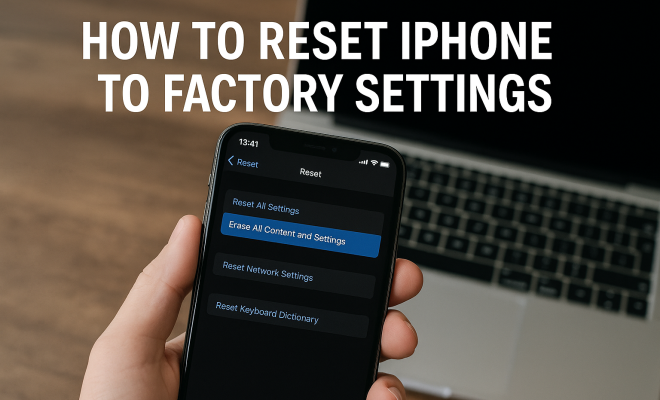
Resetting your iPhone through the Settings app is the most straightforward method. Here’s how to do it:
- Open the Settings app.
- Select General.
- Scroll down and tap on Transfer or Reset iPhone.
- Choose Erase All Content and Settings.
- Confirm your choice by tapping Erase iPhone and enter your passcode.
- Your iPhone will restart and begin the erasing process.
This method will effectively wipe all data from your device and return it to its factory settings without requiring a computer. However, ensure you’ve backed up important data first!
5. Using iTunes to Reset Your iPhone
If you prefer using iTunes or face issues with the Settings app, resetting through iTunes is a viable alternative. Here’s how:
- Connect your iPhone to your computer using a USB cable.
- Open iTunes (or Finder on macOS Catalina and later).
- Select your device when it appears in the window.
- Click on Restore iPhone.
- Follow the on-screen prompts to complete the restoration process.
This method is especially useful if your device is not responding or you’re unable to access the Settings menu. Remember, this will erase all data, so ensure you have a backup before proceeding. (See: New York Times guide on resetting iPhone.)
6. Resetting Without a Passcode
What if you’ve forgotten your passcode? Don’t worry; you can still reset iPhone to factory settings, but the process is a bit different. You’ll need to use Recovery Mode.
- Connect your iPhone to your computer and open iTunes.
- Put your iPhone into Recovery Mode by holding the right button combination (the side button and one of the volume buttons for iPhone X and newer; the home button and side button for older models).
- Once in Recovery Mode, iTunes will detect your device and present the option to restore.
- Choose Restore, and your iPhone will be reset.
Recovery Mode is a powerful tool when you need to reset a locked device. However, be mindful that all data will be lost unless you have a backup.
7. Post-Reset Steps
Once you’ve reset your iPhone, you’ll need to go through the setup process. This includes selecting your language, connecting to Wi-Fi, and signing in with your Apple ID. If you backed up your data before the reset, now is the time to restore it.
You can choose to restore from iCloud or iTunes during the setup process. Follow the prompts, and your apps, settings, and data will begin to populate back onto your iPhone. This is also a great opportunity to consider which apps you really need and which ones you can leave off for a fresh start.
Remember that some settings, like Face ID or Touch ID, will need to be set up again, so take your time to configure your device to your liking. Additionally, you might want to take this chance to review your privacy settings and app permissions as you get your device back to normal.
8. Common Issues and Troubleshooting
While resetting your iPhone to factory settings is usually straightforward, issues can arise. Here are some common problems and how to address them:
- The reset process is stuck: If your iPhone seems frozen during the reset, try performing a hard reset by holding the side and volume buttons until the Apple logo appears.
- iPhone won’t turn on after reset: Ensure your device is charged. If it still doesn’t turn on, connect it to a power source and let it charge for a while.
- Activation Lock is enabled: If you want to set up the device but get stuck on the Activation Lock screen, you’ll need your Apple ID and password to proceed.
By understanding these common pitfalls, you can handle any hiccups that might arise during the reset process.
9. When to Seek Professional Help
While most users can reset their iPhones without issues, there are situations where professional help is advisable. If you’re facing persistent software problems that a factory reset doesn’t resolve, it may be a sign of deeper hardware issues. In such cases, it’s best to visit an Apple Store or contact Apple Support.
Additionally, if you’re concerned about data recovery after a reset, professional services can sometimes help retrieve important files, although this is not guaranteed. Always weigh the cost of these services against the importance of the data you’ve lost.
10. Final Thoughts
Resetting your iPhone to factory settings doesn’t have to be a daunting task. With the right preparation and steps, you can effectively give your device a fresh start or prepare it for a new owner. Just remember to back up your data, follow the reset procedures carefully, and you’ll emerge with an iPhone that feels like new.
With this guide, you’re well-equipped to tackle the process whenever it’s necessary. Embrace the chance for a clean slate, and enjoy your rejuvenated iPhone experience!
11. Understanding the Implications of a Factory Reset
Before you jump into resetting your iPhone, it’s good to understand the implications. A factory reset is irreversible, meaning once you hit that button, there’s no turning back. All your data, including photos, music, messages, and even apps will vanish into thin air. For many, this can be daunting, especially if you haven’t backed up everything properly.
Think of the reset as a final clean-up. It’s an opportunity to tidy up your digital life but comes with the responsibility of ensuring everything important is saved elsewhere. Many users find themselves regretting not taking the time to backup their contacts or important documents, so it’s a key step that shouldn’t be overlooked.
12. Statistics on iPhone Resets
Believe it or not, factory resets are more common than most people think. According to surveys, about 50% of iPhone users have performed a factory reset at least once in their device’s life cycle. Among those users:
- Approximately 30% cited performance issues as their primary reason.
- 20% did it to sell or gift their device.
- Others mentioned troubleshooting or starting fresh with a new operating system.
This highlights that resetting is a popular and often necessary action in the lifespan of an iPhone. It also emphasizes the importance of knowing how to do it correctly and efficiently.
13. Expert Perspectives on Factory Resets
Experts in technology often emphasize the importance of understanding the need behind a factory reset. According to tech analysts, one of the most critical aspects is recognizing that a reset can be a great way to breathe new life into a device that may feel outdated or sluggish. They encourage users to consider this option before jumping to the purchase of a new phone. In many cases, a reset can resolve issues stemming from years of accumulated data, unwanted apps, and software glitches.
Furthermore, cybersecurity experts recommend performing a factory reset before selling your device, as this is one of the most effective ways to protect your personal data. They stress the importance of ensuring that you sign out of all accounts and erase all information to prevent unauthorized access.
14. Comparing Factory Reset Methods
There are different methods to reset your iPhone, and it’s worth comparing them to see which might suit your needs best. Here’s a simple breakdown:
| Method | Ease of Use | Required Tools | Best For |
|---|---|---|---|
| Settings App | Very Easy | None | General resets when phone is functional |
| iTunes/Finder | Moderate | Computer | When device is unresponsive or needs a deeper reset |
| Recovery Mode | Somewhat Complex | Computer | When locked out or unable to access settings |
This comparison highlights that while the settings app offers simplicity, more severe issues may necessitate the use of iTunes or recovery mode. Each method has its pros and cons, so choose based on your situation.
15. Frequently Asked Questions (FAQ)
1. Will a factory reset erase my Apple ID?
No, your Apple ID remains intact, but you will need to sign back in after the reset.
2. Can I recover data after a factory reset?
It’s difficult to recover data once it’s been erased, which is why backing up is crucial. If you didn’t back up, your chances of recovery are minimal.
3. Does a factory reset remove all apps?
Yes, all apps, along with their data, will be removed during the factory reset process.
4. How long does a factory reset take?
The process usually takes a few minutes, but it can vary based on the device model and how much data is stored on it.
5. Can I reset my iPhone remotely?
Yes, if you have ‘Find My iPhone’ enabled, you can log into iCloud from another device and remotely erase your iPhone.
6. What happens to my iCloud storage after a factory reset?
Your iCloud storage remains unchanged, and any backed-up data will still be accessible as long as you use the same Apple ID.
7. Is it safe to sell a factory-reset iPhone?
Yes, once you perform a factory reset and sign out of your accounts, your personal data should be secure. Just ensure the device is fully reset before selling.
8. Can I reset an iPhone that’s not working?
Yes, if it’s not responding, you can use iTunes or Recovery Mode to reset it, as these methods don’t require you to access the settings.
9. Do I need to back up my iPhone before a reset?
Yes, backing up is essential unless you’re sure you don’t want to keep any data.
10. Will a factory reset fix all problems on my iPhone?
It can resolve many software-related issues, but if the problems are hardware-related, a reset may not help.
16. Additional Tips for a Smooth Reset
To ensure your factory reset goes as smoothly as possible, consider these additional tips:
- Check for Software Updates: Before resetting, it’s wise to update your iPhone to the latest iOS version. Sometimes, bugs that cause issues can be resolved with the latest software.
- Charge Your Device: Make sure your iPhone is charged or connected to power during the reset. A sudden shutdown during the process can lead to complications.
- Disconnect Accessories: Remove any peripherals or accessories connected to your iPhone. This helps prevent any interference during the reset process.
- Consider a Temporary Device: If you rely on your iPhone for daily tasks, consider having a backup device or a temporary phone handy while you reset and reconfigure your main device.
17. What Happens to Your Data?
When you reset your iPhone to factory settings, all your data is erased. This includes:
- Your contacts
- Text messages and iMessages
- Photos and videos saved on the device
- Apps and their data
- Settings and preferences
This means that unless you’ve backed up your data prior to the reset, you will lose all of it. It’s a common oversight, so always double-check that your backup is complete and recent!
18. Long-Term Effects of Frequent Factory Resets
Factory resetting your iPhone often might seem like a good solution to recurring issues, but it’s not always the best long-term strategy. Constantly resetting can lead to:
- Data Loss: Each reset risks losing important data if backups aren’t managed properly.
- Time Consumption: Repeated resets can become time-consuming, especially when it comes to setting up the device again.
- Potential for Hardware Wear: While unlikely, frequent resets and restoring could theoretically contribute to wear on hardware components, especially in older devices.
Instead of relying on resets, it’s often better to diagnose and troubleshoot specific issues. This can prevent the need for frequent resets and keep your device running smoothly.
This comprehensive guide should give you all the tools and knowledge you need to confidently reset your iPhone to factory settings. Whether you’re dealing with software issues or just need a fresh start, knowing the how-to and what’s necessary can make all the difference. Enjoy your refreshed iPhone experience!
“`
Trending Now
Frequently Asked Questions
How do I reset my iPhone to factory settings?
To reset your iPhone to factory settings, go to Settings > General > Transfer or Reset iPhone > Erase All Content and Settings. Confirm your choice, and your iPhone will be reset to its original state, wiping all personal data and settings.
What happens when you reset your iPhone to factory settings?
Resetting your iPhone to factory settings erases all data, including apps, photos, and personal information, returning the device to its original system state. This process is useful for troubleshooting issues or preparing the phone for sale.
Why would I need to perform a factory reset on my iPhone?
You might need to perform a factory reset on your iPhone to resolve performance issues, fix software problems, or when selling or gifting the device. It helps clear accumulated data and restore the phone to a clean state.
Will a factory reset fix my iPhone's performance issues?
Yes, a factory reset can help fix performance issues. Over time, accumulated data can slow down your device, and resetting it can clear out unnecessary files, potentially improving its speed and responsiveness.
How can I prepare my iPhone for a factory reset?
Before performing a factory reset, back up your data to iCloud or your computer to avoid losing important information. Ensure your device is charged and note any settings you might want to restore later.
What’s your take on this? Share your thoughts in the comments below — we read every one.